How to create a never engaged segment
You will learn
Learn how to identify your least engaged email subscribers, so you can avoid contacting them to improve and maintain your deliverability. Once you’ve identified them, consider excluding them from your marketing initiatives, sending them one final re-engagement attempt, or suppressing them during list cleaning. In this article, you will learn how to create this segment.
Regularly sending to profiles who don't engage with your emails can cause providers (e.g., Gmail, Yahoo, Outlook) to start placing your emails in spam.
Profiles that never engage can erode your sender reputation over time. Stopping sends to them can help improve deliverability and email performance. Monitor issues such as:
- Emails landing in the spam folder
- Low open rate
- Low click rate
- Low conversions
- High spam rate
- High bounce rate
- High unsubscribe rate
Create a never engaged segment
Create a never engaged segment from the deliverability hub
You can start with a prefilled never engaged segment from the deliverability hub in Klaviyo when the recommendation is available. If you don't see it, follow the manual steps below.
The prefilled definition includes available email engagement metrics and requires Viewed Product 0 times over all time. It adds Placed Order 0 times over all time when Shopify is connected. If you use another ecommerce integration, add its purchase metric with 0 events over all time before saving.
- Navigate to Analytics > Deliverability. If the menu shows Channel health, select it instead. Select Email, then Score.
- In the Action Center, find Create a "Never engaged" segment, then select Create segment.
- Review the name and conditions in the segment builder. The suggested name is Never Engaged (Email). Make any needed changes, then select Create segment.
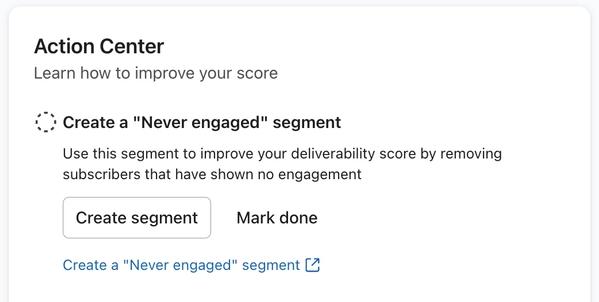
After creating the segment on the deliverability hub, you'll see it on the Lists & segments page in Klaviyo.
Create a never engaged segment manually
Follow the steps below to create a Never Engaged segment in Klaviyo manually.
If you have email engagement history from a previous provider in Klaviyo, add conditions requiring 0 opens and 0 clicks over all time for those metrics too. This keeps previously engaged profiles out of the segment.
- Navigate to Audience > Lists & segments in your account.
- Select Create > Segment.
- Name the segment Never Engaged. If a naming panel opens, select Create segment to continue to the builder.
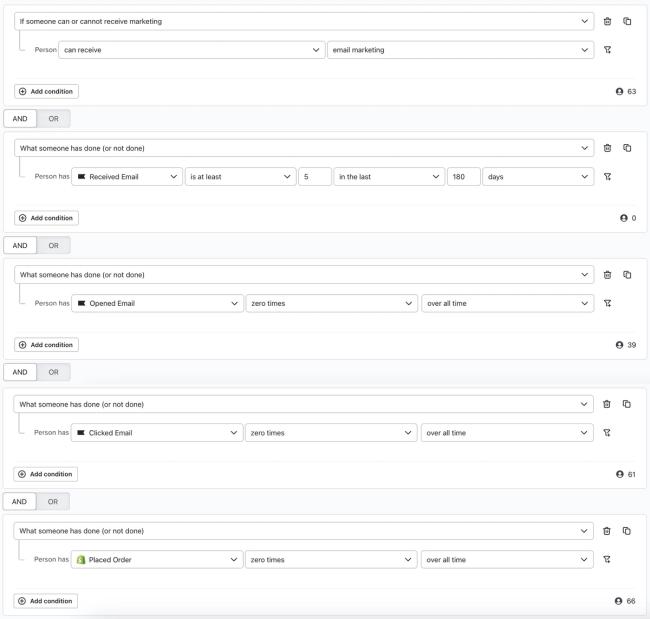
- Add the following conditions, joining them with AND, then select Create segment.
- If someone can or cannot receive marketing > Person can receive email marketing
AND - What someone has done (or not done) > Person has Received Email is at least 5 in the last 180 days
AND - What someone has done (or not done) > Person has Opened Email 0 times over all time
AND - What someone has done (or not done) > Person has Clicked Email 0 times over all time
AND - What someone has done (or not done) > Person has Placed Order 0 times over all time
With the release of iOS 15, macOS Monterey, iPadOS 15, and watchOS 8, Apple Mail Privacy Protection (MPP) changed the way that we receive open rate data on your emails by prefetching our tracking pixel. With this change, it’s important to understand that open rates will be inflated.
The Opened Email condition above counts Apple Mail Privacy Protection opens, so automatic opens can keep otherwise unengaged profiles out of this segment. Learn how to identify these opens in your subscriber segments.
Bulk suppress the segment to optimize deliverability
Bulk suppression stops email marketing to the selected current members while keeping their profiles and data in your account. It does not affect SMS or push notifications, and it does not automatically suppress profiles who join the segment later.
If you later unsuppress a profile, you must wait 90 days from the original suppression before manually suppressing it again. This restriction does not apply during the first 30 days after your account is created.
- Navigate to Audience > Lists & segments in your account.
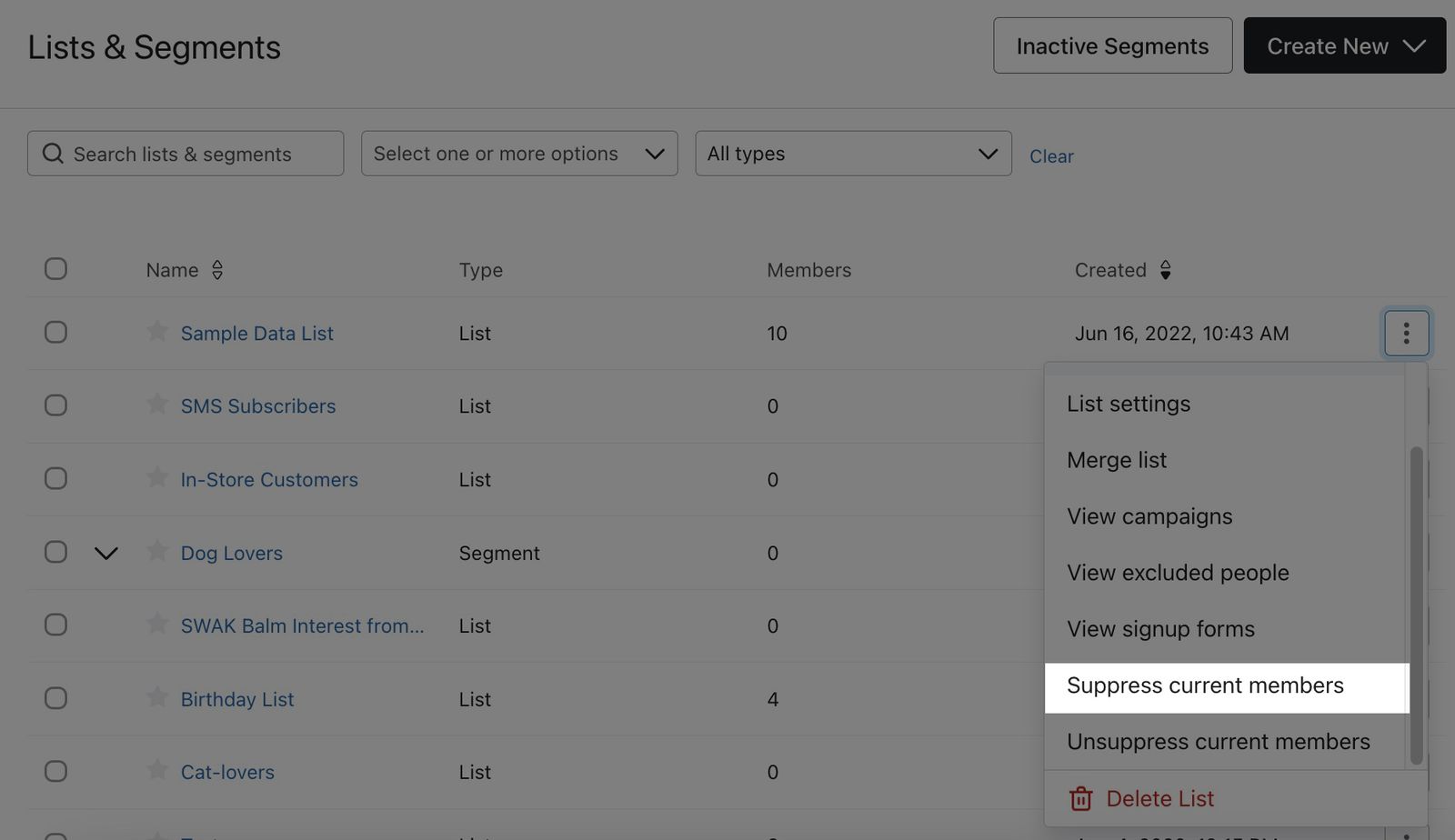
- Click the 3 dots next to the segment you wish to suppress.
- Click Suppress current members.
- Review the profiles in the confirmation dialog. If suppression options are shown, choose Suppress inactive profiles or Suppress everyone. Select Bulk suppress or Suppress profiles to confirm.
For more details, see how to manage email suppressions in bulk.
Additional resources
- How to manage email suppressions and delete profiles in bulk
Learn how to suppress a group of profiles in Klaviyo in bulk, remove suppressions in bulk, or delete profiles in bulk, and how the suppression modal helps you avoid suppressing recently active, high‐intent profiles.You will also learn how suppression recommendations on the Suppressed profiles page help you safely suppress low‐value, long‐term inactive profiles based on standard sunset flow criteria.
- How to create a never engaged segment
Learn how to identify your least engaged email subscribers, so you can avoid contacting them to improve and maintain your deliverability. Once you’ve identified them, consider excluding them from your marketing initiatives, sending them one final re-engagement attempt, or suppressing them during list cleaning. In this article, you will learn how to create this segment.
- How to create an engaged segment of email subscribers
Learn how to create an engaged email segment, which can help you improve your open, click, and conversion rates.
- How to create a segment of VIP customers
Learn how to identify VIPs from your customer base using Klaviyo segments, which can be useful if you run a rewards program or want to know who your most valuable customers are. Identifying and segmenting your VIP customers can help you build loyalty and a more personal relationship with some your best customers, so you can increase their average order value and lifetime value as a customer.