How to manage email suppressions and delete profiles in bulk
You will learn
Learn how to suppress a group of profiles in Klaviyo in bulk, remove suppressions in bulk, or delete profiles in bulk, and how the suppression modal helps you avoid suppressing recently active, high‐intent profiles.
You will also learn how suppression recommendations on the Suppressed profiles page help you identify long-term inactive profiles to suppress using the criteria below.
Deleting vs. suppressing profiles
Klaviyo gives you the option to either delete profiles from your account entirely, or suppress them, in which case they remain in your account but cannot receive marketing emails. Depending on your use case, you may want to either delete or suppress profiles.
Deleting or suppressing profiles will not automatically change the Email subscription plan on your account. To change the subscription plan, your account must be manually downgraded. The only exception to this is an auto-downgrade enabled account.
Deleting
When you bulk delete profiles in Klaviyo, they are removed from your account. You will no longer be able to open these profiles or view their activity on the profile page. This action cannot be undone.
Because the original profile has been removed, a person can enter your Klaviyo account as a new profile if they engage with your website again (e.g., submitting a sign-up form).
You should bulk delete profiles when you are certain you no longer need them. For a customer’s data-deletion request, use individual profile deletion and select Delete profile in compliance with data privacy request. Learn how to handle GDPR and CCPA requests.
Suppressing
When you suppress profiles in Klaviyo, they remain in your account but are no longer considered active for email. In the suppressed state, profiles cannot receive marketing emails and do not count toward your email plan’s active profile limit, even if they have provided consent and indicated they want to receive emails.
Advanced KDP billing is based on total profiles, including suppressed profiles.
You should suppress profiles in your account when you no longer want them to receive any marketing emails, but would still like to use their profile data for analysis and to maintain a complete picture of your customer base.
Bulk suppress profiles
In Klaviyo, you can bulk suppress the profiles in a list or segment. To bulk suppress a group of profiles:
Once a profile is manually suppressed, if that same profile becomes unsuppressed, it cannot be manually suppressed again until 90 days after the previous suppression. This rule is inactive for the first 30 days after a new account is created.
- Navigate to the Lists & segments page under the Audience tab in Klaviyo.
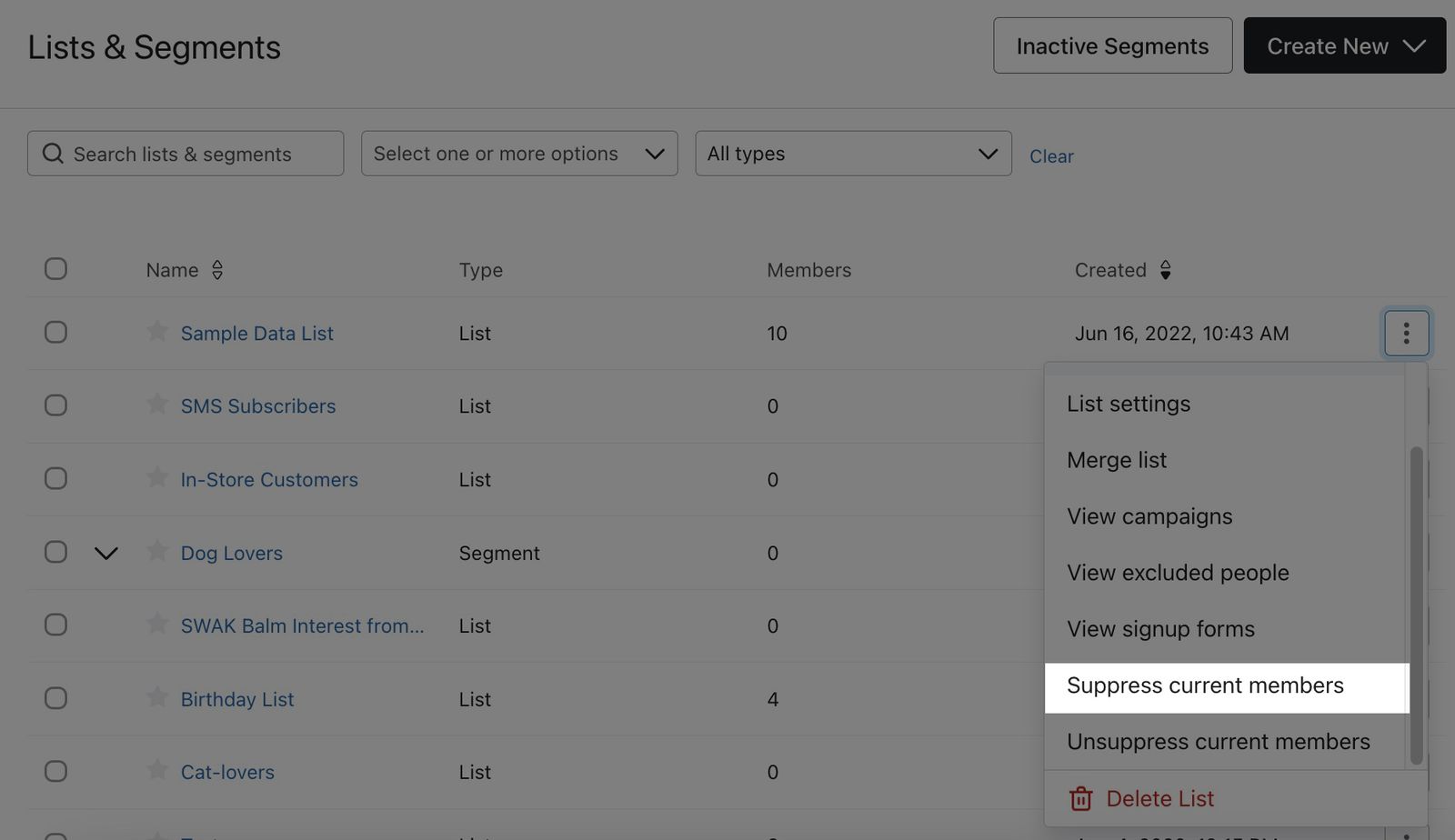
- Next to the list or segment you’d like to suppress, open the action menu.
- Select Suppress current members to open the confirmation dialog.
- Review the profile counts. If no choices appear, confirmation targets all eligible current members. Otherwise, choose one:
- Suppress inactive profiles keeps the profiles that meet the recent-activity criteria below active.
- Suppress everyone suppresses all eligible current members of the list or segment. The 90-day rule still applies.
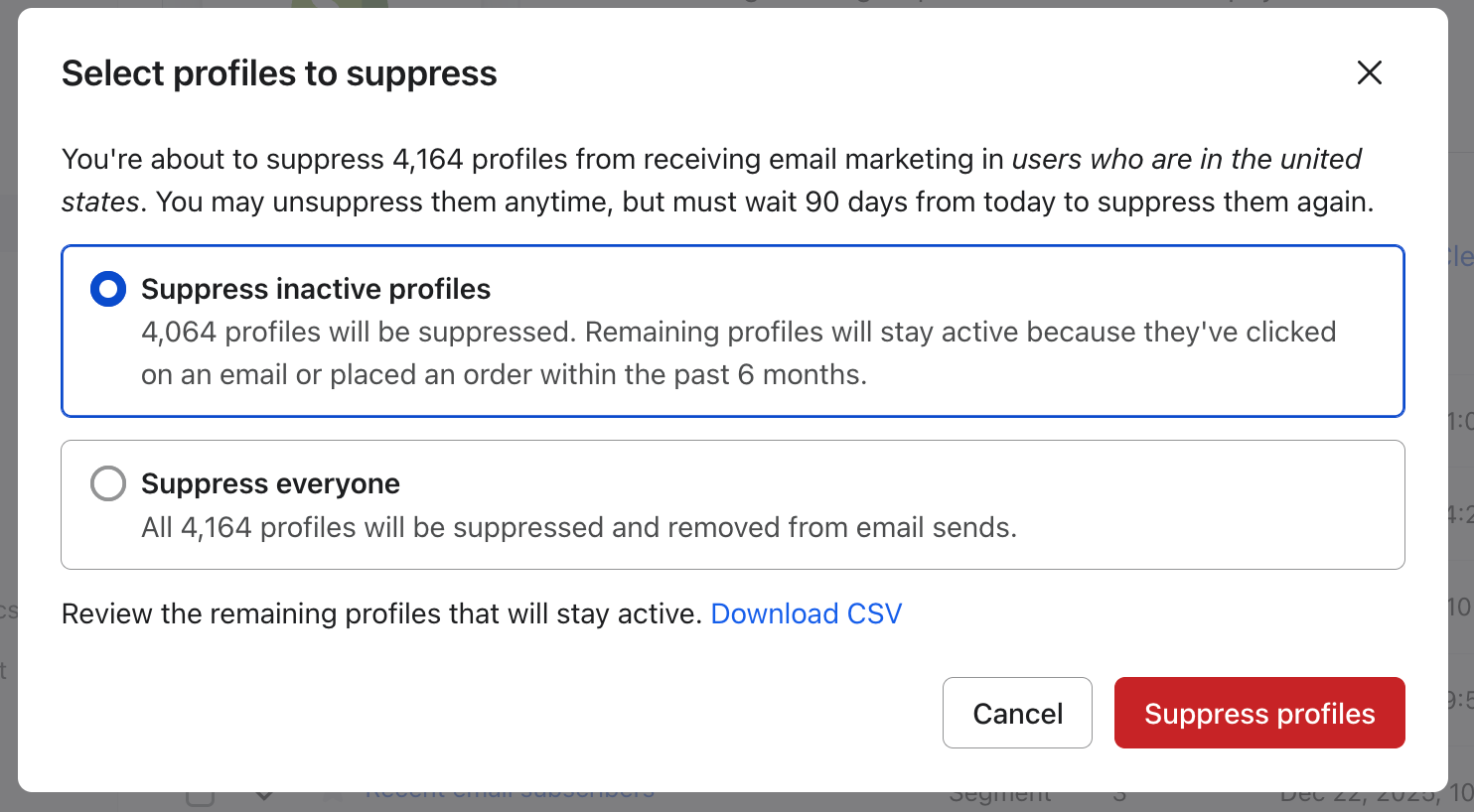
When Suppress inactive profiles is available, you can click Download CSV before confirming to review the profiles that will stay active if you choose Suppress inactive profiles. The file includes profile ID, first name, last name, email, and last active date, for audit or re-import purposes.
- Click Suppress profiles to confirm. If your dialog shows Bulk suppress, click that button instead. Processing may take some time.
This action applies to the current members selected by your suppression option and does not automatically suppress profiles that join later. If a profile in the group is already suppressed, their status is not impacted.
Suppressing the profiles in a list only impacts their ability to receive emails. Profiles' ability to receive SMS messages and push notifications is not impacted.
When inactive-only suppression is unavailable
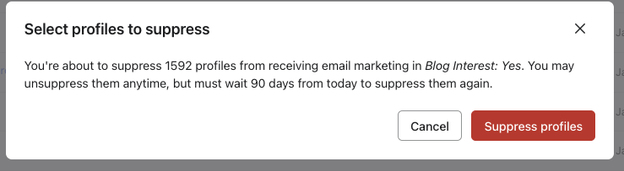
If Suppress inactive profiles is unavailable, confirming suppression targets all eligible current members, with no separate group kept active. The option is unavailable when:
- Your email deliverability score for the last 30 days is 60 or lower, or no score is available.
- No profiles meet the recent-activity criteria below, or more than 120,000 profiles qualify as inactive.
Review the profiles that you can keep active
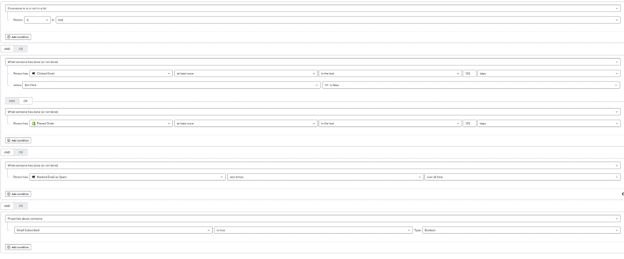
The bulk suppression dialog uses the same logic that is found in the segment builder. When Suppress inactive profiles is available, Klaviyo recommends keeping profiles active if they meet all of these conditions:
- Are in the list or segment you’re suppressing.
- Can receive email marketing and are subscribed to it.
- Have not marked any emails from you as spam.
- Have clicked an email or placed an order within the last 182 days (about 6 months). Bot clicks are excluded when bot-click data is available.
To recreate the profiles recommended for keeping active, combine the conditions above in a segment. Use 182 days for the click and purchase conditions, and include each relevant Placed Order metric if you have more than one.
Suppress using a CSV upload
If you want to keep a group of contacts in your account and suppress them so that they stop receiving emails from you, you can also upload them to your account's suppression list.
- Create a list or segment of those you want to suppress.
- Export this list or segment to a CSV file.
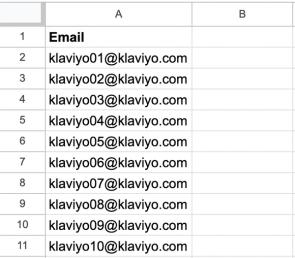
- Remove all columns in the spreadsheet except for the column with the header Email.
- Navigate to Audience > Profiles.
- Click the View suppressed profiles button in the upper right of that page.
- Open the More actions menu and select Import suppressions. If the page has an Import button instead, click it.
- Choose your CSV file, then click Upload. Wait for the confirmation that your suppressions list has been updated.
Suppression recommendations
In addition to bulk suppression from Lists & segments, Klaviyo also highlights long‐term inactive profiles to be considered for suppression from the Suppressed profiles page.
These recommendations are similar to the sunset‐style definition of inactivity, but use the specific criteria below. They are designed to help you reduce active profile counts without suppressing recent buyers or clickers.
How suppression recommendations work
When suppression recommendations are available, a banner at the top of the Suppressed profiles page summarizes how many profiles are recommended for suppression.

Recommended profiles must meet the following criteria:
- Can receive email marketing and have not had a suppression added in the last 90 days.
- Were created at least 365 days ago
- Have received 5 or more emails over roughly the last 72 weeks
- Have never opened or clicked an email from you
- Have no recorded website visits, product views, started checkouts, or purchases.
Profiles with recorded clicks or purchases are excluded from these recommendations, even if that activity was more than 6 months ago.
Review and suppress recommended profiles
To act on suppression recommendations:
- Navigate to Audience > Profiles, then click View suppressed profiles.
- If a suppression recommendation is available, review the banner text summarizing how many profiles are recommended for suppression.
- Click Review and suppress to review the recommended profiles.
The preview shows up to 1,400 profiles. Clicking Suppress applies to all profiles that meet the recommendation criteria at that time, including qualifying profiles beyond the preview.
- Click Suppress to confirm.
Klaviyo begins suppressing the profiles that meet the recommendation criteria. Processing may take a few moments. Profiles that do not meet the criteria are not affected.
Bulk unsuppress profiles
You can also bulk unsuppress the profiles in a list or segment. To bulk unsuppress a group of profiles:
- Navigate to the Lists & segments page under the Audience tab.
- Next to the list or segment you’d like to unsuppress, open the action menu.
- Select Unsuppress current members to open the confirmation dialog.
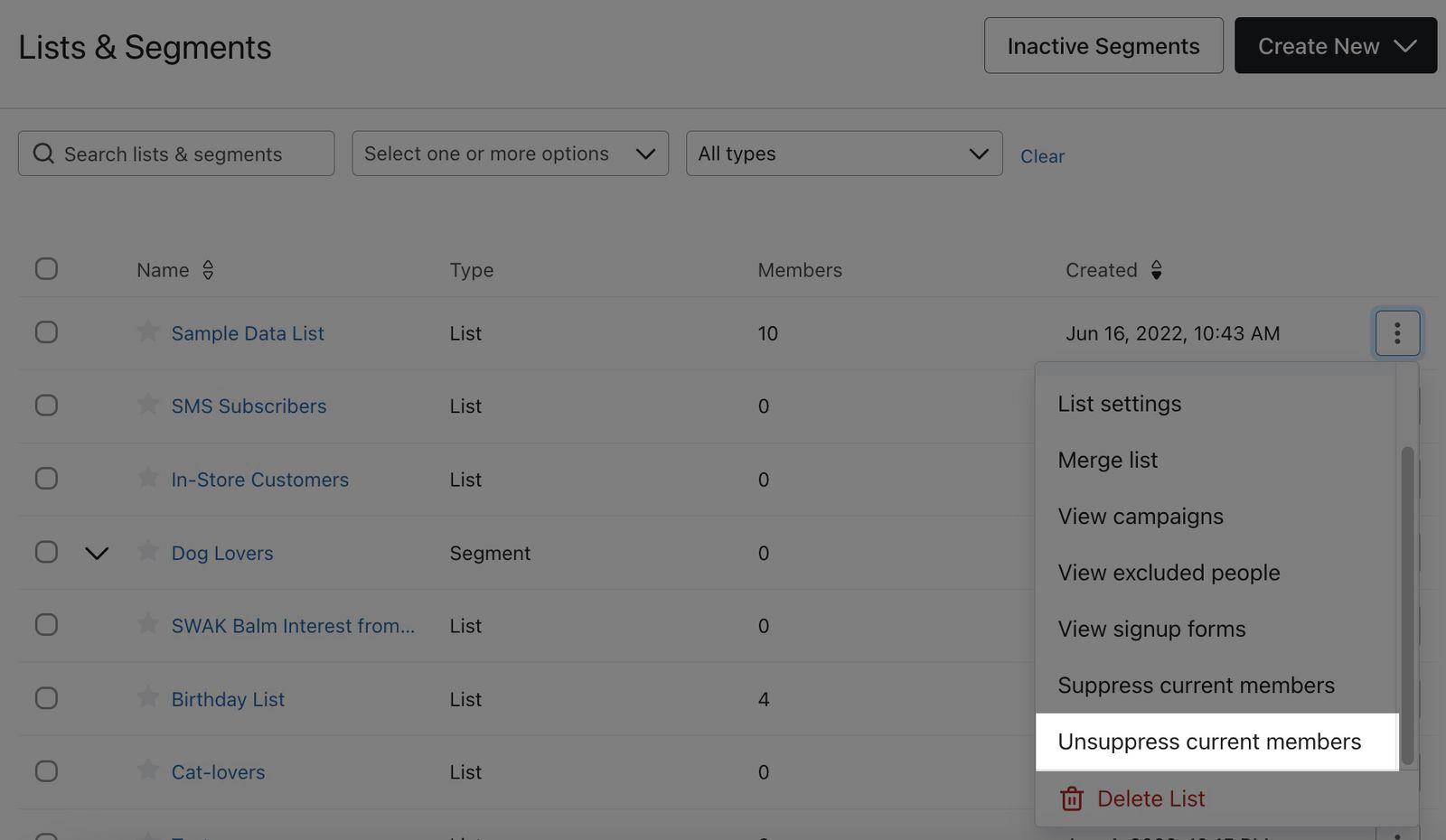
- Review the confirmation, then click Bulk unsuppress.
Bulk unsuppression removes manual suppressions only. It does not change consent status or remove deliverability suppressions, such as those caused by a hard bounce or 7 consecutive soft bounces.
This action applies to all the profiles within the list or segment at the time of unsuppression, and does not impact profiles that join after. If a profile in the group is already unsuppressed, their status is not impacted.
Bulk delete profiles
Bulk deletion permanently removes the selected profiles from your account. For customer data-deletion requests, follow the individual deletion guidance above. Generally, you should aim to suppress rather than delete profiles.
To permanently remove a group of people from your account:
- Create a list or segment that contains these contacts.
- Select your Account dropdown in the bottom left corner of your screen and click Settings.
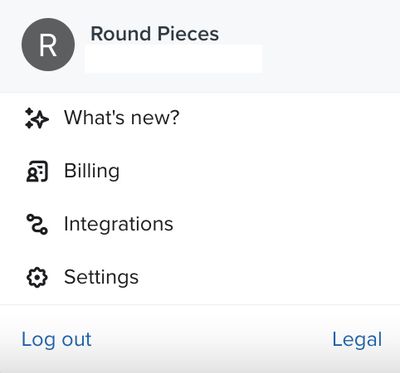
- Navigate to Other > Profile maintenance.
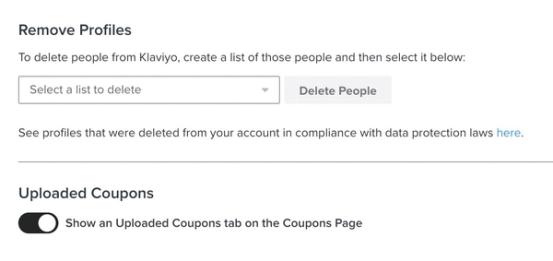
- In the Remove Profiles section, choose the list or segment containing the profiles you wish to delete from the dropdown menu.
- Click Delete People
- On the confirmation modal that appears, confirm the number of profiles that you would like to delete by typing the value in the field.
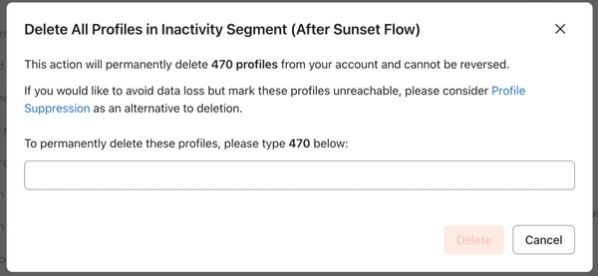
- Select Delete.
Outcome
Bulk suppression affects the profiles selected by the option you confirmed, subject to the 90-day rule. Processing may take some time.
- If you chose Suppress inactive profiles on the Lists & segments page, profiles that meet the recent-activity criteria remain active.
- If you used the recommendation banner on the Suppressed profiles page, all profiles that meet the recommendation criteria are targeted, including those beyond the preview.
Other profiles in your account remain unchanged and can still receive emails according to their consent and suppression status. Email-suppressed profiles cannot receive marketing emails, even if they have provided consent, and do not count toward your email plan’s active profile limit. Their SMS and push notification eligibility is unchanged.
When you bulk unsuppress a list or segment, manual suppressions are removed from its current members. Profiles can receive marketing emails only if their consent status and any remaining suppressions allow it. Unsuppressing does not change consent, so profiles that previously unsubscribed remain unable to receive marketing emails.
If you bulk delete profiles, they are removed from your account. This is a permanent action and cannot be reversed. Bulk deletion does not replace the individual deletion process for a customer’s data-deletion request.
Additional resources
- Understanding suppressed email profiles
Learn about suppressed email profiles, including how they differ from active profiles and how you can use these profiles to better understand your audience.
- Understanding explicit vs. implicit consent
Learn more about the different types of consent (explicit vs. implicit) in Klaviyo and who you can or cannot email. Being able to email a subscriber basically boils down to having the proper consent.
- How to create a sunset flow
Learn how to set up a sunset flow that is designed to phase out customers who are no longer engaging with your brand. You can use this flow as a last-ditch effort to win back their business, and then delete or suppress anyone who is not responsive. You will also see how this recommended sunset segment definition connects to the prebuilt Sunset (Email) segment in the Segment Library. This will help you maintain a clean list and avoid having inactive customers contribute towards your Klaviyo billing plan.