How to create a location-based segment
You will learn
Learn how to use location-based segments to send campaigns by region, target forms to customers in a particular area, or better understand a subset of your customers. These segments use the location saved on each profile, including synced address data, such as a billing address, or estimates from IP geolocation. Learn more about how location is set on Klaviyo profiles.
Create a location-based segment
- Navigate to Lists & segments, then click Create > Segment.
- Enter a name for your segment. If you are in the Create segment panel, click Create segment to open the builder.
- Select Properties about someone, then choose a location property and set its operator and value. You can segment by country, city, state or region, zip code, or timezone.
- Add any other conditions you need, using the examples below. When your definition is ready, click Create segment.
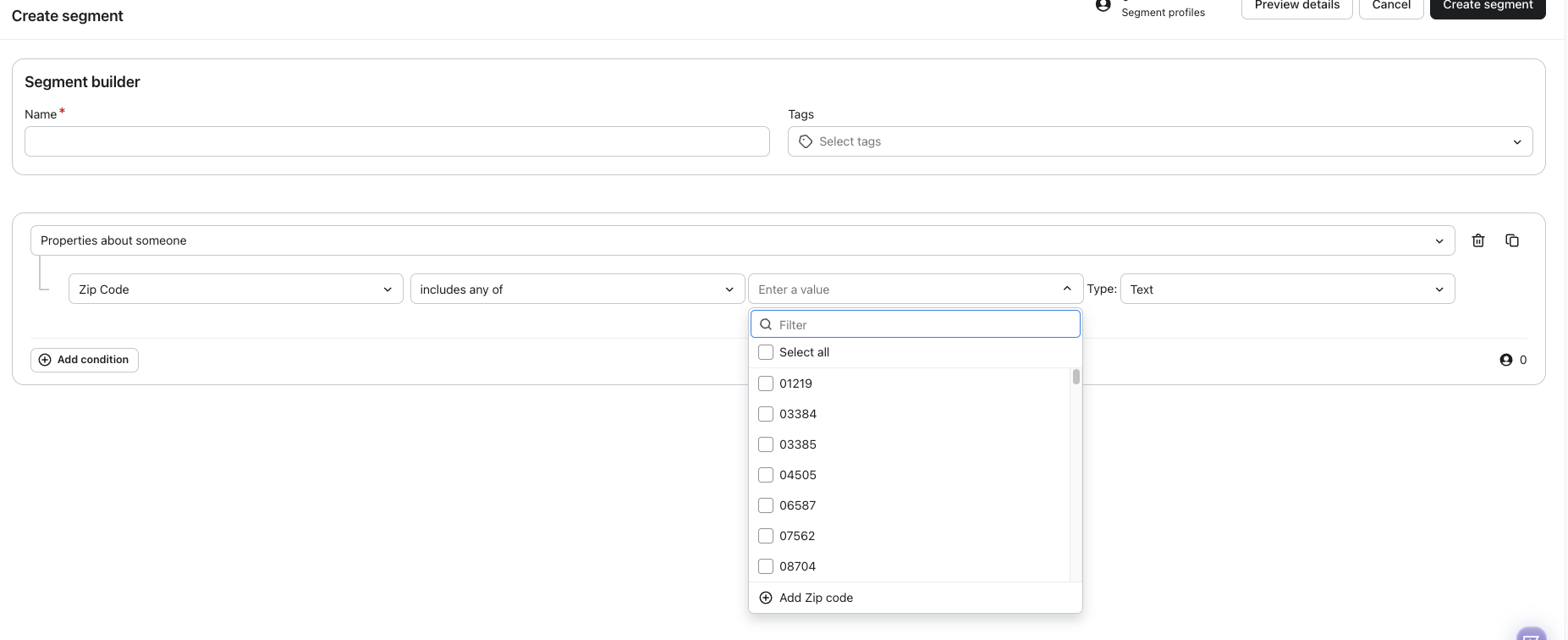
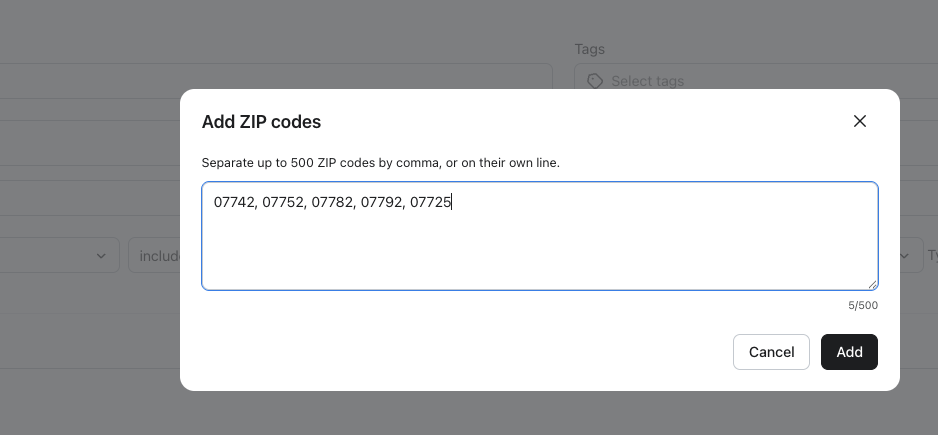
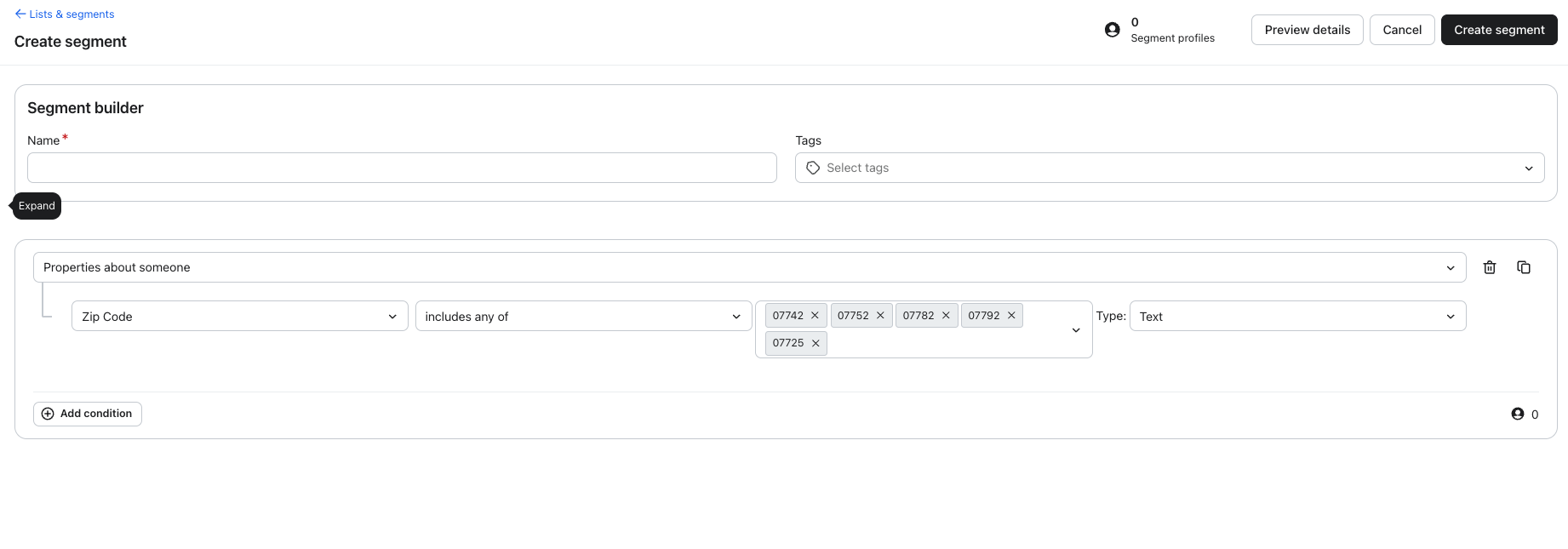
When you choose Zip Code, the segment builder defaults to includes any of. You can select up to 500 zip codes in a single condition. To add codes in bulk, open the value dropdown and click Add ZIP Code. Paste codes separated by commas or line breaks, then click Add. Codes already selected count toward the 500-code limit.
Properties about someone > Country > equals > Canada
OR
Properties about someone > State / Region > equals > Massachusetts
OR
Properties about someone > State / Region > equals > ...
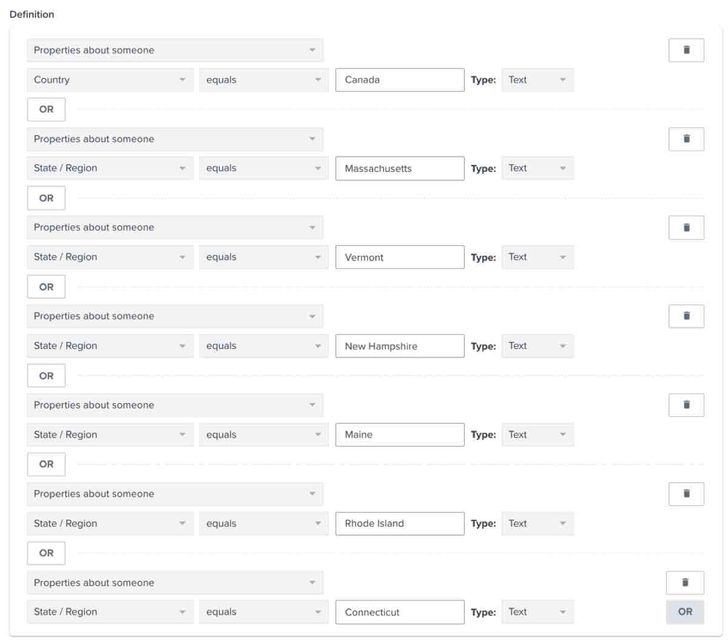
Note that, by using the OR connector between these conditions, your segment will be more inclusive — so, someone can be from Canada but not from Massachusetts (and vice versa) and still make it into this segment. If you instead want to make your segment more exclusive, add conditions separated by an AND connector. In doing so, you're saying that all conditions must be true in order for someone to be included. For more information, head to our AND vs. OR guide.
Create a segment of profiles impacted by GDPR and UK GDPR
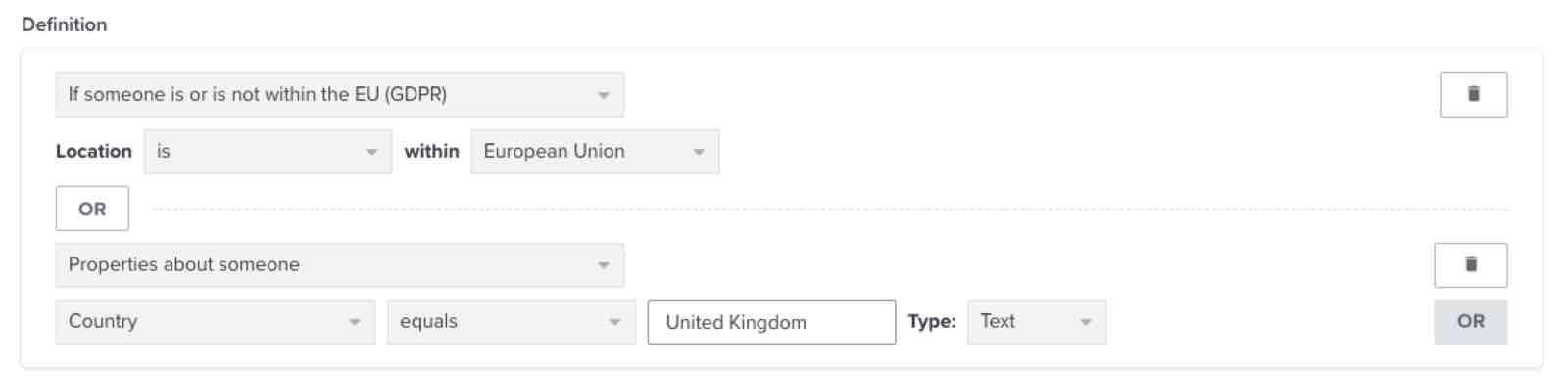
People located in the EU or UK are affected by certain data protection laws (GDPR and UK GDPR, respectively). To create a segment of profiles in these locations, use this definition:
If someone is or is not within the EU (GDPR) > is within European Union
OR
Properties about someone > Country equals United Kingdom
If you have profiles that contain multiple variations of “United Kingdom” stored in the location field (for example, “UK” or “united kingdom”), you should include all spellings in your segment.
Use this location-based segment if you only want to target customers in the EU or UK, or to exclude these customers from certain communication.
Segment by someone’s proximity to a location
You can also create location-based segments by focusing on profiles within a specific radius of a particular zip code (i.e., postal code). You can choose a reference postal code in the following locations:
- United States
- European Union, except Cyprus, Estonia, Greece, and Malta
- United Kingdom
- Canada
- Australia
- New Zealand
For UK zip codes, we support filtering by outward code, not inward code or both outward and inward code (usually separated by a space). For example, if a person's full zip code is "SW1W 0NY," only the first piece ("SW1W") will work for these filters.
To segment on a profile's proximity to a location, the profile needs a recognized zip code and country, or latitude and longitude, such as those obtained from IP geolocation. An IP address alone is not enough if Klaviyo cannot determine a location from it.
- In the segment builder, select Someone's proximity to a location.
- Choose is to include profiles within the radius, then enter the distance and choose Miles or Kilometers.
- Enter the postal code and select its country.
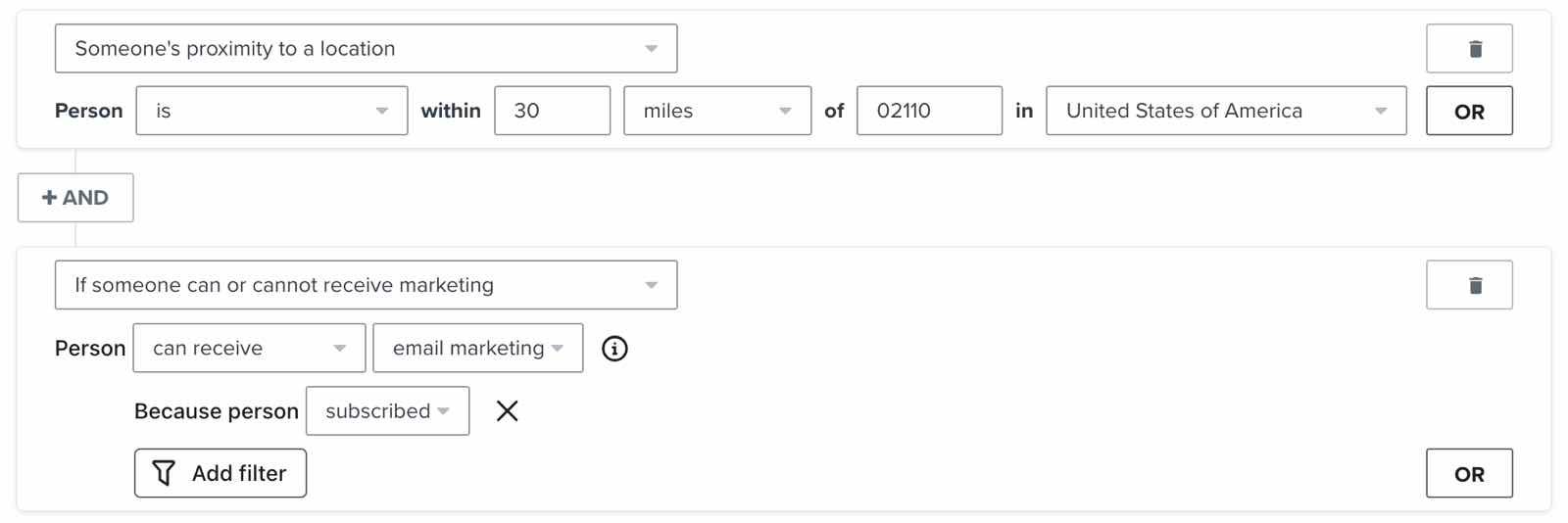
Let's say, for example, you have a pop-up shop in Boston and want to invite nearby customers who are subscribed to email marketing. Create a segment with the following definition:
Someone's proximity to a location > Person is within > 30 Miles of > 02110 in > United States
AND
If someone can or cannot receive marketing > can receive email marketing > because person Subscribed
For the email condition, click Add filter, then select Subscribed in the because person dropdown. When the definition is ready, click Create segment.
Additional resources
- Getting started with segments
Learn how to create and use segments in Klaviyo, which are a powerful tool for understanding your audience and sending targeted messages.
- Segment conditions reference
Learn more about segment conditions, including how to filter your conditions and more. When building segments in Klaviyo, conditions are the building blocks that you customize to either include or exclude certain sectors of your audience. In a nutshell, profiles will only appear in your dynamic segments when they meet the specific conditions you make when creating the segment.
- Understanding when and how Klaviyo sets a profile's location
Learn where to find location information for a profile, how it is used and updated, and more. When syncing or creating a new profile, Klaviyo determines the location and timezone information based on the profile's billing address. If a profile hasn't purchased, location and timezone are determined based on IP geolocation.
- Enhance restaurant guest relationships