Getting started with Composer from Klaviyo
Composer from Klaviyo is the iPhone app for Composer, Klaviyo’s AI marketing agent. Use it to ask questions about your account, draft campaigns, flows, and segments, and review results. Learn how to set up the app and find its main features.
You will learn
- What you need before you start
- How to download the app and sign in
- What each tab does
- Where to find your chats and account settings
Before you begin
- You need a Klaviyo account and a login for that account. The app is free to download. Manage Klaviyo plans on the web.
- The app runs on iPhone with iOS 17 or later.
- Composer requests use your account’s Composer credits; some requests, such as support questions, are free. See Frequently asked questions about Composer from Klaviyo to check your usage.
- Composer can use only the connectors already turned on for your account. You set up connectors on Klaviyo web.
Set up the app
- On your iPhone, open the App Store and search for Composer from Klaviyo. Download the app.
- Open the app and tap Sign in. Use your Klaviyo login. See How to sign in, switch organizations, and log out for each sign-in method.
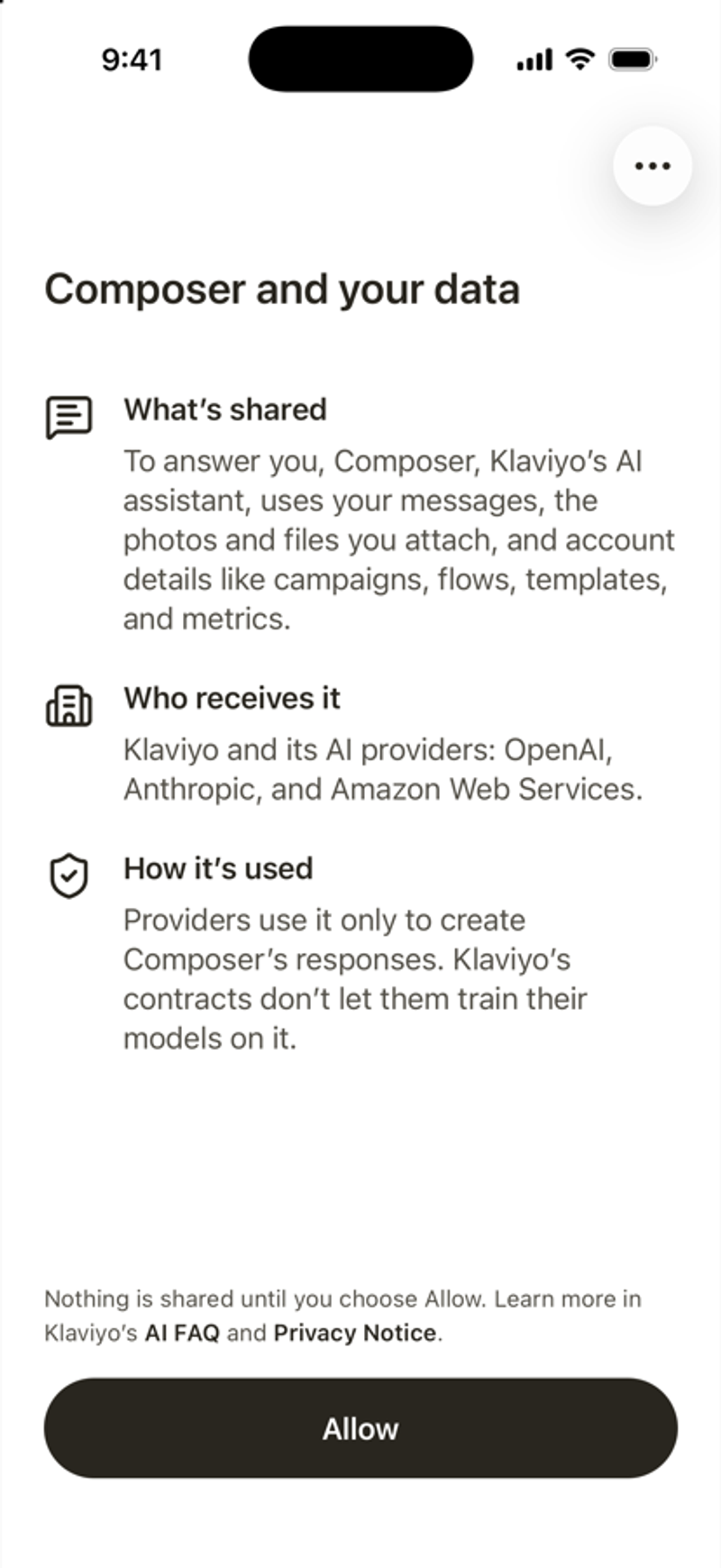
- Read Composer and your data. It explains what Composer shares with Klaviyo's AI providers. Tap Allow to continue.
- When the app asks you to Stay in the loop, tap Turn on notifications, or tap Maybe later. You can change this any time.
- A short tour shows 3 things Composer can do: Ask Klaviyo anything, Account health, and Scheduled tasks. Tap Next to step through it, or tap Skip Tour.
The Chat tab opens, ready for your first question.
Find your way around
The tab bar at the bottom of the screen opens the app's 5 main areas.
Tab | Icon | What you can do there |
|---|---|---|
Chat | Speech bubble | Ask Composer anything. Suggested questions appear when a chat is empty. |
Campaigns | Paper plane | See your campaigns on a calendar in day, multi-day, month, or list view, and search them. |
Dashboard | Bar chart | Review results for Growth, Campaigns, Flows, Benchmarks, and Segments over a time period you pick. |
Ideas | Light bulb | Start from ready-made ideas for your account, such as planning Black Friday or finding your VIPs. |
Artifacts | Shapes | Open the reports, plans, and briefs Composer saved for you, and ones others shared with you. |
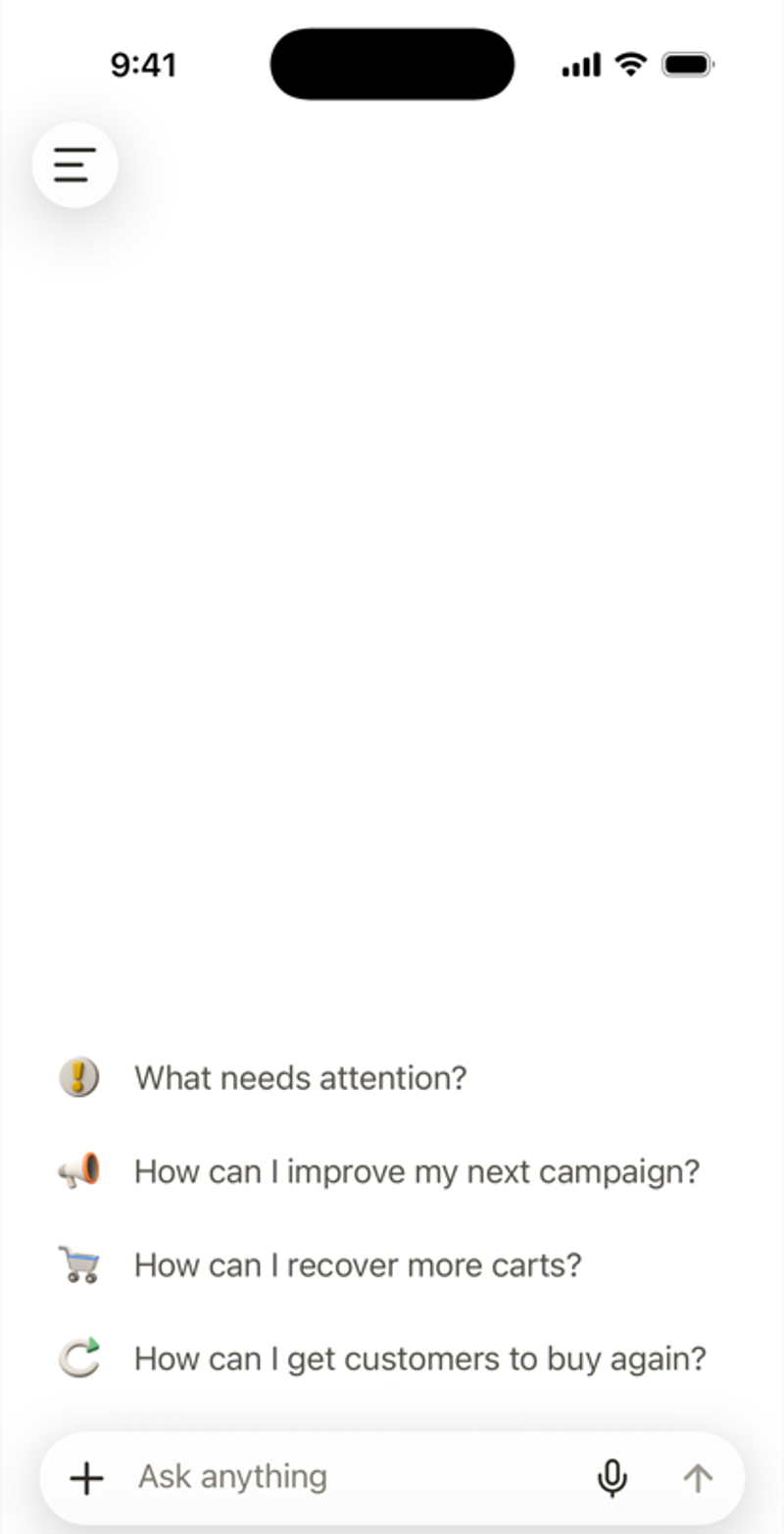
Tap the menu icon in the top left to open the side menu. It lists your recent chats, lets you search them, and has a New chat button. It also opens Scheduled, where you manage scheduled tasks. Tap the gear icon at the bottom of the menu to open Account.