How Smart Translations picks the recipient's language
Learn how Smart Translations reads a language from each profile, picks a translated version at send, and what to check when someone gets the wrong one.
Smart Translations is available on paid plans only.
The language property
Smart Translations reads one profile property to decide each recipient's language. Locale is the default. To change it, go to your account's translation settings (Settings › Translation) and choose any profile property on your account under How to determine preferred language.
Property | Has a value by default? | Where the value comes from |
|---|---|---|
Locale (default, recommended) | Yes, for some integrations | Shopify (with Shopify Markets) and PrestaShop fill it from the customer's store region. You can also set it yourself. Values must be BCP-47 codes, such as |
A custom property, such as Language | No | Empty until you collect it with a form, CSV import, profile link or the API. Name it what you like, such as Language or Preferred language. |
Locale is the recommended property. The Shopify integration keeps it in sync with your store, and you can set it yourself with any BCP-47 code. Choose a custom property only if you already store language preferences there.
If you choose a custom property and it's empty on a profile, Smart Translations uses that profile's Locale instead. The checkbox Use default profile locale when preferred language property is missing, under the property picker, controls this and is on by default. With it off, the recipient gets the message's fallback language.
Accepted values
Locale values must be BCP-47 codes. A custom property can also hold language or country names, but BCP-47 codes are still recommended because they're the only way to pick a regional variant, such as Canadian French.
Value type | Examples | What the recipient gets |
|---|---|---|
BCP-47 code |
| That language or regional variant |
Language name in English (custom property only) |
| The base language |
Language name in that language (custom property only) |
| The base language |
Country name (custom property only) |
| That country's language |
Only a limited set of names is recognized, so check before you rely on one. In your account's translation settings, Preview recognized languages shows which language each value of your chosen property matches, and how many profiles hold it.
A few formatting rules apply to every value:
- Case doesn't matter.
FR-caandfr-CAmatch the same language. - Underscores work like hyphens, so
en_GBmatchesen-GB. - Remove spaces before or after the value.
Germanwith a trailing space isn't recognized. - Prefer a language over a country where people speak several languages.
CanadaorSwitzerlandcan't tell Smart Translations which language someone wants. - The language part of a code decides the language. Shopify and other systems often pair a shopper's language with their market, so
en-FRgets English, not French.
For every supported language and its code, see Supported languages and locale codes. A value Smart Translations can't recognize doesn't cause an error. The recipient gets the message's fallback language instead, as described in the next section.
Matching order
At send, Smart Translations compares each recipient's value with the languages the message is translated into, and sends the first one that fits.
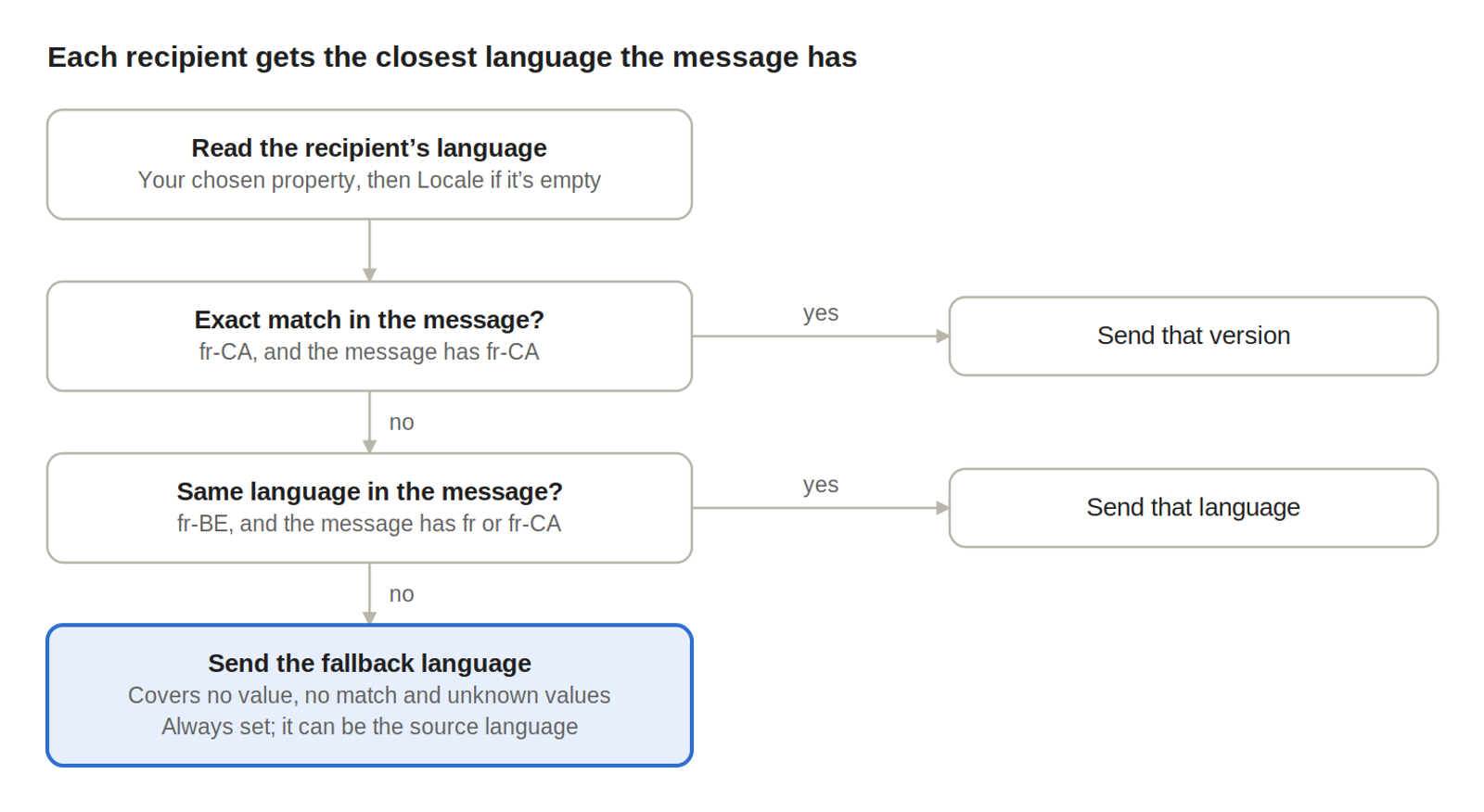
It stops at the first check that fits. A value it can't recognize skips straight to the fallback language, which you choose for each message when you translate it. Every message has one, and it can be the source language. New messages start with the fallback language set in your account's translation settings.
For example, take a message with these settings:
Source language | Translations | Fallback |
|---|---|---|
English ( | French ( | English ( |
Here's wha
t different recipients get:
Recipient's value | They get | Why |
|---|---|---|
| Canadian French | Exact match |
| French | Same language |
| German | Language name in German |
| English | No Spanish version, so the fallback |
No value and no Locale | English | Fallback language |
Collect language data
Write every language value to the one property Smart Translations reads. Locale is recommended, and the Shopify integration keeps it in sync with your store. If you collect language yourself, write BCP-47 codes to Locale, or use a custom property if you want to store names.
Method | How to set the language | Learn more |
|---|---|---|
Sign-up form | Add a dropdown or radio field that saves to your language property. For a form that only shows on one language's site, a hidden field with a fixed value works too. | |
Consent pages | Add | |
CSV import | Add a column of language values and map it to your property during import. | |
Profile links | Add a link to a message that sets the property when someone clicks it, such as a "Read this in Español" link. | |
API | Set the |
Use the s
ame format everywhere, ideally BCP-47 codes. Mixing de, German and Deutsch across sources still resolves, but it makes reports and your translation settings harder to read.
Country and catalog locale for product content
Product names, prices and currency in product blocks come from your localized Shopify catalog, not from Smart Translations. This needs Shopify Markets and a localized catalog. Klaviyo combines the recipient's language with their country to pick catalog data, so a French speaker in Canada sees fr-CA product details priced in Canadian dollars.
Block type | What it matches | If there's no match |
|---|---|---|
Dynamic product block | The recipient's language and Country property | With no country, uses the catalog locale mapped to their language. Products missing from the chosen locale are left out; if none remain, Klaviyo tries the mapped locale, then the default catalog. |
Static product block, with Localize for recipient on | The recipient's language and region at send | Uses the language and region chosen for the block, then your account locale, then the base catalog. |
To set the catalog locale each language falls back to, go to Settings › Translation › Catalog locale mapping. For example, map French to fr-FR so French speakers with no country still see French product data. For setup steps, see How to localize product blocks.
Why someone got the wrong language
Smart Translations uses whatever the property held at the moment of send. When someone gets the wrong language, the property usually held a different value then than it does now. Check what writes to that property before you assume the translation went wrong.
To check a past email, open the recipient's profile, find the Received email event for that message in the activity feed, and expand it. Its preferred locale is the language Smart Translations read from the profile, and its content locale is the version it sent. If the preferred locale is wrong, the profile held a different value at send time. If it's right but the content locale differs, the message had no translation for that language.
Cause | How to spot it | Fix |
|---|---|---|
An onsite identify call replaced the value | Your site's Klaviyo JavaScript sends a locale or language value when it identifies visitors. | Remove the language from the identify call, or have it send the visitor's actual choice. |
An import or API call replaced the value | A recent CSV import or integration wrote to the property. | Correct the source data, then re-import. |
The value isn't recognized | Your account's translation settings show the value doesn't match a language. Common causes are a typo, a trailing space, an unsupported code, or a name in Locale. | Change the value to a supported code. See Accepted values above. |
The message has no translation for that language | The value is correct, but that language isn't one of the message's target languages. | Add the language to the message, or accept the fallback language for it. |
These changes happen silently. Klaviyo doesn't show an error when a value changes or can't be matched, so a test send to a seed profile is the quickest way to confirm what a recipient will get.
QA a send by language
Smart Translations sends one message to your whole audience, so check the languages on that message rather than splitting your audience by language.
- Go to your account's translation settings and use Preview recognized languages to check how your property's values match. Any value that doesn't match a language gets the fallback.
- Make sure the message is translated into each language your audience uses.
- Preview the message as profiles with different languages, including one with no value.
- Send yourself a test in each language. See How to review and edit translations.
After the send, the language breakdown in the message report shows how each language performed. See Measure performance by language.
Limitations
- One property per account. Every message reads the same language property. To use a different source for one audience, write its values into that property first.
- No warning for unmatched values. A typo or unsupported value sends the fallback language without an error. Check your translation settings and send a test in each language before large sends.
- Sign-up forms aren't translated. Forms can collect a language, but the form itself shows in the language you built it in. Build one form per language if you need translated forms.
Additional resources
- How to set up Smart Translations
Learn how to enable Smart Translations for messages so you can send campaigns and flows in multiple languages based on the language preferences of your audience. Klaviyo can translate email content to 60+ languages.
- How to use Shopify Markets with Klaviyo
Learn how to integrate Shopify Markets with Klaviyo to ensure your customers and product information, currency, and pricing from every region and language you sell in is synced into Klaviyo.