Track onsite events from Olo with Google Tag Manager
You will learn
Learn how to track onsite ordering behavior from your Olo Serve site and sync it to Klaviyo using Google Tag Manager (GTM). This guide is for Klaviyo customers who use Olo for online ordering and want to capture browsing and cart activity.
How onsite tracking for Olo works
By adding a single Klaviyo tag to your Olo Serve ordering site through GTM, you can capture how guests browse and build their cart before they check out:
- Active on Site: a guest has started browsing your site
- Viewed Product: a guest opens or clicks into a menu item
- Added to Cart: a guest adds an item to their cart
- Started Checkout: a guest begins the checkout process
These behavioral events unlock high-ROI automations like cart abandonment and browse abandonment flows, and give you full-funnel visibility from a guest's first click all the way to a completed order. The tag also identifies anonymous guests once they enter their email or phone number at checkout, so their browsing activity attaches to a known Klaviyo profile.
This feature uses Olo's native onsite event tracking and works with Olo Serve ordering sites.
Before you begin
You'll need the following before you start:
- A Klaviyo account, and access to your public API key (a 6-character code)
- A Google Tag Manager account with a container
- An Olo Serve ordering site, and access to your Olo settings to add a Google tracking ID
Olo allows only one Google tracking ID per account – either a Google Analytics Measurement ID or a Google Tag Manager Container ID. If you're already using a Google Analytics Measurement ID directly in Olo, you can move that tracking into GTM so you can run both Klaviyo and Google Analytics through a single container. See Olo's Google Analytics Integration guide for details.
Step 1: Locate your Google Tag Manager Container ID
- Log in to your Google Tag Manager account.
- Select the container for your Olo Serve site.
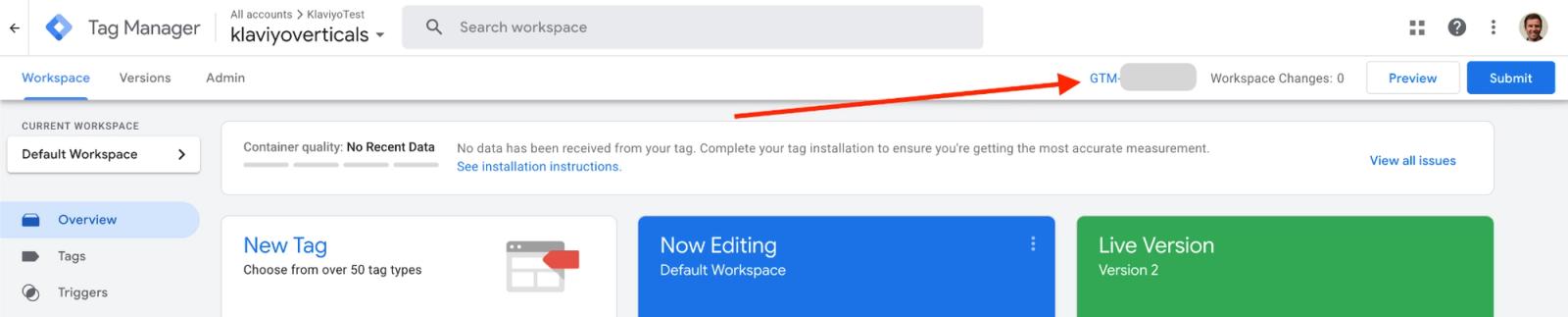
- Find your Container ID at the top of the workspace. It uses the format GTM-XXXXXXX.
Step 2: Add your Container ID to Olo
To track activity on your Olo Serve site, Google Tag Manager needs to be installed on it. You do this by adding your GTM Container ID in your Olo settings.
- In Olo, go to Settings > Advanced Settings.
- Enter your Google Tag Manager Container ID from Step 1 (GTM-XXXXXXX) in the Google tracking ID field.
- Click Save Changes.
Only one Google tracking ID can be configured per Olo account at a time. If a Google Analytics Measurement ID is already entered here, replace it with your GTM Container ID and manage your Google Analytics tag from within GTM instead. For full details, see Olo's Google Analytics Integration guide.
Step 3: Add the Klaviyo Hospitality Tracking template
- In Google Tag Manager, click Templates in the left-hand sidebar.
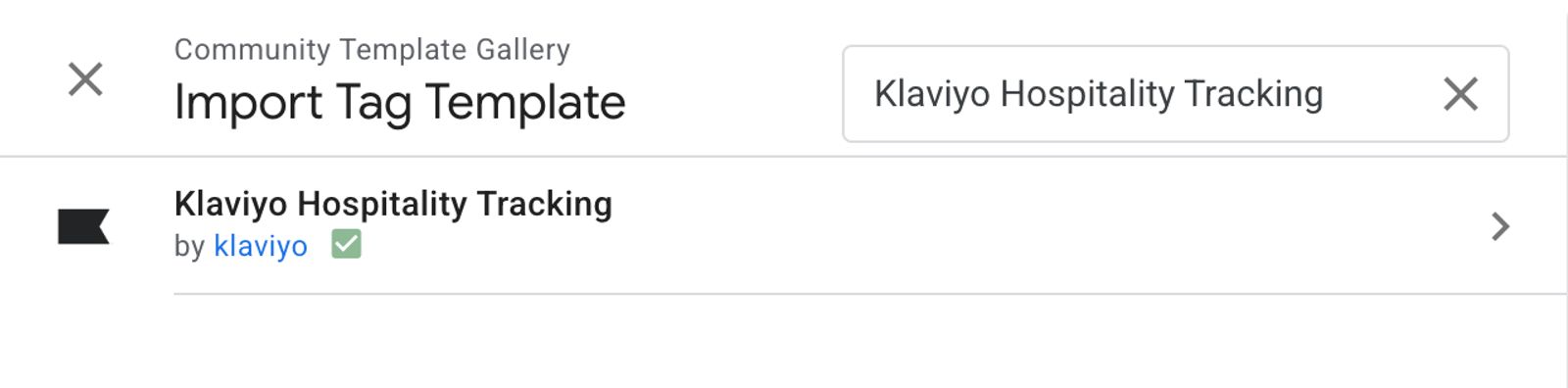
- Under Tag Templates, click Search Gallery.
- Search for Klaviyo Hospitality Tracking.
- Select the template and click Add to workspace.
Step 4: Create and configure your tag
- Go to Tags > New.
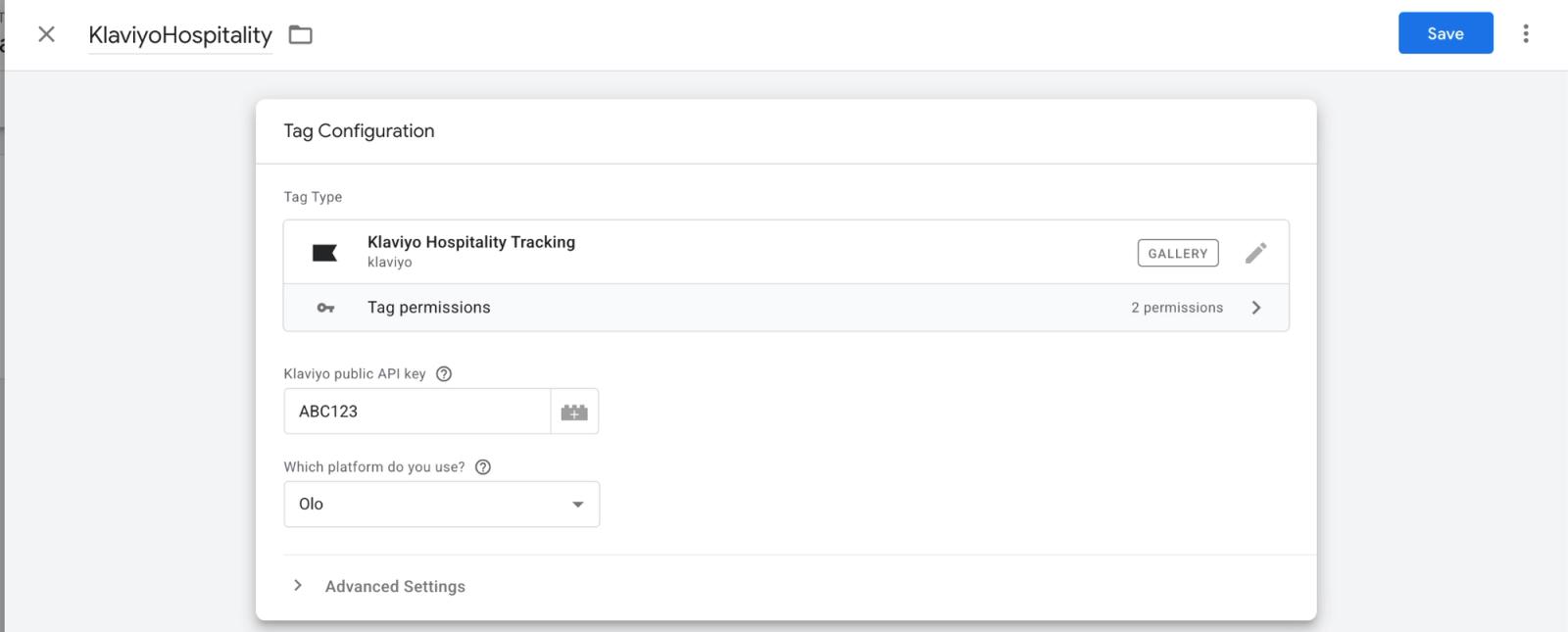
- Click Tag Configuration and select Klaviyo Hospitality Tracking from your templates.
- Configure the tag's fields:
- Klaviyo public API key: Enter your 6-character public API key.
- Which platform do you use?: Select Olo from the dropdown.
- Under Triggering, set the tag to fire on All Pages.
Note: To find your public API key, log in to Klaviyo and go to Settings > API keys. Your public API key is the 6-character code (for example, ABC123). Learn more in How to manage your account's API keys.
Step 5: Publish your changes
- Click Save to save your tag.
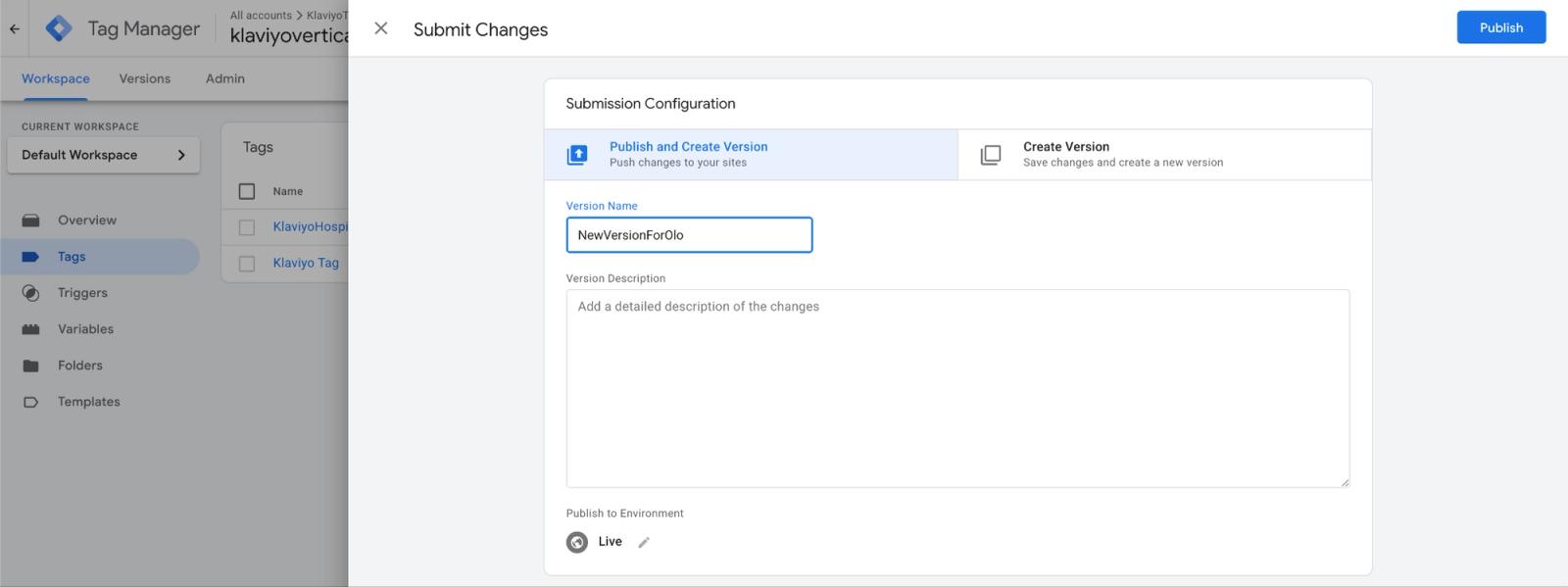
- Click Submit in the top-right corner of your GTM workspace.
- Enter a version name (for example, "Add Klaviyo Olo tracking") and click Publish.
What happens next?
Once your tag is published and live on your Olo Serve site, Klaviyo will begin receiving onsite events as guests browse and order:
- Active on Site: a guest has started browsing your site
- Viewed Product: a guest opens or clicks into a menu item
- Added to Cart: a guest adds an item to their cart, including item modifiers and quantity.
- Started Checkout: a guest begins the checkout process, including the full cart contents and fulfillment type.
When an anonymous guest enters their first and last name plus a valid email or phone number on the Olo checkout sign-in form, Klaviyo identifies them so their onsite activity is attributed to their profile.
You can use these events to:
- Build a cart abandonment flow: Re-engage guests who added items but didn't complete an order.
- Build a browse abandonment flow: Follow up with guests who viewed menu items but didn't add anything to their cart.
- Create behavioral segments: For example, guests who viewed a specific menu item or started checkout in the last 30 days.
For a full breakdown of each event and its properties, see Olo data reference.
Frequently asked questions
How long until events start appearing in Klaviyo?
Once your GTM container is published and the tag is live, events begin flowing in real time as guests interact with your Olo Serve site. To confirm the tag is working, use GTM Preview Mode, complete a browsing-and-ordering flow on your site, and check that the events appear under Analytics > Metrics in your Klaviyo account.
Does this replace my existing Olo integration?
No. This adds onsite behavioral events (Viewed Product, Added to Cart, Started Checkout) on top of the server-side order events (Placed Order, Closed Order, and others) that your standard Olo integration already syncs. Both run at the same time.
Do I need to import Olo's Google Analytics container configuration?
No. The Klaviyo tag listens to Olo Serve's native onsite events directly, so it works on any Olo Serve storefront once GTM is installed. You do not need to import Olo's GA4 container configuration for Klaviyo tracking to function.
Which fulfillment types are tracked?
The Started Checkout event captures whether the order is for Pickup or Delivery, based on the handoff mode the guest selects (for example, counter pickup, curbside, and drive-thru map to Pickup; delivery and dispatch map to Delivery).
Additional resources
- Olo data reference
Learn what data that is synced when you integrate Olo with your Klaviyo account.
- How to manage your account's API keys
Find out how to access and manage your API keys for your Klaviyo account.
- How to create an abandoned cart flow
Learn how to set up an abandoned cart flow in Klaviyo in order to increase your ecommerce revenue and personalize communication to your customers.
- How to create a browse abandonment flow
Learn how to create a browse abandonment flow to show shoppers products they viewed but didn’t purchase.