Using RegEx matching in Segmentation
What is Regex Matching?
Regex matching lets you filter profiles based on text patterns instead of exact values. This is useful for finding profiles that follow a specific format, like email addresses from certain domains or phone numbers in a particular format.
⚠️ Important: Regex always matches the complete value from beginning to end.
How to Use Regex
When building a segment, you can use two regex operators:
- Matches regex - Includes profiles where the value matches your regex
- Does not match regex - Includes profiles where the value does NOT match your regex
It can be used in the following segment conditions:
- Properties about someone (including custom objects)
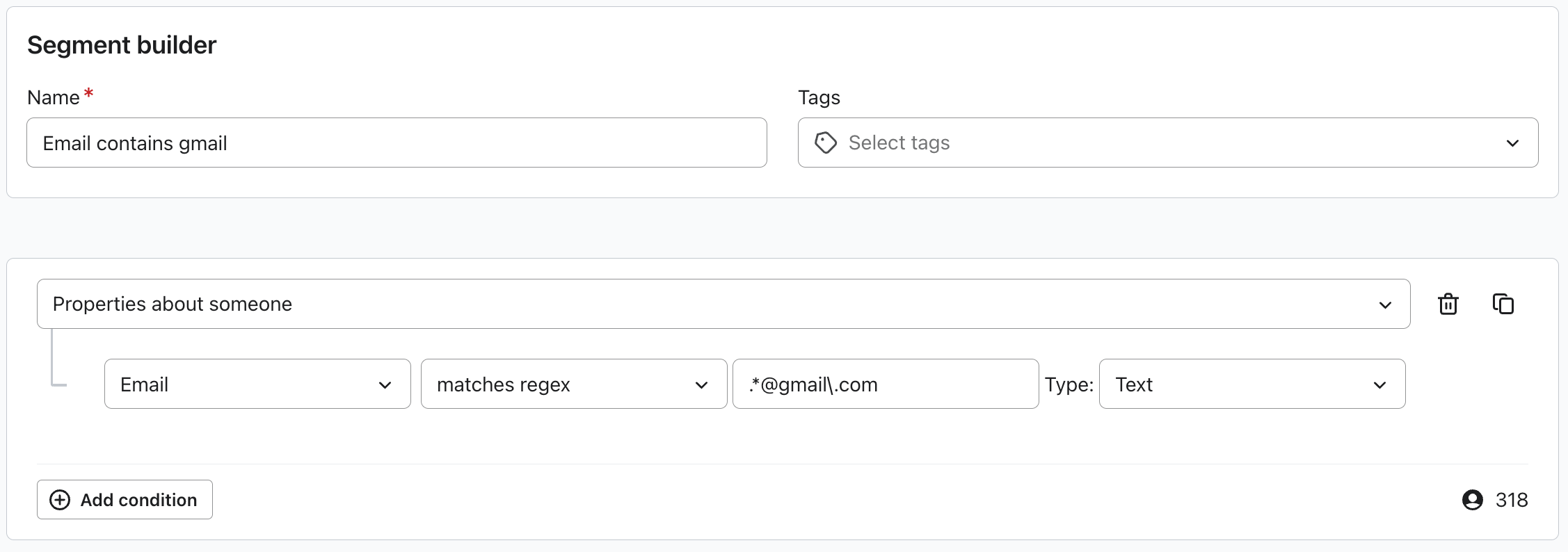
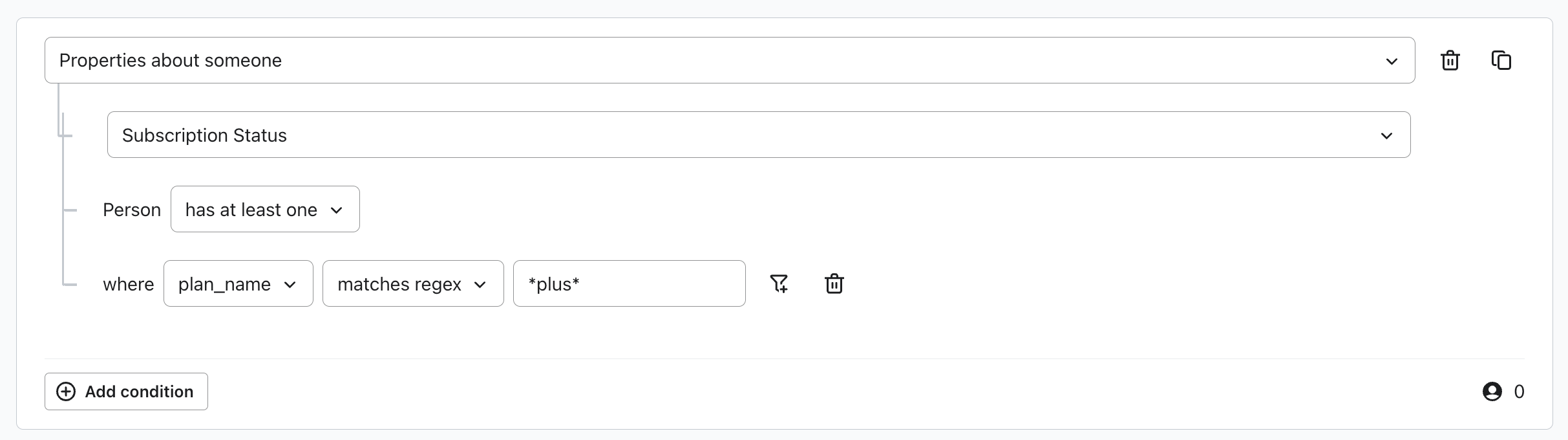
2. Filters on "What someone has done or not done" and "Steps someone has taken in a specific order"
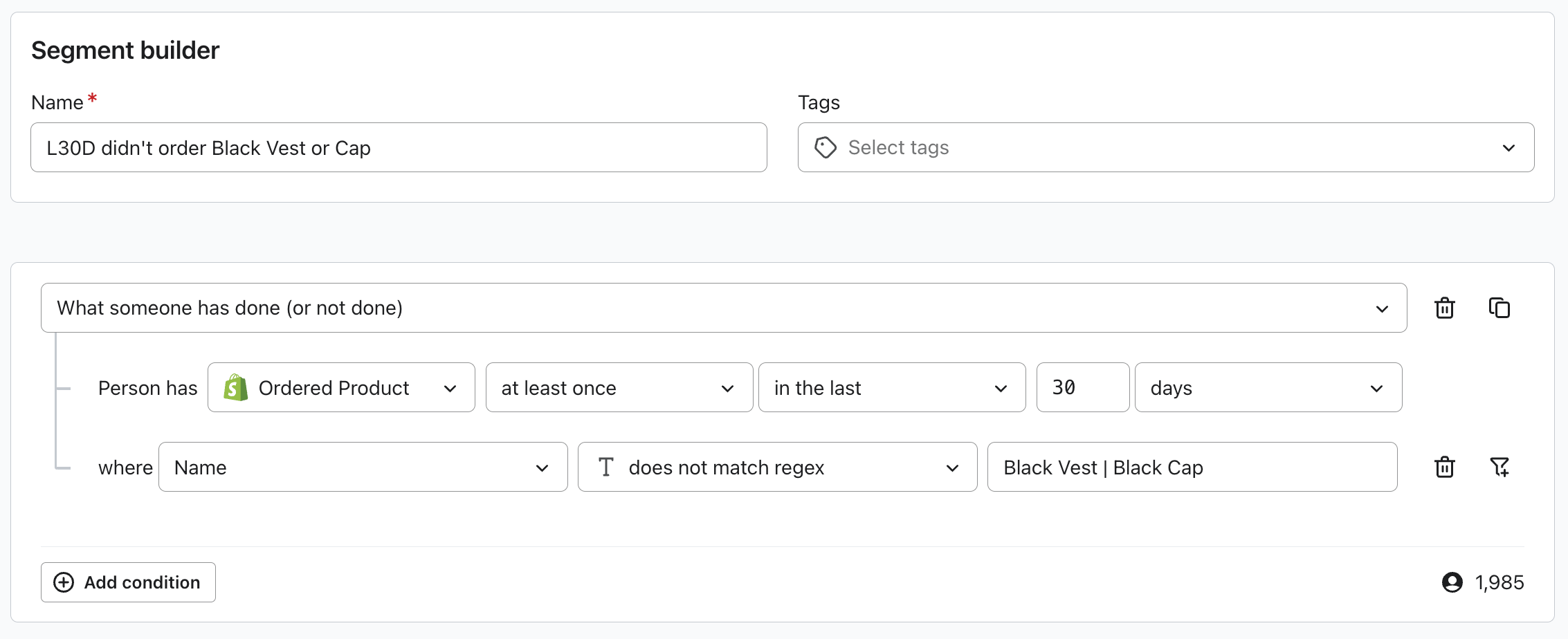
Regex Basics
Matching Characters
- Letters and numbers - Type normally: hello matches "hello"
- Any digit - Use \d to match any number 0-9
- Any letter - Use [a-z] for lowercase, [A-Z] for uppercase, or [a-zA-Z] for both
- Either/or - Use | to match options: gmail|yahoo matches either "gmail" or "yahoo"
- Anything - Use .* to match any characters
Special Characters
Add a backslash \ before these to match them literally:
- Period: \. matches a period
- Plus sign: \+ matches a plus sign
- Parentheses: \( and \) match parentheses
Repeating Patterns
- {5} - Exactly 5 times (e.g., \d{5} matches 5 digits)
- {2,4} - Between 2 and 4 times
- ? - Optional (0 or 1 time)
Note: we limit repeating patterns at Maximum 1,000 repetitions
Common Examples
Email Addresses
- Specific domain:
- .*@example\.com
- Matches: john@example.com, support@example.com
- Multiple domains:
- .*@(gmail|yahoo|hotmail)\.com
- Matches: user@gmail.com, user@yahoo.com, user@hotmail.com
- Any .com email:
- .*@.*\.com
Phone Numbers
- 10-digit US number
- \d{10}
- Matches: 5551234567
- Formatted with parentheses:
- \(\d{3}\) \d{3}-\d{4}
- Matches: (555) 123-4567
Postal Codes
- 5-digit ZIP:
- \d{5}
- Matches: 12345
- ZIP+4:
- \d{5}-\d{4}
- Matches: 12345-6789
For advanced references: our implementation uses Google RE2 as our standard. Learn more here.
RegEx Limits
Limit | Value | Example |
Regex length | max 1,000 characters | - |
Regex lines | max 100 lines | - |
Repetitions | max 1,000 repetitions | \d{1000} allowed |
Options (|) | 5 max at main level | a|b|c|d|e|f exceeds limit (6 options) |
Nesting depth | 5 levels max | ((((a)))) is 4 levels, allowed |
Additionally, the following features are not supported at this time.
Feature | Example |
Lookahead/Lookbehind | (?=...), (?!...), (?<=...), (?<!...) |
Backreferences | \1, \2, (\w+)\s+\1 |
Unicode escapes | \uXXXX, \u00A0 |
Nested quantifiers | (a+)+, (x*)*, (a{2,5})+ |
Tips for Success
1. Regex matches the complete value
Your regex must describe the entire value, not just part of it.
Wrong: gmail\.com (only matches the text "gmail.com")
Right: .*@gmail\.com (matches complete emails like john@gmail.com)
2. Always escape periods
When matching .com, .net, etc., write it as \.com with a backslash.
Wrong: @gmail.com (period matches any character)
Right: @gmail\.com (matches literal period)
3. Use .* for "Anything"
Match any characters with .*
- .*@company\.com - Any email at company.com
- \+.* - Anything starting with +
- .*urgent.* - Text containing "urgent"
4. Start simple, then refine
Begin with a basic regex and add details gradually.
- Example: .*@gmail\.com → [a-z]+\.[a-z]+@gmail\.com
Split complex logic into multiple simple filters when possible.
- Example for "Gmail or Yahoo emails from California":
- Filter 1: Email matches regex .*@(gmail|yahoo)\.com
- Filter 2: State equals California
5. RegEx is case sensitive by default
If you want to make a statement case insensitive, you can add (?i) as a prefix.
- Product matches (?i)^iphone$
When to use RegEx vs Standard Operators
Use regex when you need to match specific formats or patterns. For simpler needs, we strongly recommend using standard operators instead:
- Contains - Text appears anywhere
- Starts with - Matches the beginning
- Ends with - Matches the ending
- Equals - Exact match