How to review a flow's history
You will learn
Learn how to access a flow’s changelog and what it displays.
A flow’s changelog allows you to see what’s changed, when it happened, and who made the change. This makes it easier to troubleshoot issues in a flow and gives you insight into the flow’s history and how it evolved over time.
Access a flow’s changelog
- Head into the specific flow you want to review.
- In the flow header, click the View flow history icon. If you don't see it, ask an account admin whether you have access to view flow history.
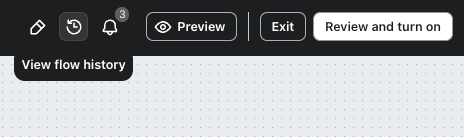
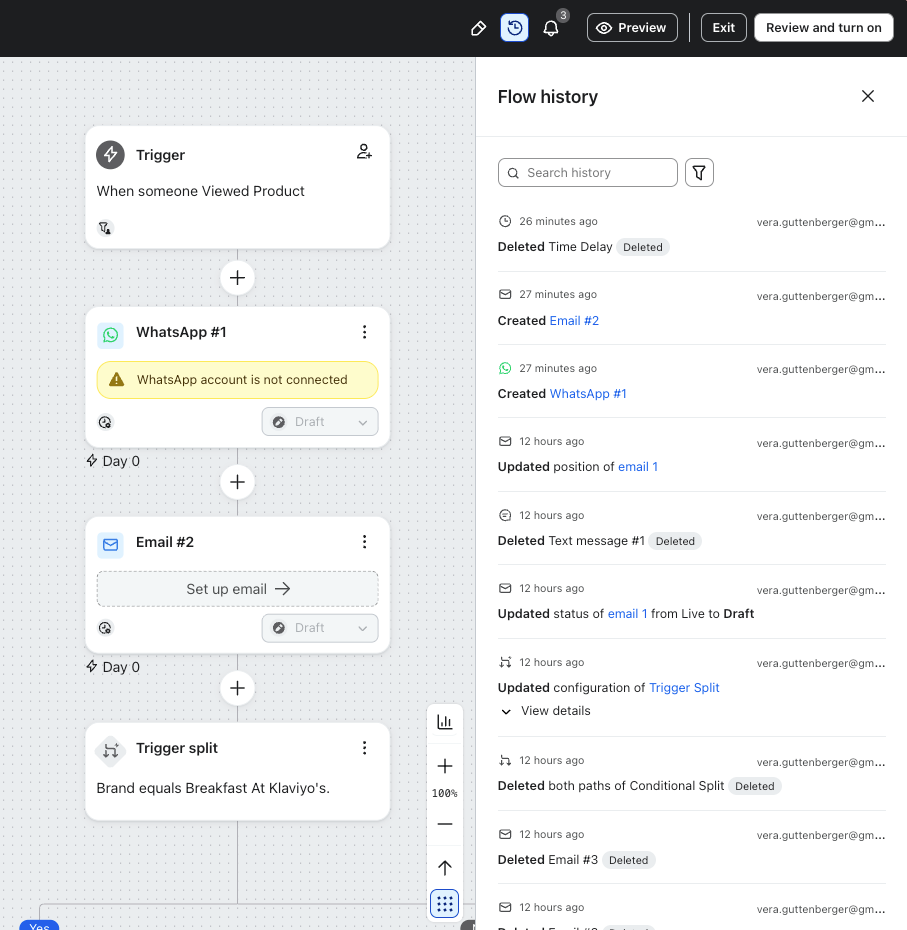
- View the Flow history panel (i.e., the changelog) on the right-hand side of the screen.
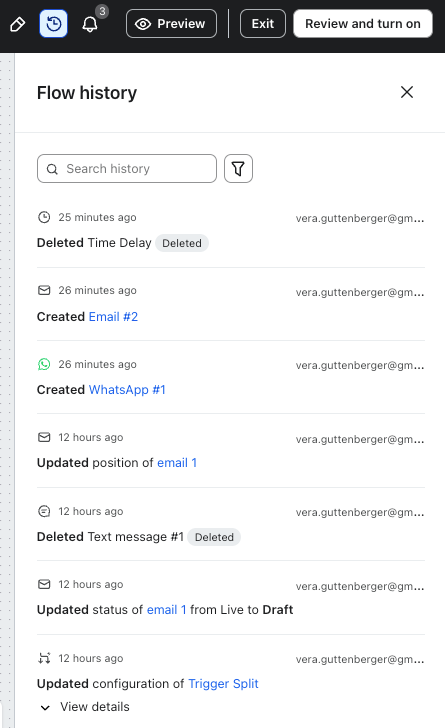
Information in the changelog
The changelog shows you exactly how your flow changed, including:
- What changed
- Who made the change
- When the change took place (date and time in your account’s timezone)
This changelog tracks the flow itself (such as when the flow was created) as well as the following actions and components:
- Trigger
- Profile filters and trigger filters
- Email, SMS, WhatsApp, and push notification messages
- Update profile property and list update actions
- Time delays
- Conditional splits and trigger splits
- Webhooks
It records when any of these items were created, updated, or deleted.
If a user on the account made the change, you’ll see their email address. If someone at Klaviyo logged in to your account and made the change, you’ll see Klaviyo Staff instead.
A cloned flow’s subsequent activity will not appear in the original flow’s changelog. The cloned flow will not contain the original flow’s full history; its changelog includes an entry identifying the flow it was cloned from.
Understanding what’s changed
For a change with View details, click it to compare the previous and new settings.
You can also click a linked component name in a changelog entry to select that component in the flow and open its settings on the left. Deleted components cannot be selected because they are no longer in the flow.
Filter the changelog
The changelog shows up to the 1,000 most recent changes to a flow. Search or filter these entries to find a particular change; filtering does not retrieve older entries outside that limit.
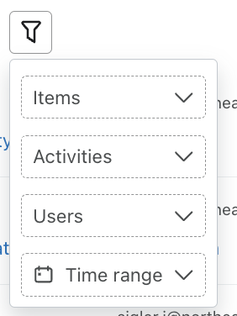
- Click the filter icon next to the search bar.
- Add any of your desired filters:
- Items (i.e., the updated components)
- Activities (i.e., created, updated, deleted)
- Users
- Time range
Additional resources
- Troubleshooting a flow
Learn how to troubleshoot a flow when you notice it behaving differently from expected.
- How to preview a flow trigger setup
Learn how to use the flow trigger setup preview tool to ensure your flow is set up as you intended. This will help you understand how your flow is going to behave based on the trigger and profile filters you've added.
- Understanding how contacts move through a flow
Learn how contacts move through a flow. Flows are automated Klaviyo workflows that are set in motion by an initial trigger and then include one or more steps. Flows can be built to send timely communications to recipients, or they can simply apply certain actions, like updating a specific field on a profile.