How to resend emails in Klaviyo
You will learn
Learn about the two methods for resending flow and campaign emails in Klaviyo.
The ability to resend flow and campaign emails can be very beneficial when the need arises. Suppose that a customer reaches out because they can’t find the email with their welcome coupon from your flow. You want customers, particularly first-time customers, to receive this email. The best thing to do is resend the message. You can also resend messages if you notice that someone was skipped for any reason; e.g., due to Smart Sending.
There are two ways you can resend any flow or campaign email to a single recipient:
- From an individual profile’s personal Inbox
- From the Recipient Activity view of a message
Limitations
Please be aware of a few limitations with resending emails:
- You can only resend emails in Klaviyo, and not SMS/MMS.
- You can only resend messages marked as "sent" or "skipped" in Klaviyo. If a message is currently scheduled to go out or was cancelled, you cannot resend it.
- You can only resend messages one at a time.
- The preview for the sent message will display dynamic content based on current data in your Klaviyo account, not what was sent in the original email. This is also true for the resent message.
- For example, if you include someone's first name in an email as dynamic content but then change the name associated with their profile later, the preview for the sent message will show the new name. Likewise, when you resend the message, the resent message will use the new name.
Resending from a profile
If you want to resend a flow or campaign message for a certain recipient:
- Search for specific contacts using the search bar in the upper left-hand corner of your account.
- You can use either the contact's name or email in the search bar.
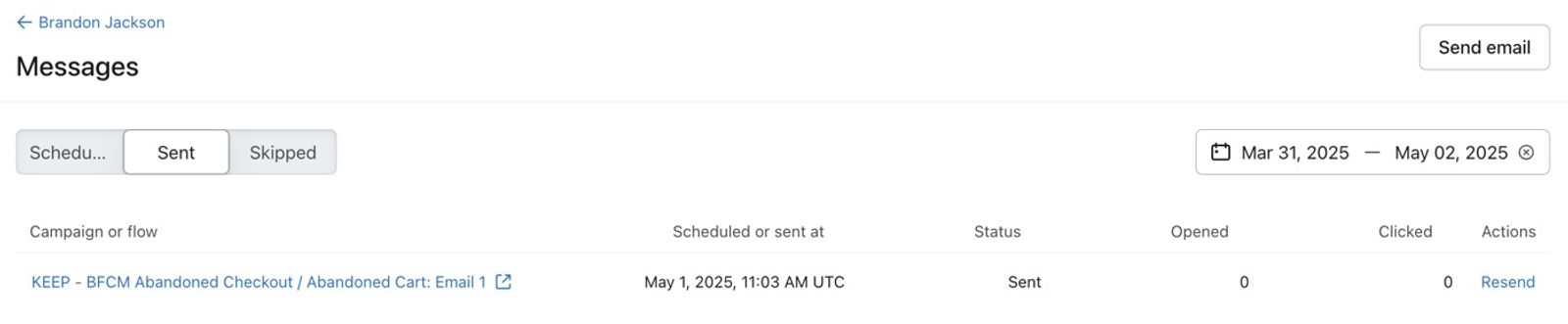
- On the profile, select Messages (or View messages, if that button appears at the top right). Find the email under Delivered or Skipped. If you don't see it, check the date range and message type filters. In the View messages inbox, use the Sent or Skipped tab instead.
- Click Resend beside the email. If prompted, click Resend again to confirm.
Resending from recipient activity
You can also resend from Recipient activity for both flows and campaigns. The Resend action may disappear from a row after you click it; refresh the page to make it available again. A successful resend shows a confirmation message, but the original recipient activity record does not become a new send.
When you resend a previously skipped email, the original skip remains in Skipped; resending does not move that record to Recipients. Klaviyo sends a separate email, which can use current profile data for dynamic content rather than reproducing the original email exactly.
In other words, a profile will not move from the Skipped to Recipients tab because an additional, separate email is sent to them.
You can check the resent email and subsequent opens and clicks in the profile's activity log.
Resending flows
For resending flow messages:
- Navigate to the specific flow and flow message.
- In the Performance section of the sidebar, click View details.
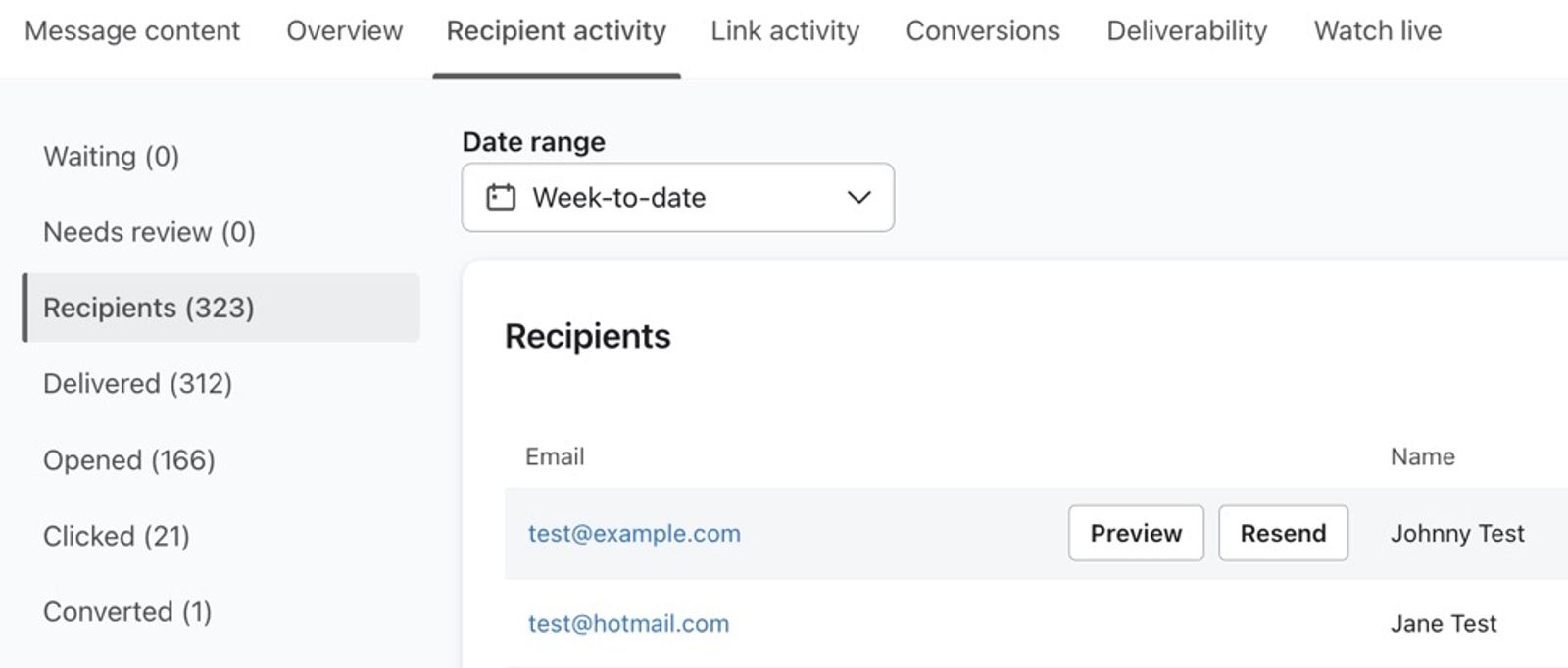
- Navigate to Recipient activity > Recipients.
- Hover over the profile you'd like to resend to and click Resend. Flow filters and Smart Sending aren't reapplied to a resend. The email is queued for sending, but other checks, such as email validity and sender compliance, can still prevent it from sending.
Resending campaigns
The process of resending a campaign is almost identical to that of flows.
- Click into the campaign that you want to resend.
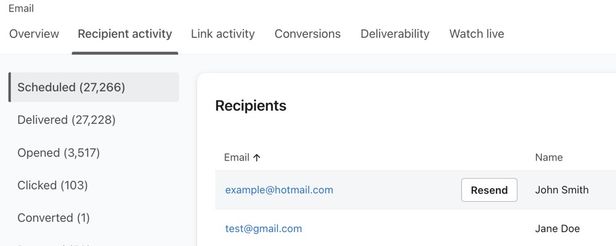
- Navigate to the Recipient activity tab.
- Hover over the profile you want to resend the campaign to.
- Click the Resend button. Note that Smart Sending is not applied to resends.
Additional resources
- Understanding Smart Sending in Klaviyo
Learn about Smart Sending, which allows you to limit the number of emails, SMS messages, or push notifications someone can receive within a set period of time.
- How to include a follow-up email to resend a campaign to "non-openers"
Learn how to use the include a follow-up email setting to resend a campaign to recipients that didn't open the original email. This option is available in the campaign wizard when setting up a new campaign.