Getting started with Klaviyo onsite tracking
You will learn
Learn about the different ways that Klaviyo can support onsite tracking on your ecommerce site. There are 2 key types of onsite tracking:
- Active on Site tracking
This metric is tracked whenever an identifiable browser starts a browsing session on your website. - Viewed Product tracking
This metric is tracked whenever an identifiable browser views a product page on your website (for ecommerce stores).
Active on Site tracking can help segment your contacts based on engagement level, while Viewed Product tracking can enable you to send product reminders in a browse abandonment flow.
For Shopify, we also offer additional types of onsite tracking.
Before you begin
Enabling onsite tracking is different for each ecommerce integration. In this article, you will learn how to do this and who Klaviyo tracks.
The code snippet for onsite tracking is known as Klaviyo’s onsite JavaScript or “Klaviyo.js." You do not need to add Klaviyo.js separately if you enabled active onsite tracking through one of the ecommerce integrations below:
- Shopify
Active on Site tracking is added automatically through the integration or through the Klaviyo app embed if it's toggled on. - BigCommerce
Active on Site tracking is added when you integrate if you also check the setting Automatically add Klaviyo onsite javascript. - WooCommerce
Active on Site tracking is added automatically when you integrate. - Magento
Active on Site tracking is added automatically when you integrate. - Wix
Active on Site tracking is added when you integrate if you check the setting Automatically add Klaviyo onsite javascript. - PrestaShop
Active on Site tracking is added automatically when you integrate. - Salesforce Commerce Cloud
Active on Site tracking is added automatically when you integrate. - Square Online
Active on Site tracking is added when you integrate if you check the setting Automatically add Klaviyo onsite javascript. - Shopware
Active on Site tracking is added automatically when you integrate.
If you are using another ecommerce platform, or a custom platform, you can install Klaviyo.js manually.
Because pasting this code requires access to your site's HTML and ecommerce platform, our support team cannot offer hands-on assistance. If you don't have a developer resource on your team and aren't comfortable adding the code, consider reaching out to a Klaviyo partner for assistance.
Active on Site event data
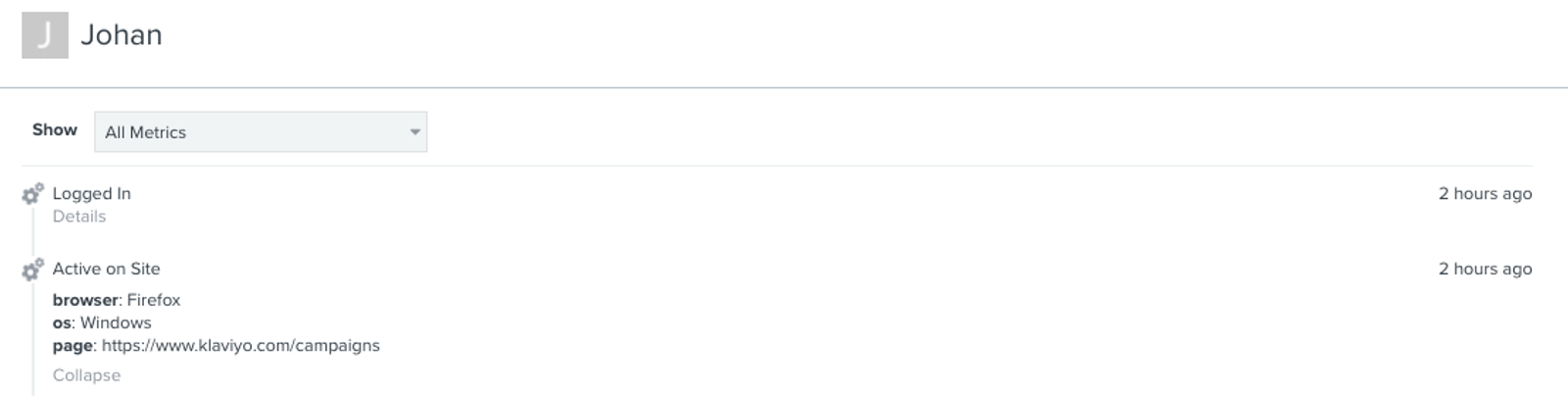
The Active on Site event captures the following information about identified visitors.
Event data beyond browser, os, and page is only available on Active on Site events captured after January 3, 2025.
- browser
User agent for the originating browser (e.g., “Chrome”). - os
User agent for the originating operating system (e.g., “Mac”). - page
The URL of the visited page. - utm_medium
The marketing channel the user comes from to the website. - utm_source
The source of traffic to the website. - utm_campaign
The name of the marketing campaign associated with the traffic. - utm_id
The unique identifier for the marketing campaign associated with the traffic. - utm_term
This is an optional UTM parameter that marketers can set to track paid search terms. - utm_content
An optional UTM parameter used to distinguish links or content within the same campaign.
For each of the UTM parameters, Klaviyo records the last value if the same parameter appears more than once in the URL. If a parameter is absent, it is omitted from the event. If it is present without a value, it is recorded as true.
- fragment
The part of the URL beginning with #, such as an anchor that points to a section of the page. If the URL has no fragment, this field is omitted. - referrer
The domain of the referring website, when the browser provides a referrer from outside your site. - Parameters
Up to 10 other URL query parameters are captured as separate event fields. The UTM parameters listed above are captured separately and do not count toward this limit. Reserved parameters, including_kxandutm_email, and names used for Klaviyo’s event fields are excluded. If there are no other parameters, no additional fields are set. - initial_page_path
The path of the page that starts the session, such as /products/shirt. For a homepage URL without a longer path, the value is /. - kx_present
If_kxis present in the URL, this field istrue. Otherwise, the field is omitted. It indicates the presence of a Klaviyo message-link parameter, not whether the visitor was successfully identified.
Add onsite tracking manually
- Copy the following Active on Site code snippet, also known as Klaviyo.js:
<script type="text/javascript" async="" src="https://static.klaviyo.com/onsite/js/PUBLIC_API_KEY/klaviyo.js"></script>- In Klaviyo, click your account name in the lower left corner and navigate to Settings > General > API keys, then note your Public API Key.
- Paste the code snippet in the main template of your site. Where you see PUBLIC_API_KEY in the snippet, replace this with your key.
- Save and publish your site template.
Now that you've installed Active on Site tracking, Klaviyo can record browsing sessions for identified visitors to your website.
Understanding Viewed Product tracking
Viewed Product tracking in Klaviyo is specifically designed for ecommerce stores, and can enable you to send product reminders in a browse abandonment flow. Once Viewed Product is installed, it will record a metric whenever an identifiable person views a product page on your website.
Enabling Viewed Product tracking is different for each ecommerce platform. If you are not seeing data captured from this metric, double-check that it's installed correctly.
Learn how to enable Viewed Product tracking for these ecommerce platforms:
- Shopify
Enable Viewed Product tracking through the Klaviyo app embed in Shopify. - BigCommerce
Learn how to add viewed product tracking to your BigCommerce store.
Viewed Product tracking is automatically installed through these ecommerce integrations:
- Magento 1 Integration (existing integrations only; new installations are no longer available)
- Magento 2 Integration
- WooCommerce Integration
- PrestaShop integration
- Salesforce Commerce Cloud integration
- Shopware integration
Viewed Product tracking can also be added to other ecommerce platforms and custom carts. For instructions on how to do this, head to our guide detailing how to add Viewed Product tracking for custom ecommerce stores.
Test your onsite tracking
Active on Site records a new event when a browsing session starts. A session expires after 60 minutes of inactivity, so reloading pages during the same session does not create a separate Active on Site event for each reload.
After enabling tracking on your site, you can test that tracking is set up properly by following these steps:
- Navigate to your website.
- Add the following to your store URL, replacing example@gmail.com with your email address:
?utm_email=example@gmail.com
If the URL already contains a question mark and query parameters, use&utm_email=example@gmail.cominstead. Add it before any # fragment. - Reload the page. If you also installed Viewed Product tracking, visit a product page in the same browser.
- In Klaviyo, search for your email address and open your profile. You should see an Active on Site event in your activity feed, plus a Viewed Product event if you visited a product page with that tracking installed. A profile is created if one did not already exist.
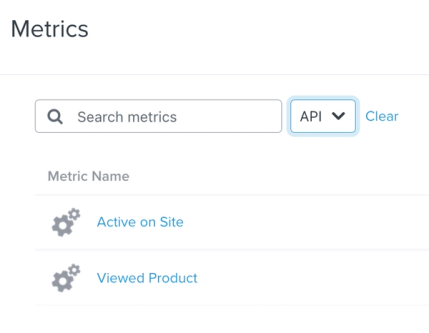
- To see a feed of all tracked activity for the Active on Site and Viewed Product metrics, navigate to Analytics > Metrics. You can click on each metric to analyze tracked data through an activity feed, activity map, charts, best people, and cohort reports. You can also filter by source. Filter by API to see events recorded through Klaviyo.js, including Active on Site and Viewed Product (these events have a gear icon).
Who Klaviyo tracks
By enabling basic onsite tracking on your website, you can collect helpful information around browsing activity that can be leveraged for your marketing strategies.
Klaviyo associates onsite activity with a profile once it identifies the visitor’s browser, such as through a Klaviyo message link or a form that submits identifying information. A visit or interaction with your site alone does not make a browser known.
If anonymous visitor tracking is enabled, Klaviyo can store onsite events in the visitor’s browser before identification and add them to their profile after they are identified. Learn more about anonymous visitor activity backfill.
If an email is forwarded and then opened and clicked on by a subsequent person, this will result in that device being linked to an open/click. It could also update and overwrite the profile information of the person who originally received that email.
There are multiple ways Klaviyo will identify a site visitor for onsite tracking:
- If someone has, at some point, clicked through a Klaviyo email or SMS to your website.
- If someone has, at some point, subscribed/opted-in through a Klaviyo form.
- If someone submits identifying information, such as an email address or phone number, through a Klaviyo form.
A form must submit identifying information to identify a new browser. A button that only opens a URL or closes the form, reaching the success step, or tapping a tap-to-text button does not identify a new browser on its own.
- If someone has, at some point, logged in to your site (and you have installed custom tracking for logged in users, which is not included with Klaviyo's native ecommerce integrations).
As a result, until you send emails or messages with Klaviyo and grow your lists, you probably won't see a lot of tracked onsite activity. Over time, Klaviyo will identify more and more of your contact-base and your onsite tracking data will become more comprehensive.
For Shopify stores, based on your Customer Privacy settings in Shopify, Klaviyo may not track onsite events for visitors to your Shopify store in the EU, EEA, UK and Switzerland, unless they have provided consent.
Examples of how to use onsite tracking
Ways to use onsite tracking include:
- Segment your contacts based on engagement level.
By gaining insight into which contacts interact with your website and how often, you can build a more personal communication strategy that drives deeper engagement. - Trigger an automated flow email or SMS to those that browse several times without purchasing.
While you don't want to send someone an email or SMS every time they visit your website, you might want to send a light touchpoint to those who visit several times in a short period of time, but don't engage further. For example, you can trigger a flow to those who have been Active on Site at least 4 times in the last 30 days, but haven't started or completed a checkout.
It's important to note that for Active on Site events in particular, while you can segment on the event itself, the data inside of it cannot be used for segmentation or flow filtering.
The _kx parameter
When you have Email to website tracking enabled and have Klaviyo.js on your website, Klaviyo will identify individuals who click through a Klaviyo email and then end up browsing your website. This is one of the fundamental ways Klaviyo can identify new site visitors and cookie them so they can be recognized on later visits from that browser. If the identifying cookie expires or is deleted, the browser needs to be identified again.
To track SMS link clicks and identify visitors who click through to your site, include a link and select Automatically shorten links when setting up your SMS message.
Klaviyo's email website tracking works by adding an additional parameter to the URLs you send (i.e., the _kx parameter). Klaviyo uses this encrypted value to identify the original message recipient when the link is opened on your website. See the example link below for an idea of how this will look in the URL:
http://example.com/?_kx=J8fjcn003Wy6b-3ILNlOyZXabW6dcFwTyeuxrowMers%3D.McN66
This parameter is automatically appended when live emails are sent and should not affect the load times of your links or break any links based on its placement. Note that when previewing emails, the value set for the _kx parameter will just be a placeholder to prevent being cookied as the recipient.
However, if you use URLs that contain query parameters to tell your server to download a file automatically, the _kx parameter could cause your link to break. To keep downloads working, configure your server to ignore this parameter, or turn off email-to-website activity tracking for your account. To turn it off, go to Settings > Email > Tracking, clear Turn on email-to-website activity tracking, and click Save. This setting applies across your account; you cannot turn it off for individual campaigns.
Additional resources
- Getting started with reporting
Learn about the different robust Klaviyo reporting tools available in your account. Klaviyo is built to help your business grow and strengthen your relationships with your audience by putting data to work. Segmentation and automation tools allow you to personalize and target your communication efforts across channels to boost engagement and drive business growth. However, in order to understand how well your business strategies and marketing efforts are working, you need proper reporting to measure and analyze performance trends over time.
- Understanding message conversion tracking
Learn how conversion tracking works for email, SMS, and mobile push messaging and how to edit these settings. For each campaign and flow sent, Klaviyo automatically tracks conversions. This allows you to analyze the performance of your marketing channels and their individual success.
- Understanding cookies in Klaviyo
Learn more about how Klaviyo uses cookies as a part of our web tracking to gather information and help improve conversion rates and email performance. This article explains the specific cookie we use and its purposes so that you understand how customers are tracked. This information helps you understand how Klaviyo gathers data, and how this may impact customer privacy and compliance laws.