How to segment by customer lifetime value (CLV)
You will learn
Learn how to create a customer lifetime value (CLV) segment and export any key CLV information. CLV is part of Klaviyo's predictive analytics and can be a powerful tool to use in segmentation. It is the total amount, both past and predicted, that a customer will purchase from your brand over time. CLV segments allow you to group customers based on this amount so that you can send them relevant content and trigger segment-based flows. For example, you can use historic CLV to build a VIP welcome flow or use predicted CLV to send targeted campaigns to customers who will likely spend a certain amount over your account's prediction period.
Before you begin
Please note that you will only be able to segment based on CLV if:
- At least 500 customers have placed an order. This does not refer to Active Profiles, but rather the number of people who have actually made a purchase with your business. If this section is on a profile but is blank, this means we don't have enough data on that individual to make a prediction.
- You have an ecommerce integration (e.g. Shopify, BigCommerce, Magento) or use our API to send placed orders.
- You have at least 180 days of order history and have orders within the last 30 days.
- You have at least some customers who have placed 3 or more orders.
Predicted CLV covers the next 365 days by default. Personalization and Advanced KDP include Custom CLV, which lets you change this period. If you have customized it, use your saved Predicted date range when building segments and analyzing exports. Learn how to customize your CLV prediction window.
Create a CLV segment
- Navigate to Audience > Lists & segments.
- Select Create > Segment.
- Enter a name for your segment. If a naming dialog opens, click Create segment in that dialog to open the segment builder.
- Choose Predictive analytics about someone, then select Historic Customer Lifetime Value, Predicted Customer Lifetime Value, or Total Customer Lifetime Value. Set the comparison and value you want to use.
- Add any other conditions you need, such as the email-targeting conditions in the example below.
- Click Create segment to save your definition and populate the segment with matching profiles.

Example
Let's say your average order value for customers is around $15. You may want to offer discounts to customers with low predicted total spending over your prediction period to encourage their next purchase.
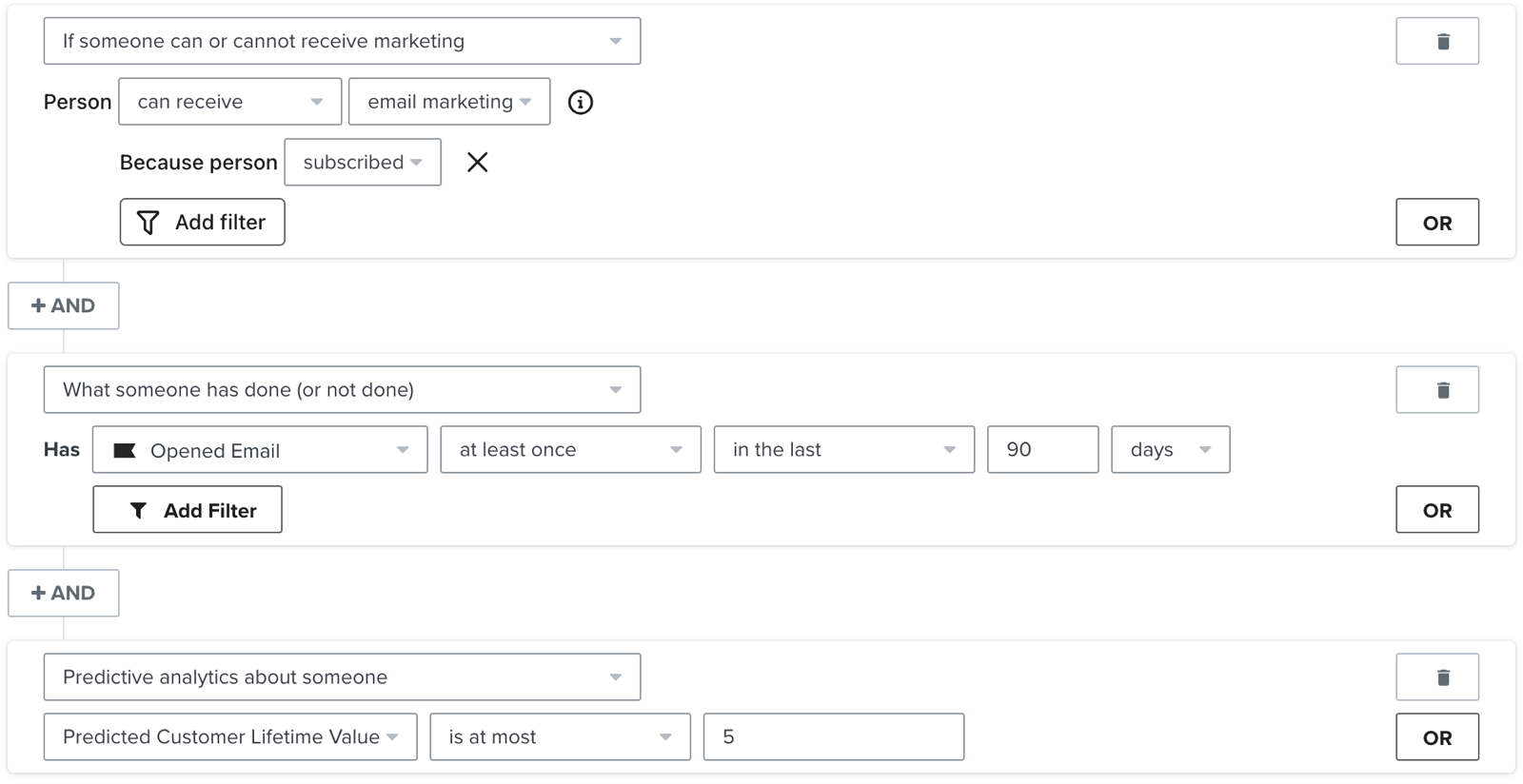
For example, create a segment using Predicted Customer Lifetime Value > is at most > 5. This groups customers predicted to spend no more than $5 over your prediction period. Target them with a discount campaign or flow, similar to a winback or re-engagement campaign. When targeting via email, combine the CLV condition with the following conditions using AND:
- They can receive email marketing and have subscribed. Use If someone can or cannot receive marketing with can receive, email marketing, and the Subscribed subscription filter.
- They belong to your main email list (in this case, a newsletter list)
- They have opened an email in a given amount of time (in the example below, the timeline is the last 90 days). Apple Mail Privacy Protection can register opens automatically, so an open does not always indicate engagement.
Export CLV segments
Exporting CLV data can allow you to further analyze and predict the behavior of different groups of customers. If Churn Risk Prediction appears among your export fields, select it to include churn risk in your CSV. Churn risk is exported as a number between 0 and 1. For example, 0.45 corresponds to a 45% churn risk.
To export a segment, you need permission to export profiles. The Owner, Admin, and Analyst roles include this permission.
- Navigate to Audience > Lists & segments and open your CLV segment.
- Select Manage segment > Export to CSV.
- Select the fields you want to analyze, such as Historic Customer Lifetime Value, Predicted Customer Lifetime Value, and Total Customer Lifetime Value.
- Click Start Export. The CSV downloads when the export finishes.

If you have a large number of one-time purchasers, you may have a high average churn risk. To lower your average churn risk, you may want to focus your marketing efforts on retaining customers after their first purchase. You can use Klaviyo's Predicted CLV metric to identify customers with low predicted spending for a retention campaign, as outlined in the example above.
Once you export this data as a CSV, you'll be able to run your own analyses. Some calculations you may be interested in include:
- Average CLV
Calculate average historic customer value by averaging the Historic Customer Lifetime Value column across the segment. Calculate average total customer value by averaging the Total Customer Lifetime Value column separately. - Predict future spending of a segment
Sum the Predicted Customer Lifetime Value of all members of a segment to estimate their combined spending over your account's prediction period. This is the next 365 days unless you have customized the period. - Estimate the number of returning customers
For profiles with a Churn Risk Prediction value, average those values, then subtract the average from 1. Multiply the result by the number of profiles included in that average to estimate how many are predicted to return. Exclude profiles with blank churn predictions from both the average and the count.
Additional resources
- Understanding Klaviyo's predictive analytics
Learn more about the different types of predictive analytics data displayed in your account, the various ways Klaviyo computes this, and guidelines for how you can utilize this data.
- Mitigate churn with predictive insights and custom CLV