Understanding the t-online.de inbox placement requirements
You will learn
Learn how to meet the t-online.de requirements for delivery. T-online.de is an inbox provider predominantly used by German subscribers with unique requirements for delivery. As a result, you may see a rise in bounces from this provider, lowering your ability to reach these German recipients.
If you see a rise in bounces unrelated to the t-online.de requirements or are looking for additional guidance on this topic, head to our guide on how to decrease bounce rates.
Prerequisites
Before you begin, check that you have set up and activated a branded sending domain in Klaviyo.
- Open the account menu in the bottom left corner and select Settings.
- Navigate to General > Domains. Here, you can review your sending domain or start setting one up.
- If you need to create your branded sending domain, click Add domain and follow the instructions outlined in our guide on setting up a branded sending domain.
- Follow the linked guide to complete DNS verification and activate your domain before continuing with the sending practices below.
t-online.de delivery best practices
t-online.de requires permission to send marketing email and a way for recipients to unsubscribe. Use double opt-in to verify new email signups, and follow these sending practices:
- Enable double opt-in for your lists
- t-online.de is strict about sender identity. To avoid blocks, use the same root domain for your branded sending domain, sender email address, and dedicated IP hostname (if you have one). Domain setup configures Sender Policy Framework (SPF) and DomainKeys Identified Mail (DKIM) authentication. Klaviyo manages reverse DNS (rDNS) for its sending IP addresses.
The following sections explain these practices.
Enable double opt-in
New email lists use your account's default opt-in setting. Check that double opt-in is enabled for the lists you use to collect email subscribers. Double opt-in is the process through which a new email subscriber must confirm their subscription via email before being added to your list. For more information, head to our guide about the double opt-in process.
- Open the list you want to check and select Settings > Consent.
- Under Opt-in process, select Double opt-in.
- Click Save. Repeat for each list you use to collect email subscribers.
Align your sender identification
Use a branded sending domain to authenticate your email, and match your sender email address to its root domain. The following settings help identify your email and its sending server:
- Sender Policy Framework (SPF)
Setting up and activating your branded sending domain configures SPF authentication for your email. - DomainKeys Identified Mail (DKIM)
The same branded sending domain setup configures DKIM signing for your email. - Reverse DNS (rDNS)
rDNS links a sending IP address to a hostname. Klaviyo manages this for its sending infrastructure. For a branded dedicated IP, the hostname can use your branded domain. - Sender Email Address
This is your from-address and can be adjusted for each campaign and flow email.
Your sender email address should use the same root domain as your branded sending domain. For example, a branded sending domain of send.helloworld.com aligns with example@helloworld.com because both use the root domain helloworld.com. A sender address such as personalemail@email.com does not align because it uses a different root domain. The full sender email address does not need to match the sending subdomain.
The table below shows examples of aligned and mismatched root domains. The rDNS row illustrates a branded dedicated IP. Matching these examples does not guarantee inbox placement.
Root domains align | Root domains do not align | |
Branded sending domain | send.helloworld.com | send.helloworld.com |
Sender email address (from-address) | example@helloworld.com | example@helloearth.com |
rDNS domain (for your dedicated IP) | XXX.send.helloworld.com | XXX.send.helloearth.co.uk |
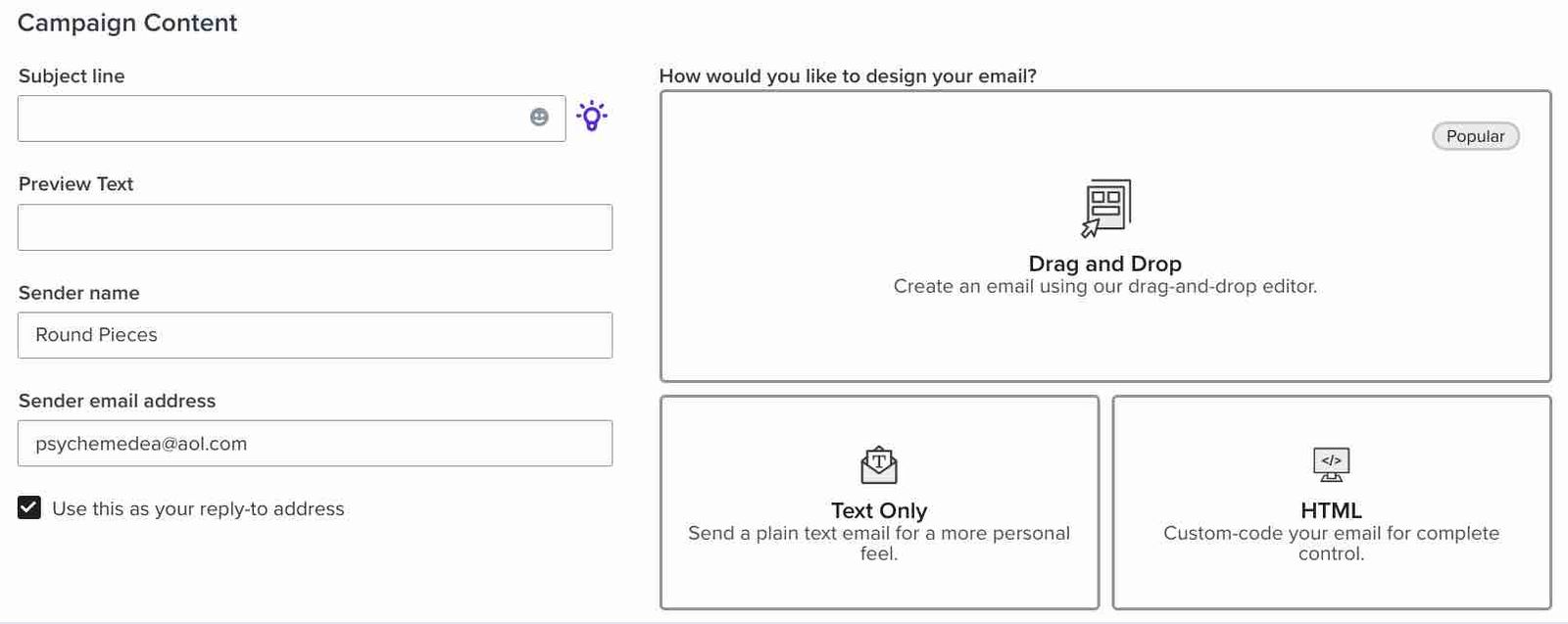
When you build campaigns and flow emails, use a sender email address with the same root domain as your branded sending domain. For campaign emails, edit the Sender email field; for flow emails, edit Sender email address. You may also edit your default sender address within your account settings using the instructions in our guide to changing your sender email address and sender name.
If, after following these best practices, your emails to t-online.de continue to bounce, review the t-online.de postmaster page to make sure that your current sending habits align with their recommendations.
Additional resources
- How to set up a branded sending domain
Learn how to set up a branded sending domain (also known as a dedicated sending domain) so that when emails reach inbox providers, they will appear to come from your brand instead of Klaviyo.
- Understanding what a branded sending subdomain is
When setting up a branded sending domain (also known as a dedicated sending domain), you will need to choose an associated subdomain or prefix. In this article, you will learn more about how to choose a subdomain that is right for your business.
- Understanding bounced emails in Klaviyo
Learn about the reasons that emails can bounce, as well as how to view and suppress bounces in Klaviyo.