How to create unique coupon codes for Shopify
You will learn
Learn how to create single-use coupon codes for your Shopify store so that each customer receives their own unique coupon code for a promotion. Unique codes are an alternative to a generic, or static, coupon code. Each code can be redeemed once, but the recipient can still share it with someone else.
Shopify enforces a limit of 20 million unique discount codes for each Shopify store. If you reach this limit, you will need to delete unique codes from your Shopify admin before Klaviyo can resume generating new unique codes.
Before you begin
If you have not already, read our guide on How to Integrate with Shopify for step-by-step instructions on integrating before continuing with this article.
Make sure that you’ve integrated with Shopify and can view the Coupons tab in your Klaviyo dashboard.
If you are having trouble accessing it:
- Navigate to the Integrations tab in Klaviyo.
- Search for Shopify, and click on the integration to bring you to your Integration Settings page.
- Click Update Settings to update your integration settings (you may need to re-authenticate with Shopify to then be brought back to Klaviyo).
- Navigate back to your Coupons tab.
When to use unique coupon codes
Unique coupon codes can be used in email campaigns, flow emails, SMS messages, and sign-up forms. Examples of unique coupon codes in campaigns include:
- Discount codes for email subscribers
Reward your subscribers by sending them an exclusive, email-only promotion using coupon codes. - Pre-sale discounts for VIP customers
Send your VIPs unique codes that they can use to purchase from a brand-new collection. - Shipping delay discounts
If certain items are back-ordered or you're experiencing fulfillment delays, send impacted customers a unique code to thank them for their patience.
Examples of unique coupon codes in flows include:
- Abandoned cart
Send a discount code to cart abandoners who haven't bought before that is only active for 2 to 4 days. A short expiration window gives shoppers a deadline for using the discount. - Winback
Send a discount to buyers who haven't purchased recently, incentivizing them to purchase again. A set expiration date gives them a deadline for using the offer. - Welcome series
Send new subscribers a discount code as soon as they join your email list — you can send another code with increased savings if they haven't bought after 2 weeks.
Klaviyo coupon codes only work for nonrecurring orders, and not subscription orders such as those enabled by Recharge.
Create your coupon code in Klaviyo
- Navigate to Content > Coupons in Klaviyo.
- Click Create Shopify Coupon in the upper right-hand corner.
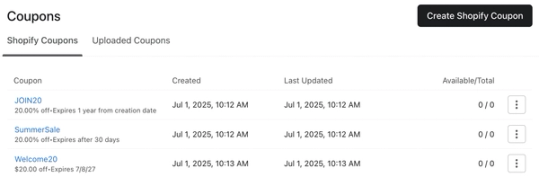
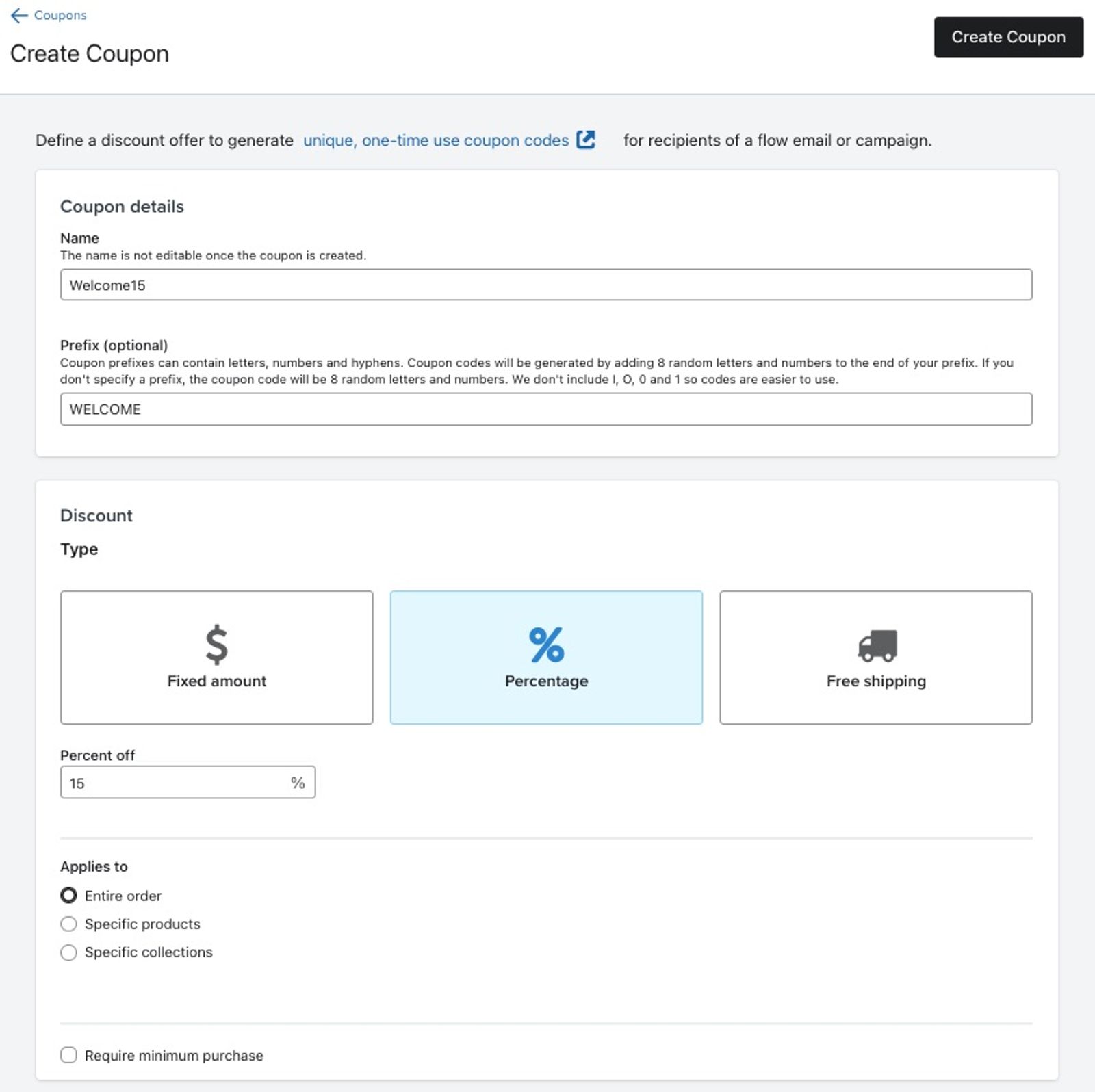
- For each coupon, set the following properties in Klaviyo:
- Name
Setting a name will help you identify the coupon in Klaviyo. Note that you will need to use this exact name when including the coupon in a message. - Prefix
Klaviyo will generate a random code for each person, but you can also specify a prefix to be included in every code (e.g., WELCOME). - Discount type
Choose whether the coupon is a fixed amount off, a percentage off, or free shipping. - Free shipping
For free shipping coupons, you can limit the coupon so it only applies to certain shipping rates, or only to specific countries. - Fixed amount and percentage
For coupons that offer a fixed amount or percentage off, you can specify that the coupon only applies to certain products or collections. - Applies to
Pick whether customers can apply the coupon to the entire order, specific products, or specific collections. - Require minimum purchase
Choose if the coupon can only be used if the customer’s cart reaches a specific amount. Note that if the code is only for a specific product, the minimum purchase amount only applies to that specific product.
- Name
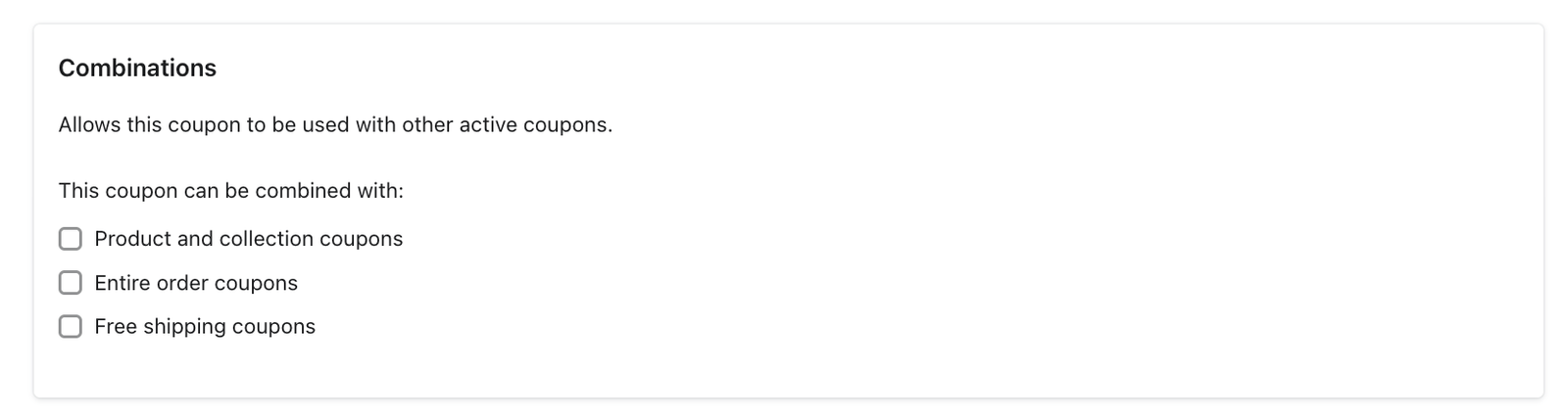
- Combinations
Choose the types of discounts this coupon can be combined with in a single order.
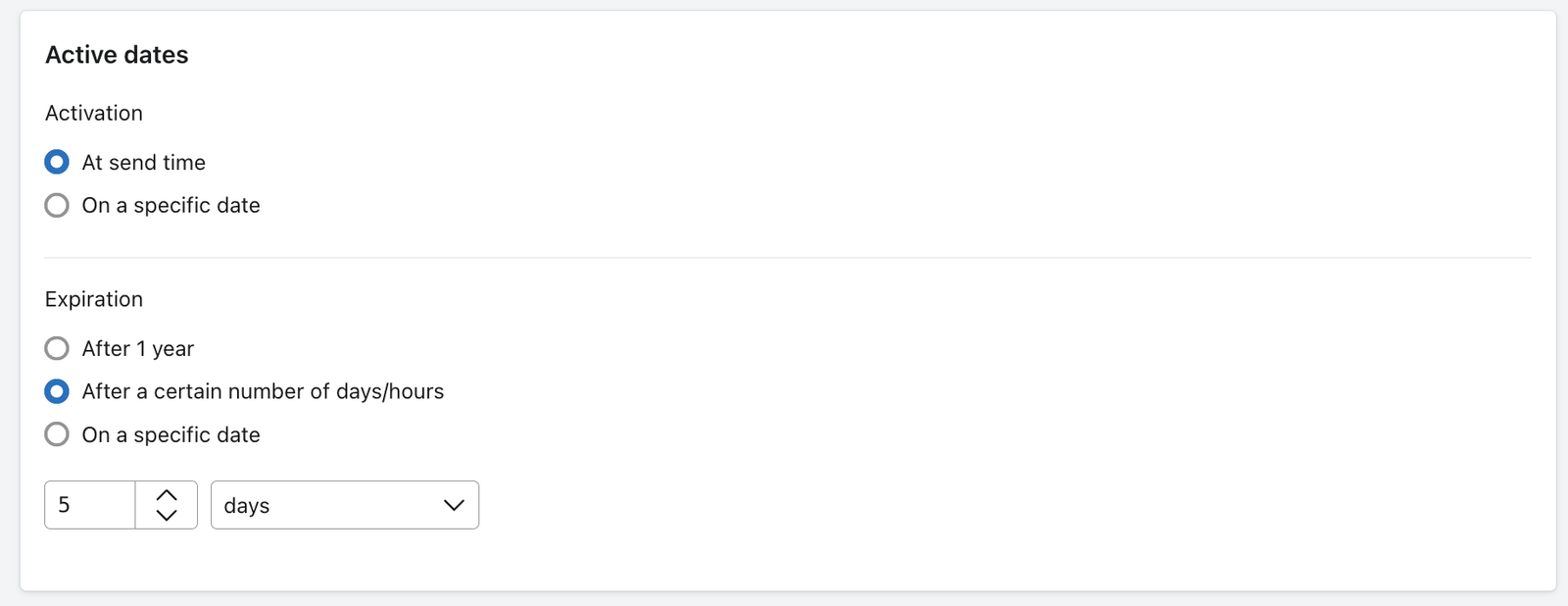
- Activation date
This is the date the coupon becomes active — you can choose a specific date or select an option where generated coupon codes activate at send time. Please note that dates are set in the UTC time zone, so you may see a different activation date in Shopify. - Expiration
Choose when you would like your coupon to expire. There are different options for coupons used in campaign messages versus flow messages. Please note that, in Klaviyo, dates are set in the UTC time zone. However, Shopify sets the expiration date and time based on the Shopify store’s timezone, so you may see different expiration dates in Klaviyo and Shopify for the same coupon.- Campaigns
You have 2 choices for expiration:- Generated coupon codes will expire after 1 year.
- If you want your discount to have a defined end date, after which generated codes will expire, you can select a specific expiration date.
- Flows
You have 3 choices for expiration:- Generated coupon codes will expire after 1 year.
- Generated coupon codes will expire after a certain number of days/hours.
- If you want your discount to have a defined end date, after which generated codes will expire, you can select a specific expiration date.
- Campaigns
- Click Create coupon.
- Coupons that expire after a certain number of days/hours have variable expiration dates. Although you can create coupons with variable expiration dates for flows, you cannot create coupons with variable expiration dates for campaigns.
For coupons that expire after a certain number of days or hours, Klaviyo adds a 24-hour grace period to the generated code’s validity window to allow for sending or delivery delays. This extra time does not apply when you select a specific expiration date.
For example, a code set to expire after 4 hours has a validity window of 28 hours. A coupon with a specific expiration date of August 15, 2026 expires at 23:59:59 UTC on August 15, 2026.
It's also important to note that if you update coupon settings, such as discount type and percentage, within Shopify, all codes generated with those price settings will have the new price settings. If you update coupon settings in Shopify that are not available in Klaviyo's coupon creation, those changes will not be reflected. See information on updating coupon codes for more details.
Generate codes after creating your coupon
Klaviyo generates coupon codes for flow messages automatically. If you plan to use your coupon in a flow, you can skip this section. For email or SMS campaigns, generate coupon codes manually before scheduling the campaign.
Once you've configured your coupon's definition, you'll next need to specify the number of coupon codes that you want to generate for your campaign. This must be done before you schedule your campaign. To generate coupons:
- Navigate back to the Coupons tab.
- Click the 3 dot dropdown next to the coupon you just created and select Add Codes.

Coupons with variable expiration dates cannot be used in campaigns. As such, you will not see the option to manually add codes if you have selected a variable expiration date for your coupon.
Before choosing how many codes to generate, keep in mind:
- You must generate at least as many codes as expected recipients. This means that if you generate fewer codes than the number of estimated recipients, you will not be able to schedule or send the campaign.
- If your scheduled campaign is set to Determine recipients at send time, the audience may grow after you generate codes. Generate enough codes for that growth. If the actual audience exceeds the available codes, recipients without a code will be skipped and will not receive the message.
- If you generate a large number of codes, allow time between your campaign's desired send time and when you create the codes. Generating a large number of coupon codes may take up to several hours. Because of this, use the estimated number of recipients of the campaign as a framework and do not significantly overestimate the number of codes you need.
- Input the number of codes you would like to generate in the box and click Add Codes. Again, be sure to generate at least as many codes as you have expected recipients for your campaign, otherwise, you will not be able to send or schedule it.
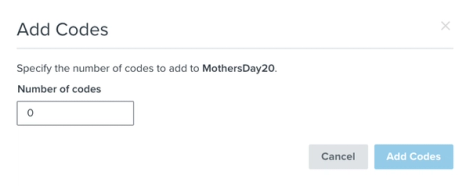
- Track the generated codes in the Available/Total column. Wait until enough codes are available for your campaign before scheduling it.
You are able to include multiple codes per email (but only 1 code per SMS). If you use multiple coupons in a message, make sure you have enough codes for every recipient to receive one of each code. With email, you have the option to use hidden blocks to send different coupons based on where someone lives or what they’ve done. We recommend exercising caution with the hidden blocks feature because codes may be assigned to all recipients (even if they end up hidden in your message) and block your send if there aren’t enough codes.
Now that you've generated your codes, use them in an email campaign or SMS message to incentivize site visitors to make a purchase.
Using your coupon in a campaign email
After the coupon codes have been generated, you can include the coupon tag in your campaign template.
- Drag and drop a text block wherever you want the coupon to appear in your campaign.
- Click the personalization icon. Depending on your editor, you may see a person icon, or a button labeled Personalization.
- From the All types menu, select Coupons.
- Select the coupon you'd like to add.
When the campaign sends, Klaviyo replaces the coupon tag with a unique discount code for each recipient.
When you preview the email directly in Klaviyo, the coupon appears as CouponName-PREVIEW. The campaign uses the codes you generated earlier and assigns them when sending.
Test your campaign's coupon
Before sending the campaign to your audience, test its coupon. Add codes from Content > Coupons, then send a preview email to yourself or a teammate. If a code is available, the preview uses a real code that you can test in Shopify. That code is reserved for preview use and is no longer available to assign to a customer in the campaign.
- If you preview the email directly in Klaviyo, you will not see a unique coupon code populate. It will appear as COUPON_NAME-PREVIEW.
- If multiple people are included in the preview send, they will all receive the same code.
Before you send or schedule your campaign, review the coupon check. If fewer codes are available than the estimated number of recipients, add more codes before continuing.
After your campaign is sent, you can see which code an individual recipient received by navigating to their profile, opening Details, and scrolling to the Coupons section.
Use your unique coupon in a flow
Once you’ve created and configured your coupon, insert it into a flow message.
- Navigate to the Flows tab in Klaviyo’s left-hand navigation.
- Open an existing flow or create a new one.
- Select a flow message inside your flow.
- Open the message editor for the selected flow message.
- Click the personalization icon. Depending on your editor, you may see a person icon, or a button labeled Personalization.
- From the All types menu, select Coupons.
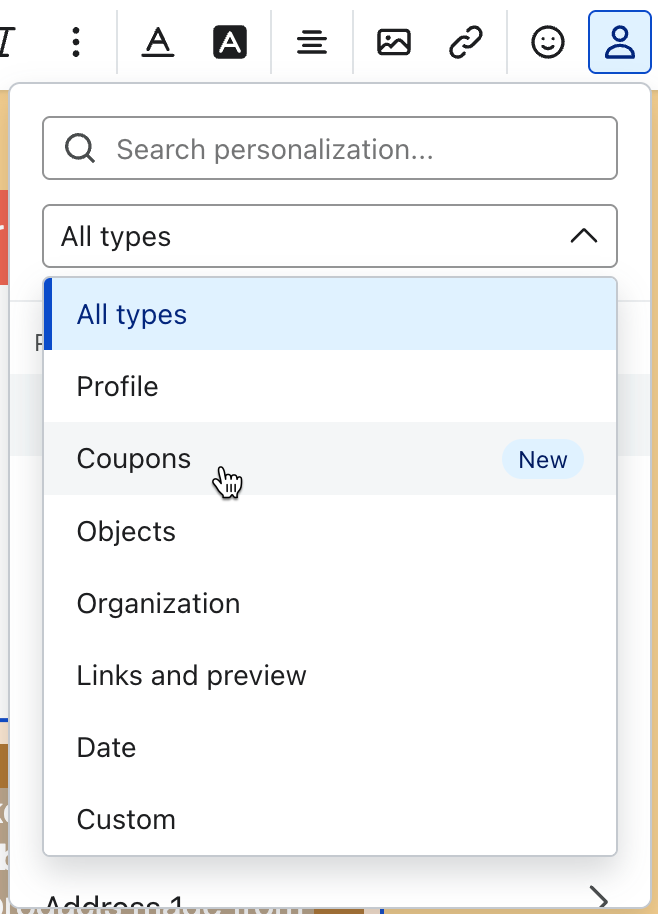
- Select the coupon you'd like to add.
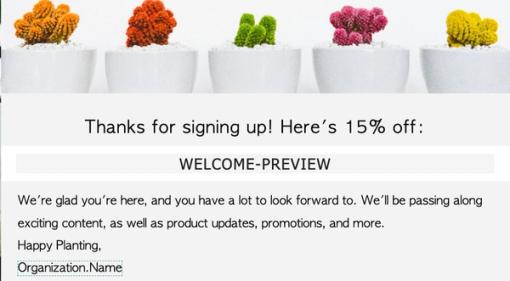
- Optional: Select the 3 dots on your flow email, then click Preview. In the in-app preview, the coupon appears as
CouponName-PREVIEW. To test a real code, follow the testing steps below.
When the message sends, Klaviyo replaces the coupon tag with a unique code made up of your optional prefix and 8 random letters and numbers. If you use the same coupon tag in multiple flow messages, the recipient receives the same code while it is unexpired, even if they have already redeemed it. Repeating a code does not make it redeemable again. After it expires, Klaviyo assigns a new code when one is available.
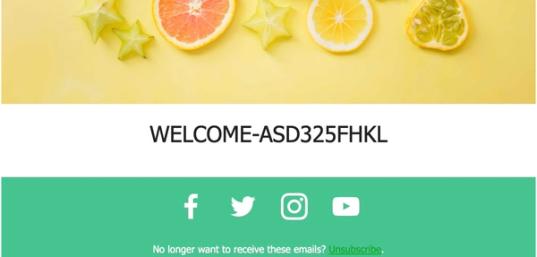
Klaviyo generates and replenishes codes for flow messages automatically, so you do not need to add batches manually. If a code is temporarily unavailable while more are being generated, Klaviyo retries the message. If generation fails or the retry window ends, the message can be skipped. Check the message’s recipient activity for the reason.
Test your flow email's coupon
Before you send out the flow and coupon to your audience, we suggest testing it first.
Test a coupon with a variable expiration date (e.g., 7 days)
- In the flow builder, click Review and turn on or Update status. If the panel shows scheduled status changes, click Edit beside the current status.
- Select Manual. If the panel offers Update status now or Schedule, choose Update status now.
- Click Save.
- Trigger the flow with your test profile, for example by filling out the sign-up form that adds you to the flow’s list. Make sure the profile meets the flow’s filters, and allow for any time delays before the email. Klaviyo generates codes automatically as needed.
Allow time for coupon generation. During the test, you may see Retrying: Generating Coupon Codes in recipient activity. If the message is skipped instead of progressing, check its skip reason before continuing.
After your test profile reaches the email in Manual status, it appears under Needs Review.
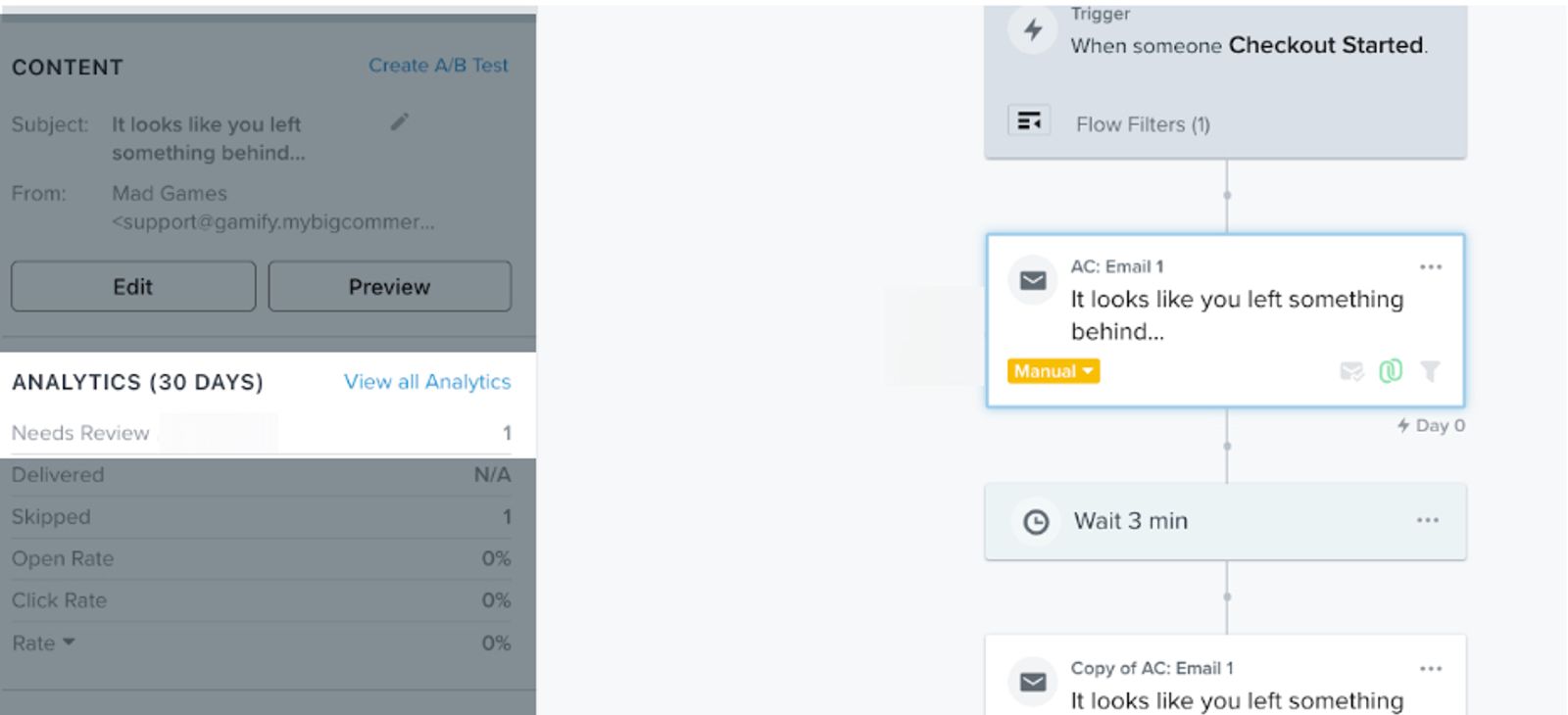
- Click into the Needs Review bucket under Recipient activity.
- Select Send Now for your test profile.
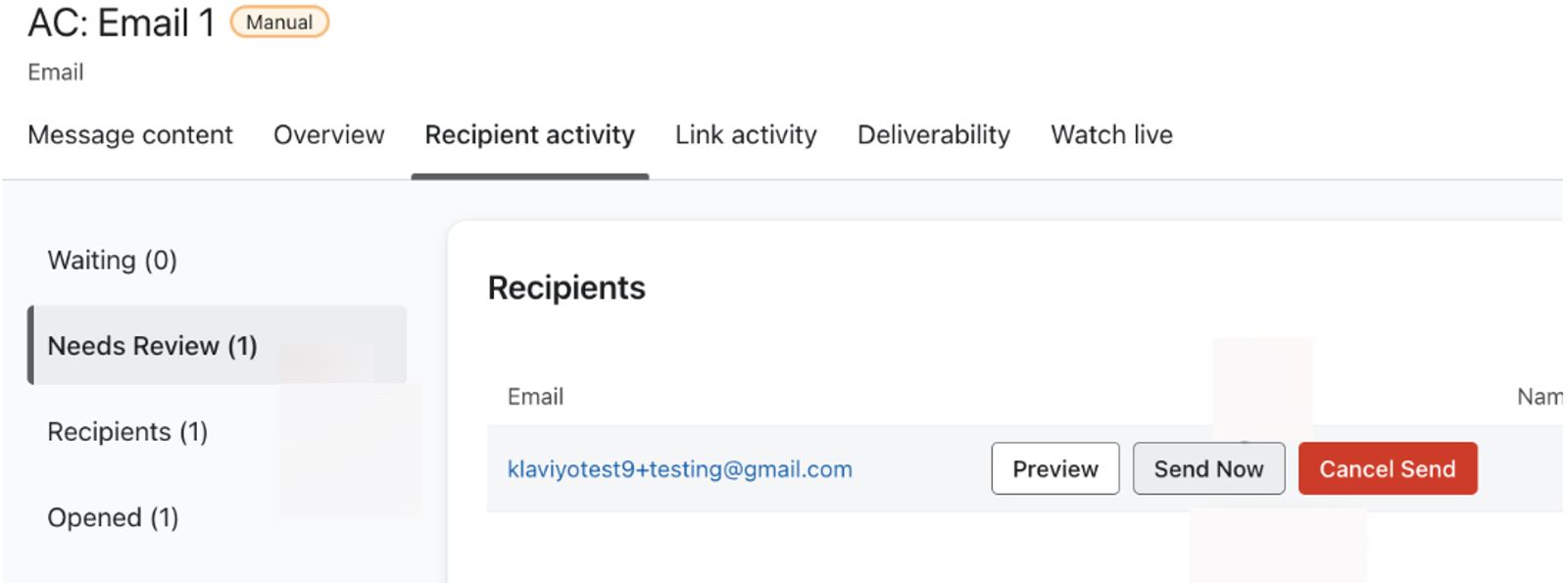
- Check your inbox for the email, then test the unique code in your Shopify store.
- When you are ready for automatic sends, repeat the status-change steps above, select Live instead of Manual, and click Save.
Using your coupon in a sign-up form
You can also use unique Shopify coupon codes in sign-up forms. Add a coupon block to your form’s Success step before continuing. You can create the coupon in advance or while building the form.
On your form's coupon block, take the following steps to add a unique coupon for Shopify:
- Select Unique in the coupon block’s settings, then choose Shopify Coupon as the Unique Coupon Type.
- Choose an existing coupon from Unique Coupon, or click Create another Shopify coupon to make a new one. If you have no Shopify coupons yet, click Create unique Shopify coupon. If you choose an existing coupon, skip the creation steps and add the fallback coupon below.
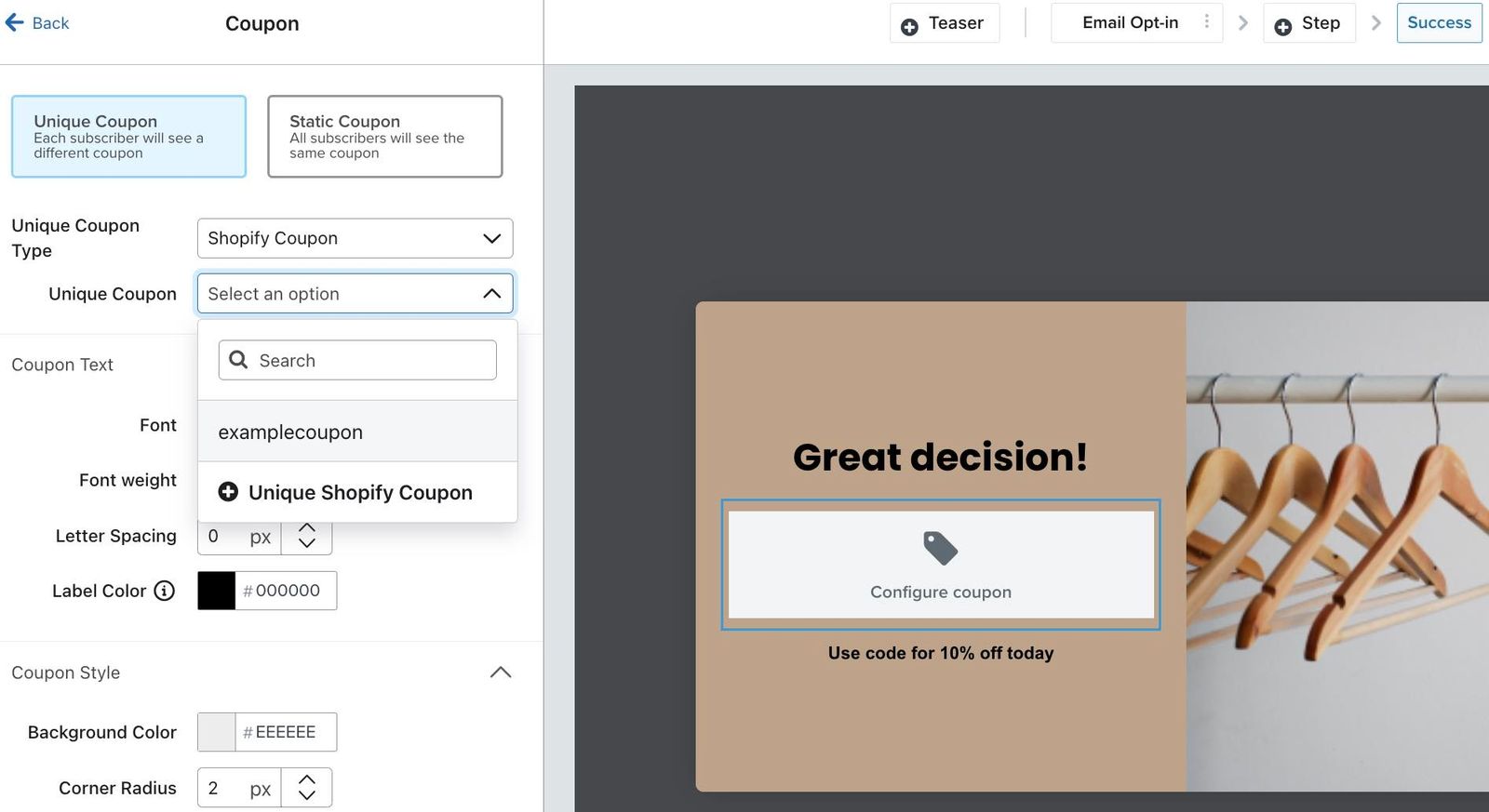
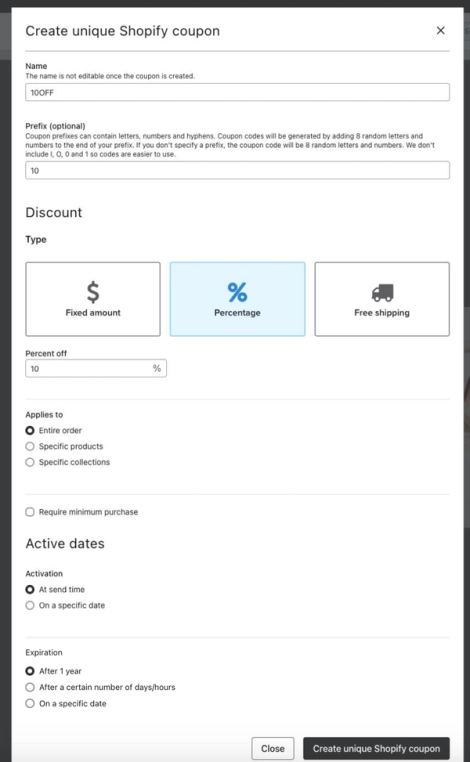
- If you chose to create a new, unique Shopify coupon code, a Create unique Shopify coupon modal will appear asking you to:
- Name your coupon (e.g. 10OFF), and add an optional Prefix.
- Select the type of discount that you would like to offer your customers (fixed amount, percentage, or free shipping).
- Choose the settings for how your coupon will operate (amount, application, activation, and expiration).
When you publish the form, Klaviyo fills the coupon’s available supply toward 600 codes per live form using that coupon. It generates more when fewer than 400 codes are available. Coupons that expire after a certain number of days or hours also receive periodic top-ups as codes expire; this is not a fixed batch of 600 new codes each day.
- If you are creating a new coupon, click Create unique Shopify coupon in the modal. You’ll return to the form builder with the new coupon selected.
- Add an existing static coupon as a Fallback Coupon. This is a static code that will only appear if you run out of unique coupon codes, so that your customers will still receive some coupon.
You will need to create a static coupon in Shopify first to paste into the Fallback Coupon textbox (e.g. 10PERCENT).
- Skip to the final section to finish editing and publish your form.
Unique coupons for SMS
Unique coupons are also available for SMS/MMS messages.
- For an SMS or MMS campaign, generate codes in advance using the campaign steps above. For a flow message, Klaviyo generates codes automatically.
- Use the template tag below to add the coupon code to your SMS or MMS message:
{% coupon_code 'CouponName' %} - Replace
CouponNamewith the exact name of your coupon.
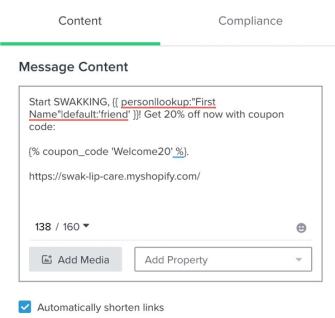
Unlike with emails, you can only use 1 coupon code per SMS message. If you try to add multiple coupons to an SMS, you will see an error message.
Information on updating coupon codes
Changing discount settings in Klaviyo removes the previous version’s unused codes from your available supply. If prompted, review the warning and click Update coupon to confirm. Generate new codes before using the updated coupon in a campaign. Klaviyo blocks updates while the coupon is used by a scheduled or sending campaign or a live form.
If you change the definition of your coupon, the impact on already sent codes will depend on where you made the changes to the coupon definition:
- If you change the coupon definition in Klaviyo, then it will create a new price rule and the coupons already sent to customers will not be impacted. This means that all previous coupon configurations will still apply for the already sent codes.
- For example, if a coupon code was previously set to require a minimum purchase amount of $20, Price Rule A is created in Shopify for this definition. If that coupon definition is later changed in Klaviyo to require a minimum purchase amount of $40, a brand new price rule will be created in Shopify (Price Rule B). This means that any coupons that were already sent in a flow before the change will still reflect Price Rule A ($20 minimum purchase), and thus will not be impacted by the definition change.
- If you change the coupon definition in Shopify, then coupon codes that have already been sent will be impacted.
- For example, if a coupon code was previously set to require a minimum purchase amount of $20, Price Rule A is created in Shopify for this definition. If you later make a change to Price Rule A in Shopify, so a $40 minimum purchase is now required, coupon codes that were already sent in a flow before the change will be impacted. The changes to the coupon's definition will not be reflected in Klaviyo, however, the previously sent coupon codes will be updated to the new definition ($40 minimum purchase).
For flows, Klaviyo generates codes automatically as needed after an update. Allow time for generation and test the updated coupon before relying on it in a message. Recipients with an unexpired code from an earlier version can continue to receive that code.
Head to our article on viewing a coupon’s history to learn more.
Best practices
If you use unique coupons in campaigns and flow messages, there are a few best practices we recommend:
- Don't use the same coupon for flows and campaigns. Because you need to specify the number of codes to be generated for campaigns, but not flows, it's best to use different coupons for each.
- Create a separate coupon for each campaign. This makes it easier to track the codes needed for each send. Generate enough for the expected audience, including any growth before send time, to avoid skipping recipients who cannot be assigned a code.
- Create a separate coupon when changing the categories or products a discount applies to. Editing an existing coupon removes unused codes, but recipients with an unexpired code from an earlier version can still receive that code with its original rules.
Additional resources
- How to add a link that applies a coupon code to a Shopify cart
Learn how to add a link in your email or SMS that applies a coupon code directly to a shopper's Shopify cart. Having the coupon already applied to the cart makes it easier for them to take advantage of the discount and buy quickly. To set this up:
- How to use unique coupon codes in SMS and MMS messages
Learn how to use unique coupons in your SMS/MMS messages so that you can send one-time-use coupons to your SMS subscribers and encourage them to make a purchase.