How to create flow email content
You will learn
Learn how to create the content of a flow email to directly communicate with your customers. With flows, this communication is automatic. In this article, we run through how to create this content for flows in Klaviyo.
Please note that Analysts cannot edit flow email content.
Make the content for flow emails
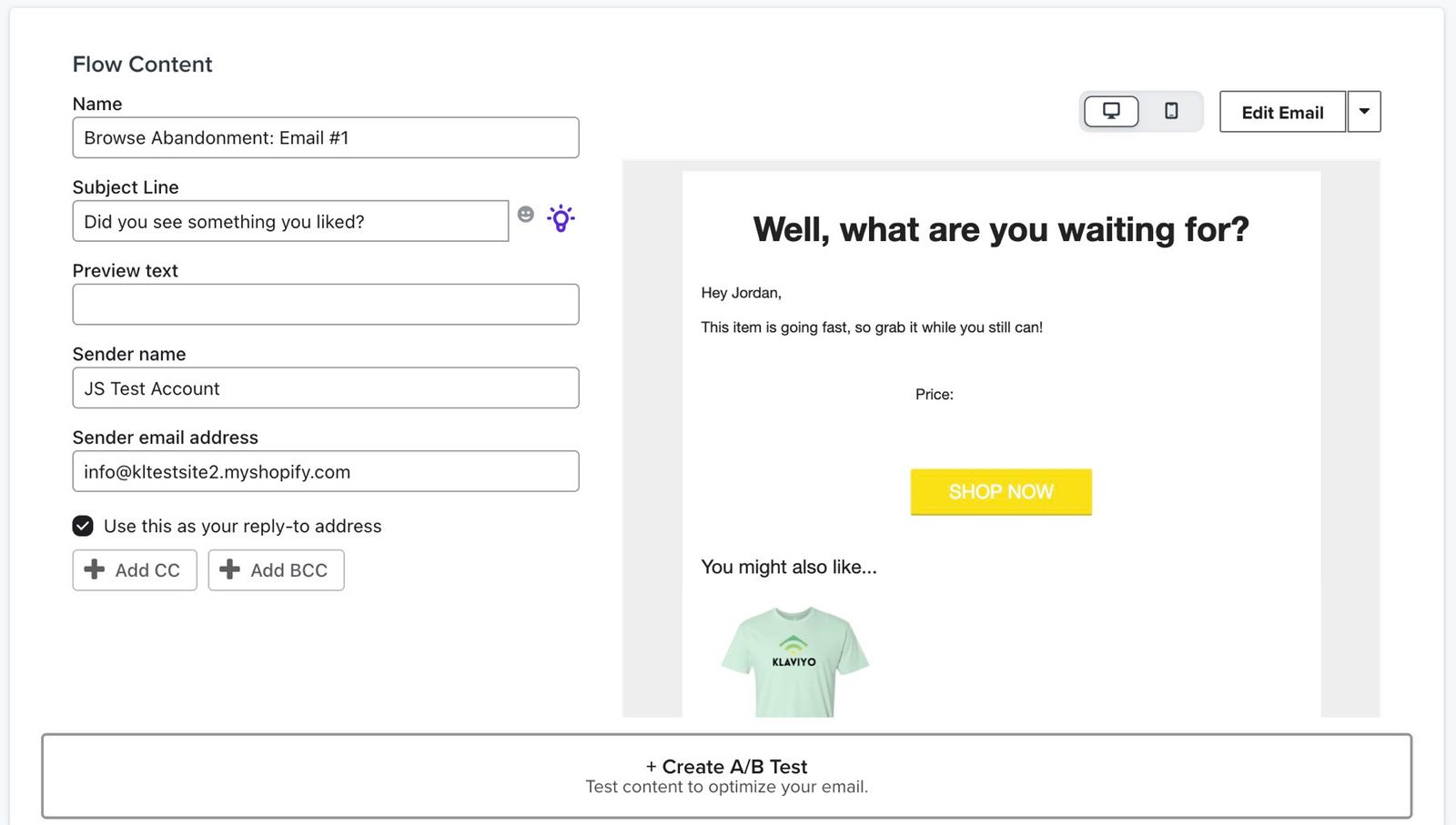
On the flow email’s content page, you can:
- Update your sender information, including the sender name and sender, BCC, and CC email addresses
- Edit the subject line of an email
- Add content using Klaviyo's Email Template Builder, a template you created previously, or a custom-coded HTML template that you built outside Klaviyo
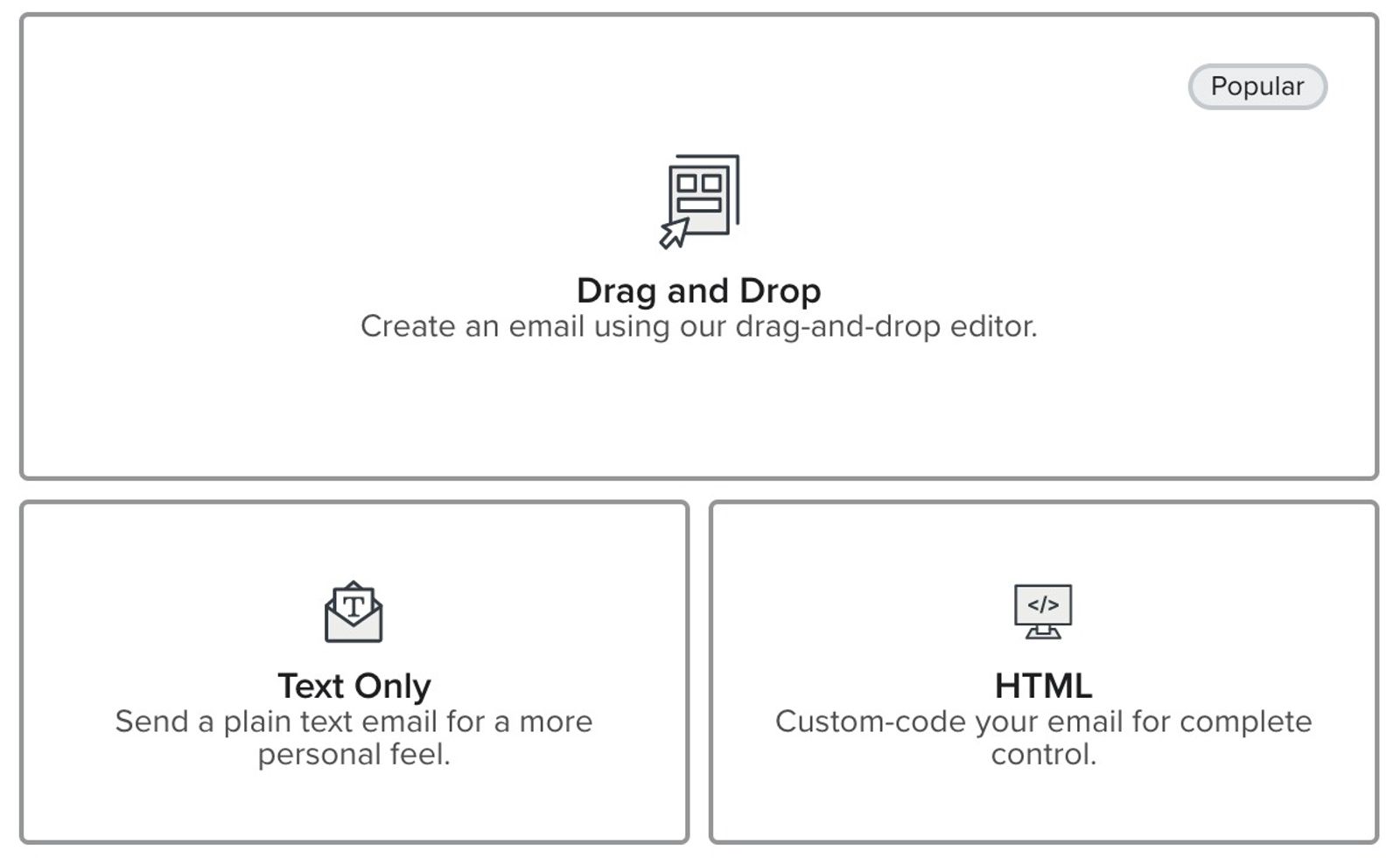
When you create or change a flow email template, choose how you want to design the email:
- Drag and drop: Create an email in the drag-and-drop editor, starting with a template from the library or building your own layout. You can preview how it looks on desktop and mobile.
- Text only: Choose this option for a plain text email that feels more personal than a designed email.
- HTML: Choose this option to code your email in HTML, including if you have an HTML template to bring into Klaviyo.
We recommend taking a few minutes and creating one or more base templates for your brand to save time.
Change a flow email template
If email content is already populated for a flow email and you would like to simply change the template being used:
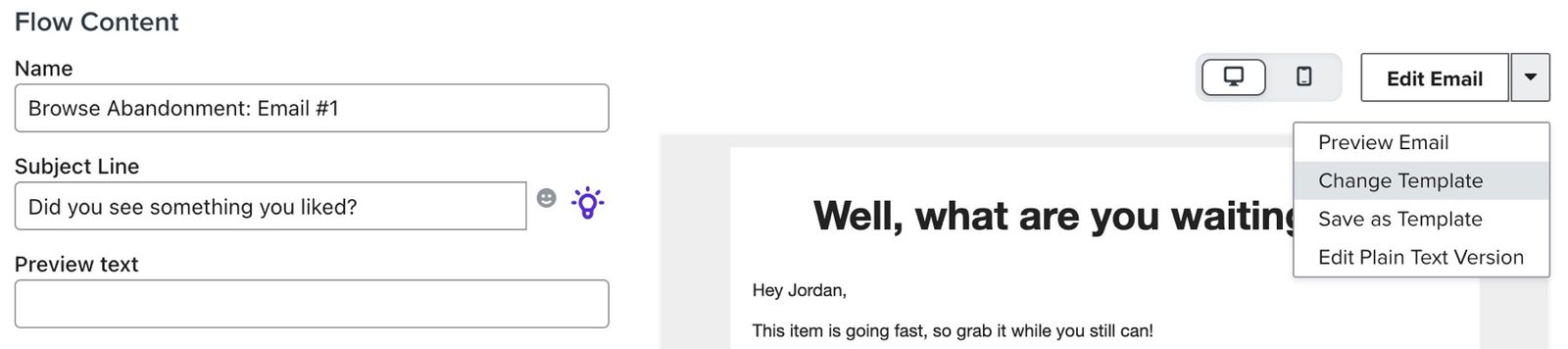
- On the flow email’s content page, click the arrow next to Edit email.
- Select Change template. The design choices appear with a warning that selecting a new template will remove the existing content. To keep your current template instead, click Return before selecting a replacement.
- Select Drag and drop, Text only, or HTML. If you choose Drag and drop, continue to the template library to select a template; the text-only and HTML choices open their respective editors.
Read more about email templates.
Additional resources
- How to use event data to personalize email and SMS flows
Learn what dynamic event data is, when to use it, where to find it, and how to include it in your flow messages. Learn about the different actions your customers take, and how you can use that data for creating personalized messaging flows in Klaviyo. For instance, you could use event data in an abandoned cart flow message to show individuals what product they left behind, an image of the item, and more. This allows for a more personalized experience for the customer, as well as a higher chance of conversion.
- Benchmarks for flow emails reference
Learn about benchmarks that you can use to compare your flow's performance with those of other Klaviyo customers. After you create a new flow, you may have questions around how it is performing. We've aggregated data across thousands of customers in different revenue bands to give you insight into areas that are performing well, as well as where you can improve. For tips, check out the guides in the Additional resources section.
- Understanding how contacts move through a flow
Learn how contacts move through a flow. Flows are automated Klaviyo workflows that are set in motion by an initial trigger and then include one or more steps. Flows can be built to send timely communications to recipients, or they can simply apply certain actions, like updating a specific field on a profile.