How to create email frequency segments
You will learn
Learn how to provide different email frequency preferences to your subscribers so you can pre-emptively set expectations and provide more relevant content. Allowing your subscribers to choose how often they hear from you is a great way to maintain engagement and reduce unsubscribes. If you come on too strong and email your subscribers very frequently, you risk having new signups unsubscribe right off the bat.
Let your subscribers set email frequency preferences
The first step in segmenting your email list based on frequency preferences is to allow your subscribers to choose how often they hear from you. Learn how to add a frequency preference field to your account's default preference page:
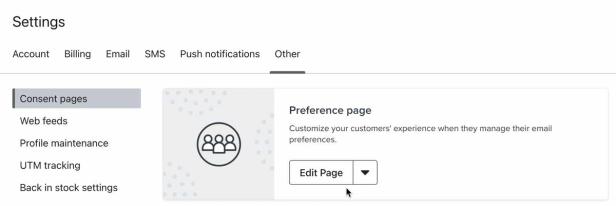
If you use list-specific consent pages, add the same frequency question to those preference pages too. Go to Audience > Lists & segments, open the list, and select Consent pages. Under Preference page, click Edit Page. Use the same profile property and values as on your account's default page.
- Click on your account name in the bottom left corner.
- Select Settings.
- Choose Other.
- Under Preference page, click Edit Page.
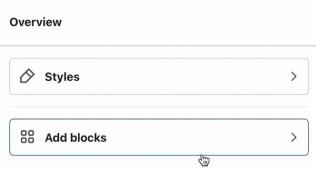
- Click Add blocks.
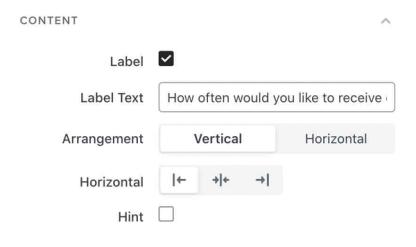
- Add a Radio button block to your preference page.
- In the Label Text field, input "How often would you like to receive emails from us?" (or similar).
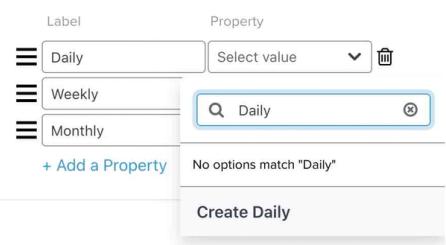
- In the Profile property field, type "Email frequency", then click Create Email frequency.
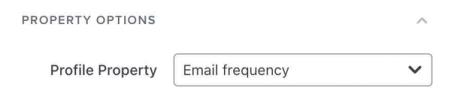
If you'd prefer to use a different property name, choose it from the menu or type it into the search field to create it.
- In the Label column, add a series of email frequency options (e.g., Daily, Weekly, Monthly). These labels will appear on your preference page.
- In the Property column, add corresponding property values (e.g., Daily, Weekly, Monthly). These values will appear in customer profiles in Klaviyo. Use these same values when building your segments.
- Select Required if subscribers must choose a frequency before submitting the page. Leave it unchecked to make the question optional.
- Click Publish to publish your preference page. If a confirmation appears, review any warnings, then click Publish or Publish anyway, as shown.
When someone selects a frequency and submits the preference page, the custom property is added to or updated on their profile.
Ask subscribers for their preferences
Once your preference page includes a question about email frequency preferences, send a campaign to ask subscribers to complete it.
To include a link to your preference page in an email, use the template tag {% manage_preferences %}. Alternatively, to customize the text that appears in your manage preferences link, use the tag {% manage_preferences 'click here' %} and replace the text "click here" with your preferred text.
In addition to sending a campaign specifically to request subscriber preferences, consider including a manage preferences link in your email footers.
Build email frequency segments
Once you collect this information from your subscribers, build segments to include or exclude in your campaign sends. The frequency property records a preference; it does not automatically schedule or limit your emails. Schedule your campaigns to match each segment's chosen frequency. If a subscriber has not chosen a frequency, use a default sending cadence. It is usually best to make this a middle ground rather than sending to your subscribers daily emails right off the bat.
Create a segment for each frequency below, plus a segment for subscribers without a preference. Keep each segment limited to your main email list so that it does not include other profiles in your account.
- Go to Audience > Lists & segments and select Create > Segment.
- Name the segment for its frequency, such as Daily email subscribers. If a Create segment panel appears before the builder, enter the name there and click Create segment to continue.
- Add If someone is in or not in a list, choose is in, and select your main email list.
- Use AND to add Properties about someone. Select Email frequency (or the property name you used), set the type to Text, and apply the condition for the segment below.
- Click Create segment to save the segment. Repeat these steps for the remaining frequencies and for subscribers without a preference.
Daily
Set Properties about someone > Email frequency > equals to Daily. Match the value you entered in the preference page's Property column.

Weekly
Set Properties about someone > Email frequency > equals to Weekly, or the corresponding value you saved for this option.

Monthly
Set Properties about someone > Email frequency > equals to Monthly, or the corresponding value you saved for this option.

Subscribers whose email frequency preference is not set
Some subscribers may not have a frequency set because they have not completed the preference page or because the question is optional. Do not forget to message these subscribers at your default cadence. To identify them, use the segment-building steps above and set Properties about someone > Email frequency > is not set, keeping the AND condition that they are in your main email list.

For campaigns at your default cadence, select your main email list under Send to and add your daily, weekly, and monthly segments under Don't send to.
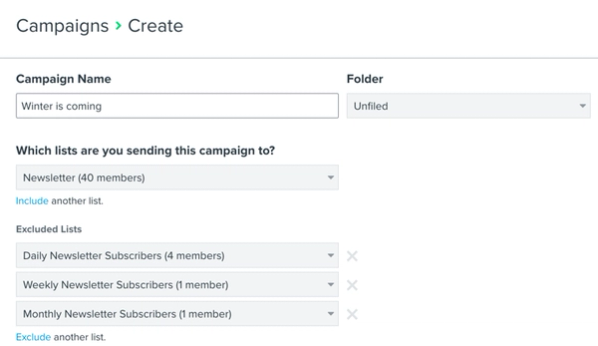
Then, create campaigns for your daily, weekly, and monthly segments and schedule them to match each segment's preference.
The content that you send to each of these segments should vary. For example, weekly newsletters can be a digest of any new product releases, etc. that have happened over the course of the week, while daily updates can highlight any sales or promotions you're running. Monthly newsletters should be longer and carefully curated since you don't communicate with these subscribers very often.
Additional resources
- Creating a sending schedule based on email engagement reference
Learn how to create a sending schedule based on customer engagement. This is key to achieving strong open rates and maintaining a positive relationship with your subscribers. Sending too often to unengaged profiles will hurt your sender reputation, whereas sending too infrequently to engaged customers is leaving money on the table. It's best to achieve a happy medium through the use of segments and sending schedules. In this article, you'll learn how to segment subscribers into engagement tracks that will inform your sending habits.
- How to create customer persona segments based on activity
Learn how to use segmentation to create customer persona segments based on the actions they have taken. This allows you to send more relevant marketing communications so you can gain the most value from your audience.
- Develop a content calendar