How to use Klaviyo's SMS assistant
You will learn
Learn how to use Klaviyo’s AI-powered SMS assistant to streamline and improve the process of writing SMS campaign copy. Choose an auto-generated SMS message that’s customized based on your brand and message goals, or use it as inspiration when you draft your own.
Generate an SMS message
Before you begin, make sure Text Messaging is set up in your account.
- Navigate to the Campaigns tab.
- Click Create campaign.
- Update the campaign name.
- Choose Single channel under Campaign type, then review the Date for your draft.
- Select Text message, then click Continue.
- On the Recipients step, choose the lists or segments to send to, then click Next.
- If your editor shows RCS content, select SMS fallback. To write separate SMS copy, turn off Use the same content from RCS message.
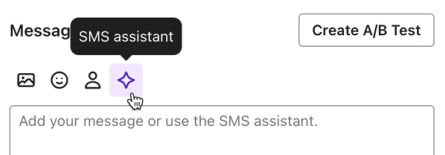
- In the Content panel, click the star icon in the Message content field to open Draft message content.
- Choose a Message type: Promotion, Product announcement, Newsletter, or Other.
- Enter Message details in 1–2 complete sentences, using natural language as if you’re talking to a friend. This field is required and allows up to 400 characters. You can also enter an optional Product name of up to 100 characters.
- Click Generate drafts.
- Choose one of the generated SMS options, or click Generate more drafts to generate additional options.
- Review the generated copy for accuracy before sending. You can make edits after selecting it, and you are responsible for the final message.
- Add a link to your product or website, making sure Automatically shorten links is checked.
- Click Next to save your message and continue to the campaign review.
Tips for success
The Message details field works best with natural language (i.e., whole sentences). If you’re not sure what to write, consider copying the product or event description from your website, or write as if you’re describing the topic to a friend. Here are some sample descriptions for a product launch:
- The ultra-cushioned, ultra-comfortable, ultra-versatile trail running shoe.
- We created the trail running shoe of your dreams, so you can spend less time shopping and more time outside.
Click Generate more drafts to see additional options. Each user can generate drafts up to 10 times per minute and 100 times in 24 hours. If you reach a limit, wait 1 minute or 24 hours, respectively, before trying again. Consider making changes to the Message details field for more varied results, or use a generated SMS message in that field for others like it.
Outcome
After completing these steps, you’ll have SMS copy saved in your campaign. To better understand which messages resonate with your audience, consider A/B testing a few options.
Additional resources
- Getting started with mobile messaging
- Get advice for building your SMS program:
- Blog post: SMS marketing strategy guide
- Guide: your strategic guide to Klaviyo SMS success