Getting started with Oracle OPERA
Overview
Learn how to integrate Klaviyo with Oracle OPERA Cloud, a property management system (PMS) used by hotels and multi-property hospitality groups. Klaviyo syncs guest profiles, email and text message subscribers, loyalty memberships, reservations, and on-property purchases (such as food and beverage, minibar, and banquet charges) from OPERA, so you can personalize messages to guests before, during, and after their stay.
Klaviyo's Oracle OPERA integration is built for multi-property chains. You connect your OPERA chain once, then choose which hotels in that chain sync reservation data to Klaviyo. Guest profiles and loyalty memberships sync at the chain level, so a guest who stays at several of your hotels has one profile in Klaviyo.
Note: Klaviyo’s Oracle OPERA integration requires that you have the Reporting & Analytics module in your OPERA environment.
About this integration
Connecting Oracle OPERA to Klaviyo brings your hotel's reservation, guest, loyalty, and spend data into Klaviyo automatically, so you can build email and SMS programs around real guest behavior (a confirmed booking, an upcoming arrival, a completed stay, or an on-property purchase) without manual exports.
Once connected, Klaviyo keeps three kinds of OPERA data in sync:
- Reservations: every booking at a property you've connected, including its current status (confirmed, checked in, checked out, cancelled, or a no-show).
- Guest profiles: your active individual guest profiles, including loyalty program membership.
- Folio activity: qualifying on-property charges (food & beverage, minibar, banquet, and other revenue postings), so you can see and act on guest spend.
Before you begin
Before you start, make sure you have the following:
- An Oracle OPERA Cloud account, with Reporting & Analytics (R&A) Data APIs enabled for your property or chain. This integration supports OPERA Cloud only. OPERA 5 and on-premises versions of OPERA aren't supported.
- Oracle Data APIs enabled by Oracle OPERA.
- Access to the OHIP Developer Portal for your OPERA environment, with permission to approve partner requests and issue client credentials.
- Approved access for Klaviyo. Before you start setup, email your Enterprise ID, Chain code, and region for each OPERA environment to oracle-opera@klaviyo.com. Klaviyo requests access, and you approve the request in your OPERA developer portal.
- Connection details for each OPERA environment. Find these in your OPERA developer portal:
- Client ID
- Client secret
- Gateway URL, the address of your OPERA Cloud API gateway (for example,
https://yourhotel-api.us-ashburn-1.ocs.oraclecloud.com) - Enterprise ID, the identifier for your OPERA Cloud tenant
- Chain code, your OPERA chain code (confirm with your Oracle representative if you're not sure which code applies to your chain)
- Hotel IDs for each property you want to sync. In OPERA, Hotel IDs are your property (resort) codes.
- (Optional) Klaviyo lists for subscribers. If you plan to sync OPERA email or text message subscribers, create the lists you want them added to before you start.
- Set each list to single opt-in so guests syncing from OPERA don't receive an opt-in confirmation message.
Step 1: Add your Oracle OPERA credentials
- Log in to Klaviyo.
- Select the Integrations tab.
- Click Explore apps.
- Search for Oracle OPERA in the app marketplace and select the card.
- Click Connect.
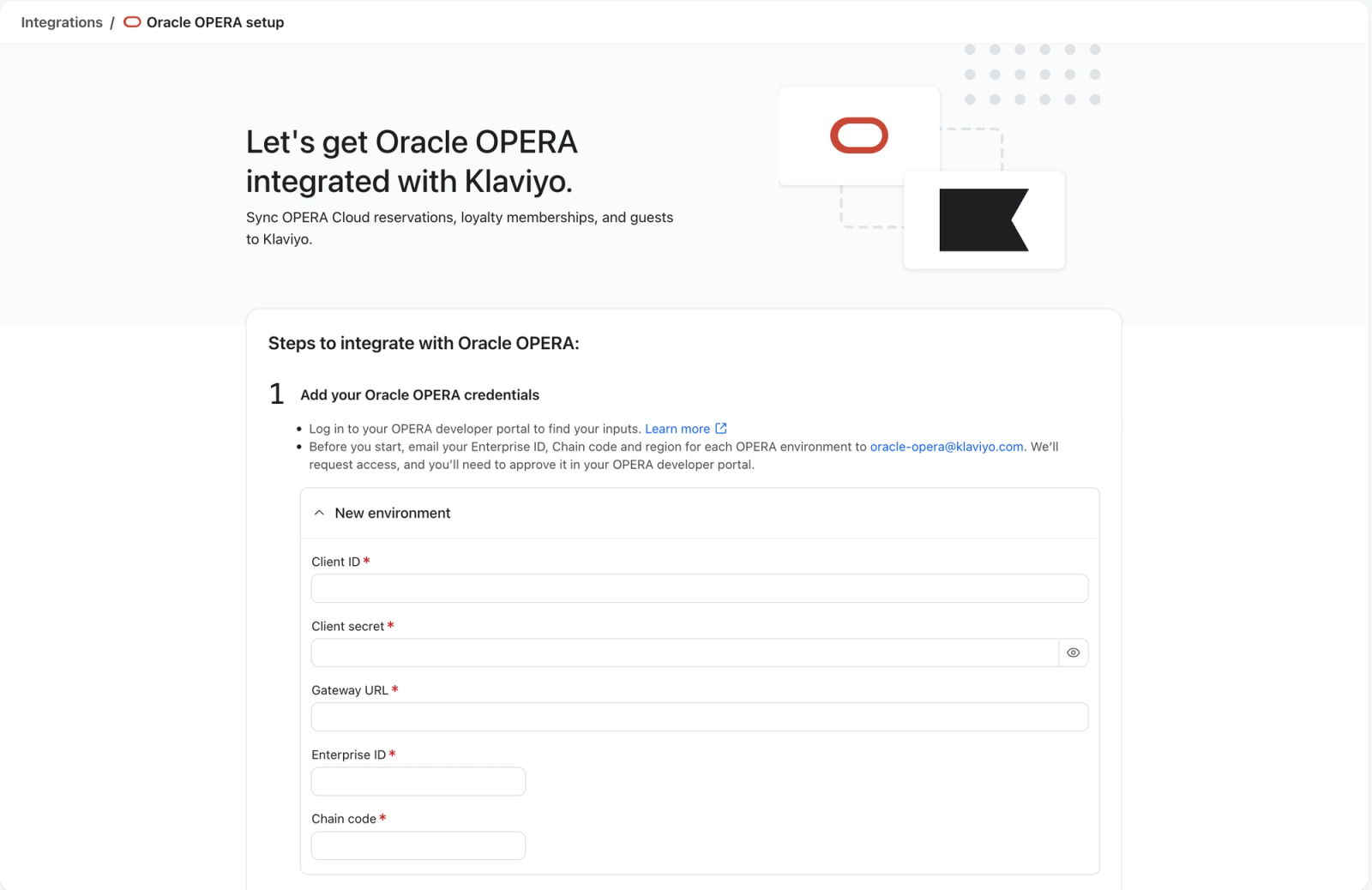
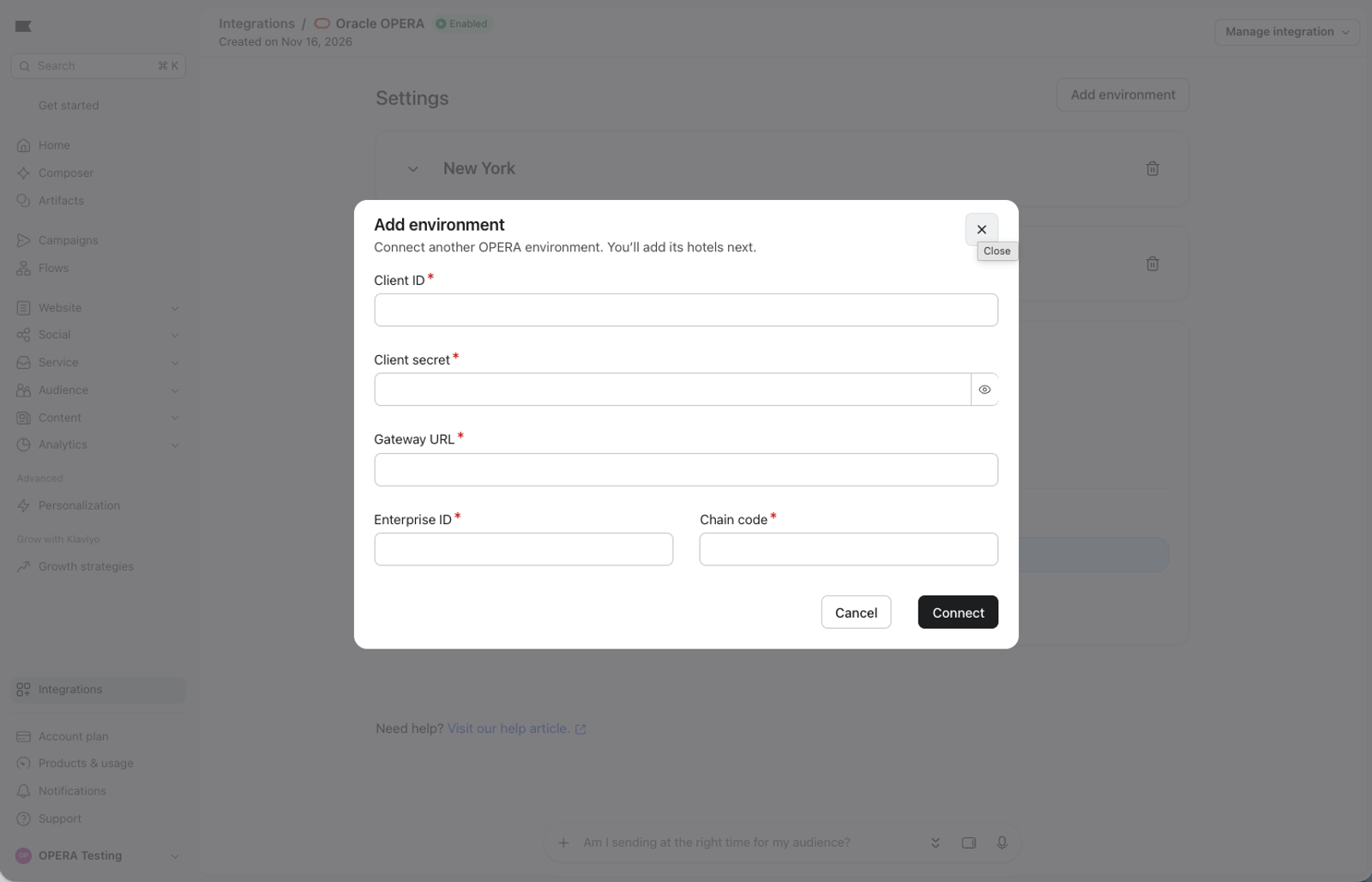
- Under New environment, enter your Client ID, Client secret, Gateway URL, Enterprise ID, and Chain code.
- To connect more than one OPERA environment, click Add another environment and enter its details.
- Click Connect to Oracle OPERA.
Step 2: Authorize access to Klaviyo
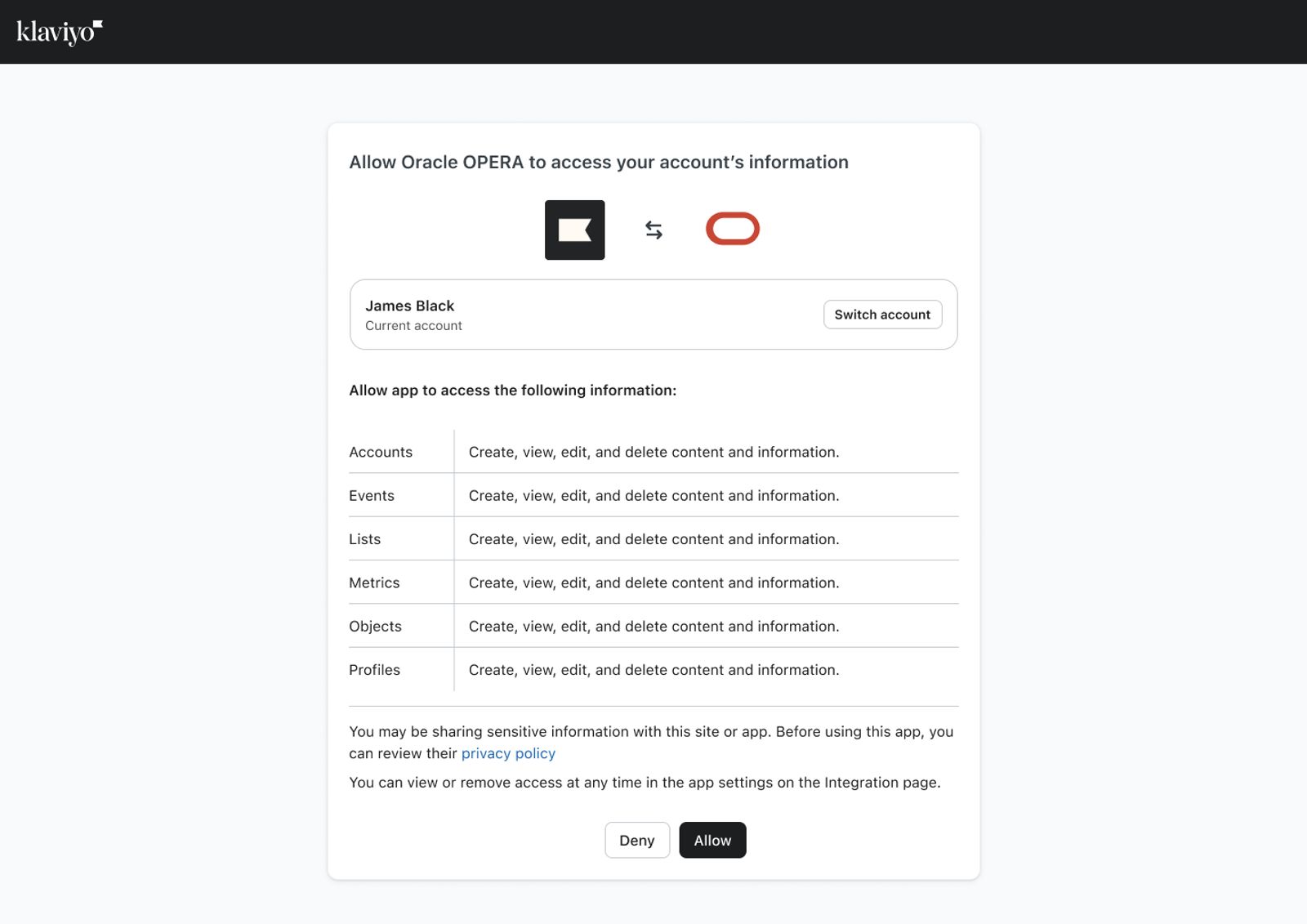
You're prompted once to allow Oracle OPERA to access your Klaviyo account. Click Allow.
Step 3: Add Hotel IDs for each environment
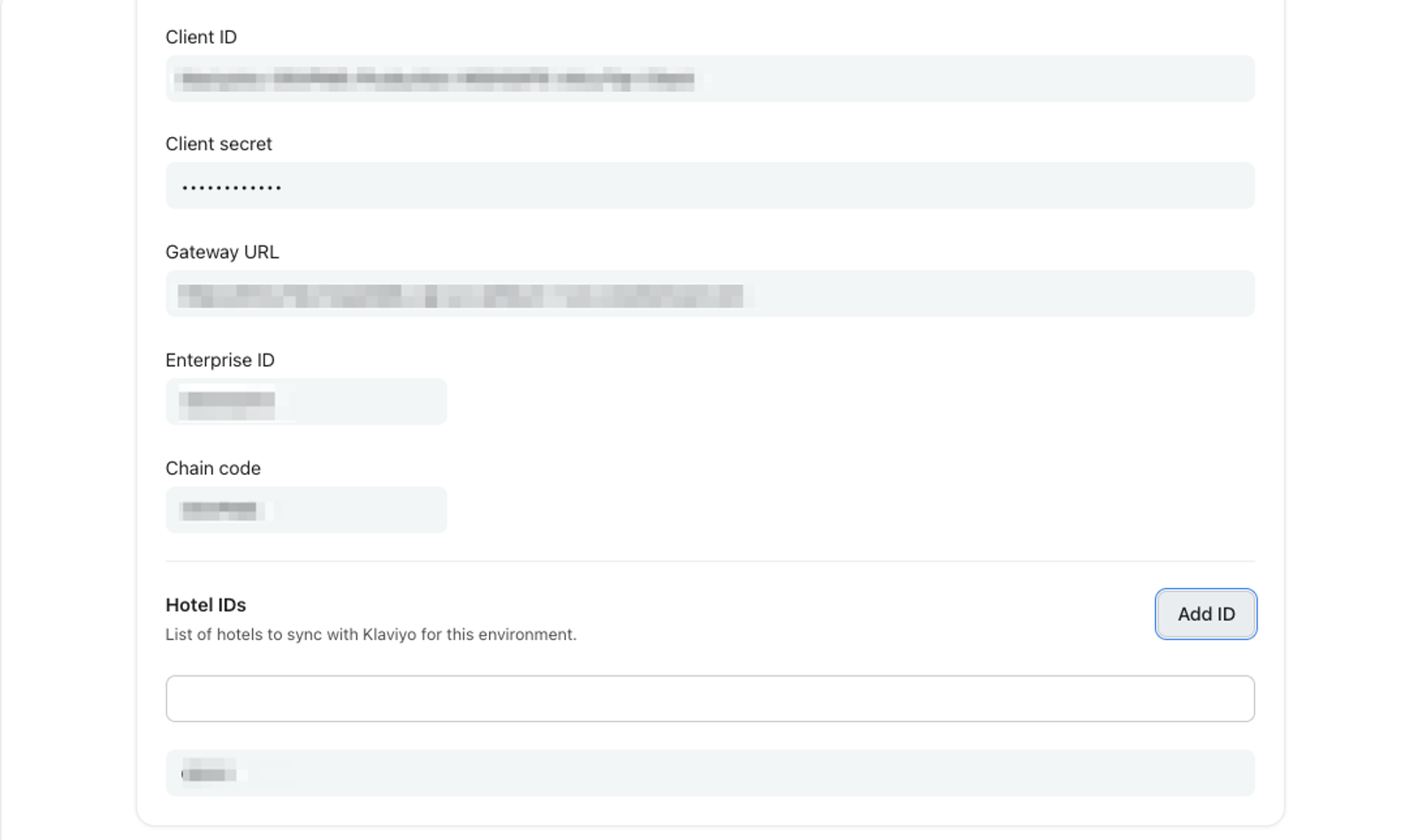
After you authorize access, add the Hotel IDs for each environment you connected. Only the hotels you add sync reservation and folio data to Klaviyo.
You can add hotels at any time. To connect another environment later, click Add environment on the Oracle OPERA settings page.
Step 4 (optional): Sync your email and text message subscribers
Subscriber settings apply to guests from every environment. On the Oracle OPERA settings page, under Collect subscribers:
- Check Sync your OPERA email subscribers to Klaviyo and select the Klaviyo list to add them to.
- Check Sync your OPERA text message subscribers to Klaviyo and select the Klaviyo list to add them to.
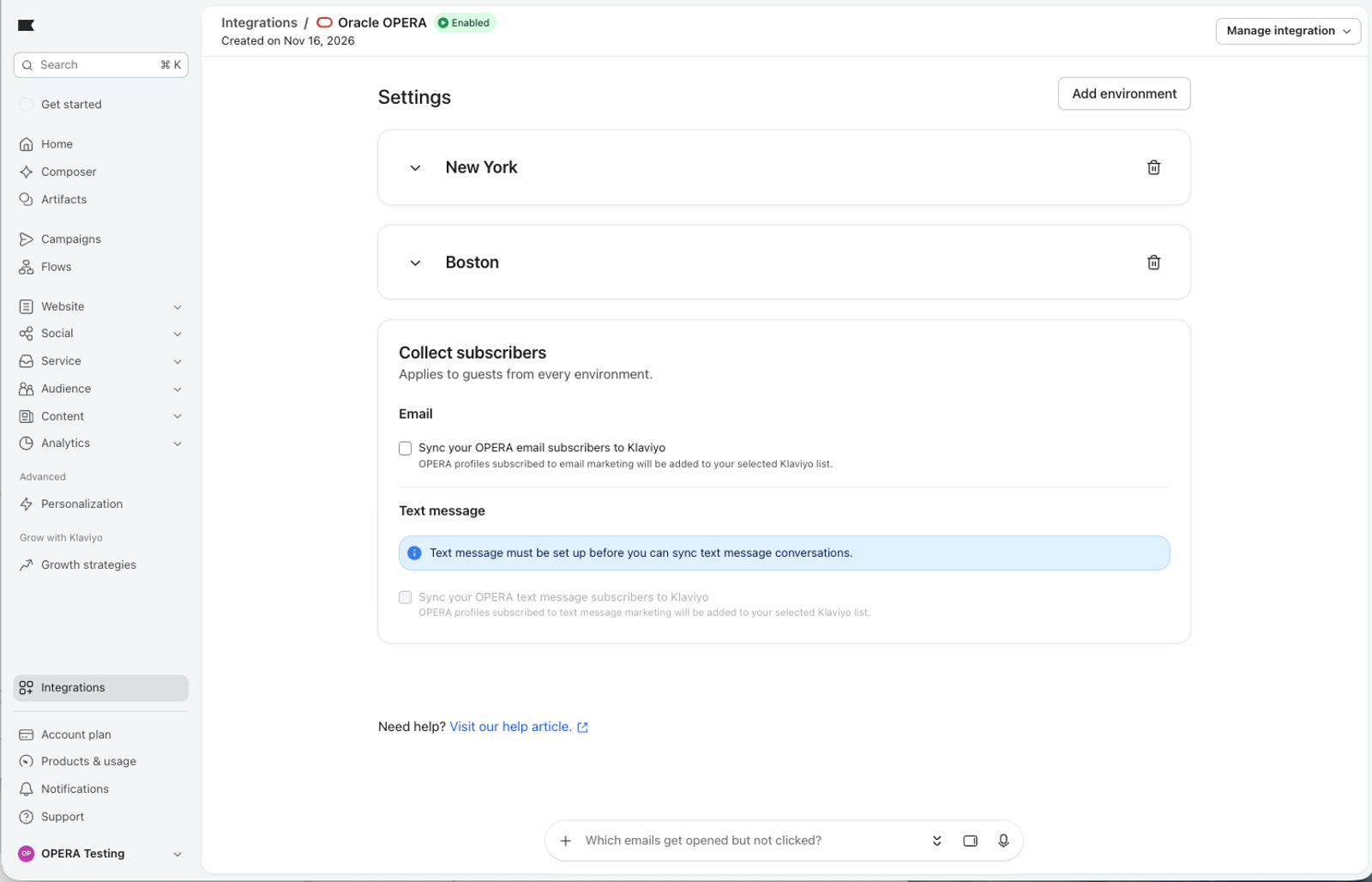
Note: Text messaging must be set up in your Klaviyo account before you can sync text message subscribers.
Klaviyo only subscribes a guest once. If you've already made a consent decision for that profile in Klaviyo, OPERA won't override it. If a guest later opts out of email in OPERA, Klaviyo removes and unsubscribes them from the list, but only if this integration was the one that subscribed them in the first place. SMS consent syncs one direction only (opt-in); OPERA has no way to signal an SMS opt-out today.
Step 5: Confirm it's working
The first sync after you connect can take some time, since Klaviyo pulls history as well as new activity:
- Reservations and folio activity backfill up to 3 years of history per hotel.
- Guest profiles backfill your full history, with no lookback limit.
- After the initial backfill, all three sync about once an hour to pick up new and updated records.
To check that data is flowing:
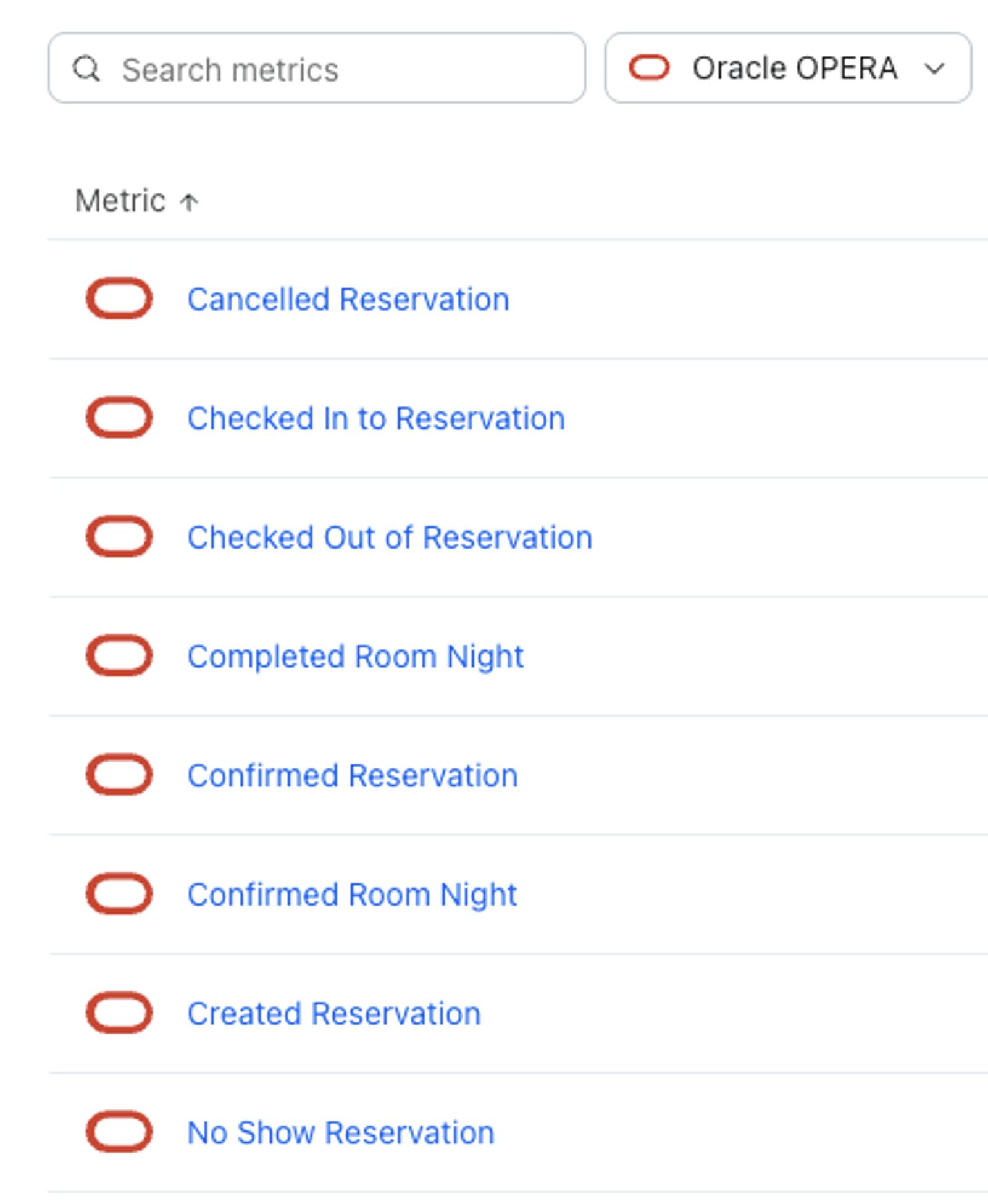
- Navigate to Analytics > Metrics and look for Created Reservation, Confirmed Reservation, and Placed Order. You should see events appear as reservations and folio postings come in. To see only OPERA metrics, use the All integrations dropdown and select Oracle OPERA.
- Navigate to Audience > Profiles and search for a guest you know is in OPERA. Their reservation and stay history should appear on their profile timeline.
- Navigate to Content > Objects and look for Reservation records (and LoyaltyAccount records, if the guest has a loyalty membership).
Note: It's normal for data to take up to an hour to show up after your first connect, especially for larger properties with a lot of reservation history.
What syncs to Klaviyo
Events (metrics)
Event | When it fires |
|---|---|
Created Reservation | A new reservation is made |
Confirmed Reservation | A reservation is confirmed |
Checked In to Reservation | A guest checks in |
Checked Out of Reservation | A guest checks out |
Cancelled Reservation | A reservation is cancelled |
No Show Reservation | A guest doesn't show up for a confirmed reservation |
Confirmed Room Night | Once per room, per night, for a confirmed reservation |
Completed Room Night | Once per room, per night, after checkout |
Placed Order | A qualifying folio posting (on-property charge) is made |
Ordered Product | One per item/unit within a folio posting |
Profiles
Active individual guest profiles sync as Klaviyo profiles. A guest needs a usable email address or phone number to sync. Guests without either aren't created in Klaviyo. If a guest is later updated in OPERA with a usable email or phone, Klaviyo catches up automatically and backfills their recent reservation and order history.
Custom objects
- Reservation: one per booking, with stay dates, room details, rate, and status.
- LoyaltyAccount: one per loyalty membership, for guests enrolled in your loyalty program.
Default segments
Connecting Oracle OPERA adds a set of ready-to-use segments to your account:
Segment | Who's included |
|---|---|
First Time Customers (Oracle OPERA) | Guests with exactly 1 confirmed reservation who can receive email marketing |
Repeat Customers (Oracle OPERA) | Guests with more than 1 confirmed reservation who can receive email marketing |
VIP Customers (Oracle OPERA) | Guests with more than 5 confirmed reservations who can receive email marketing |
Churn Risks (Oracle OPERA) | Winback guests who also received at least 2 emails and opened none in the last 90 days |
Winback Opportunities (Oracle OPERA) | Guests who have confirmed a reservation before, but not in the last 180 days, and can receive email marketing |
Current Guests (Oracle OPERA) | Guests with a reservation that arrived in the last 90 days and departs in the next 90 days |
Future Guests (Oracle OPERA) | Guests with an upcoming reservation |
Current & Future Guests (Oracle OPERA) | Guests who are either current or future guests |
You can use these as starting points for flows and campaigns, or customize them to fit your business.
Segment guests using Oracle OPERA data
You can edit the default segments or build your own using OPERA metrics and objects. For example, to create a segment of guests who have confirmed a reservation at a specific hotel:
- Navigate to Audience > Lists & segments.
- Click Create New and choose Create new segment.
- Name your segment and select tags if desired.
- Select the following definition and filter:
- What someone has done (or not done) > Confirmed Reservation (Oracle OPERA) > at least once > over all time
- where > PropertyName > equals > (your hotel's name)
- Click Create segment.
Using objects, you can create a segment of guests who have an upcoming arrival:
- Navigate to Audience > Lists & segments.
- Click Create New and choose Create new segment.
- Name your segment and select tags if desired.
- Select the following definition and filter:
- Properties about someone > Reservation (Oracle OPERA) > has at least one
- where > ArrivalDate > in the next > 5200 weeks
- Click Create segment.
Use Oracle OPERA data in flows
You can use Oracle OPERA data to trigger flows, or sequences of automated actions. Klaviyo offers several pre-built flows that use Oracle OPERA data, including:
- Welcome Series
- Reservation Confirmation
- Pre-Arrival
- Reservation Check In
- Reservation Check Out
- Guest Thank You
- Reservation Cancellation
- Guest Winback
- Happy Birthday
To view these pre-built flows:
- In Klaviyo, select the Flows tab.
- Click Create flow.
- Filter by Oracle OPERA to see all Oracle OPERA flows.

You can also build your own flows, using any Oracle OPERA metric or a Reservation object date as the trigger. For example, to build a pre-arrival flow:
- Navigate to Flows > Create flow > Build your own.
- Name the flow and select tags (optional).
- Select the Date property trigger.
- Select Oracle OPERA, Reservation: ArrivalDate from the Date property dropdown.
- Choose when you'd like the flow to start (for example, 7 days before).
- Add your messages.
Note: Every reservation event includes a RoomInfoURL property with the image URL for the booked room type, so you can show guests a photo of their room in confirmation and pre-arrival messages.
Good to know
- Multiple properties and accounts. You can connect more than one OPERA account, and sync any number of hotels across those accounts, all from one Klaviyo account.
- Guests without contact info. A guest with no usable email or phone number won't get a profile, events, or objects in Klaviyo. If that changes later, Klaviyo picks it up on the next profile sync.
- Third-party booking emails. If a reservation only has an email address from an online travel agency (OTA) relay rather than the guest's own address, Klaviyo won't use it as the guest's email. Instead, Klaviyo tries to identify the guest by phone number.
- Tentative/not-yet-confirmed reservations. A reservation that's a tentative hold (not yet confirmed) only generates a Created Reservation event. It won't move through the rest of the lifecycle events until it's confirmed.
- Folio activity. Only certain charge types sync (food & beverage, minibar, banquet, and other qualifying revenue postings) for individual guests, not every line item on a folio.
Troubleshooting
I connected, but I don't see any data yet. Give it some time. The first sync pulls historical data and can take a while for properties with a lot of reservation activity. If it's been more than a few hours with nothing, double-check that you've added at least one Hotel ID for each environment.
A guest I know is in OPERA isn't showing up in Klaviyo. Check whether that guest has a usable email address or phone number on their OPERA profile. Guests without either don't sync. Also confirm the guest's profile is active and is an individual guest profile (not a company, travel agent, or other non-guest profile type).
My email/SMS subscribers aren't syncing to my list. Make sure you've checked the subscriber sync option and selected a list in Step 4 above. If a guest already had a subscription decision recorded in Klaviyo before you turned this on, Klaviyo won't change it.
I'm not seeing some folio charges. This is expected. Only certain revenue-generating charge types sync, and non-revenue or inactive line items are intentionally excluded.
Additional resources
- Oracle OPERA data reference
- How often integrations sync reference
- How to edit, disable, or remove a Klaviyo-built integration
- Getting started with custom objects
Additional resources
- How often integrations sync reference
Learn what data syncs from a particular Klaviyo integration and how often the sync runs. We've organized these integrations by ecommerce platforms, email service providers, and other data integrations.
- How to edit, disable, or remove a Klaviyo-built integration
Learn how to edit, disable, or remove a Klaviyo-built integration in your account's Integrations tab.
- Getting started with custom objects
Learn about custom objects, which allow you to store and associate multiple properties to a single "object." Custom objects enable you to map diverse, multi-relational data concepts into Klaviyo that can’t be stored using profile properties. You can then use custom objects in your messages, segments, and more.