Creating branded forms
You will learn
Learn how to set your brand styles once in form defaults, then apply them automatically to sign-up forms so every new form matches your brand.
By setting up form defaults, you can go from a template to a ready-to-publish, on-brand form in just a few clicks.
- Set up your form defaults with your brand’s buttons, text, input fields, and colors.
- Create a form from a template or from scratch and apply your brand styles.
- Review and customize your form in the form editor, then publish.
Before you begin
Form defaults are available in the Media & Brand page in your account.
If you haven’t set up form defaults yet, you’ll see a prompt to set them up when you create a form.
Set up your form defaults
Form defaults store the styles Klaviyo applies to your forms. They include:
- Button styling
- Heading and body text
- Input fields
- Background color
- Corner radius
To set up your form defaults:
- From Klaviyo’s main navigation, select Content > Media & brand.
- Select the Defaults tab, then select Form.
- Review the default for each component. Klaviyo automatically populates your form defaults using available brand information and existing email defaults, with standard styles used where needed. Review and customize these defaults before applying them to your forms.
- Select Edit, then choose Text, Input field, or Button to edit its styles. You can also adjust the form background color and corner radius. When you’re finished, select Save.
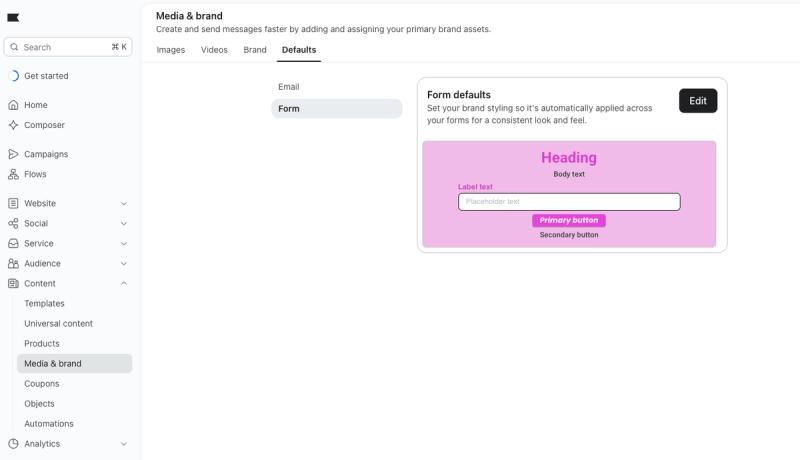
Any button or input field you add to a form in the editor will also use your form defaults.
Create a branded form from a template
The forms in the form library are designed with best practices in mind. When you apply your brand styles, Klaviyo restyles the template to match your form defaults.
- From Klaviyo’s main navigation, select Website > Sign-up forms.
- Select Create form in the top right corner.
- Select your form template.
- On the preview modal that appears:
- Name your form.
- Choose the list that your form will submit to.
- Leave Apply your brand styles checked to apply your form defaults. This option is checked by default.
- Select Create form to enter the form editor, where you can edit the content and design.
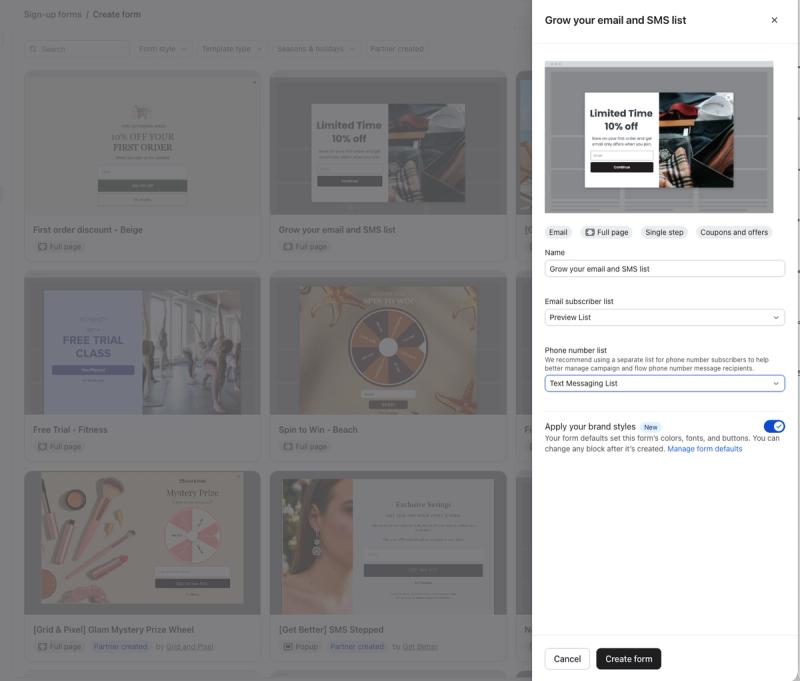
Note that if you haven’t set up form defaults, you’ll see a prompt to set them up in place of the Apply your brand styles toggle.
Create a branded form from scratch
If you would prefer to start with a blank form, create a new sign-up form.
- Navigate to Sign-up forms > Create form.
- Select Create blank form in the upper right corner.
- On the Create form modal, enter a form name, choose a form type and subscriber list, and leave Apply your brand styles checked. This option is checked by default and uses your form defaults for the form’s colors, fonts, and buttons.
- Select Save and design to enter the form editor.
Edit your form defaults
You can change your form defaults at any time on Media & Brand > Defaults > Form.
To change the style of a single input field on one form, select the input field in the form editor. Under Input field styles, select Override shared input field styles for this block, then customize the block’s styles.
What branding applies to
When you apply your brand styles to a template, Klaviyo styles the following:
- Headings and body text, which are styled separately
- Buttons
- Input fields
- The form’s background color and corner radius
- The close button
Branding keeps the template’s layout, so it does not change font sizes, button padding, or template images.
Next steps
After you’ve created your branded form, design your form, target your form so it appears for the right visitors, preview it on your website, and publish it.