How to disable notification emails sent by BigCommerce
You will learn
Learn how to disable different types of notification emails sent by BigCommerce. If you are currently sending certain emails with BigCommerce - such as abandoned cart or order status emails - and plan to start sending them via Klaviyo, you will need to disable these emails in BigCommerce to avoid sending them twice.
Before you begin
Make sure to disable an email right before you turn on the corresponding flow in Klaviyo to avoid a gap in sending.
The following emails can be disabled in BigCommerce:
- Abandoned cart
- Account details changed
- Combined order status
- Create account
- Create guest account
- Gift certificate
- Invoice
- Order message notification
- Order status update
- Product review request
- Return confirmation
- Return status change
Passwordless login and password reset emails for customers cannot be disabled in BigCommerce.
Most emails can be disabled in the Email Templates List, but order status emails can only be turned off in Advanced Settings.
How to disable emails from the email templates list
- Log in to your BigCommerce admin
- Navigate to Marketing > Email Templates
- Under Sending, uncheck any emails you wish to turn off
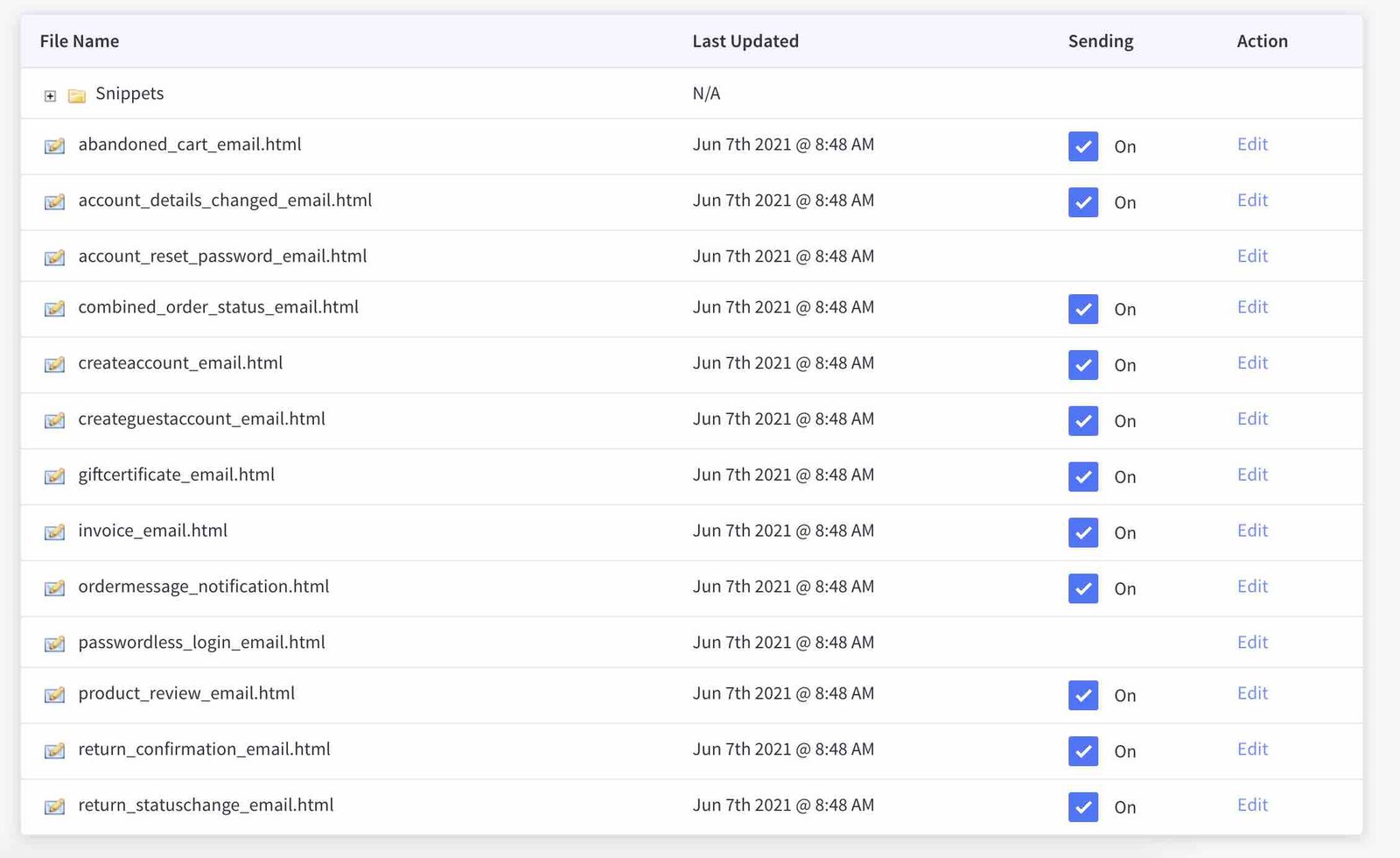
The updates you make will be saved automatically.
How to disable order status emails
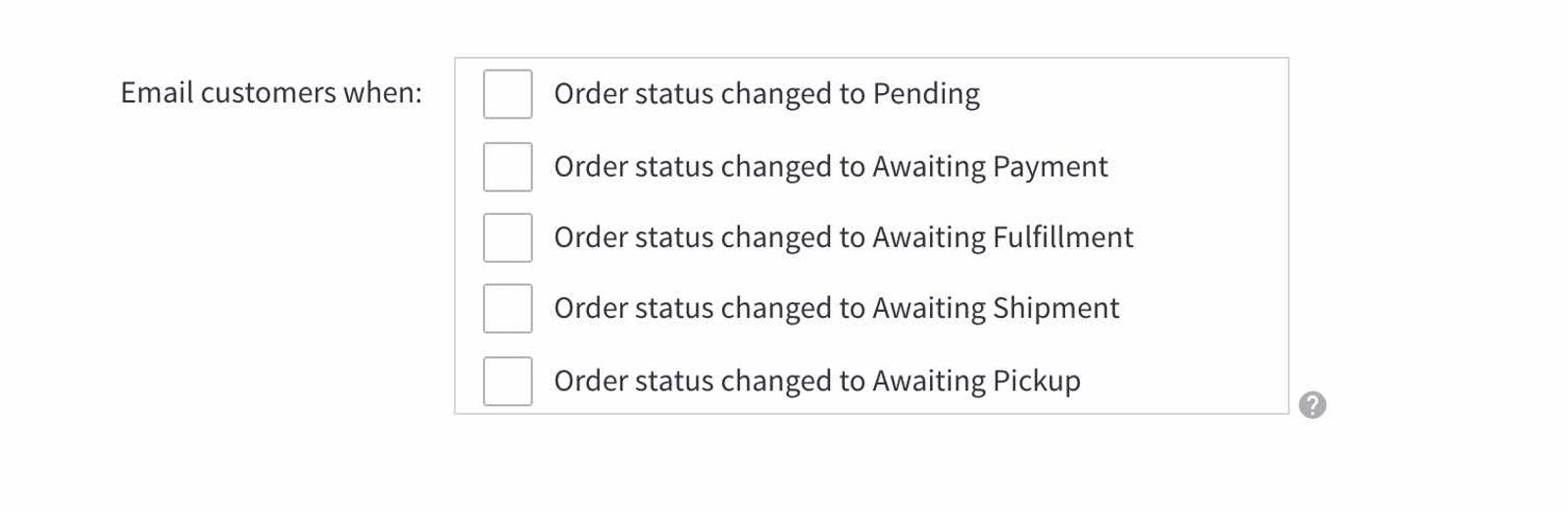
Order status emails inform customers of their order status beyond the initial order confirmation email, such as Order status changed to Pending or Order status changed to Awaiting Shipment.
To disable these emails:
- Log in to your BigCommerce admin
- Navigate to Advanced Settings > Order Notifications
- Under Email Customers When, you can deselect the emails you no longer wish to be sent from BigCommerce
- Click Save
Outcome
You have now disabled the BigCommerce email types you selected. Now, you can start sending with Klaviyo.
Additional resources
To learn more about setting up flows in Klaviyo, check out:
- Getting started with flows
Learn how to use flows, also known as automations or drip campaigns, in Klaviyo for personalized and automated communications to your customers, and learn how to set your first flow live.
- How to use flows to send transactional emails
Learn how to set up important transactional emails inside Klaviyo that are triggered when your subscribers purchase or interact with your brand. Customers expect these emails and will search for them in their inbox. For this reason, transactional emails are sent to almost all customers and should not contain any marketing content.
Find out more about the BigCommerce integration:
- Getting started with BigCommerce
Learn how to enable the BigCommerce integration in Klaviyo, add Viewed Product tracking, and confirm that all onsite tracking is working properly for your store.
- BigCommerce data reference
Learn what data is synced to Klaviyo when you integrate with your BigCommerce store, such as order and customer data, and how to access it in Klaviyo.