How to use flows to send transactional emails
You will learn
Learn how to set up important transactional emails inside Klaviyo that are triggered when your subscribers purchase or interact with your brand. Customers expect these emails and will search for them in their inbox. For this reason, transactional emails are sent to almost all customers and should not contain any marketing content.
Do suppressed profiles receive transactional emails?
Yes, suppressed profiles still receive transactional emails.
The only exceptions are if the suppression reason was one of the following:
- Email had 7 consecutive soft bounces.
- Email had a hard bounce (includes profiles marked as suspicious).
- The customer previously marked a message as spam.
Before you begin
Please note that transactional emails:
- Are only available for paid accounts.
- Are only available for metric-triggered flows (such as Placed Order).
- Cannot be used in price drop flows.
- Must be approved by Klaviyo, which can take up to 24 hours.
- Note: editing a transactional message removes the transactional status, and the message will need to be re-submitted for approval.
- Cannot be imported from your ecommerce platform into Klaviyo.
- Are marked on a per-email basis, not per-flow.
- You can have 1 email within a flow that is transactional, and have every other email in that flow be considered marketing content.
- You cannot automatically mark an entire flow as transactional, though it is possible to create a flow in which all the emails are transactional.
- Do not appear any differently than marketing emails to your recipients (i.e., your customers won't know that an email is marked as transactional).
- Note: when a flow email is marked as transactional, any universal content blocks or sections in that email are automatically unlinked from the universal content library. The content remains in the email, but edits made to the universal block elsewhere will no longer flow into this transactional email. You'll need to update the content directly in the email.
- Cannot be requested for a message that has had an A/B test set up for it.
Requests for transactional messages in list- or segment-triggered flows must be made through support, must strictly follow our guidelines for transactional content, and may take longer to be approved.
What if I want to use a metric not synced to Klaviyo?
If you want to use a metric to trigger a flow that isn't synced through your ecommerce or other integration, you will need to create a new custom metric.
You can use Klaviyo's APIs to set this up, namely the Metrics API and Events API for custom metrics & events. For example, a password reset email would need a corresponding Password Reset event, which would need to be configured as a custom metric.
Turn off any corresponding transactional emails in your ecommerce platform before sending with Klaviyo. Otherwise, you may be double-emailing people.
Create a transactional email
When building out these emails, if the flow is triggered by an event that's synced through your ecommerce integration, like Placed Order, then you can use a post-purchase flow as a starting point in terms of the information that you will pull into the template (e.g., a link, image, and name of the item).
To instead build a flow from scratch:
- Navigate to the Flows tab in Klaviyo.
- Either:
- Select an existing flow.
- Click Create flow in the upper right, then Build your own. Enter a name and click Create flow.
- In the builder, choose an event-based metric trigger, such as Placed Order, and add or edit the email you want to send. Personalize the email with information about the event.
- You can leverage our guide to personalizing flows with dynamic data to learn how to pull event data into your email templates.
- Click on the message you want to be marked transactional.
- Note: if you want multiple messages in a flow to be transactional, you must select them one at a time.
- Set the email to Manual while you prepare it. If you manually send it before transactional approval, it will be sent as a marketing email.
- In the right sidebar, under Transactional, select the Apply for transactional status. checkbox. Click Submit for review, then Submit in the confirmation dialog.
- Allow up to 24 hours for the review. Until the email is approved, any sends from it are treated as marketing messages. While it is under review:
- You will not be able to edit the message content.
- You cannot set up an A/B test. Messages that had an A/B test previously will not show the option to apply for transactional status.
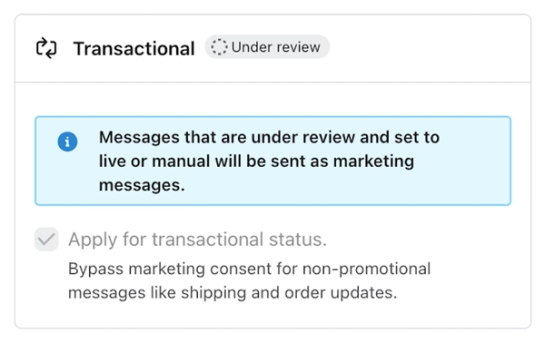
- Check the Transactional section for an Accepted status or a rejection notice. Once accepted, set the email to Live and click Save when you are ready for it to send automatically.
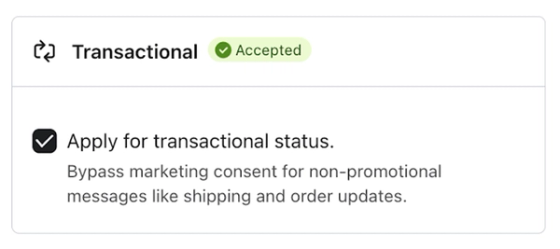
If you need to edit an accepted transactional email, click Edit and confirm Remove transactional status. After making your changes, select Apply for transactional status. again and resubmit the email for review.
What to do if the message was rejected
If your message was rejected, you can:
- Keep the message as-is (and not have it be marked transactional).
- Edit the content and re-submit it for approval.
- Submit an appeal.
For the appeal, you must submit a ticket to Klaviyo Support and include:
- “Transactional appeal” as the subject line/reason for the ticket
- Flow message ID
- Example (or 2) of the message you want to send
- Screenshot of your call to action (CTA)
- Estimate of how many times per month someone could receive this message
- Links to your privacy policy and terms of service
Additional resources
- Understanding transactional messages
Learn what it means for a message to be considered transactional, including what to include (and not include) in the message.
- How to send order updates via SMS for Shopify
Learn how to send order updates via text to people not opted in to your SMS marketing program.
- How to create a post-purchase flow
Learn how to set up a post-purchase flow in Klaviyo as well as best practices for doing so. A post-purchase flow triggers after a customer has placed an order while your ecommerce platform is integrated with Klaviyo. Sending post-purchase emails builds relationships and brand loyalty with your customers and makes them more likely to purchase again.