How to embed a sign-up form on your website
You will learn
Learn how to add an embed sign-up form onto a specific page or location of your website (e.g., the footer), so shoppers looking to learn more about your brand can easily sign up. Embedding a sign-up form in the footer of your site to work in tandem with your other published forms is a Klaviyo best practice for optimizing list growth.
To add an embed form to your site, you’ll need to:
- Create and customize a new embed form in Klaviyo.
- Publish the form, then copy its embed code.
- Add the form to your site using the instructions for your platform below.
Because pasting form code requires access to your site’s HTML and ecommerce platform, our support team is unable to offer hands-on assistance. If you don’t have a developer on your team, consider reaching out to a Klaviyo partner for assistance.
Before you begin
Before creating your sign-up form, make sure that sign-up form functionality is enabled on your website. This allows forms published in Klaviyo to display on your site and sync data to Klaviyo.
For embed forms to work, you’ll need:
- Onsite tracking (Klaviyo.js) installed on your site to enable sign-up form functionality.
- The form’s embed code placed where you want it to display, or its form ID added to a Klaviyo Embedded Form app block on Shopify.
Note that pasting the embed code is unique to embed forms. Popup, flyout, and full page forms do not require any pasting of code, and can be published directly from Klaviyo’s form builder.
Effective December 6, 2024: Klaviyo improved the way views are calculated for embed forms to more accurately measure engagement. Views for embed forms are recorded only when the form is visible in the user's viewport. This change may result in a noticeable change in view counts and increase in submit rates, particularly for forms embedded in a site's footer, as these will only be counted if a visitor scrolls down enough for the form to partially enter their viewport.
Add an embed form to your site
If you use a sign-up form provided by Shopify, BigCommerce, or WooCommerce, check that your integration is configured to sync subscribers to the Klaviyo list you want. You do not need to replace that form if it already sends subscribers to the right list, though you can create a Klaviyo embed form to collect subscribers in a different list.
Create and customize a new embed form in Klaviyo
- Select Sign-up forms from Klaviyo’s navigation.
- Select Create form. If a Channel selector appears, enter a name, select Web, then click Create to open the form library. From the library, you can either:
- Customize a pre-built template from the form library. Open Form style and select Embed to show embed form templates. Select the template you want.
- Begin with a blank form by selecting Create blank form.
- Set up your form in the panel that opens:
- Enter or confirm your form’s name.
- Choose the subscriber list for each channel your form collects.
- If you started with a blank form, select Embed as your form type.
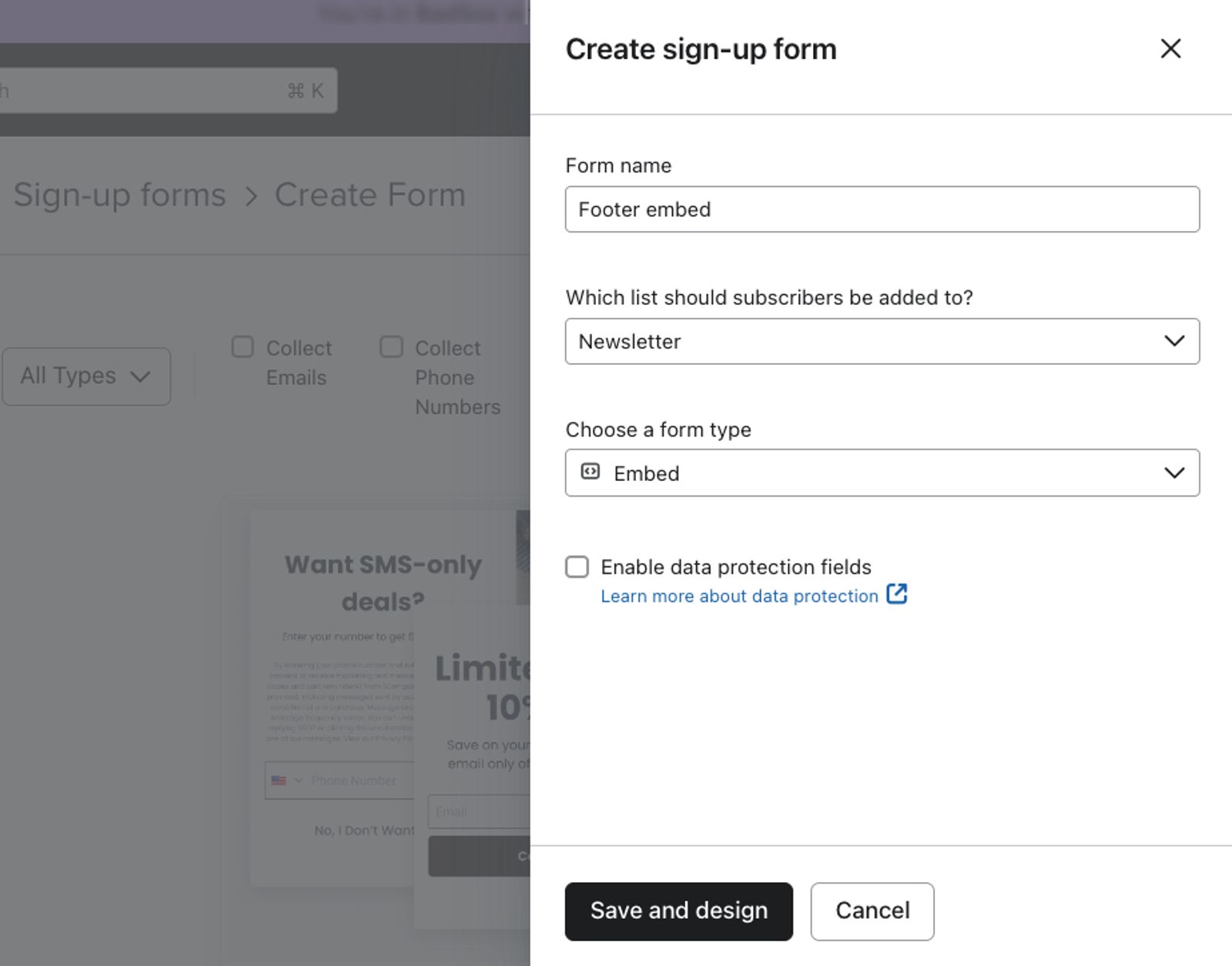
- For a template, click Create form. For a blank form, click Save and design.
- Use the editor to style your form and add any desired blocks or input fields. For guidance while customizing your form, see getting started with sign-up forms.
If you plan on embedding your form in the footer of your site, we recommend asking for email addresses only to improve the volume of opt-ins.
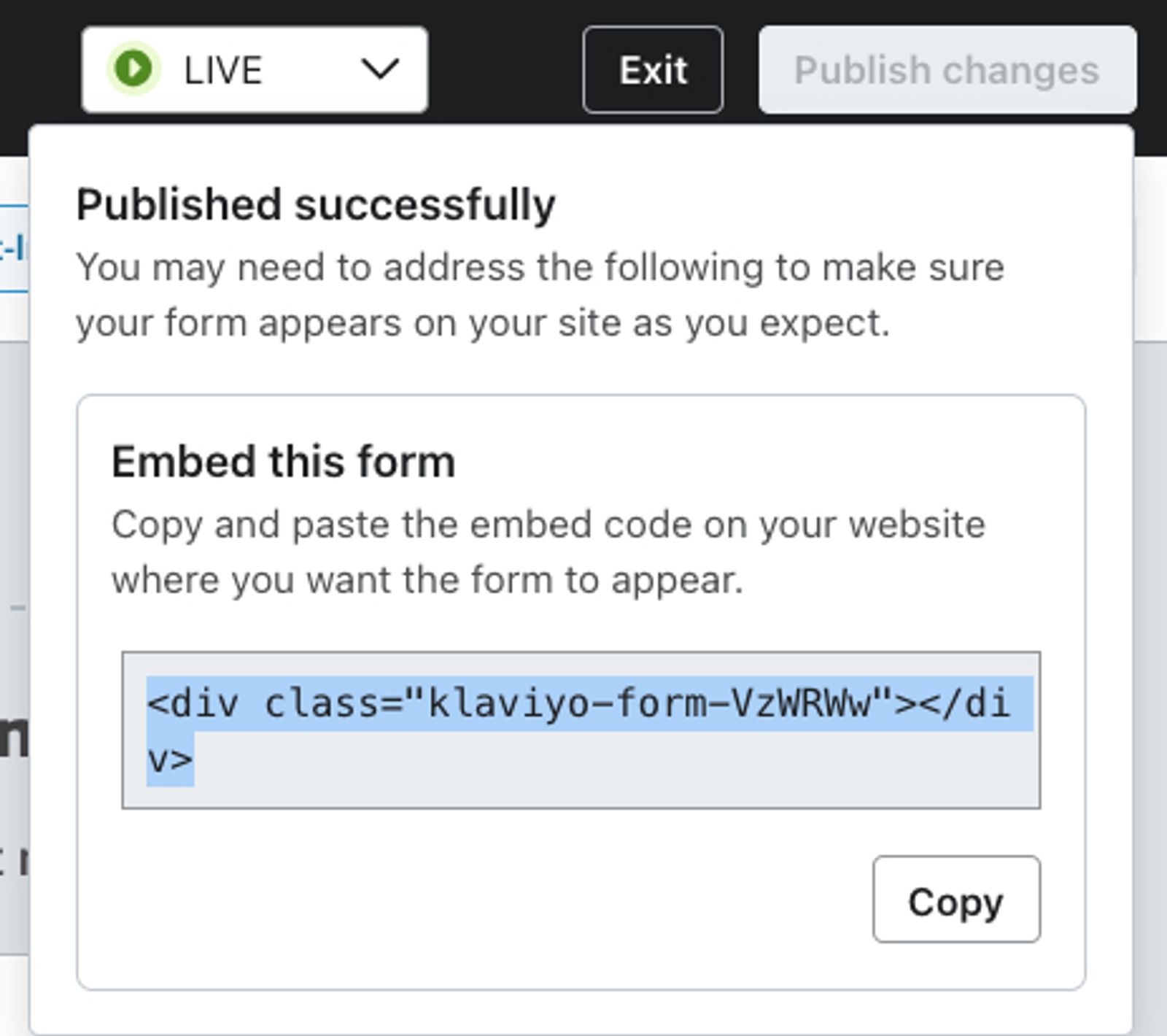
- When you’re satisfied with your form, resolve any blocking alerts. Click Publish or schedule, select Publish now, then click Publish now. The form is published in Klaviyo, but it also needs to be added to your website as described below before visitors can see it.
- If the Your form is published! window appears, click Copy to copy the embed code to your clipboard. If this window doesn’t appear, copy the code using the editor path below.
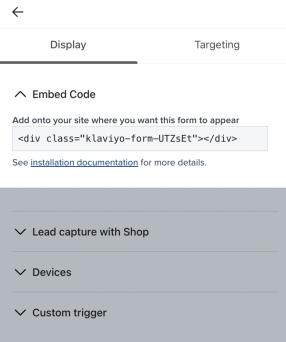
To copy the embed code from the editor, select Targeting & behavior > Display. Copy the snippet under Embed code.
Add the embed form to your site
After publishing your form in Klaviyo and copying its embed code, follow your platform’s instructions below to add the form where you want it to appear (e.g., a theme file or specific page). For Shopify’s Klaviyo Embedded Form app block, use the form ID from the code instead of the full snippet.
Find the platform that you use on the list below, then head to the article linked beneath it for a more specific guide on adding the embed form to that platform.
If you do not see your platform, see the “Other platforms” bullet point.
- BigCommerce
For BigCommerce, paste the embed code in your site’s files where you want it to appear. - Shopify
For Shopify, add the Klaviyo Embedded Form app block to your page template and paste the form ID from the embed code. For example, in<div class="klaviyo-form-ABC123"></div>, the form ID isABC123. - Square
For Square, add an Embed code section in the Square Online site editor and paste the embed code where you want the form to appear. - WooCommerce
For WooCommerce, paste the embed code in your site’s HTML. - Other platforms
If your platform isn’t listed above, or you use a custom integration that does not natively integrate with Klaviyo, you’ll need to make sure that 2 code snippets are pasted on your site for the embed form to work:- Onsite tracking (also known as Klaviyo.js) to enable sign-up form functionality.
- Note that many platforms automatically add onsite tracking to your site when you integrate (including Wix, PrestaShop, Magento 1 and 2, etc.). Check your platform’s integration settings in Klaviyo to confirm this option is selected.
- If your platform doesn’t have a native Klaviyo integration, you must add onsite tracking manually.
- Note that many platforms automatically add onsite tracking to your site when you integrate (including Wix, PrestaShop, Magento 1 and 2, etc.). Check your platform’s integration settings in Klaviyo to confirm this option is selected.
- The specific form’s embed code
- Once onsite tracking is enabled, you must paste your form’s embed code into your site’s HTML/source code wherever you’d like it to appear (e.g., the footer).
- To copy a form’s embed code, select Targeting & behavior > Display in the form editor, then copy the snippet under Embed code.
- Once onsite tracking is enabled, you must paste your form’s embed code into your site’s HTML/source code wherever you’d like it to appear (e.g., the footer).
- Onsite tracking (also known as Klaviyo.js) to enable sign-up form functionality.
Make sure to save any changes made to your site. If you are not comfortable editing code on your site, consider contacting a Klaviyo partner for assistance.
Next steps
Once you have published your embed form in Klaviyo, added it to your site using your platform’s instructions, and saved your changes, head to your website and refresh the page.
The embed form should appear at the location you chose on your site.
- Submit the form with test contact details. If it collects email addresses, use an address you haven’t used for this form before.
- For email double opt-in, confirm your subscription using the confirmation email. After completing any required confirmation, check that you were added to the subscriber list selected for the form.
Troubleshooting embed forms
If your embed form is live in Klaviyo but not displaying on your site, consult the following troubleshooting tips:
- Clear your browser cache, then reload the page.
- Verify that your website is properly integrated with Klaviyo, and that your site is also live.
- Confirm that you have enabled sign-up forms on your website (this is the same thing as enabling onsite tracking).
- Make sure you saved your website changes after adding the form’s embed code or, on Shopify, its form ID.
- In Klaviyo’s sign-up form editor, navigate to the Targeting & behavior section and review the following:
- In the Display section, verify that:
- The embed code pasted on your site matches the code provided by Klaviyo, or the Shopify app block contains the matching form ID
- The device settings in Klaviyo correspond to the device you’re using to view the form
- In the Targeting section, verify that:
- You meet the form’s Audience settings
- The form is set to show on the URL you’re viewing, and includes any specified UTM parameters
- Your location matches any location targeting configured for the form
- For Shopify, your cart meets any cart content requirements configured for the form
- In the Display section, verify that:
- If the form can show to new visitors, rerun the test in a new incognito (private) window. If the form is restricted to existing profiles, subscribers, or members of a list or segment, use a browser Klaviyo recognizes as a profile that meets those conditions.
- Confirm that only 1 Klaviyo account is integrated with your site. Learn more about integrations.
Other potential reasons your form is not appearing
- If you have custom CSS on your site, it may override the form’s styling or hide the form. Have your developer use your browser’s developer tools to inspect the site’s code and identify the problem or contact support.
- If you’re using a single page application (“SPA”) site, your setup may be causing the form to appear intermittently. Consult your developer for assistance.
Additional resources
- How to contact support
Support is moving to Composer, while the existing Support experience remains available during the rollout.
- Troubleshooting sign-up forms
Learn troubleshooting tips for when a sign-up form in your Klaviyo account is not working as expected by reviewing common issues and solutions to these issues.
- Getting started with sign-up forms
Learn how to create and customize sign-up forms in Klaviyo to publish on your website so you can engage shoppers, collect emails and phone numbers, and build long-lasting customer relationships.