How to join and disconnect flow paths
You will learn
Learn how to join and disconnect paths in a multi-branch split to create targeted customer journeys stemming from the same initial trigger. However, as you start to branch your flows, there may be instances when you'd like to bring these separate journeys back together down the same path.
For example, you may have a welcome series with an initial split for those who sign up for your list through Meta Lead Ads and those who sign up directly on your website. Let's say you offer a different welcome discount to each of these groups, but in the final email, you want to send them the same content. Joining paths lets you do this.
Joining paths
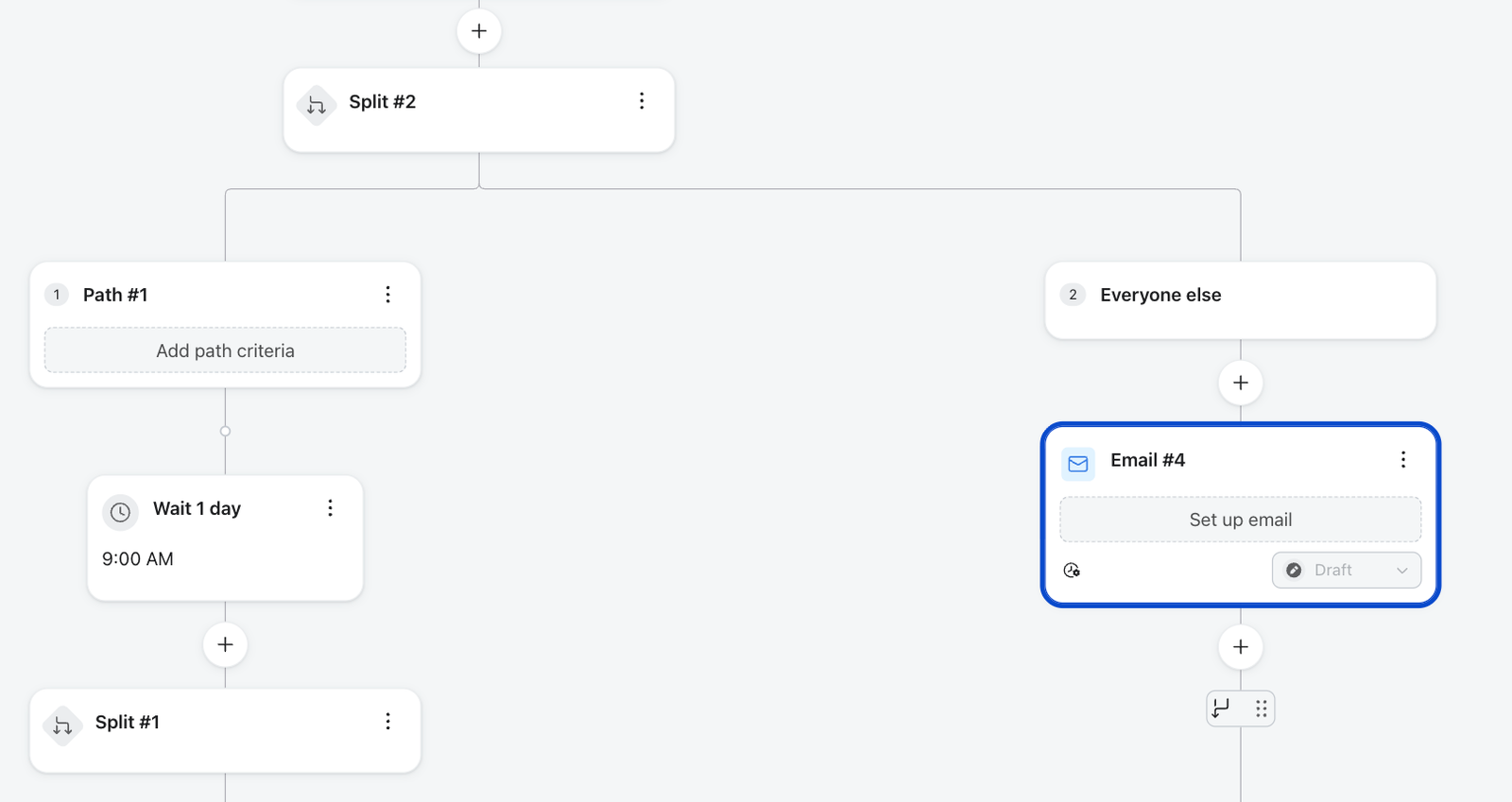
When you drag a split into a flow, you must define the conditions that will branch recipients and send them down unique paths. To join paths, drag the join indicator from the end of one path to a point on another path in the same split. You can join multiple paths to the same point (one at a time); each additional join lands at the existing join point. You can only start a join from the end of a path, not from the middle.
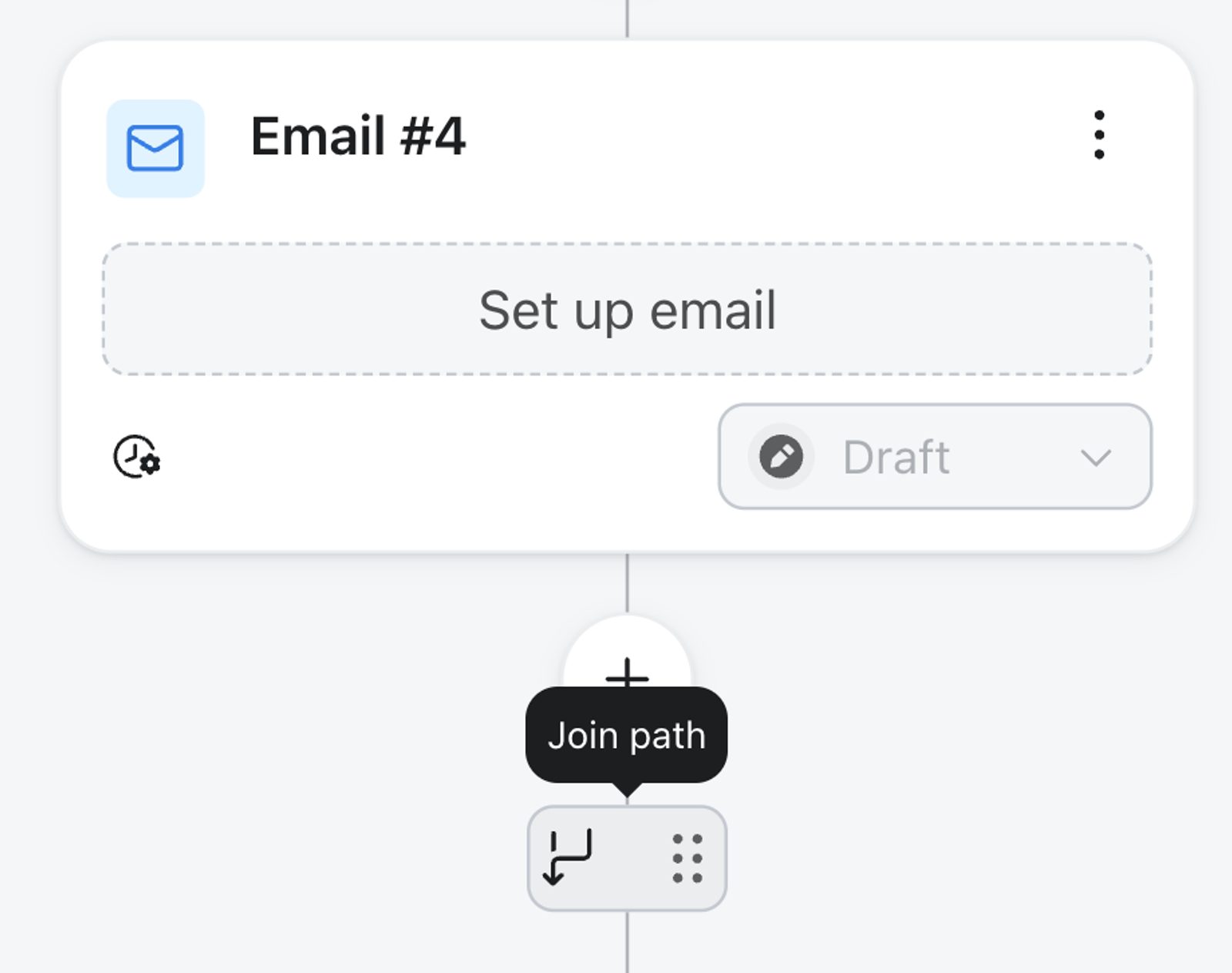
You can rejoin splits anywhere you see a grey drop-point — rejoins don't necessarily have to be at the end of each branch. Any path in a split can be joined to another path in that same split.
Disconnecting paths
To disconnect joined paths, click the Disconnect paths icon below the join point. If 3 or more paths are joined, you can disconnect one path while the others remain joined.
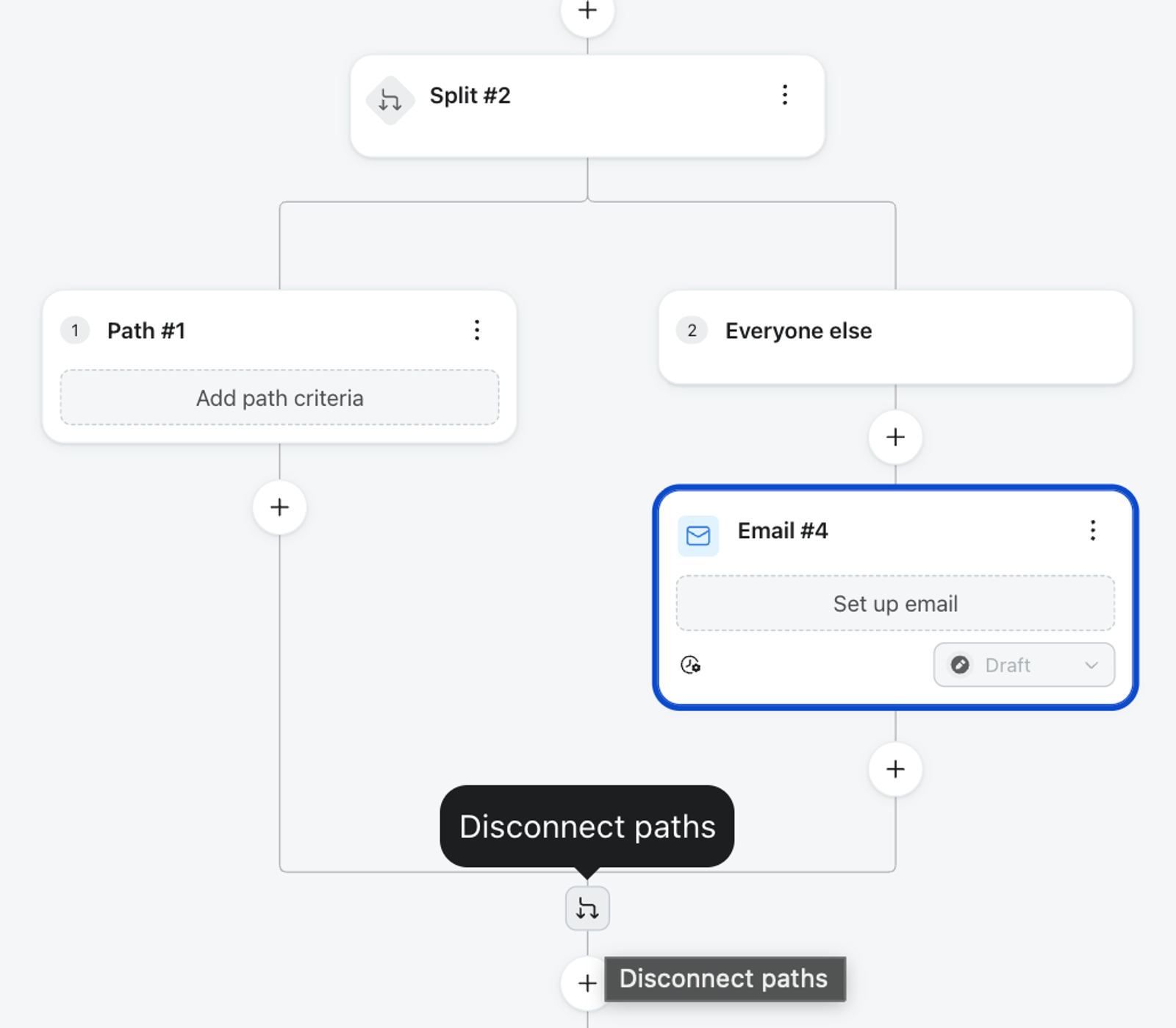
When you disconnect the last joined paths, the join point is removed and the paths become separate again. If 3 or more paths share a join, disconnecting one path leaves the others joined.
If you have multiple joins in a flow, start from the bottom and move upward to disconnect them. You can't disconnect a join that's nested within another joined section.
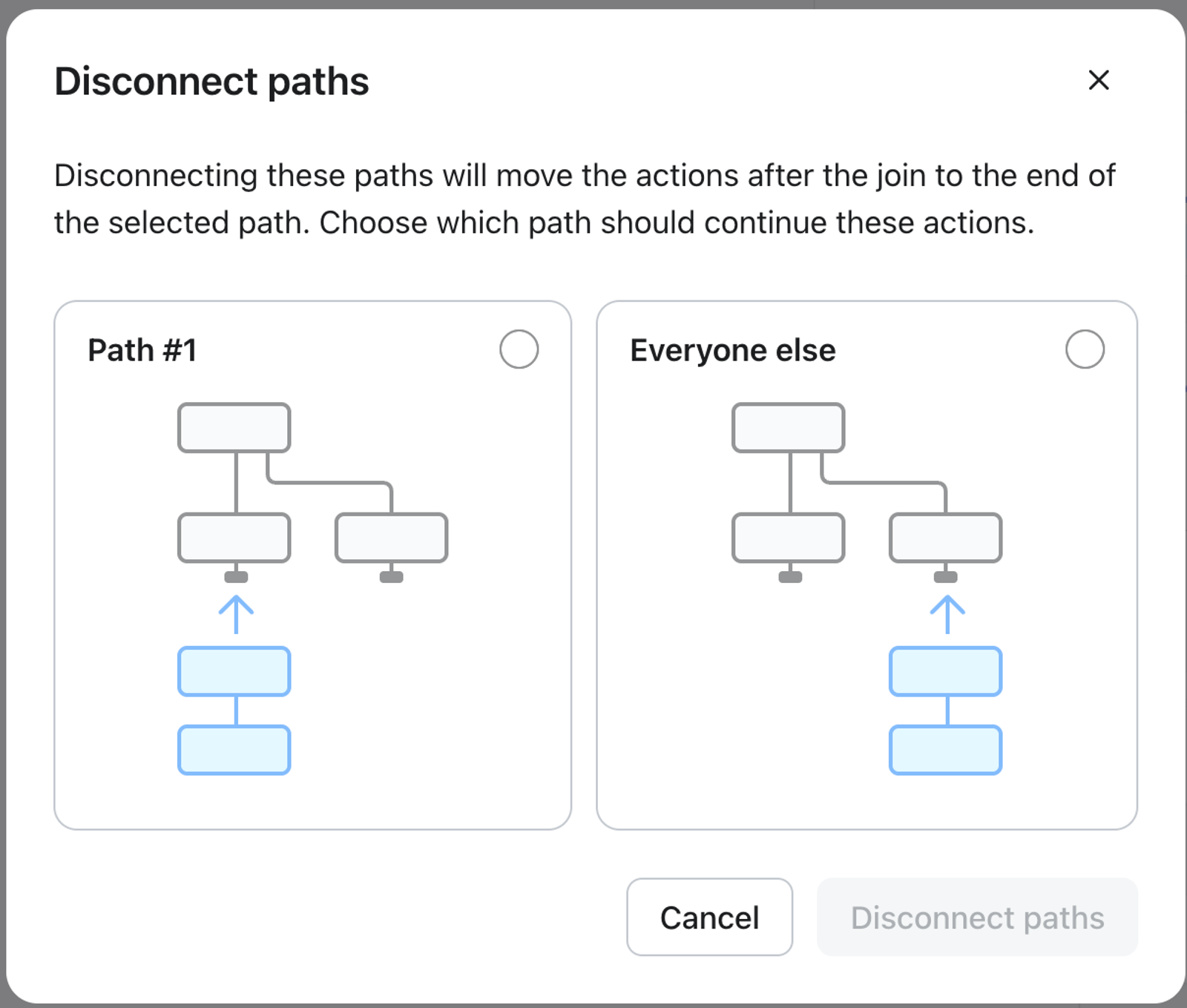
If 2 paths are joined and there are no actions (such as emails or time delays) after the join point, clicking Disconnect paths disconnects them immediately. If there are actions after the join, select the path that should continue those actions in the dialog, then click Disconnect paths. If 3 or more paths share the join, select the single path to disconnect and click Disconnect path; the other paths remain joined.
While paths are joined, you can't reorder or delete them — disconnect the join first. Also note that in a date property-triggered flow, a split placed before the target-date anchor point must stay joined; Klaviyo won't let you disconnect it there.
Additional resources
- Multi-Branch Splits
Send profiles down up to 20 paths in a single split, each matched by its own conditions. Learn how multi-branch splits work and how to build one in a flow.