How to add an update profile property action to a flow
You will learn
Learn how to add an update profile property action into a flow so that you can collect and track profile data.
This flow action allows you to:
- Update an existing profile property
- Remove an existing profile property
- Create and set a new profile property
This action can be used for several use cases such as:
- Collecting categories of interest
- Tagging a profile with a specific date
- Adding gender to a profile
Learn more about update profile property action use cases.
If someone fails profile filters at some point in the flow before they reach the update profile property action, they will skip the action with the skip reason Skipped: Fails Flow Conditions.
Add the update profile property action
- Navigate to a specific flow.
- From the Actions sidebar, drag and drop Property update into the flow.
- Click Add step in the action's Settings section.
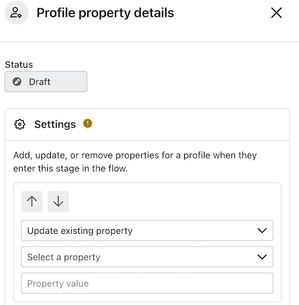
- Choose one of the following:
- Update existing property
This option allows you to update the value of an existing custom property. If the property you select is a list of values, you can choose to add or remove a value from the list.- If the property doesn’t yet exist for a recipient profile, the property will first be created and then the value will be updated.
- Klaviyo automatically detects and validates the data type of the property you choose. For example, if you have a property like "Age" and all the existing values are numbers, then try to update the value to "tom," you'll see an error because "tom" is not a number.
- If you want to add multiple values to a list property, create separate steps and add each value as an update.
- Update existing property
- Create new property
This option allows you to create a brand new custom property and assign the value. If the property already exists for a given recipient profile, we’ll update the value. Here, you can also configure the data type for the new property:- Text
This is any regular string of text, like "Tom" or "Chocolate." - Number
This is any numeric value, like 0, 5, or 750. - List
Enter the values for the new list as a bracketed, comma-separated list of quoted text values, such as["Chocolate", "Vanilla"]. - Boolean
A boolean is a binary variable, having two possible values, “true” and “false." You can select true or false from a dropdown. - Date
Enter a date in the format shown in the field (for example,MM/DD/YYYY), or select Use current date when step is reached to set the date when a profile reaches this step. Learn more about acceptable date formats.
- Text
- Delete existing property
This option allows you to remove an existing custom property from a profile. This will not only clear a value, but fully remove the property from the profile.
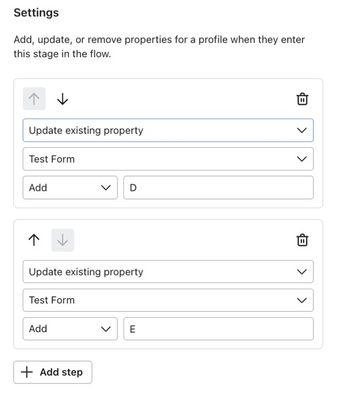
- (Optional) Click Add step again to update several profile properties at once.
- There is no limit to the number of steps you can add.
- Steps will occur in the order they appear.
- It's possible to re-order steps.
- Click Save.
Select Live from the action's Status dropdown, then click Save so profiles reaching this step can have their properties updated.
If you have multiple update profile property actions placed next to each other, add at least a one-minute time delay between them so the updates do not interfere with each other.
View activity
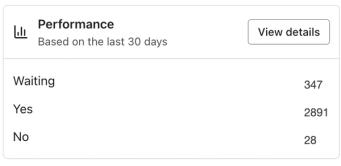
Click the property update action in your flow to see its Performance section in the details panel. It shows activity from the last 30 days when reporting is available for the action.
For a property update action, Performance shows:
- Waiting: profiles queued for the action.
- Review: profiles awaiting review, if the action has been in manual mode.
- Profiles updated: profiles that completed the update action.
Additional resources
- Update profile property action use cases reference
Learn how to use the update profile property action to tag recipients when they enter a certain stage in a flow. You can also edit a profile property or delete it using this action. This article runs through examples of how you can use the update profile property action.
- Understanding how contacts move through a flow
Learn how contacts move through a flow. Flows are automated Klaviyo workflows that are set in motion by an initial trigger and then include one or more steps. Flows can be built to send timely communications to recipients, or they can simply apply certain actions, like updating a specific field on a profile.