Understanding Smart Sending in Klaviyo
You will learn
Learn about Smart Sending, which allows you to limit the number of emails, SMS messages, or push notifications someone can receive within a set period of time.
This is a good way to prevent your subscribers from receiving too many messages at once if you have many active flows and campaigns.
Before you begin
Keep the following in mind when using Smart Sending:
- All channels have separate Smart Sending windows.
- Email default: 16 hours
- SMS default: 24 hours
- Push notification default: 24 hours
- You can change the Smart Sending windows at any time, but existing countdowns keep their original duration.
- Updating the Smart Sending window does not retroactively affect recipients.
- Example: If you send an email campaign and then change the email Smart Sending window from 16 to 10 hours, anyone who received that campaign will be skipped from emails with Smart Sending turned on until the full 16 hours pass.
- Updating the Smart Sending window does not retroactively affect recipients.
- Messages skipped due to Smart Sending are not rescheduled automatically.
- For information on resending emails, read how to resend emails in Klaviyo.
- Currently, it’s not possible to resend a text message or push notification to someone who was skipped due to Smart Sending except by doing so manually.
- If Smart Sending is off for any message, recipients can receive that message even if it’s sent before the Smart Sending window closes.
- Smart Sending for different channels (e.g., SMS and email) is managed independently and does not affect other channels.
- For instance, after someone receives an email, you can still send them an SMS the same day when Smart Sending is on. The SMS Smart Sending window only applies to SMS, and the email window only applies to emails.
- Smart Sending only applies to marketing messages. Messages marked as transactional in Klaviyo are never skipped by Smart Sending, and receiving a transactional message does not cause recipients to be skipped by Smart Sending. This applies to all channels. Learn more about transactional emails.
Why does changing the Smart Sending window not take effect immediately, and is there anything I can do about it?
Think of Smart Sending like a countdown timer on each profile:
- The amount of time is the same as the Smart Sending window at the time you send.
- The timer starts for everyone Klaviyo tries to deliver that marketing message to:
- Includes those that received the message and those where the message failed after leaving Klaviyo (e.g., the message bounced, an inbox provider or wireless carrier filtered the message, etc.).
- Does not include those skipped by Klaviyo (e.g., due to Smart Sending, flow filters, excluded lists or segments, etc.).
- The timer is specific to each profile, so the remaining amount of time on each timer varies.
The examples below use marketing emails and assume you change the window immediately after email 1. They also assume that no other skip reasons or delivery failures prevent the emails from arriving.
Say that you do the following:
- Send an email to your full list.
- Change the Smart Sending window from 5 days to 1 hour.
- Send a second email with Smart Sending.
In this example, the second email will be skipped. Subsequent emails with Smart Sending will also be skipped until 5 days have passed since email 1.
Message | Timing | Smart Sending turned on? | Received email? |
Email 1 | Before changing Smart Sending | Yes | Yes |
Email 2 | 1 hour after the change | Yes | No |
Email 3 | 3 hours after the change | Yes | No |
If you turn off Smart Sending for a marketing email, 2 things happen:
- Smart Sending will not skip that email. Other skip reasons still apply.
- For each recipient Klaviyo attempts to deliver the email to, the timer resets to the current Smart Sending window.
Let’s add this to the example we just looked at. You:
- Send an email to your full list.
- Change the Smart Sending window from 5 days to 1 hour.
- Send a second email that has Smart Sending.
- Send another email without Smart Sending.
For recipients Klaviyo attempts to deliver this last email to, the timer resets to 1 hour. Once that hour has passed, you can send them another email with Smart Sending without waiting for the original 5-day window to end.
Message | Timing | Smart Sending turned on? | Received email? |
Email 1 | Before changing Smart Sending window | Yes | Yes |
Email 2 | 1 hour after the change | Yes | No |
Email 3 | 3 hours after the change | No | Yes |
Email 4 | 6 hours after the change | Yes | Yes |
The above scenarios cover if you send all messages to all profiles, but what if the messages are sent to different groups? Or what if Klaviyo skips someone from the message without Smart Sending?
In this example, you send the email with Smart Sending turned off only to group A.
Message | Group sent to | Timing | Smart Sending turned on? | Received email? |
Email 1 | A and B | Before changing Smart Sending window | Yes | Yes |
Email 2 | A and B | 1 hour after the change | Yes | No |
Email 3 | A | 3 hours after the change | No | Yes |
Email 4 | A and B | 6 hours after the change | Yes | A: Yes B: No |
Group B is skipped from email 4 because they were not sent email 3, so their timer was not reset. Klaviyo will skip them until the original 5-day window expires unless they are sent a marketing email without Smart Sending.
The same is true for anyone who was skipped from email 3 (e.g., if they failed a filter or were excluded).
Is there a way I can change the Smart Sending window for a profile?
You can restart a profile’s countdown with the current window by sending a marketing message with Smart Sending turned off.
The message will not be skipped because of Smart Sending. If Klaviyo attempts to deliver it, the timer resets to the current window. Other skip reasons still apply.
The examples below use marketing emails and assume you change the window immediately after email 1. They also assume that no other skip reasons or delivery failures prevent the emails from arriving.
As an example, say you:
- Send an email to your full list.
- Change the Smart Sending window from 5 days to 1 hour.
- Send a second email that has Smart Sending.
- Send a third email without Smart Sending.
When Klaviyo attempts to deliver the third email, the timer resets to 1 hour.
Message | Timing | Smart Sending turned on? | Received email? |
Email 1 | Before changing Smart Sending window | Yes | Yes |
Email 2 | 1 hour after the change | Yes | No |
Email 3 | 3 hours after the change | No | Yes |
Email 4 | 6 hours after the change | Yes | Yes |
Change the Smart Sending timeframe
The Smart Sending timeframes for email, SMS, and push are separate, so you can adjust one without affecting the others.
Email Smart Sending window
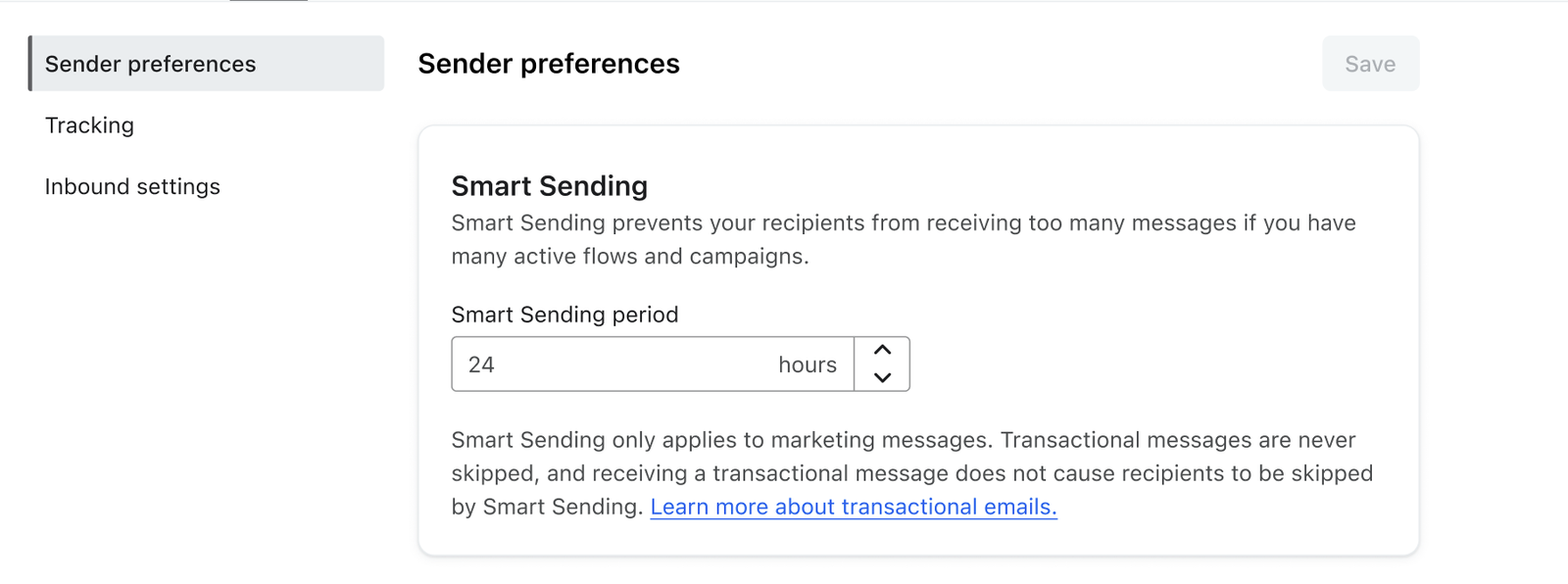
By default, the email Smart Sending window is 16 hours.
- Navigate to your organization name in the bottom left corner of your screen.
- Click Settings.
- Select Email > Sender preferences.
- Update the number of hours under Smart Sending Period.
- Click Save.
SMS Smart Sending window
By default, the SMS Smart Sending window is 24 hours.
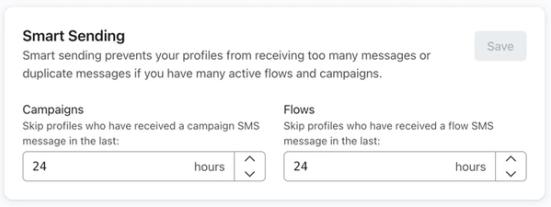
The Campaigns window applies after a recipient is sent an SMS campaign. The Flows window applies after a recipient is sent a flow SMS. Each setting controls how long later SMS messages with the corresponding Smart Sending check skip that recipient.
- Navigate to your organization name in the bottom left corner of your screen.
- Click Settings.
- Select SMS > Sender preferences.
- Under Smart Sending, enter the number of hours for Campaigns and Flows.
- Click Save in the Smart Sending section.
Push notification Smart Sending window
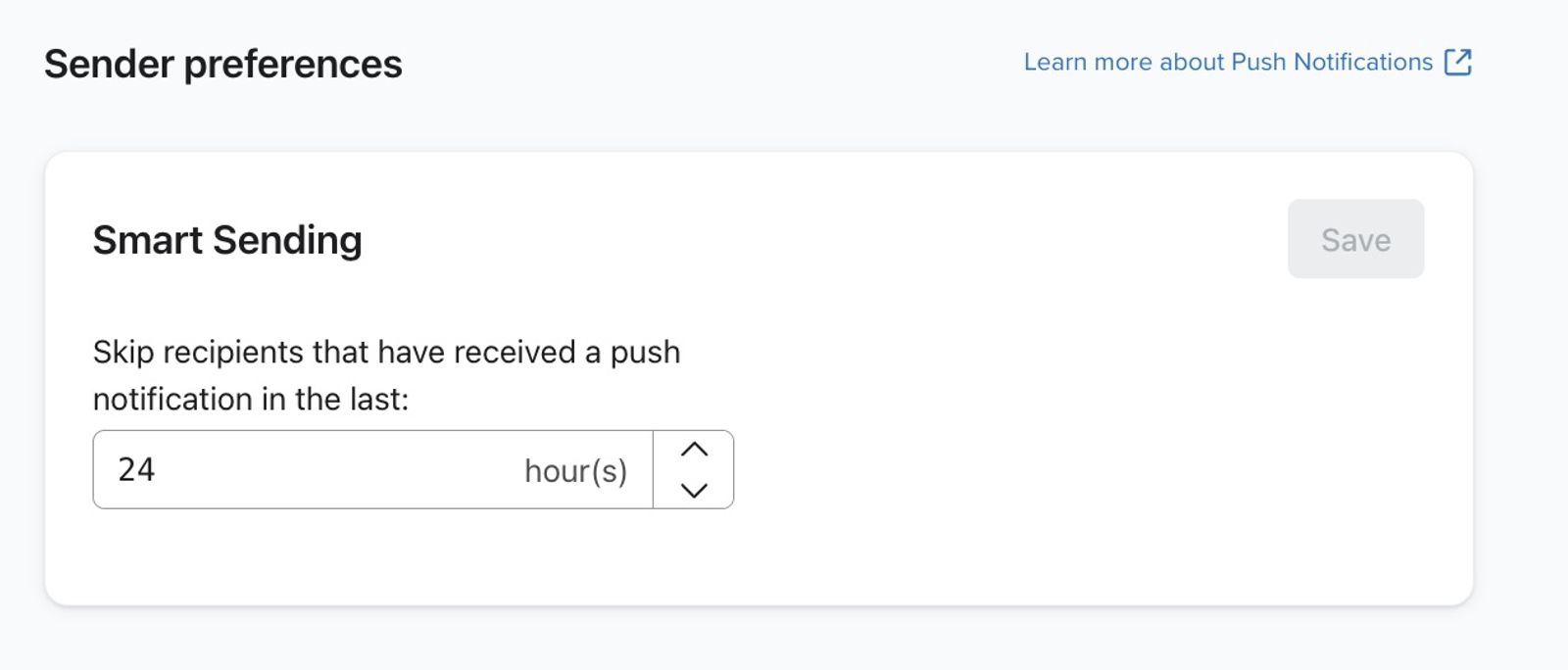
The default is 24 hours for each window. As with SMS, Campaigns applies after a push campaign and Flows applies after a flow push notification.
- Navigate to your organization name in the bottom left corner of your screen.
- Click Settings.
- Select Push notifications > Sender preferences.
- Under Smart Sending, enter the number of hours for Campaigns and Flows.
- Click Save.
Disable Smart Sending for a message
Campaigns
Smart Sending is enabled by default for campaigns. You can disable it for individual campaign messages. We recommend keeping Smart Sending turned on for most marketing emails.
Open your draft campaign and find its Smart Sending controls:
- If you see the campaign canvas, select the message and open Settings.
- If you see the single-message campaign wizard, open the Recipients step.
Then turn off Smart Sending for the message’s channel:
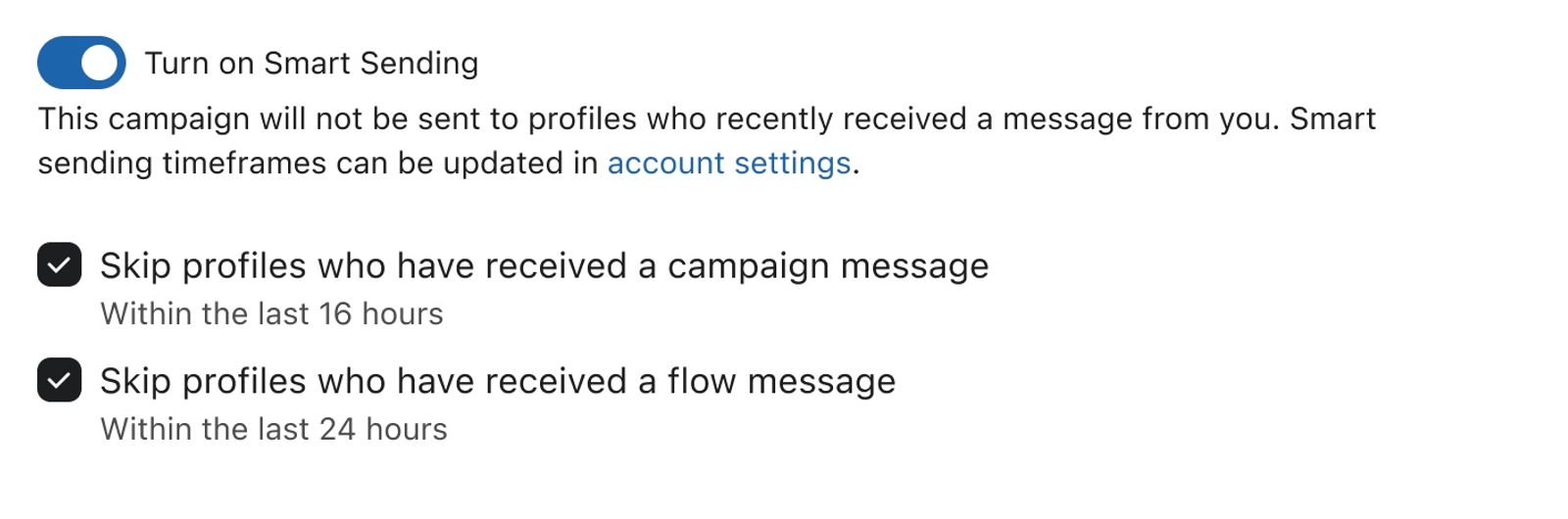
- Email: turn off Turn on Smart Sending.

- SMS: turn off Turn on Smart Sending to disable both checks. To keep only 1 check, leave the toggle on and select the relevant checkbox:
- Skip profiles who have received a campaign message
- Skip profiles who have received a flow message
- Push: turn off Turn on Smart Sending.
Click Save in the campaign canvas, or Next in the campaign wizard to save your changes.
Flows
Smart Sending is enabled for flow messages in many pre-built flows. You can turn it off for any individual flow message where it is enabled.
- Click on an individual flow message.
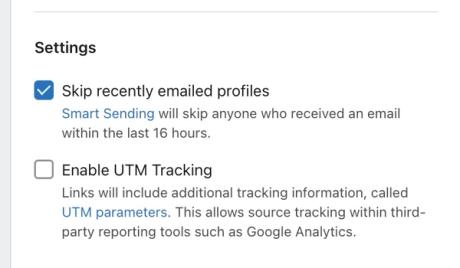
- Under Settings, clear Skip recently emailed profiles for an email. For SMS or push, turn off Turn on Smart Sending.
- Click Save.
SMS Smart Sending uses the phone number to determine whether a message should be skipped. If multiple profiles share the same number, an SMS sent to that number can cause later SMS messages within the relevant window to be skipped for any of those profiles when the applicable Smart Sending check is on.
Smart Sending and A/B testing
A/B tests that receive no results due to Smart Sending are automatically canceled. This means that everyone in the test pool for your A/B test campaign got skipped because they received another message too recently. If an in-app notification tells you that your A/B test was canceled for this reason, resend your campaign to reach your recipients.
Additional resources
- How to resend emails in Klaviyo
Learn about the two methods for resending flow and campaign emails in Klaviyo.
- How to A/B test an email campaign
Learn how to set up and run an A/B test for a campaign, how to read the test results, and a few use cases for A/B testing campaigns. Klaviyo's A/B testing feature for campaigns allows you to easily test different subject lines, message content, and send times so you can better understand what works best for your audience.
- How to A/B test a flow email
Learn how to use Klaviyo’s A/B testing experience to test individual emails in a flow, including things like subject line, discounts, and email content, etc. You can even use A/B tests to determine if plain-text emails perform better than image-heavy HTML emails.