How to archive or delete a flow
You will learn
Learn how to archive or delete Klaviyo flows that are no longer in use.
- Archiving a flow will remove it from the main view of your Flows tab, but it can still be viewed or deleted from a separate Archived view. You can also unarchive the flow to restore it to the main Flows tab.
- Deleting a flow cannot be undone, but you can still view reporting for its messages in the Archived and deleted flows view.
Archiving or deleting a flow cancels recipients.
When you either archive or delete a flow, no future recipients are queued and all queued recipients are canceled. If you want to temporarily pause a flow and still want it to appear on your Flows tab, we advise switching all the flow actions to draft mode.
When should I archive vs delete a flow?
Both archiving and deleting a flow remove it from the main Flows view. Archive a flow if you may need to restore or reference its design later. Archived flows can also continue to appear in dashboards and reports. Deleting a flow cannot be undone, although reporting for its messages remains available.
Examples of when to archive a flow:
- You set up a flow for a specific holiday or promotional event, but after the event the flow is no longer being used so you want to prevent it from cluttering your Flows tab while keeping its analytics.
- You have created a new version of an existing flow and want to replace the existing flow while keeping its analytics.
- You were experimenting with a flow design but want to start over. You don’t want your original design to show on your Flows tab, but you want to keep it to reference its design or analytics later.
Otherwise, you can delete a flow to permanently remove it from your account.
Examples of when to delete a flow:
- You unintentionally created a new flow or cloned an existing flow and want to remove it from your Flows tab.
- You realize a flow is not working as intended and want to start over, but you want to remove the original flow from your Flows tab as well and do not need to reference its design or analytics later.
How does archiving a flow affect analytics?
Archived flows by default will reflect in your account’s analytics. However, you have the option to exclude archived flows wherever you view flow analytics.
Custom reporting
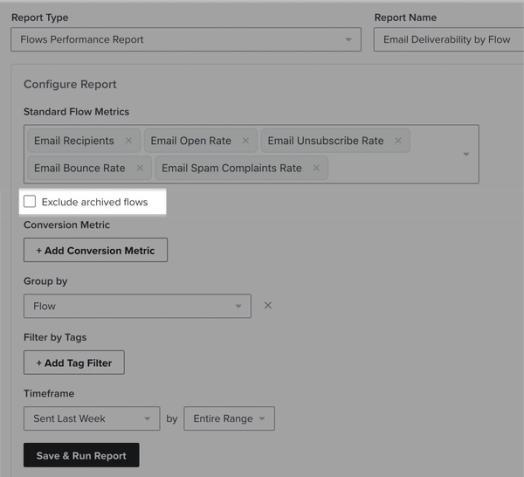
If you use custom reporting to build a flows performance report, you will see the option to Exclude archived flows below the Standard Flow Metrics section. This is unchecked by default.
Dashboards
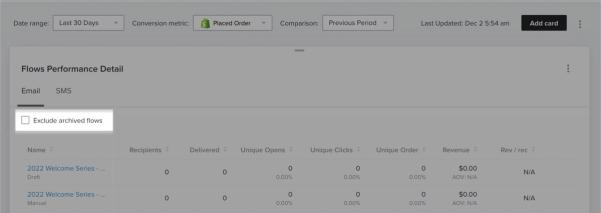
If you are building a flows performance dashboard, you will see the option to Exclude archived flows as a checkbox at the top of the dashboard. This is unchecked by default.
How do I recover an archived flow?
If you have already archived a flow, it can be recovered by following the steps in our guide on how to recover an archived flow. Deleted flows are permanently removed and cannot be recovered.
Archive a flow
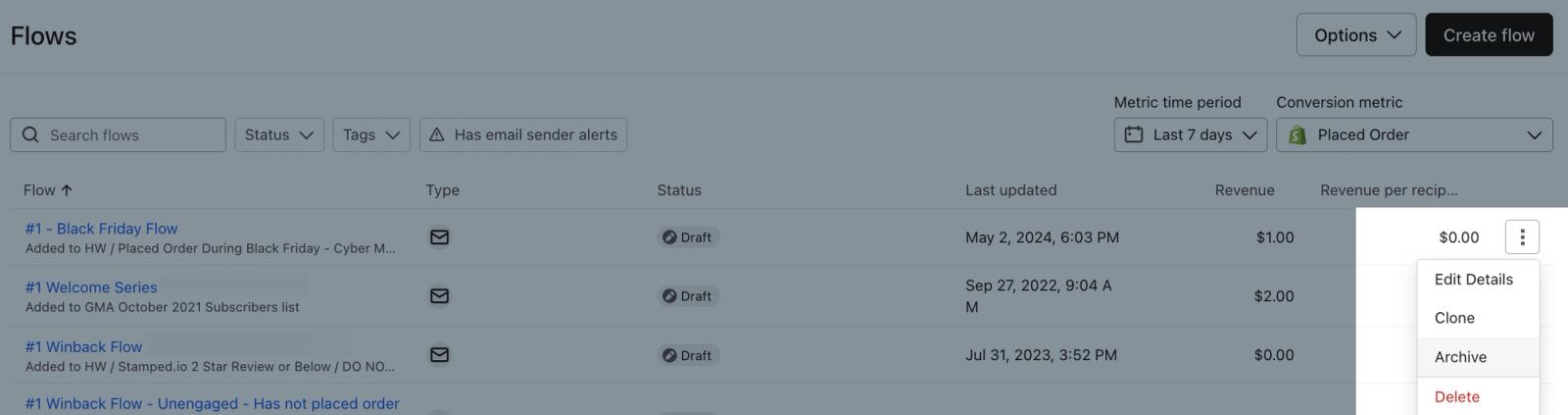
- Navigate to the Flows tab and find the flow you'd like to archive.
- Click the Actions icon to the right of the flow you would like to archive.
- Click Archive, then confirm by clicking Archive in the dialog.
View archived flows
- Navigate to the Flows tab.
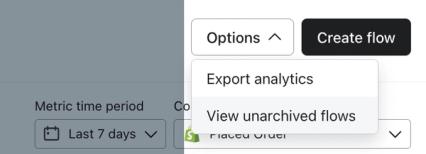
- Click the Options dropdown in the top right.
- Click View archived and deleted flows.
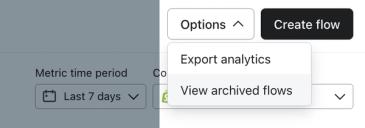
This takes you to the Archived and deleted flows view, where you can unarchive or delete an archived flow. Deleted flows also appear here, but cannot be recovered.
To return to the main Flows view, click Options and select View active flows.
Delete a flow
You can delete an active flow from the main Flows view or an archived flow from the Archived and deleted flows view.
When you delete a flow, no future recipients are queued and all queued recipients are canceled. You can still view reporting for deleted flow messages in Archived and deleted flows.
- Navigate to the Flows tab and find the flow you'd like to delete.
- Click the Actions icon to the right of the flow you would like to delete.
- Click Delete.
To delete an archived flow, open Options > View archived and deleted flows, then click the Actions icon next to the archived flow and select Delete.

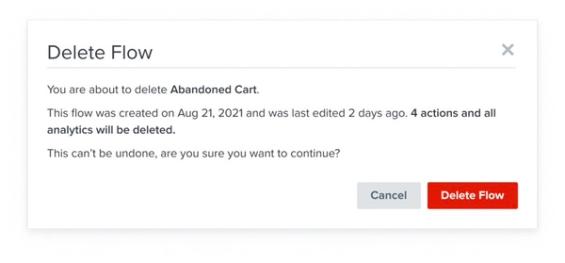
Before deleting a flow, you will be asked for confirmation because this action cannot be undone. Click Delete Flow if you are certain that you want to permanently delete it.
Additional resources
- How to recover an archived flow
Learn how to recover an archived flow so you can edit and use it to send messages again. A recovered flow will return to the main Flows tab view with its status set to draft. From there you can edit it and change its status to live or manual.
- How to pause an individual flow message
Learn how to pause an individual flow message. After you create a flow, there may be cases in which you want to pause sending one or more messages within the flow. This only applies to emails or SMS that are currently live and sending out to your subscribers.
- How to bulk update or schedule flow statuses
Learn how to change the statuses of multiple actions in a flow simultaneously in the flow builder. This makes it simple to, for example, set an entire flow live in 1 click or pause all activity quickly by switching actions to manual or draft.