How to send a campaign to people skipped by a list-triggered flow
You will learn
Learn how to build a segment of people who missed a message in an existing list-triggered flow and send them a campaign. For example, you might want to reach people who missed an email in a welcome series because of a flow filter or Smart Sending.
This approach works best when you need to reach a large group or send an SMS campaign. If you only need to resend an email to a few people, see how to resend emails in Klaviyo.
If you would like to email people who qualified for the flow's conditions before you created the flow, you should instead add past profiles to the flow.
Build a segment of contacts skipped by a flow
- Click Audience in the Klaviyo sidebar.
- Choose Lists & segments.
- Click Create New > Create segment.
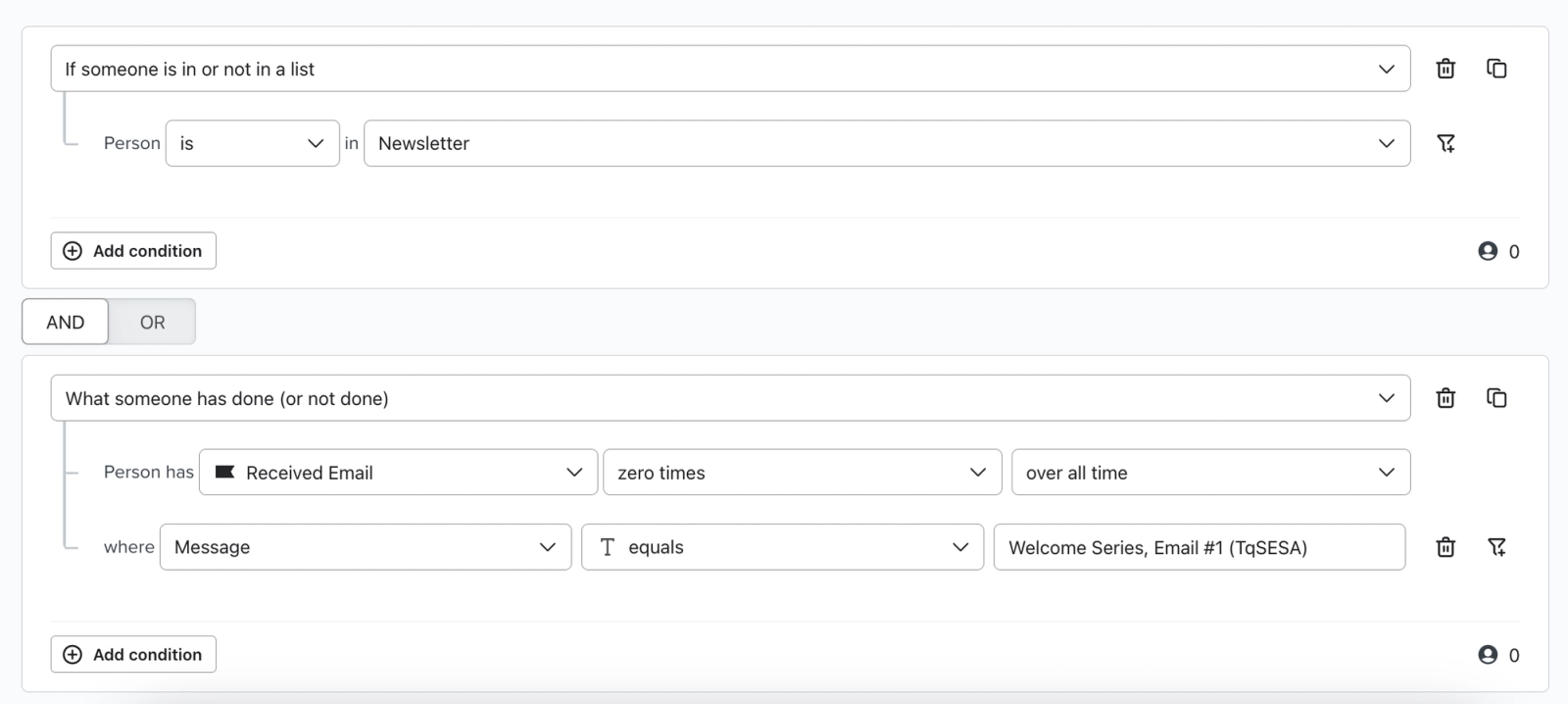
- Build a segment based on the flow's trigger list and any relevant flow filters. For example, if the flow is triggered by the Newsletter list and has no flow filters, use If someone is in or not in a list > is in > Newsletter.
- Add an AND condition for the message you want to send: What someone has done (or not done) > Received Email > zero times over all time > where Message equals [your flow message]. If you are sending an SMS campaign instead, use Received SMS and select the corresponding SMS flow message. Before sending, review the segment against the flow message's Skipped recipient activity: not having a Received Email or Received SMS event does not, by itself, establish that a profile entered the flow or was skipped. See how to find a flow message's skipped recipients.
- Click Create segment.
Save the flow message as a template (email only)
- Click Flows in the Klaviyo sidebar.
- Locate the list-triggered flow you'd like to resend and click to open it.
- Locate the email you'd like to resend and click it.
- In the right-hand panel, next to Template, select the three dots.
- Click Save as template.
- Name and save your template.
Create a campaign
- Navigate to your Campaigns tab in Klaviyo.
- Click Create campaign.
- Choose the type of campaign and click Continue.
- In the Send to field, choose the segment you created in the first section of this article.
- Toggle off the Smart Sending setting.
- Click Next.
- Set a subject line and preview text.
- Select your saved email template, then click Next.
- Review the campaign and correct any issues shown in the sidebar. Click Schedule or send, then choose whether to send immediately or schedule it for later.
Additional resources
- How to resend emails in Klaviyo
Learn about the two methods for resending flow and campaign emails in Klaviyo.
- How to bulk update or schedule flow statuses
Learn how to change the statuses of multiple actions in a flow simultaneously in the flow builder. This makes it simple to, for example, set an entire flow live in 1 click or pause all activity quickly by switching actions to manual or draft.