How to run a contest or giveaway using subscribe pages
You will learn
Learn how to run a contest or giveaway in Klaviyo using a subscribe page to collect contestants, and then take a sample of 1 from the list to find a winner. While you can accomplish this using a third-party tool that integrates with Klaviyo, you can also run a contest strictly using Klaviyo.
To run the contest using a Klaviyo subscribe page, you'll need to:
- Create a new subscribe page for a new list (that is separate from your main subscriber list).
- Take a random sample of 1 to determine the winner.
- Use engagement criteria to integrate contest/giveaway subscribers into your engaged main segment.
Set up a way for people to enter the contest
Subscribe pages collect email subscriptions. If people need to enter your contest without signing up for email marketing, provide a separate entry method. A custom marketing-preference checkbox does not make email signup optional.
If your contest list uses double opt-in, new email subscribers must confirm their subscription before they join the list and can be included in the winner selection.
- Create a dedicated list for your contest by navigating to Audience > Lists & segments and clicking Create.
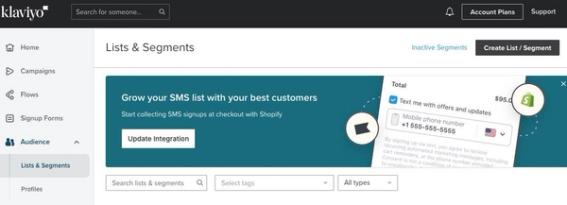
- Select List.
- Name your list and add any tags. Using a name that relates to your contest plans will help you keep organized.
- Click Create list.
- Choose to Set up subscribe page. Subscribe pages have shareable URLs, which make it easy to share a link for your contest in emails and other social channels.
- Your new list uses your account's default consent pages. Click Customize for this List to create a new set of consent pages for this list.
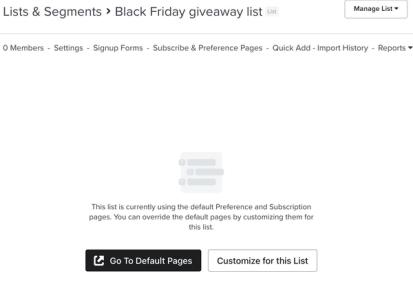
Consent pages include the manage preferences page, subscribe page, and unsubscribe page. When you customize consent pages for a list, Klaviyo creates a new one of each specifically for the list. All can be edited; however, the subscribe page is the only one needed for creating a contest.
- Under Subscribe page, click Edit Page.
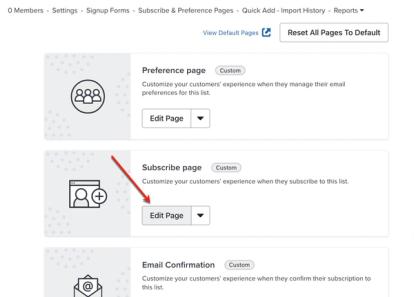
- Using the editor, customize the design and style to match your brand.
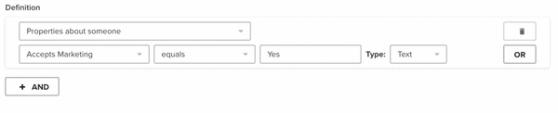
- Recommended: Add a checkbox to record whether a registrant wants future marketing emails. Connect it to a custom profile property, such as "Accepts Marketing".
- Oftentimes, the leads you get from running a contest aren't as high quality as your typical leads, so asking them if they want to receive future emails gives you a preference you can use to filter your messages later on. The checkbox records this preference; it does not prevent email signup when left unchecked.
- Oftentimes, the leads you get from running a contest aren't as high quality as your typical leads, so asking them if they want to receive future emails gives you a preference you can use to filter your messages later on. The checkbox records this preference; it does not prevent email signup when left unchecked.
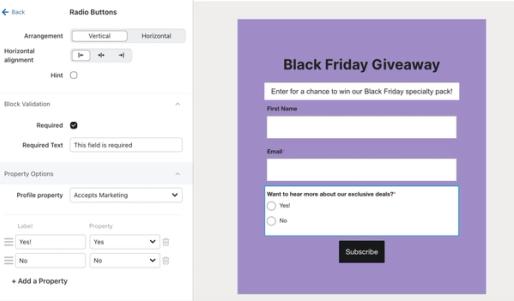
- For example, you can filter for people whose "Accepts Marketing" property includes "Yes". Also check that they are subscribed to email marketing, and use the welcome-series engagement criteria below before including them in your engaged segment.
- Once you're finished editing, click Publish and confirm publication if prompted.
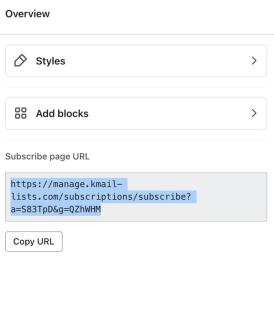
You can copy the subscribe page URL from the Overview menu in the subscribe page editor to share in emails or other marketing campaigns. Recipients who click on this link will be brought to your subscribe page where they can sign up for your contest.
Take a random sample to choose the winner
Use this drawing method only for lists with 5,000 members or fewer. For larger lists, a sample of 1 does not draw from the entire list. Use a separate drawing method that includes all eligible entrants.
When it comes time for you to choose the winner of your contest, take a random sample of 1:
- Open your contest list from Audience > Lists & segments, then select Manage list > Create random sample.
- Enter a name for the sample list in List name, then enter 1 in Sample size.
- Click Create list.
Klaviyo opens the new sample list. Once processing finishes, it contains the selected contest entrant.
How to market to contest or giveaway subscribers
SMS marketing for sweepstakes is only permitted on US and Canadian short codes. Learn more about compliance requirements around sweepstakes and contests.
Research has shown that subscribers acquired from a contest or giveaway are less likely to make a purchase than your typical subscribers. Because of this, you should consider these contacts lower-quality leads and market to them differently than your typical subscribers. Klaviyo recommends following step 9 above, as well as these other guidelines for filtering leads from a contest:
- Keep your contest/giveaway subscribers in a separate list
It's best practice to keep your contest or giveaway subscribers in a list that's separate from your main list. You should always create a new list to use when running a contest or giveaway so you can keep track of this. You can create one "main" list for all your contest/giveaway subscribers if you run these initiatives frequently. - Create a specific welcome series for your contest list
Create a specific welcome series flow for the email subscribers added to your contest/giveaway list that contains 2-3 emails sent over the course of a week. If you collected a marketing preference, add a flow filter to include only people who agreed to receive future emails. These messages should:- Be explicit in your content about why subscribers are receiving these messages.
- Use subject lines that remind recipients that they signed up for the contest/giveaway.
- Have a clear call-to-action that allows contacts to unsubscribe if they no longer want to receive marketing from you.
Note that you can also create an SMS welcome flow if you collected phone numbers and SMS consent in your subscribe page.
- Add conditions to your engaged main segment
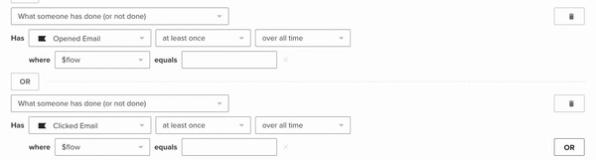
Do not email contest/giveaway subscribers who did not engage with your welcome series, as this can harm your deliverability. Instead, add the following conditions to your main segment to include people who opened or clicked at least 1 email in your contest-specific welcome series flow. Require email subscription and any marketing-preference condition you collected in addition to this engagement.
Additional resources
- Getting started with consent pages
Learn about the different consent pages related to Klaviyo lists, including the preferences, subscribe, and unsubscribe pages, and how to customize them.
- How to translate consent pages into different languages
Learn how to translate the text in your consent pages (i.e., subscribe, unsubscribe, and manage preferences pages) into the language that your subscribers use.
- How to run a contest or giveaway using subscribe pages
Learn how to run a contest or giveaway in Klaviyo using a subscribe page to collect contestants, and then take a sample of 1 from the list to find a winner. While you can accomplish this using a third-party tool that integrates with Klaviyo, you can also run a contest strictly using Klaviyo.