How to use the Schema view for custom objects
Learn how to use the Schema view on the Objects page to see how your custom objects connect to profiles and to each other, where each object's data comes from, and which objects and records belong to a specific profile.
Before you begin
- You need at least 1 published custom object. To create one, see Getting started with custom objects.
Open the Schema view
- Click Content > Objects in the Klaviyo sidebar.
- Click the Schema view tab.
A diagram of your data model appears:
- Cards represent profiles and each of your custom objects.
- Lines between cards represent relationships. A line between an object and profiles means the object's records link to profiles through a profile identifier, such as email or phone number. A line between 2 objects means their records are linked to each other.
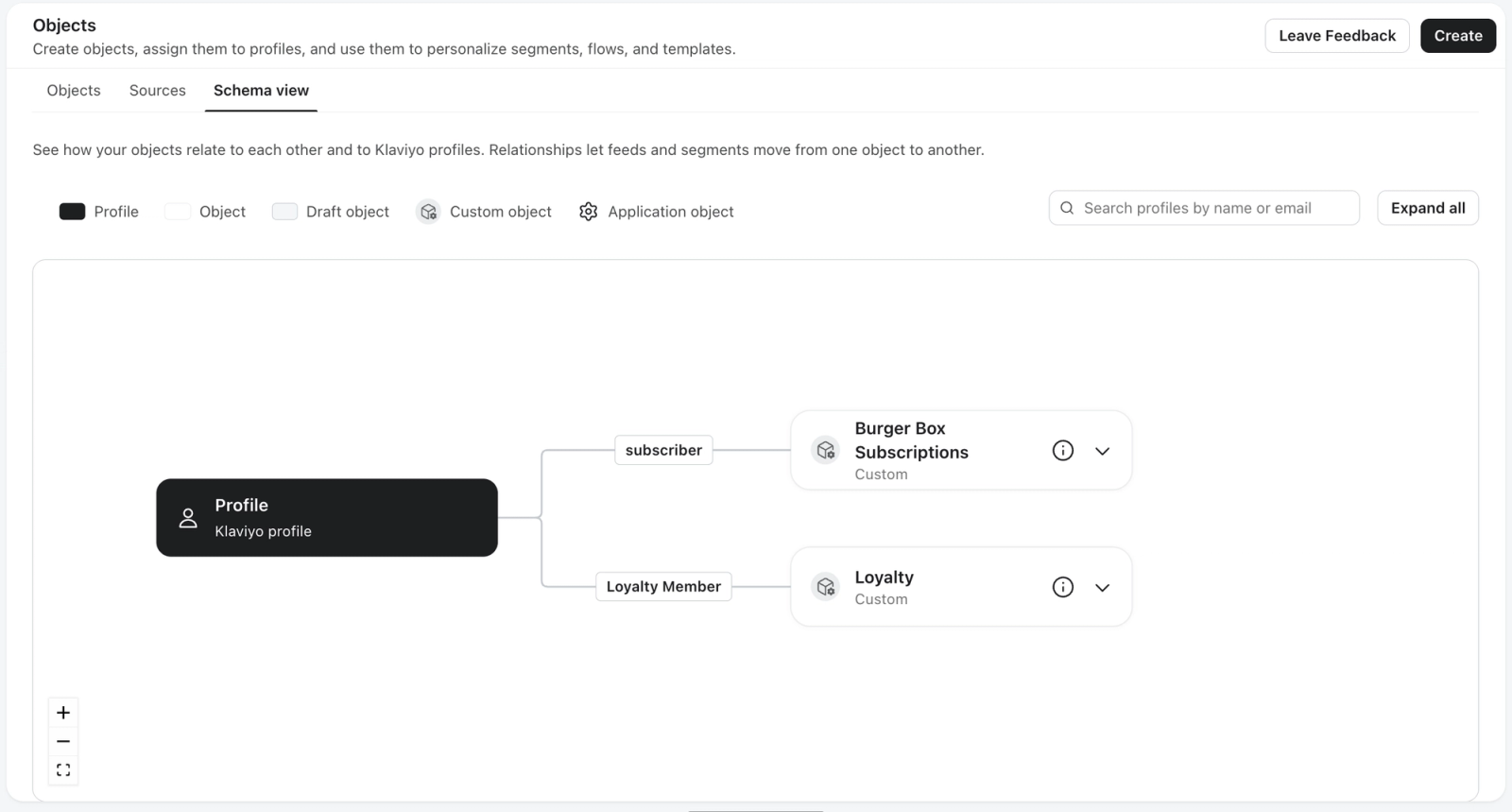
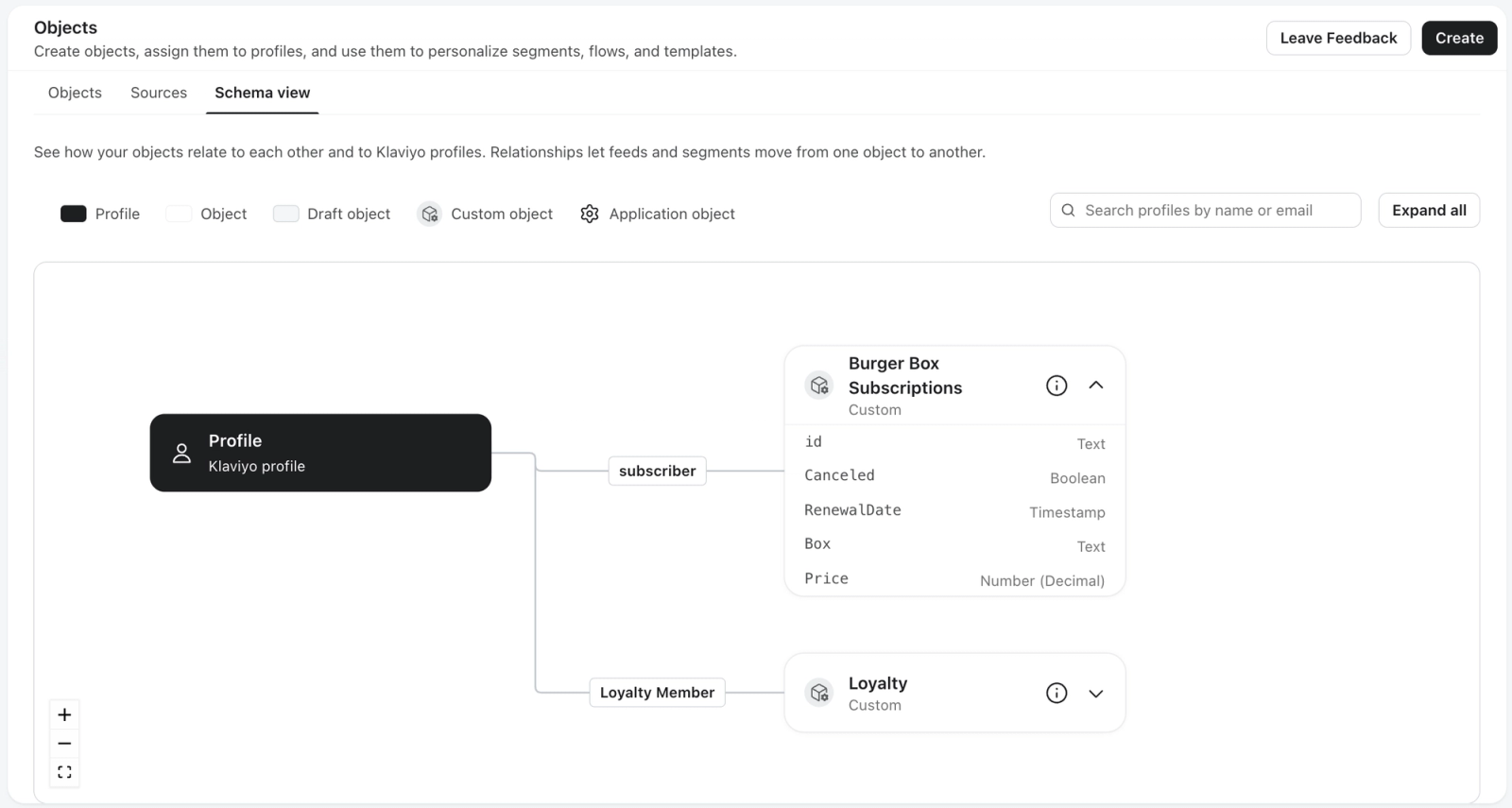
View object details
Click an object card to see its details.
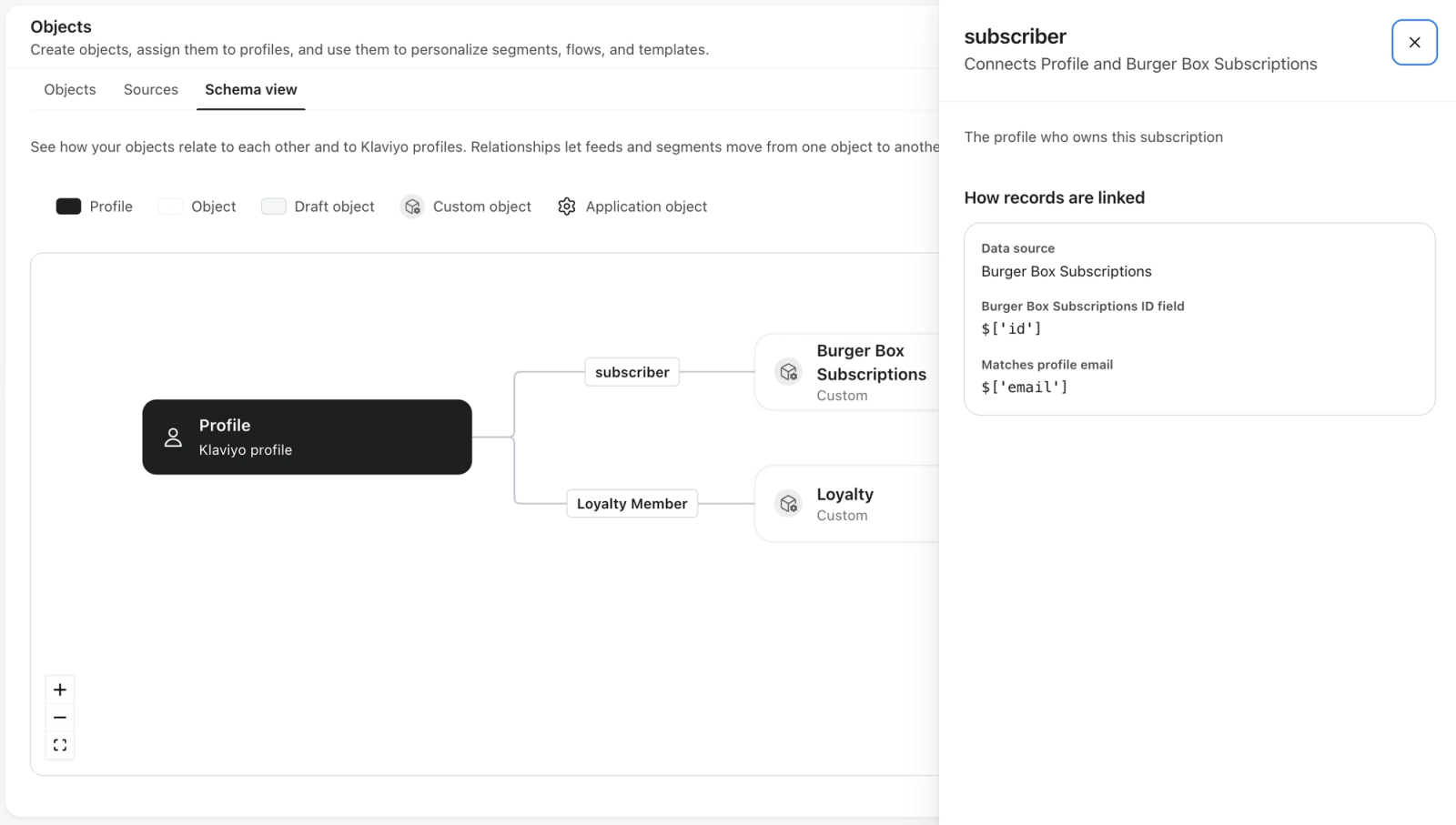
View relationship details
Click a relationship line to see which fields link the records. For example, a line between a Pet object and profiles might show that pet records link to profiles through the owner_email source property and the email profile identifier.
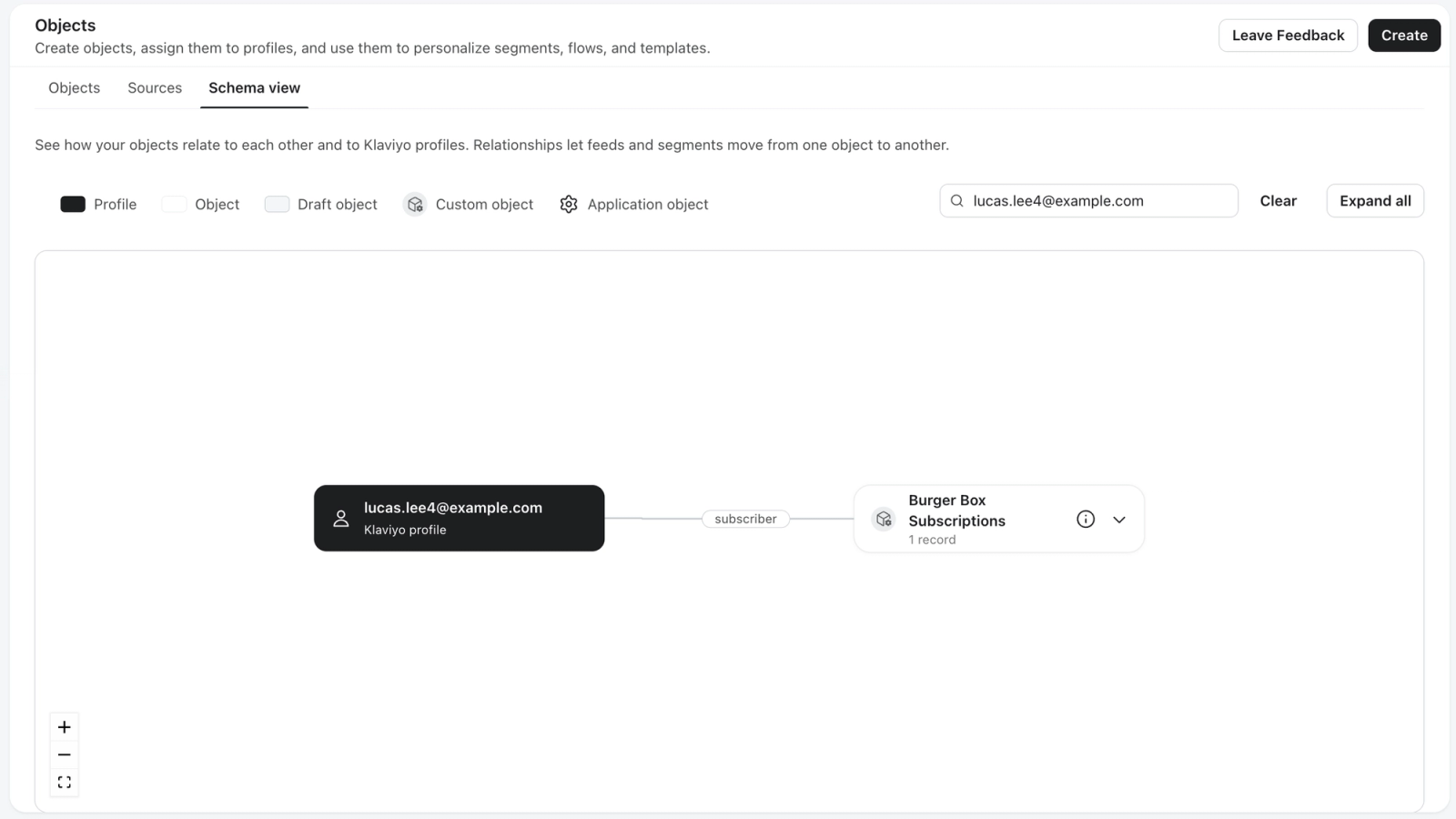
View the objects connected to a profile
To see only the objects and records connected to 1 profile:
- On the Schema view tab, search for a profile.
- Select the profile.
The diagram shows only the objects that have records linked to that profile, along with those records. Use this view to:
- Check that a customer's records are linked to the correct profile
- Find missing data, such as a customer whose record didn't link
- Audit what object data Klaviyo stores for a specific customer
To return to the full diagram, clear the profile search.
To view a profile's object records as cards, open the profile and go to its Objects tab. For more, see Objects on profile pages.
Limitations
- The Schema view is read-only. To change an object's properties or relationships, edit the object from the Objects tab. See Update an object.
Additional resources
- Getting started with custom objects
Learn about custom objects, which allow you to store and associate multiple properties to a single "object." Custom objects enable you to map diverse, multi-relational data concepts into Klaviyo that can’t be stored using profile properties. You can then use custom objects in your messages, segments, and more.
- Frequently asked questions about custom objects
Learn about frequently asked questions related to custom objects in Klaviyo. If you don’t see your question in the resource below, please reach out on our Community forum.
- How to use custom objects in segments
Learn how to use custom objects in segments so you can create groups of customers based on object data.