How to build, test, and analyze Customer Agent with Composer
You will learn
How to use Composer, Klaviyo's AI assistant, to build, test, and improve your Customer Agent, and what you can ask it to do.
Before you begin
- You need access to Customer Agent. To make changes, you need permission to edit Customer Agent.
- Composer replaces the Build tab (previously called Agent Builder) in Customer Agent. Everything you used to do in the Build tab, you can now do in Composer.
Composer and credits
Using Composer to build, test, and analyze your Customer Agent doesn't use any Composer credits.
How you pay for each product doesn't change:
- Customer Agent: billed based on the conversations it resolves with your customers. See How Klaviyo billing works.
- Composer marketing work: work like building a campaign or auditing a flow uses Composer credits, wherever you ask for it, including on Customer Agent pages. See How your Composer plan works.
Open Composer
On any Customer Agent page, Composer opens on the side of the page with the greeting "Build your Customer Agent." If you've closed it, click the Composer icon in the header to open it again.
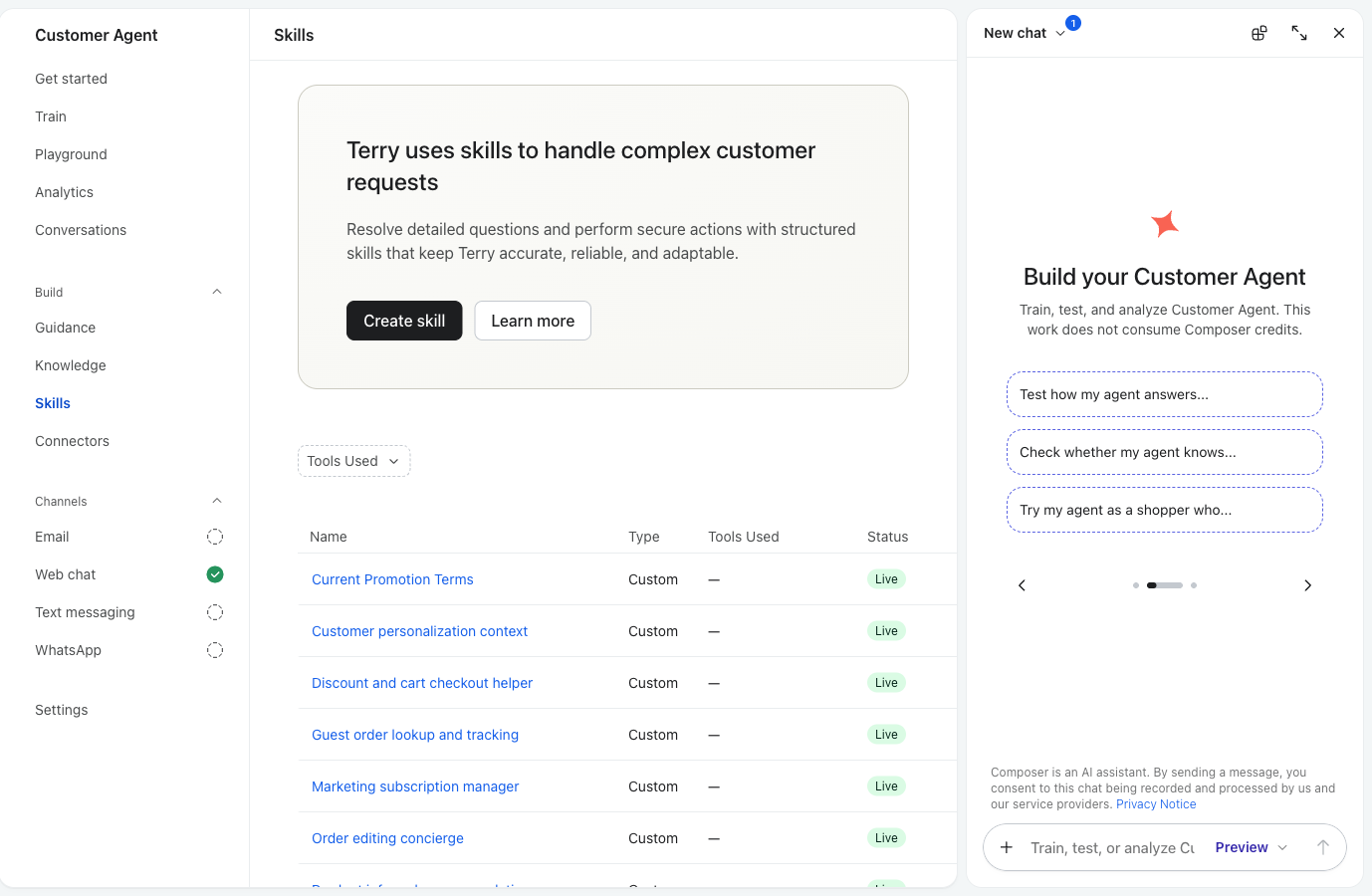
You can also send something specific to Composer:
- From the Playground: highlight part of your agent's reply, then choose Ask Composer about this or Send to Composer.
- From Conversations: highlight part of a message in a real conversation and send it to Composer the same way.
- From Train: open a scenario and click Improve your agent.
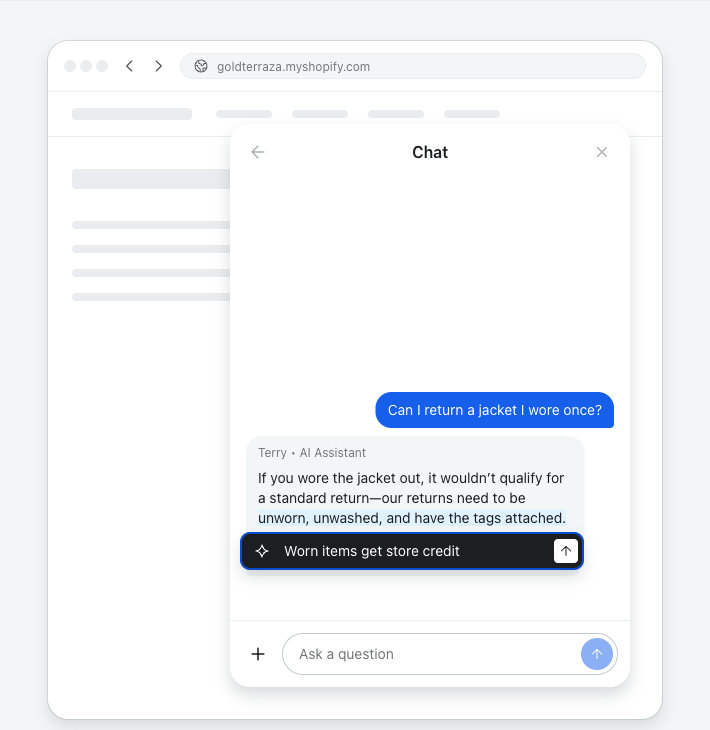
What you can ask
Composer's starter prompts are grouped into three jobs.
Build
- "When shoppers ask about gift cards, tell them they can't be returned."
- "Make my agent sound more casual."
- "Teach my agent our policy on international shipping."
Test
- "Test how my agent answers a question about late orders."
- "Check whether my agent knows our return window."
- "Try my agent as a shopper who wants to cancel an order."
Analyze
- "Why is my agent handing off so many conversations?"
- "Summarize what shoppers asked about this week."
- "Show me where my agent struggled."
What Composer can change
Area | What Composer can do |
|---|---|
Skills | Create a custom skill, edit a skill, turn pre-built skills on or off |
Guidance | Update your brand summary and tone of voice; add, edit, or remove communication style rules and escalation rules |
Knowledge | Search your knowledge the way your agent does; create, edit, or delete snippets |
Tools | Create and test custom tools |
Testing | Run simulated conversations from your scenarios |
Conversations | Search and read real and Playground conversations, including which tools the agent used |
Because guidance and knowledge changes take effect right away, review what Composer proposes before you confirm.
FAQ
Where did the Build tab go?
Composer replaced it. Everything you did in the Build tab works in Composer.
Does using Composer with Customer Agent cost anything?
No. Building, testing, and analyzing Customer Agent doesn't use Composer credits. For how Customer Agent itself is billed, see How Klaviyo billing works.
Where do I preview my agent?
In the Playground.
Can Composer change what shoppers see without me?
Composer only makes changes you ask for. Guidance and knowledge changes take effect right away, and skill changes wait as drafts until you publish them.