How to use emojis in subject lines and email templates
You will learn
Learn what to consider when using emojis in your subject lines and email content, including how emojis display differently across email clients.
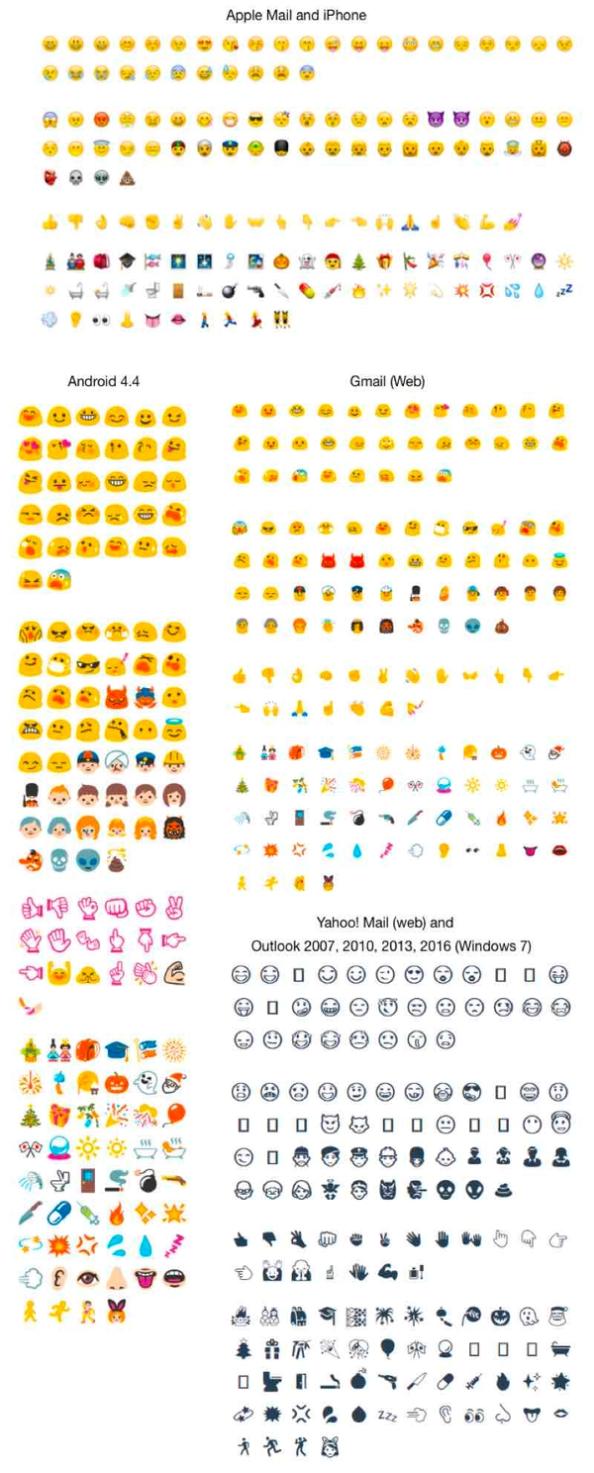
If a character you use isn't supported in the email client of your recipient, the recipient will see a ☐ character instead. Even if an email client is able to render the small image (i.e. the emoji) you've added to your email, the image may not render as desired. For this reason, Klaviyo recommends testing out any new emojis you'd like to use by sending test campaigns to a preview list or using a tool like Litmus.
How emojis render across different email clients
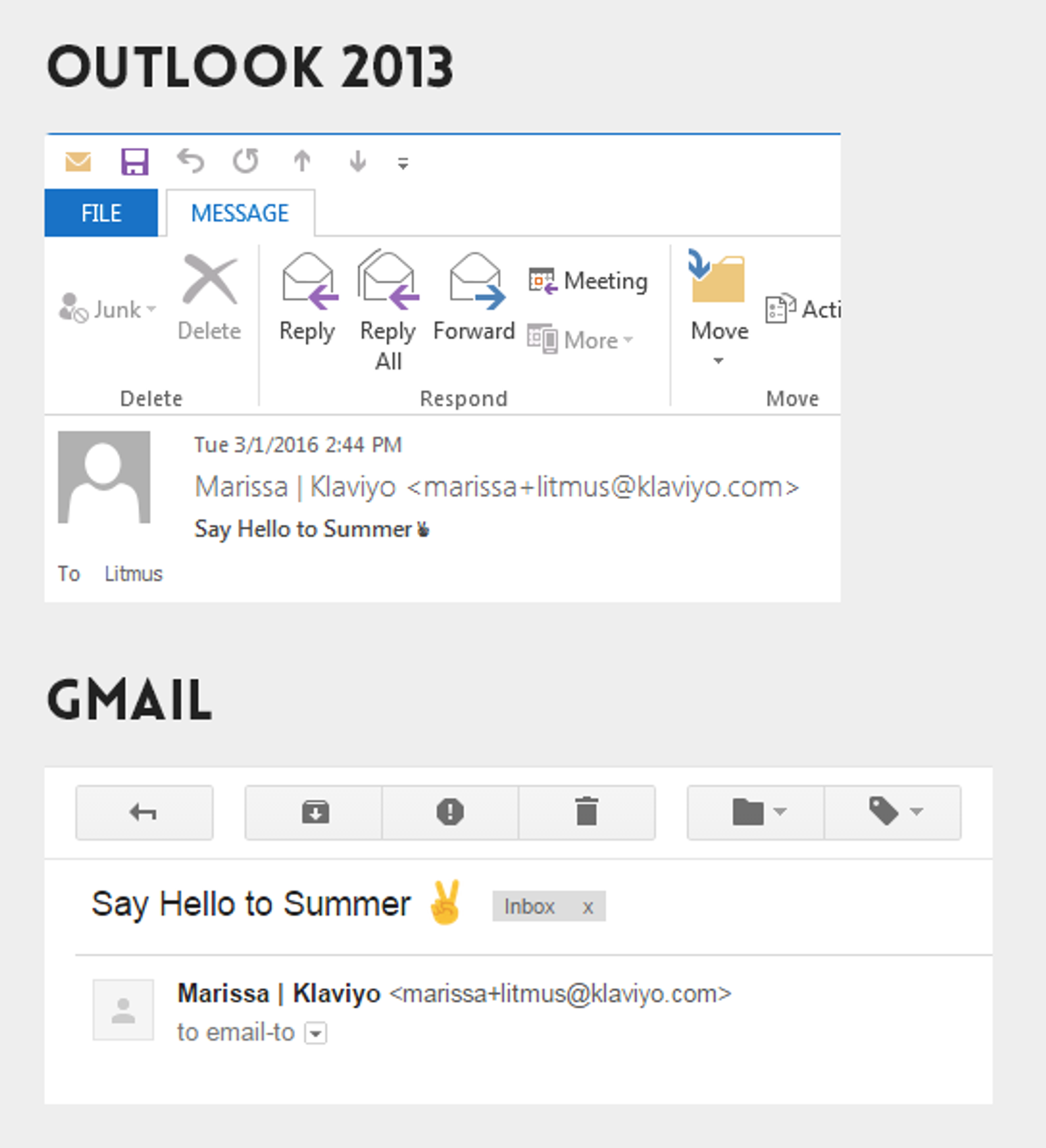
Here is an example of how the [✌] emoji will look in the subject line of an email viewed in Outlook 2013 and Gmail:
Here are examples of how popular emojis render across desktop, web, and mobile email clients:
Note that email recipients using screen readers will hear the emoji read aloud.
How to use emojis in your emails
Klaviyo supports all emojis! You can add them to subject lines and email content:
- In the Subject line field, place your cursor where you want the emoji. Click the emoji icon, then choose an emoji to add it.
- In the drag-and-drop template editor, double-click the text in a text block to open the text toolbar. Place your cursor where you want the emoji, click the emoji icon in the toolbar, and choose an emoji. Click outside the text block to finish editing.

You can copy and paste emojis directly into your email. A great resource for copying and pasting emojis into your templates is Copy and Paste Emoji.
Additional resources
- Accessibility in emails and forms best practice reference
Learn how to make your emails and sign-up forms more accessible. When designing your emails and signup forms, you’ll want to make sure your designs are accessible to all of your recipients.
- Best practices for A/B testing reference
Learn best practices for using Klaviyo's A/B testing features to help optimize your communication with customers.