How to migrate from Mailchimp
You will learn
Learn how to use Klaviyo’s Mailchimp integration to migrate your Mailchimp data to Klaviyo.
After you’re completely transitioned to Klaviyo, we recommend you remove your Mailchimp integration.
Klaviyo syncs the following data from Mailchimp:
- Subscriber information (including unsubscribes and cleaned contacts)
- Mailchimp audiences (synced to Klaviyo lists)
- Email receives, clicks, and opens
- Mailchimp ratings
Before you begin
If your Mailchimp account is currently integrated with your Shopify store, and you've already integrated Shopify with Klaviyo, make sure to disconnect Mailchimp from Shopify before integrating Mailchimp with Klaviyo. Failure to disconnect your old integration could result in double opt-in emails sending to your existing subscriber list.
Checklist
Migrating from Mailchimp to Klaviyo requires 4 key steps:
- Integrate your ecommerce platform with Klaviyo
- Integrate Mailchimp with Klaviyo
- Migrate your email templates from Mailchimp to Klaviyo
- Sunset your Mailchimp account
How to integrate with Mailchimp
The Mailchimp integration can sync contact details and subscription information from your audiences, along with email receive, open, and click activity. Choose which data to sync in the integration settings.
- First, you'll need to obtain a Mailchimp API key. We recommend creating a new key specifically for the Klaviyo integration, but you can use an existing key if you would like.
- Follow Mailchimp’s instructions for creating an API key, then copy the key and save it securely. You can only view the full key immediately after creating it.
- Once you've obtained your API key from Mailchimp, log in to Klaviyo.
- Select the Integrations tab.
- Click Explore apps and search for Mailchimp. Click on the Mailchimp card, then click Install.
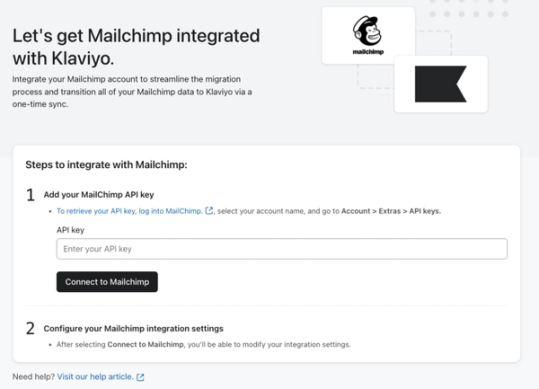
- On the setup page, paste in the Mailchimp API key in the specified field.
- Click Connect to Mailchimp.
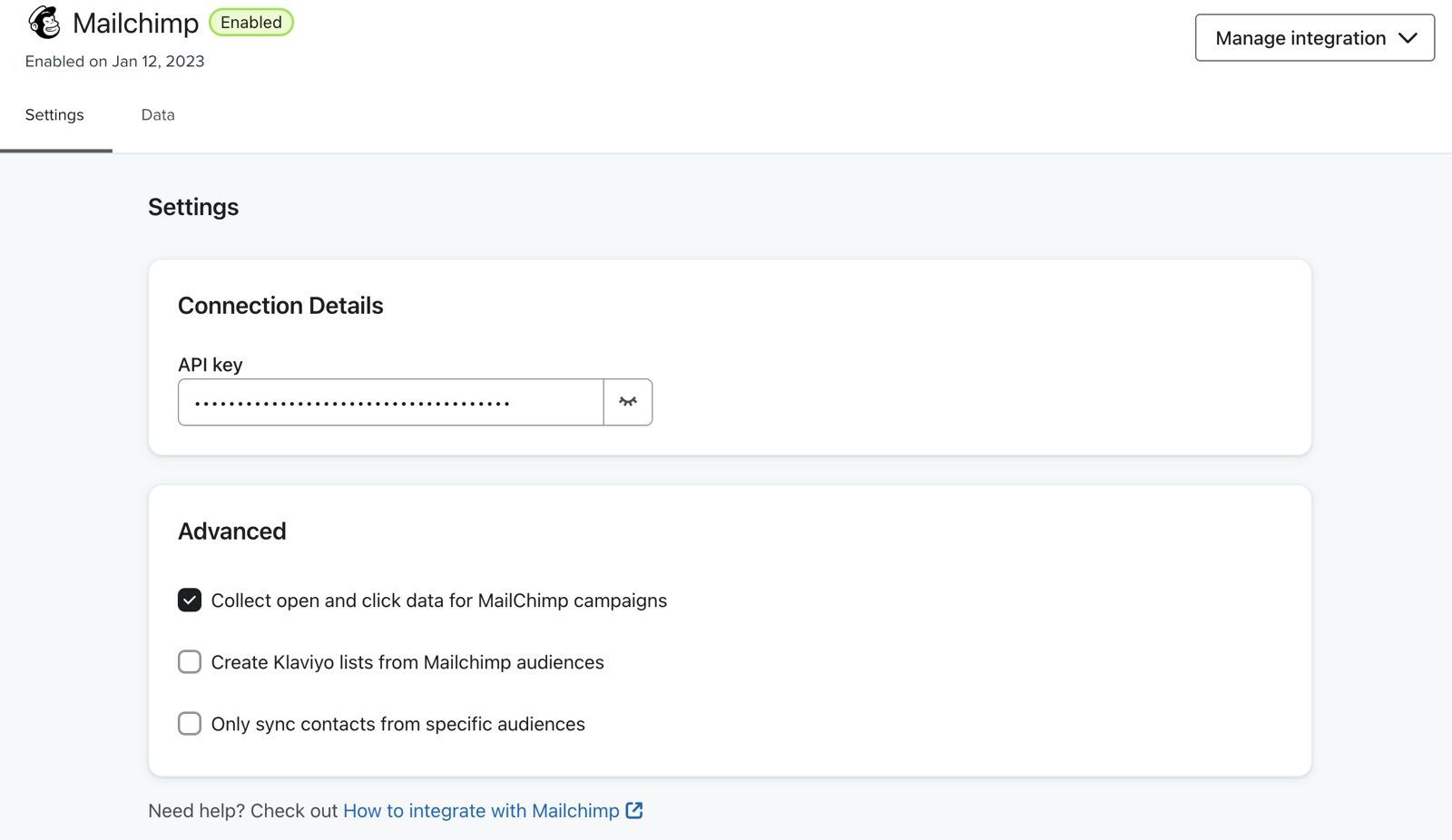
- Under Advanced, select the data you want to sync:
- Collect open and click data for MailChimp campaigns - check this option to sync Mailchimp engagement.
- Create Klaviyo lists from Mailchimp audiences - check this option to sync all your existing Mailchimp audiences.
- Only sync contacts from specific audiences - select this option along with Create Klaviyo lists from Mailchimp audiences to sync selected audiences. In Audiences, enter their audience IDs separated by commas.
- If you select Only sync contacts from specific audiences in Advanced, you'll need to designate all the Audience IDs to which campaigns were previously sent. Even if a different synced audience contains the same contact, if a campaign was not originally sent to that audience, you won't see complete engagement data for that campaign.
- Klaviyo will only sync campaign data for campaigns with the "Sent" status. Data from campaigns with the "Sending" status won't be synced. Note that Klaviyo won't sync entire campaigns; we sync open and click data, and if you wish to re-create Mailchimp campaigns in Klaviyo, you can learn how to export your Mailchimp email templates below.
- Click Complete setup to save your settings and start syncing your Mailchimp data.
Sync frequency
When you first integrate Klaviyo and Mailchimp, Klaviyo imports contacts from the audiences you choose to sync. If campaign engagement syncing is enabled, it also imports the last 90 days of campaign data. This initial import is called a historical sync.
After the historical sync, Mailchimp data syncs to Klaviyo as follows:
- Existing audiences sync every 30 minutes.
- New audiences and/or campaigns sync every 6 hours.
- Existing campaign activity syncs after campaigns are sent to capture recipient data.
Review your Mailchimp data
When you sync Mailchimp audiences, Klaviyo imports their contacts and email subscription information. If you select Only sync contacts from specific audiences, only those audiences are included. Review the imported subscription statuses and suppressions before sending.
Consent already recorded in Klaviyo can affect the initial sync. A newer Mailchimp consent timestamp can update the existing status; existing consent can be retained when timestamps are missing.
If you delete a contact in Mailchimp after integrating with Klaviyo, they won't be deleted in Klaviyo.
Review cleaned or bounced contacts after the initial sync. An existing Klaviyo profile can be suppressed when the incoming Mailchimp status has a newer timestamp. If a contact that should be suppressed was not suppressed, export them from Mailchimp as a CSV and upload them to your suppression list in Klaviyo.
Additionally, our Mailchimp integration:
- Syncs open and click data for Mailchimp campaigns, if you checked the Collect open and click data for Mailchimp campaigns setting.
- Creates Klaviyo lists from Mailchimp audiences, if you checked the Create Klaviyo lists from Mailchimp audiences setting.
- Syncs Mailchimp ratings when you select Create Klaviyo lists from Mailchimp audiences, including for contacts in specific audiences you choose to sync.
- Syncs the following metrics for campaigns that have finished sending, and have sent in the last 90 days (excluding campaigns that were part of an A/B test):
- Clicked Email
- Opened Email
- Received Email
The integration syncs standard contact details such as names, email addresses, Mailchimp ratings, and locations. Mailchimp tags and other custom audience fields do not sync automatically. To migrate these, see the section below.
Import Mailchimp tags into Klaviyo
If you use Mailchimp tags to label and organize your contacts, you can manually export and import these tags into Klaviyo. Klaviyo's built-in Mailchimp integration does not sync any of your tags.
- Export your tagged contacts as a CSV using Mailchimp’s guide to exporting contacts with specific tags.
- Download the export and open the CSV file. Keep the email address and tag columns you want to import into Klaviyo.
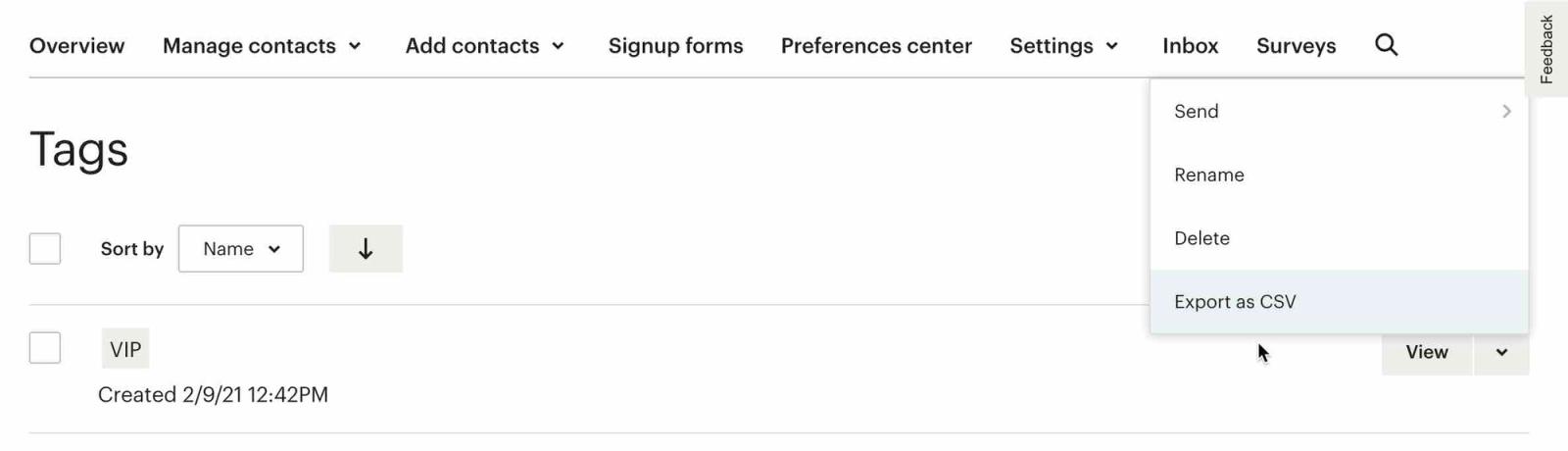
For a tag-only import, use a file containing email addresses and the properties you want to add, without consent columns. Select Only import the consent in my file so the upload does not apply bulk marketing consent to these contacts.
- Once you've exported your data from Mailchimp you can import it into Klaviyo as custom properties. Custom properties get attached to your Klaviyo profiles, and you can create segments based off of specific properties, or use them to add filters to your flow or dynamically display data inside of your emails.
Migrate your email templates from Mailchimp to Klaviyo
Klaviyo has an intuitive drag-and-drop template builder that you can use to recreate your Mailchimp templates. We recommend using this method to build your templates because it will ensure that they are mobile-optimized, responsive, and easy to edit and iterate on going forward.
If you have a custom-coded template in Mailchimp, you can export its HTML and import it into Klaviyo. Mailchimp does not support exporting drag-and-drop templates; recreate those in Klaviyo’s template builder.
This process involves editing and updating the raw HTML of the email template. If you would instead like to use Klaviyo’s drag-and-drop editor to recreate your templates, check out our guide to learn the ropes of using Klaviyo’s template editor.
Export your template from Mailchimp
- Follow Mailchimp’s instructions for exporting a custom-coded template as HTML.
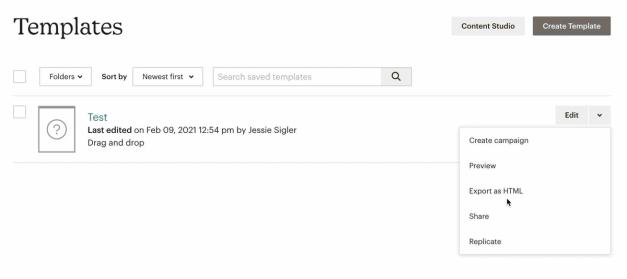
- Save the exported HTML file to your computer so you can update its template tags before importing it into Klaviyo.
Swap out template tags
Klaviyo and Mailchimp use different template tags to insert dynamic content in your emails. For example, the “first name” tag is different in Mailchimp than it is in Klaviyo, so it’s important that you swap out any Mailchimp-specific tags with the corresponding Klaviyo tags.
The tag that is most important to swap out is the unsubscribe tag.
- Before you import your template into Klaviyo, add a Klaviyo unsubscribe link. You can use
{% unsubscribe %}to generate a complete link. Klaviyo requires an unsubscribe link when importing a marketing email template; the transactional email option is for non-marketing emails. - To edit the tags in your template, open the HTML file in a text editor, like Sublime Text. Below is a table of other common Mailchimp tags and their corresponding Klaviyo tags.
Mailchimp Tag | Klaviyo Tag |
|
|
|
|
|
|
|
|
|
|
|
|
| This is the subject line of the email, which is set on a per-email basis in the Klaviyo template editor. |
| This is the preview text of the email, which is set on a per-email basis in the Klaviyo template editor. |
The {% unsubscribe %} and {% manage_preferences %} tags above generate complete links. If the Mailchimp tag is inside an existing link’s href attribute, replace it with {% unsubscribe_link %} or {% manage_preferences_link %}, respectively. For example: <a href="{% unsubscribe_link %}">Unsubscribe</a>.
See the Additional resources below to learn more about Klaviyo's template tags.
Once you've swapped out the tags for Klaviyo tags, you can save your HTML file.
Import your template into Klaviyo
- In Klaviyo, navigate to Content > Templates. Open the Create menu and select Import email template.
- In the Import email template modal, enter a Template name and select the saved HTML file under Upload HTML file.
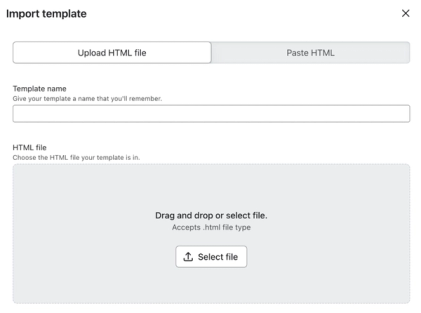
- Click Import template to add the template to your library.
- Open the imported template and click Preview to check how it will appear to recipients.
- Please note that going forward, you will have to directly edit the HTML in order to change the template.
Sunset your Mailchimp account
If you begin cleaning contacts in Mailchimp before removing the integration, these contacts will be suppressed in Klaviyo. Once your Mailchimp account is safely sunsetted, be sure to remove the integration before cleaning contacts in Mailchimp that you don't want suppressed in Klaviyo. Audiences and profiles synced from Mailchimp to Klaviyo won't be removed in Klaviyo if you disable or remove the Mailchimp integration.
After you've moved all your data over to Klaviyo, there are 3 key steps you can take to ensure that you no longer need your Mailchimp account:
- Ensure that your sign-up forms and list growth tools point to Klaviyo, not Mailchimp
- Recreate your automations as flows in Klaviyo
- Remove the Mailchimp integration
Sign-up forms and list growth tools
If you have any sign-up forms or sign-up form campaigns in your Mailchimp account, you will want to ensure that these are recreated in Klaviyo so that your list continues to grow in Klaviyo rather than Mailchimp. You won't be able to redirect forms created in Mailchimp to Klaviyo. Instead, you can:
- Use the Klaviyo sign-up form builder to re-create your forms from scratch
- Use a third-party list growth tool that integrates with Klaviyo
- Integrate your custom form through your ecommerce platform
If you are using a third-party list growth tool instead of Mailchimp's built-in form builder, make sure that this syncs to Klaviyo. Klaviyo integrates with a number of third-party list growth tools. Scan our list of integrations to find the tool that you're using. If you don't see it listed, consider using Klaviyo's sign-up form builder to create your forms, or switching to a different third-party tool.
Check the opt-in settings for each list used by your sign-up forms. New email lists use your account’s default opt-in setting. To change a list to single opt-in, head to our guide to the double opt-in process.
If you’re using a custom-coded form, you can ensure that these contacts sync to Klaviyo. To do this, make sure that your custom form syncs new subscribers directly to your ecommerce platform and that your ecommerce store is integrated with your Klaviyo account.
After switching all your sign-up forms to point to Klaviyo, wait a few days and watch your audiences in Mailchimp. If you notice subscribers are still being added to these audiences, there's probably at least one form that still needs to be swapped out.
Next, you'll want to turn off your Mailchimp sign-up forms. To do that, head to the code of the page where you installed the form and remove the code that begins with
<!-- Begin Mailchimp Sign-up Form -->
and ends with
<!--End mc_embed_sign-up-->
Email automations
Klaviyo refers to email automations as flows and allows for much more advanced and targeted sequences. It is important to recreate these in Klaviyo so that you don't need to continue to use Mailchimp to send triggered emails. To learn more, check out our guide to getting started with flows.
Once your Klaviyo flows are live, turn off all of your automations in Mailchimp to ensure that you're not double-emailing people.
- For classic automations, follow Mailchimp’s instructions for pausing all emails in an automation.
- For marketing automation flows, follow Mailchimp’s instructions for pausing the entire flow.

Remove the Mailchimp integration
Once you’ve pointed all of your list growth tools to your Klaviyo account, paused your Mailchimp automations, and turned your Klaviyo flows live, you can remove the Mailchimp integration. Before you remove your Mailchimp integration, make sure to double-check that everything is working as expected. Enter a test email into your sign-up form and other list growth tools, abandon a cart, and sign up for your newsletter to trigger a welcome series.
- If the list you sign up to is double opt-in, be sure to confirm your email first.
- Click the Audience dropdown and select the Profiles tab in your Klaviyo account to make sure that the information in the profile reflects all of the correct communication.
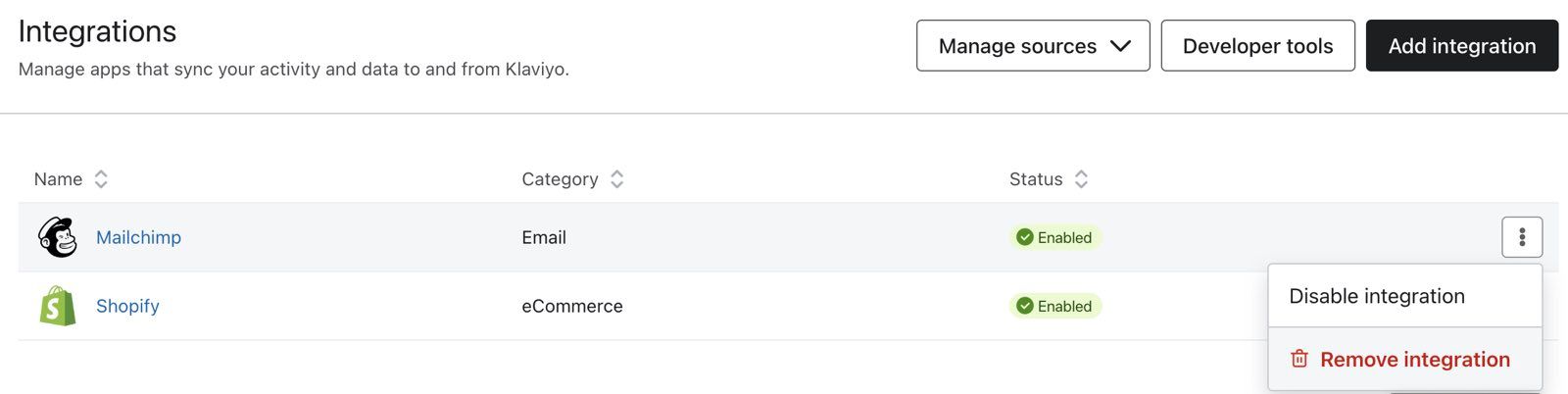
- Once you've taken these steps and are fully migrated to Klaviyo, you can go ahead and remove your Mailchimp integration. Select the Integrations tab.
- Click the action button to the right of the Mailchimp integration.
- Select Remove integration, then click Remove integration again in the confirmation dialog.
Outcome
You've now migrated from Mailchimp to Klaviyo and learned about best practices for switching your email sending.
Additional resources
Klaviyo resources
- How to migrate from another email service provider to Klaviyo
- Template tags and variable syntax reference