Getting started with onsite product recommendations
You will learn
Learn how to configure and style an onsite product recommendations block and add it to your product detail pages (PDPs). The block displays recommendations on the page, outside the Customer Hub drawer.
Configure the block in Klaviyo, then complete installation on your storefront. Publishing the block's settings does not add it to your Shopify theme.
Before you begin
- Requirement: Enable Customer Hub before configuring the block. See Getting started with Customer Hub on Shopify for the initial setup.
- Platform support: Shopify stores with a compatible theme can use the theme app block, including Shopify Plus stores. Custom storefronts need an embedded installation. Salesforce Commerce Cloud support is limited to SFRA storefronts.
- Access: You need access to Customer Hub personalization features and permission to edit Customer Hub settings.
Onsite product recommendations and drawer recommendations are configured separately. Use Design for the onsite block and Extensions for recommendations in the Customer Hub drawer.
What you can do with embedded product recommendations
The block displays product recommendations on your PDPs for the audience you select. If there are no recommendations to display, the block is hidden.
- Match your site's style: Customize fonts, colors, layout, and button styles so the block feels like a native part of your theme. Edit the heading, for example, "Top picks for you" or "You may also like". Use custom CSS for further styling. Products display in a carousel.
- Personalize recommendations for known visitors: Recommendations use what Klaviyo knows about a profile when the shopper is logged in or recognized.
- Show recommendations without a login: Select All shoppers to make the block visible to anonymous visitors as well as logged-in and recognized shoppers.
- Preview before going live: Use the Shopify theme editor to check placement and styling, then test the block on your storefront. The theme editor uses sample products from your catalog rather than the recommendations a shopper will see.
- Track shopper interactions: Product clicks generate a Customer Hub Clicked Product event. Successful additions to cart generate a Customer Hub Clicked Add to Cart event.
- Recommendations for the product page: The block excludes the product currently being viewed. Its recommendations can differ from those in the Customer Hub drawer.
- Let shoppers save products for later: Enable Add to favorites to let shoppers save a recommended product directly from its card. Enable Add to cart to let them add it to their cart. For products with multiple variants, shoppers choose a variant before adding it.
- Avoid recommending what's already in the cart: Products already in a shopper's cart are excluded from the recommendations shown to them.
Configure and publish an onsite product recommendations block
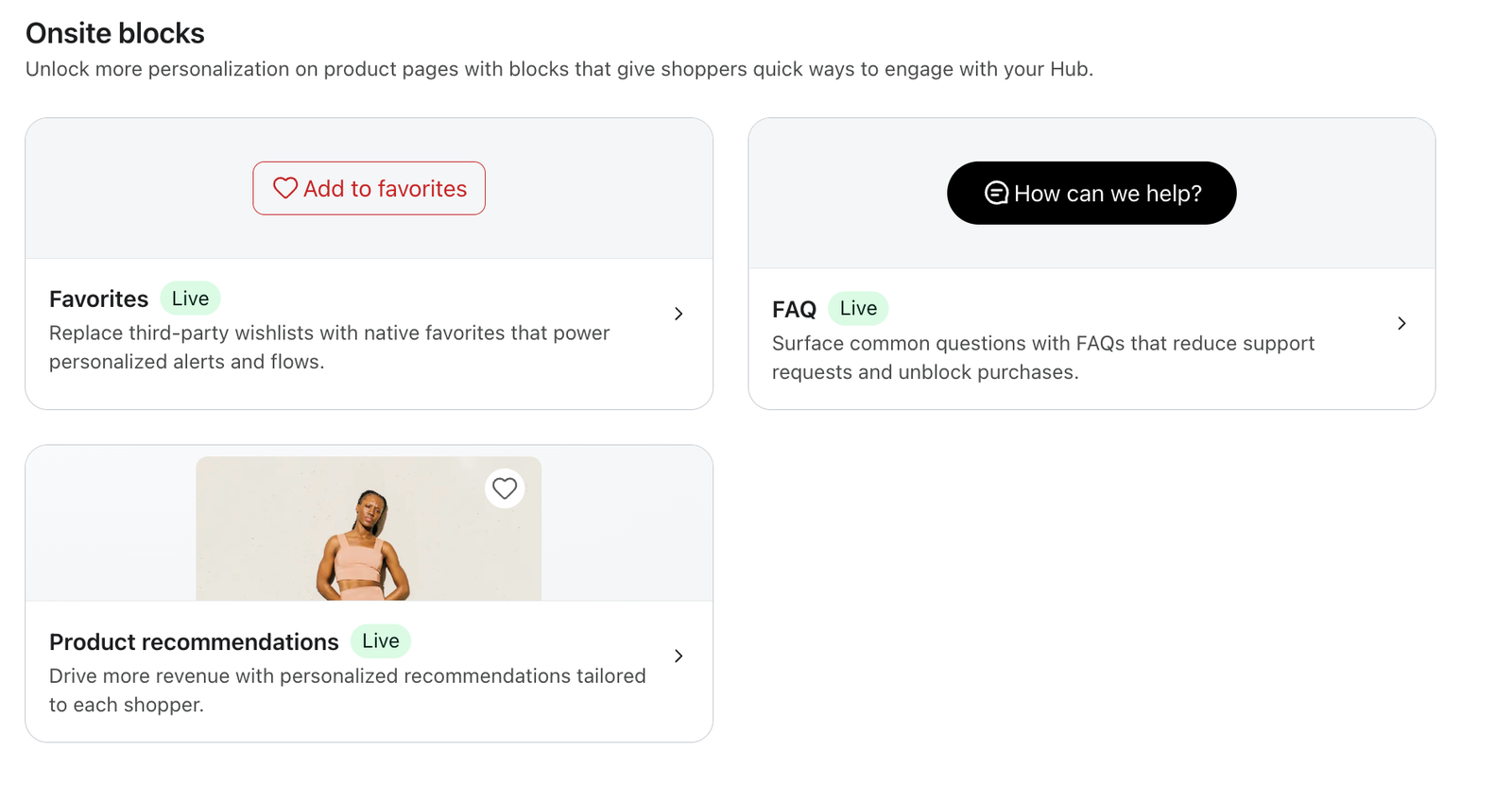
Configure the Product recommendations block under Onsite blocks. It has its own settings, separate from the content blocks you create for personalized text, images, or promotions.
- Open the recommendations editor:
- Navigate to Service > Customer Hub in Klaviyo's left-hand navigation. Select Design. Under Onsite blocks, select Product recommendations to open its editor.
- Choose your audience and product filter:
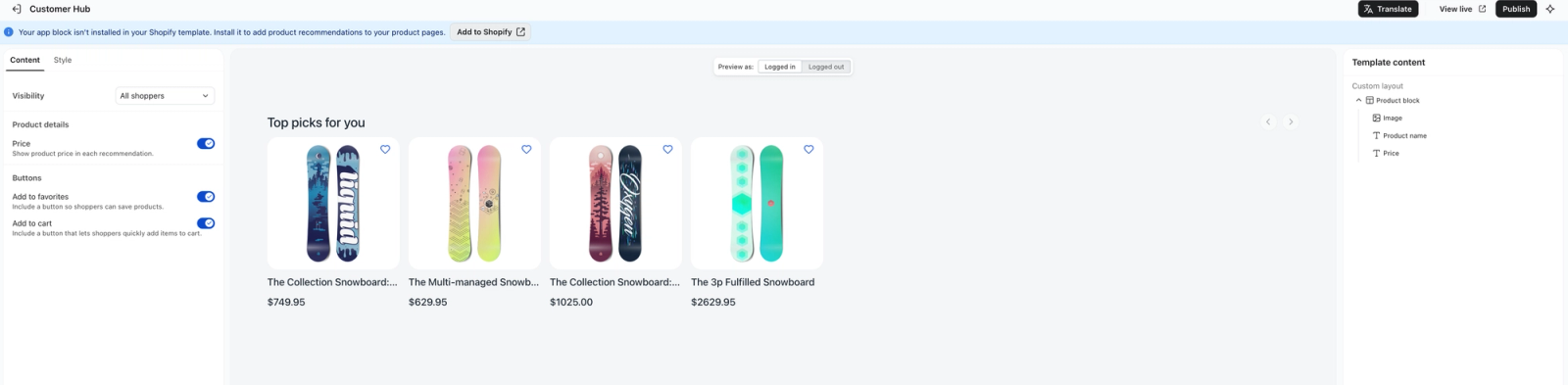
- On the Content tab, use Visibility to choose who sees the block:
- All shoppers: show the block to logged-in, recognized, and anonymous shoppers.
- Logged in shoppers: show it only after login.
- Logged in or recognized shoppers: also include shoppers Klaviyo recognizes without a login.
- Logged out shoppers: show it to shoppers who are not logged in.
- Hidden: hide the block.
- Filter out-of-stock products: turn this on to exclude out-of-stock products from recommendations.
- The product currently being viewed is excluded automatically.
- On the Content tab, use Visibility to choose who sees the block:
- Design and customize:
- On the Content tab, edit the Heading and choose which product details and buttons to show. Use the Style tab to adjust the block's appearance:
- Elements: Show or hide Price, Add to favorites, and Add to cart on the Content tab. For products with multiple variants, the card prompts shoppers to choose a variant when adding it to cart.
- Buttons: Choose a rounded, square, or curved Shape. Set Add to cart fill and Add to cart text colors under Colors, and choose Text case under Fonts.
- Layout: Set Max products from 1–10 (4 when no value is set). Choose Auto or Manual section width; for Manual, enter a maximum width. Adjust product and section padding, and set image width and height.
- Fonts: Select the Paragraph font family, or choose Inherit from site to use your storefront's font.
- Custom CSS: Select Add custom CSS to add CSS rules for the recommendations block.
- On the Content tab, edit the Heading and choose which product details and buttons to show. Use the Style tab to adjust the block's appearance:
- Publish your settings:
- Click Publish to save the visibility, filter, and design settings in Klaviyo. Complete storefront installation below before checking the live block.
- Complete platform setup:
- Choose the installation method for your storefront:
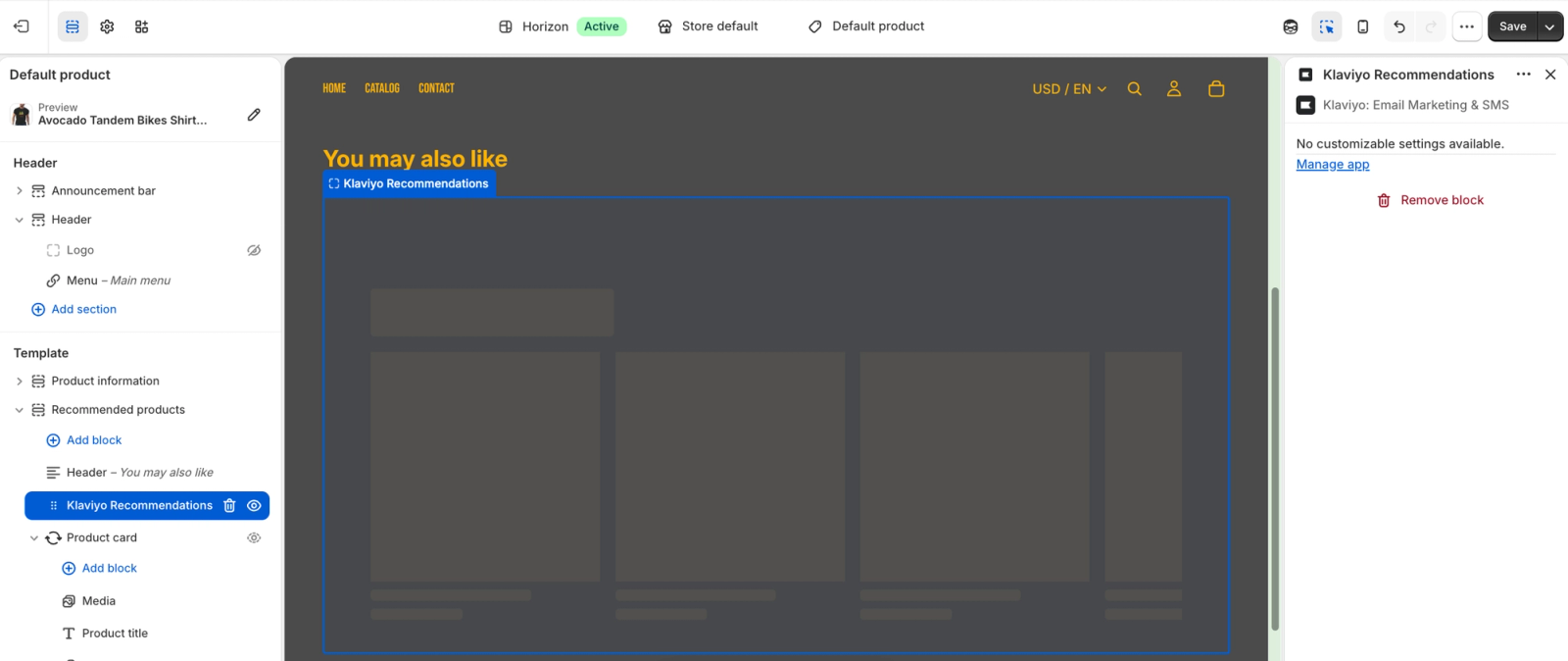
- Shopify theme: If the editor shows an installation banner, select Add to Shopify to open your product template in the Shopify theme editor. Position the app block where you want recommendations to appear, then save your theme changes.
- Custom storefront: Work with your developer to complete the embedded installation on your product pages. Shopify Plus stores using a compatible Shopify theme can follow the Shopify theme steps above.
- Choose the installation method for your storefront:
Check the block on your live product pages with the shopper states you selected. Test product links, favorites, and cart additions where enabled. If Klaviyo shows that recommendations are still generating, allow up to 24 hours for them to appear. A Shopify theme-editor preview confirms placement and styling, not live recommendation availability.
Attribution and analytics
- Product clicks generate a Customer Hub Clicked Product event with View Source set to Embedded product recommendations.
- Clicks are attributed the same way as a click on a product inside the Hub drawer. Successful cart additions also generate Customer Hub Clicked Add to Cart events with the same embedded-recommendations source.
- Klaviyo records when recommendations are served, clicked, or added to cart. A served event is recorded when product cards render; it is not proof that a shopper viewed them. In Customer Hub > Overview, the revenue chart can show Embedded product recommendations as a source. See Understanding the Customer Hub overview dashboard for the dashboard's reporting guidance.
Style matching
To match your theme, choose Inherit from site for the Paragraph font, then adjust the block's colors, shape, dimensions, and padding. The heading uses your theme's heading styles where available. Use Custom CSS for further adjustments, and check the result on your storefront.