Update profile property action use cases reference
You will learn
Learn how to use the update profile property action to tag recipients when they enter a certain stage in a flow. You can also edit a profile property or delete it using this action. This article runs through examples of how you can use the update profile property action.
Collect categories of interest
The links someone clicks in an email can indicate both specific and general interests. Throughout a flow, you may feature products from different categories. At the end of the series, use a split based on the links someone clicked, then add a Profile property update action to each relevant branch to save their category of interest. The action updates the property when the profile reaches that step; it does not track clicks by itself.
One example to consider is someone who clicks on "New Arrivals." This is a good indicator this person is interested in the latest trends or new products. When launching a new product, send a specific campaign to those you know typically engage with new arrivals, with a subject line that plays to this theme.
To walk through how to set up these links, visit our guide on updating a profile property when someone clicks a link.
Tag profiles with important dates
Another way to use this feature is to set a date property to the day a profile reaches the step. If you have a thank you series for new customers, add a Profile property update action near the start of the flow. Select Create new property, name it First Purchase Date, choose Date, and check Use current date when step is reached. To make this a first purchase date, restrict the flow to first-time purchasers; otherwise, a returning customer who enters the flow could have the property set to their latest purchase date.
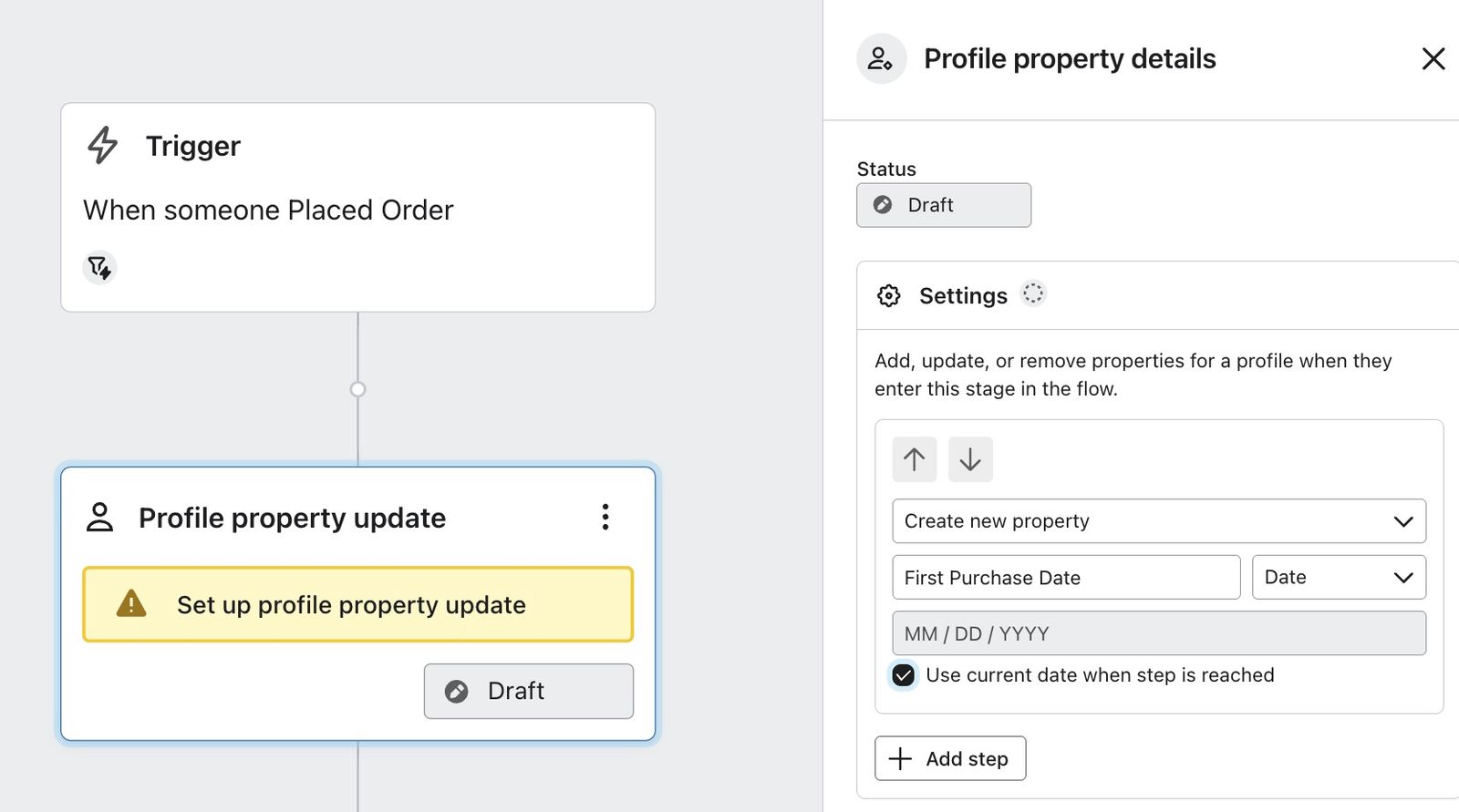
Having certain dates stored can come in handy for further analysis as well as triggering date-based automation.
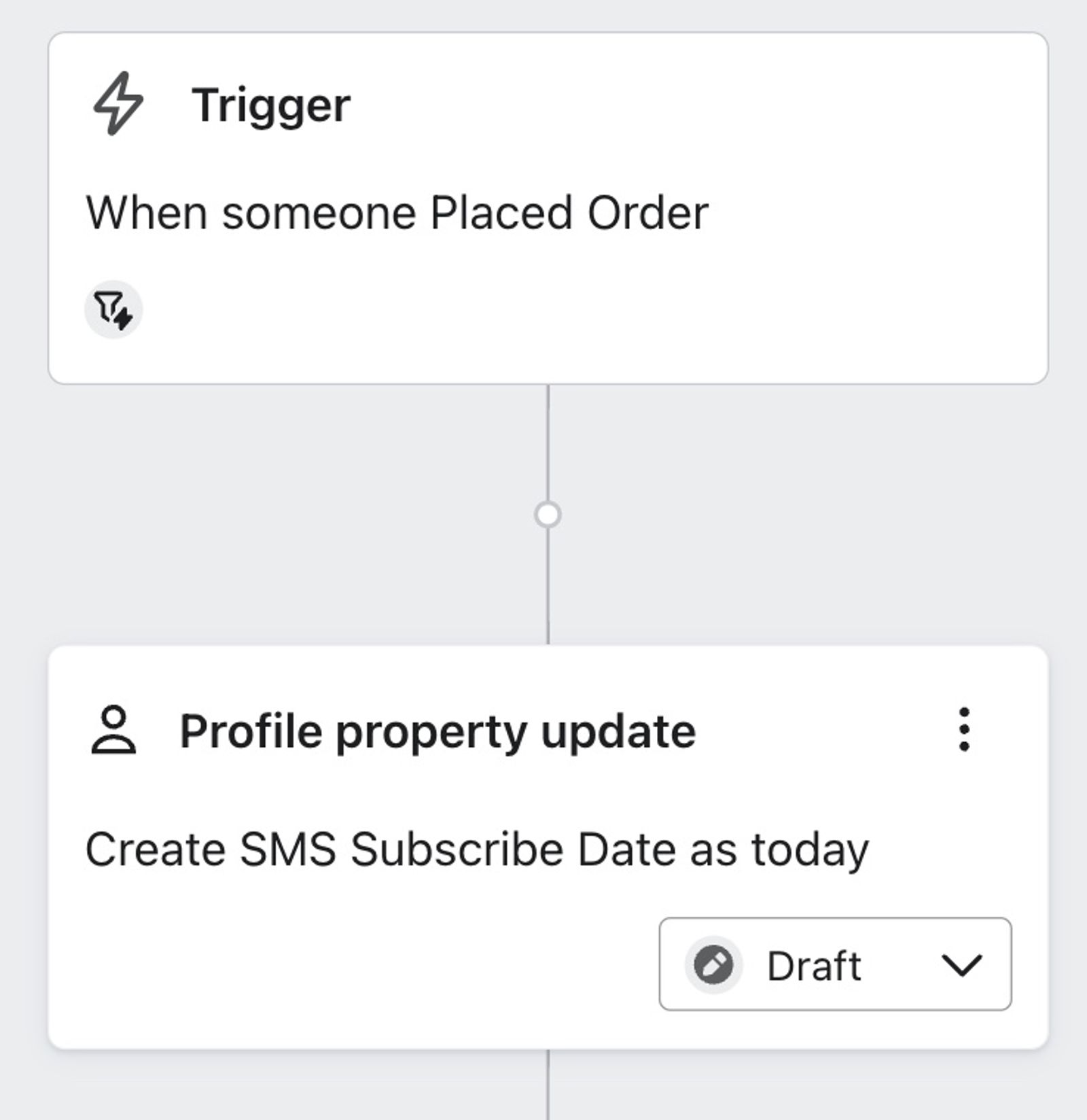
You can also use a subscription-triggered flow to save the date someone joins your email or SMS subscriber list. Place the date property update near the start of that flow and select Use current date when step is reached. Use a subscription trigger rather than the Placed Order trigger shown in the example below: an order-triggered action records the date of the order, not the date someone subscribed. These dates can help you analyze list growth over time.
Tag profiles when they complete a welcome series
You may not want subscribers to start receiving regular newsletter content until they've gone through your entire welcome series.
At the end of a welcome series flow, add a Profile property update action to create a Completed Welcome Flow property of type Boolean with the value True. Set the action to Live so it updates profiles when they reach it. You can then create a segment of subscribers whose Completed Welcome Flow property is true and use that segment for your regular newsletters.
Add gender to their profile
In industries such as apparel, accessories, and hair care, the collections someone shops can help you tailor messages. Use a Profile property update action after a collection-based split to record their collection interest when they buy or view products. A purchase or view does not establish the shopper's gender, so avoid using it alone to set a Gender property. The example below shows an order-triggered flow that does just that; use a collection-interest property instead if your goal is to target shoppers by the collections they browse or buy.
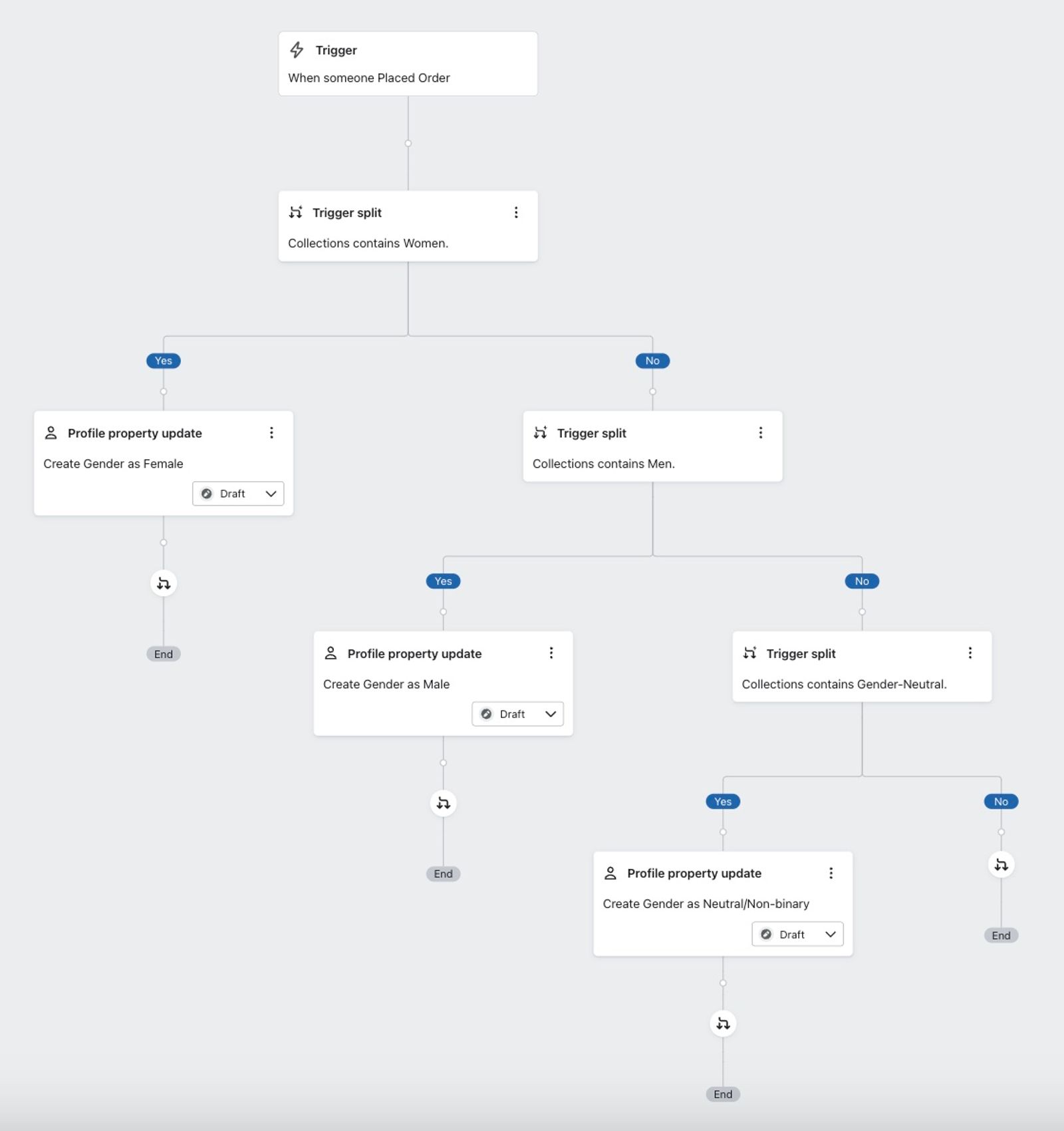
After you add a collection-interest property, you can use it to create segments based on shopping interests. Send those segments relevant campaigns or target them with different sign-up forms.
Additional resources
- How to add an update profile property action to a flow
Learn how to add an update profile property action into a flow so that you can collect and track profile data.
- How to update a profile property when someone clicks a link
Learn how to build email templates with buttons that tag subscribers with information based on the option they click. You can use this process to add profile properties when they click a link.
- Email personalization course