How to opt in and out of an internal alert action
You will learn
Learn how to opt in and out of the internal alert action in a Klaviyo flow. Someone does not need to have a profile in your Klaviyo account, or exist as an account user, in order to receive emails from an internal alert action. However, all recipients will need to opt in to receive internal alerts from your account before they start receiving any messages. They can also opt out at any time. In this article, we explain the recipient opt-in and opt-out process for the internal alert action as well as the different statuses.
Opting in or out of internal account alerts does not impact a contact’s subscriber or suppression status in Klaviyo if they also have a profile in your account.
Recipient statuses
To review recipient statuses:
- In the flow builder, click on the internal alert.
- In Settings, click the Send to dropdown to see the status icon beside each recipient’s email address.
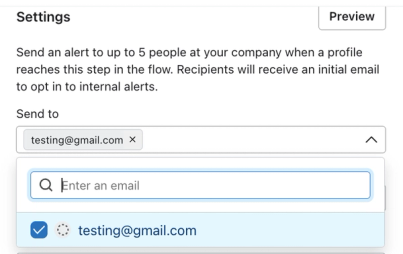
There are three possible statuses for an internal alert recipient:
- Confirmed
Represented by a green checkmark next to their email. The recipient has been successfully added to the recipient list for at least one internal alert action, and has clicked through a confirmation email opting in to receive internal alerts from your account. Confirmed recipients will receive internal alerts. - Unconfirmed
Represented by a dotted circle next to their email. The recipient has been added to an internal alert action but has not yet confirmed their opt-in. They will not receive internal alerts until they confirm. If they cannot find the confirmation email, you can resend the consent request from Manage recipients. - Disabled
Represented by a red X next to their email. The recipient has opted out of internal alerts from your account. They will not receive more internal alerts unless you resend a consent request and they confirm again.
The opt-in process
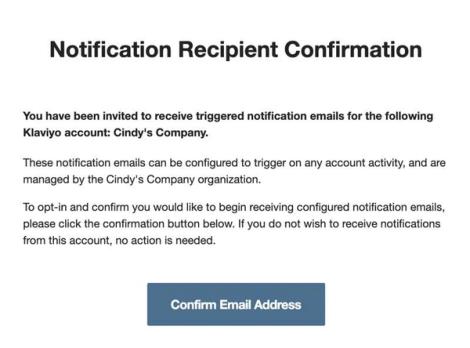
When you first add someone’s email address to an internal alert action and click Save, Klaviyo sends them an email asking them to confirm that they want to receive internal alerts from your account, as shown below. Until they confirm, their status in the Send to list is Unconfirmed, and they will not receive internal alerts. The confirmation email uses your account’s default sending address, not the alert’s From / reply-to email address.
Once confirmed, a recipient can be added to internal alert actions in other flows without confirming again. To resend a consent request to an unconfirmed or disabled recipient, open the internal alert’s Settings, select Options > Manage recipients, and choose Resend consent request for their email address. A disabled recipient must confirm again before receiving alerts.
The opt-out process
Every internal alert message will also contain an autopopulated unsubscribe link that is specifically used to track opt-outs for account internal alerts.
If someone no longer wants internal alerts from your account, they can click the unsubscribe link in an internal alert email, then click Unsubscribe on the confirmation page. After they confirm the opt-out, they appear as Disabled in your Send to list and will no longer receive internal alerts.
Troubleshooting
To test if internal alerts are sending properly, enter your own email address as a recipient and check your inbox for the opt-in confirmation.
If you haven't received the opt-in email, check the following:
- Check your spam folder to see if the email was filtered.
- Check your account’s default sending address, which is used for recipient opt-in emails. If Klaviyo shows a sender compliance error in the internal alert’s Settings, follow the prompt to fix your account default address or sending domain; changing only the alert’s From / reply-to email address will not fix an opt-in email sending issue.
Additional resources
- How to add an internal alert action to a flow
Learn how to send an internal alert (previously called notification) when a customer first triggers or reaches a particular point in a flow. It sends emails to your team around certain activities that require specific follow-up or attention; for example, notifying your customer experience team when someone leaves a detractor NPS score or alerting your sales team when someone is added to a wholesale or VIP list.
- Understanding internal alert use cases
Learn how to notify members of your internal team or external partners when a customer enters or reaches a certain point in a flow. Use cases include setting an internal alert for:
- Understanding how contacts move through a flow
Learn how contacts move through a flow. Flows are automated Klaviyo workflows that are set in motion by an initial trigger and then include one or more steps. Flows can be built to send timely communications to recipients, or they can simply apply certain actions, like updating a specific field on a profile.