How to manage your account's API keys
Owners, Admins, and Managers can access the API keys tab.
Find out how to access and manage your API keys for your Klaviyo account.
If you want to learn about creating or cloning a private API key, read how to create private API keys.
Difference between public and private API keys
Your public API key is also called your Site ID. This is a short alphanumeric value. This public key is a unique identifier for your Klaviyo account, and there is only 1 per account. You can include your public API key in website code. It does not grant permission to read private account data.
Private API keys let applications read or change data in your Klaviyo account, such as lists, according to the permissions (scopes) you select. Treat private API keys like passwords: keep them in a safe place and never expose them to the public. A Klaviyo account can generate as many private API keys as needed.
What to do if your API key is exposed
Your public API key is intended for use in public website code. It does not let someone read private account data, but it can be used to submit data through client APIs, such as events and profile updates.
Keep private API keys confidential. Someone with a private key can use its permissions to view or edit customer data.
If a private API key is exposed, delete it immediately, then create a new private API key. Update each application that used the exposed key to use the new key. Give the replacement key only the permissions the application needs, and use a different private API key for each application.
Find your API keys
Copy or download a private API key when you create it, before leaving the confirmation page. You cannot view the full key again later. Store it securely, such as in a vault or password manager, and share it only with parties you trust. If you did not save the key, create a new key or clone the existing one.
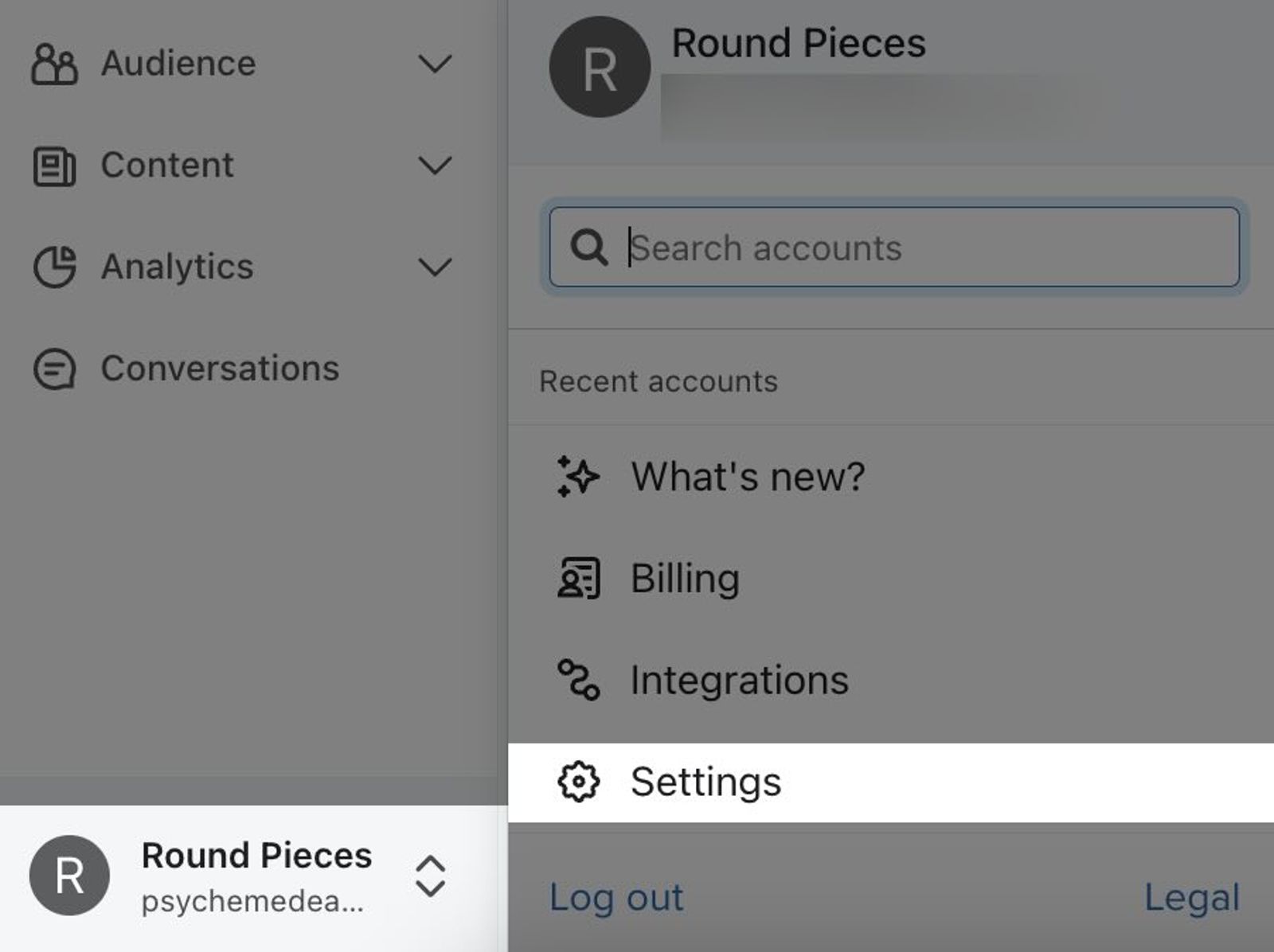
- Click your account name in the lower left.
- Click Settings.
- Select the API keys tab.
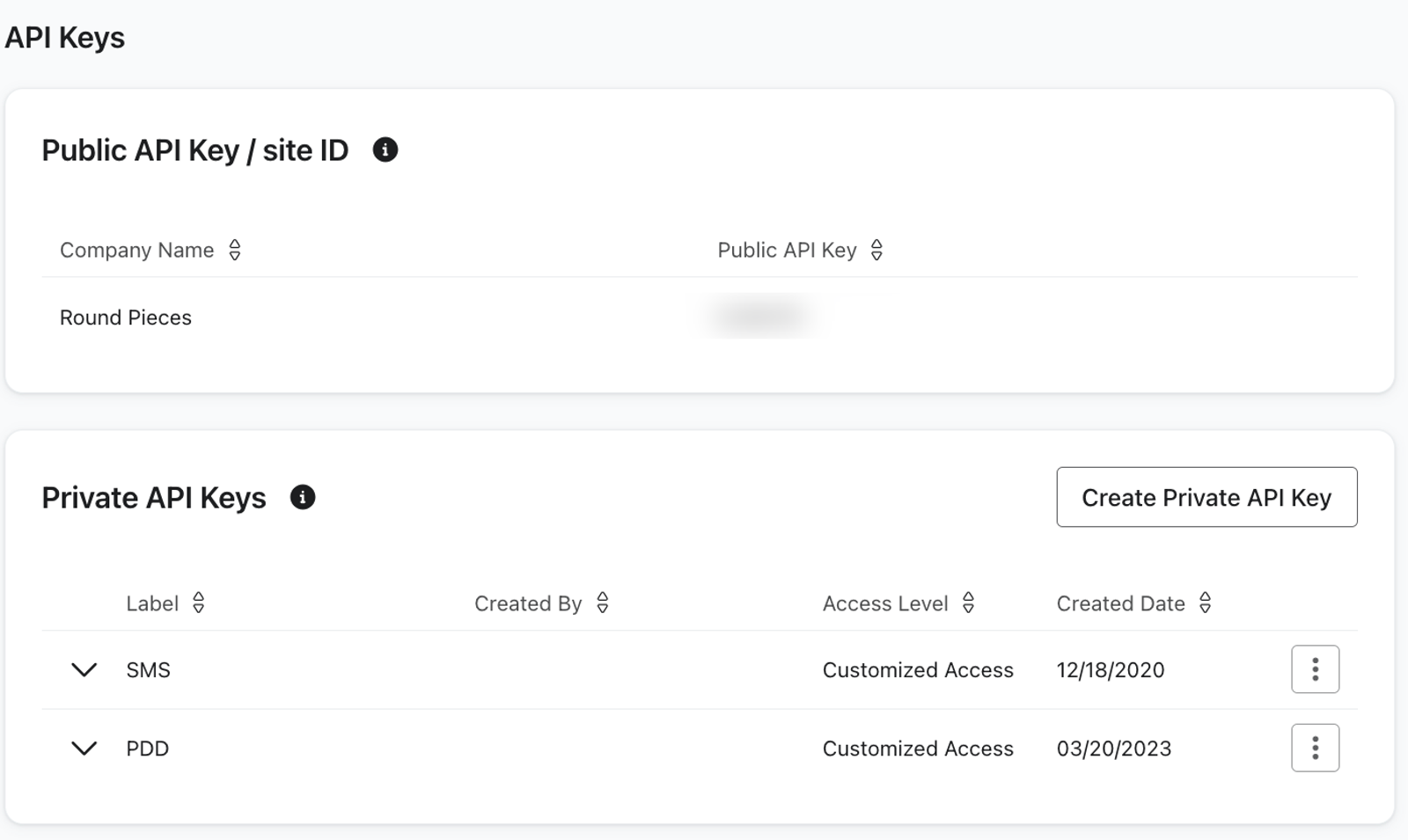
- View your public API key (Site ID).
- Under Private API Keys, review the key names and access levels. You can identify a key by its last 4 characters, but you cannot view or copy the full key here.
If a key is not in the Active tab, check Inactive or Disabled if those tabs are shown.
Cloning private API keys
When you clone existing private API keys, the cloned key will:
- Be an entirely different key from the original.
- Use the same name as the original.
- Have the same scopes as the original, except for obsolete scopes that are no longer supported.
Cloning leaves the original key in place. Copy or download the cloned key and store it securely. To use it in an application, update that application’s settings with the new key. Delete the original key when it is no longer needed.
Delete a private API key
Deleting a private API key cannot be undone. API requests that use it will stop working. If you are replacing a key that has not been exposed, update and test the applications that use it before deleting it. If the key is exposed, delete it immediately.
- Open the API keys tab using the steps above. Under Private API Keys, find the key you want to delete.
- Open the 3-dot menu next to the key and select Delete.
- Click Delete in the confirmation dialog.
Additional resources
- How to create or clone a private API key
Learn how to create a private API key, which is a unique identifier used for API calls, as well as define a scope.
- Understanding how information is exchanged between Klaviyo and apps
Learn about how information syncs between Klaviyo and your third-party apps via an application programming interface (API). Most data exchanged via a Klaviyo integration is one-way: data is pulled into your Klaviyo account so you can leverage a broad scope of your customer's data.
- Klaviyo's API reference guide