How to create or clone a private API key
Owners, Admins, and Managers can create, clone, or delete private API keys.
You will learn
Learn how to create or clone a private API key and choose scopes that control what an application can access in your Klaviyo account.
Both private API keys and scopes help you protect your and your customers’ data by limiting what third parties can access.
About private API keys and scopes
An API call lets one application request, add, or edit information in another application.
A private API key identifies your Klaviyo account and authorizes API requests using the scopes assigned to the key. Anyone who has the key can use those permissions, so treat it like a password.
Including a scope for a private API key adds another layer of authorization, limiting what specific elements a third party can access. Scopes are similar to a hotel key, only giving you access to certain areas (like your room or the gym) and not the whole building.
Scope access levels
When you create a private API key, choose an access level for each API scope. These access levels determine whether a third party can:
- Have no access to the data or actions covered by that scope.
- View data covered by that scope without making changes (read access).
- View data and create, delete, or make other changes covered by that scope (read/write access).
For example, to subscribe profiles to marketing and add them to a Klaviyo list from another application, use Bulk Subscribe Profiles. This endpoint requires lists:write, profiles:write, and subscriptions:write. Granting read/write access for these scopes covers this request; you do not need to grant access to unrelated scopes.
You can learn about Klaviyo’s APIs and see the available scopes for each endpoint on the Developer Portal.
Before you begin
Please note the following:
- After you create a private API key, you cannot:
- View the full private API key again after leaving its confirmation page.
- Tip: securely save private API keys and note down what you want to use them for, such as in a password manager.
- Add or edit its scopes.
- If you need different scopes, create a new private API key with the required access. Update any integrations that use the old key and confirm they work before deleting it.
- View the full private API key again after leaving its confirmation page.
- The creation page starts with Custom Key selected. Choose access for at least 1 API scope before creating the key.
If you're not sure which API endpoints, scopes, or permissions you need, please contact a developer or reach out to a Klaviyo partner for help.
Create a private API key
Treat private API keys like passwords: share them only with parties you trust, and save them in a secure place, such as a vault or password manager. The full key is visible only on the confirmation page immediately after you create it.
- Click your organization name in the bottom left.
- Navigate to Settings.
- Click API keys.
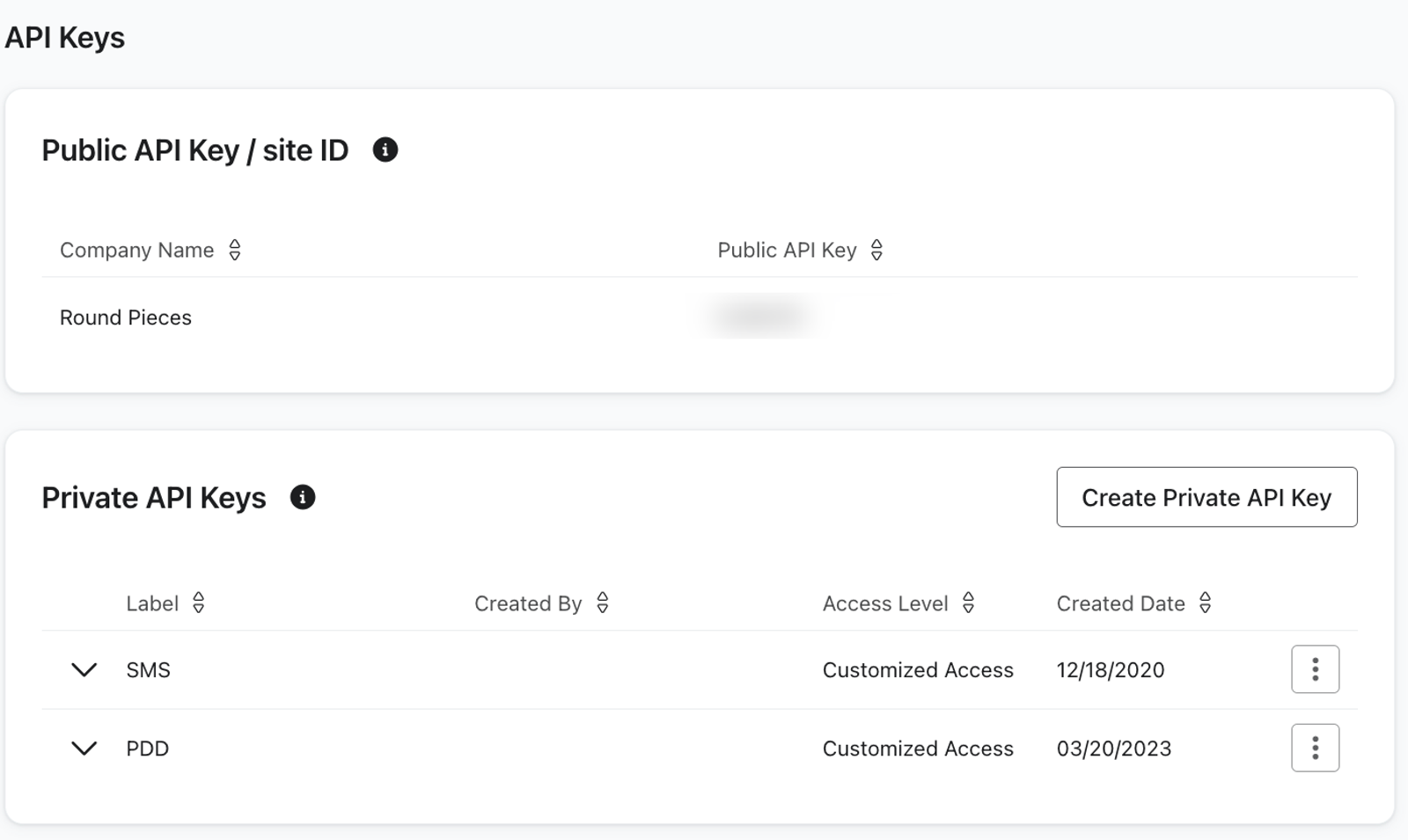
- Click Create Private API Key.
- Name the API key.
- Under Select Access Level, choose the access your integration needs:
- Read-Only Key: grants read access for all available API scopes.
- Full Access Key: grants read/write access for all available API scopes.
- Custom Key: lets you choose No Access, Read Access, or Read/Write Access for each row under API Scopes. Select access for at least 1 scope.
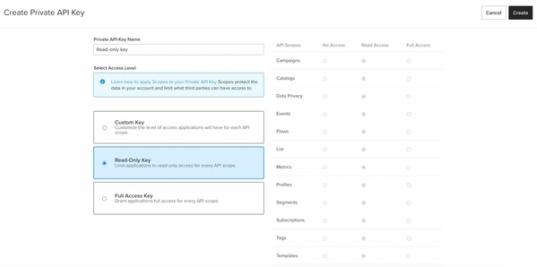
- Select Create.
- On the confirmation page, use the copy icon (Copy Key) or download icon (Download (.txt)) to save the key in a secure place. You cannot view the full key again after leaving this page.
- Select Close to return to API keys.
Now, when you share a private API key, the third party will only have access to the information you defined in the scope.
Clone a private API key
Cloning creates a new private API key using the original key’s scopes. Renamed scopes use their current names, and deprecated scopes without a replacement are omitted.
Note that:
- Cloning does not generate the same key as the original private API key.
- A cloned API key has the same name as the original. You cannot rename it in the API keys settings.
To clone a private API key:
- Navigate to Settings > API keys.
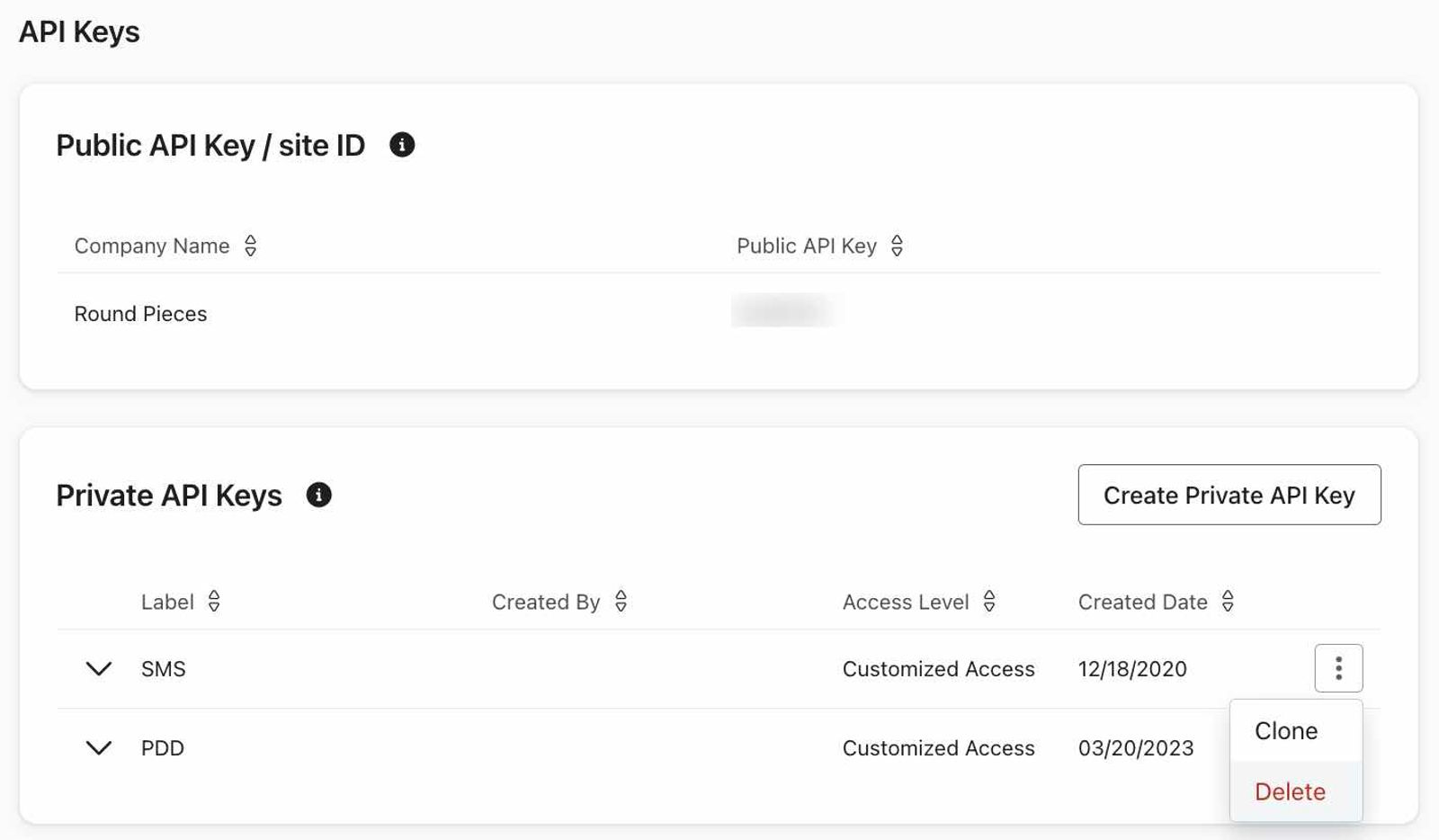
- Click the 3-dot menu next to the key you want to clone.
- Select Clone, then select Clone again in the confirmation dialog.
- Use the copy icon (Copy Key) or download icon (Download (.txt)) to save the new key in a secure place, then select Close. You cannot view the full key again after closing this page.
- If you are replacing the original key, update any integrations that use it and confirm they work with the new key. Delete the original only when it is no longer needed.
Using query parameters
The include parameter adds related data to an API response. The scopes parameter preselects permissions on the private API key creation page. These are separate advanced uses of URL query parameters. If you are unfamiliar with them, work with a developer.
Include related data in an API response
When an endpoint supports the include query parameter, your key needs permission to read both the requested resource and the related data.
For example, GET /api/profiles/{id}/ retrieves a single profile and requires profiles:read. Replace {id} with the profile’s ID.
To include that profile’s lists, use GET /api/profiles/{id}/?include=lists with both profiles:read and lists:read. The profiles collection endpoint (GET /api/profiles/) does not support including lists.
Preselect scopes on the creation page
Add the scopes query parameter to the private API key creation URL to preselect access levels on the form.
Use a comma-separated list of scope names. Review the selected access, enter a name for the key, and select Create. Then copy or download the key before closing the confirmation page.
An example URL is:
https://www.klaviyo.com/create-private-api-key?scopes=campaigns:read,campaigns:write
Navigate to our Developer Portal to see the scopes you can use in this query.
Additional resources
- Getting started with Klaviyo APIs
Get a foundational understanding of API calls and how the Klaviyo APIs can benefit your business. In this guide, you will learn about REST APIs, HTTP methods, and developer tools to prepare you for testing Klaviyo's APIs. Your first API calls can be accomplished in as little as 10 minutes from start to finish. If you are already familiar with API calls and are ready to test our APIs, follow our guide on how to use our Postman collections.
- How to keep your account secure
Learn how to make sure your Klaviyo account and data are as secure as possible.
- developer docs