How to integrate with Wufoo
You will learn
Learn how to integrate Wufoo with Klaviyo in order to create automated flow messages, personalize campaigns, and segment your lists based on data from Wufoo. Wufoo allows you to quickly create surveys, invitations, and contact forms to collect the data you need from your customers. Klaviyo syncs the following data from Wufoo:
- When someone filled out a form
- The name of the form the user filled out
- Data collected from the form's fields
Before you begin
It is important to note the following before integrating with Wufoo:
- Each form must collect a valid email address for Klaviyo to track its submissions. Use a single field labeled Email, E-Mail, or Email Address so Klaviyo can identify it. If Klaviyo cannot identify a valid email address, the submission will not sync.
- Wufoo only supports the ability to pull in information from their forms if you have a paid subscription to their services. Make sure to resolve any issues in payment before attempting to sync with Klaviyo.
- Klaviyo cannot identify the Last Name field when you have the form configured as sub-fields. Instead, use 1 of the following approaches to record your customer’s last names:
- Create a single Name field (to include a subscriber's first and last name): Klaviyo will automatically split on the first space to create a first and last name for the subscriber.
- Create 2 separate fields: If you create a First Name field and a Last Name field, Klaviyo will sync both separately.
Integrate Wufoo with Klaviyo
You'll need your Wufoo site URL and your Wufoo API key to integrate with Klaviyo.
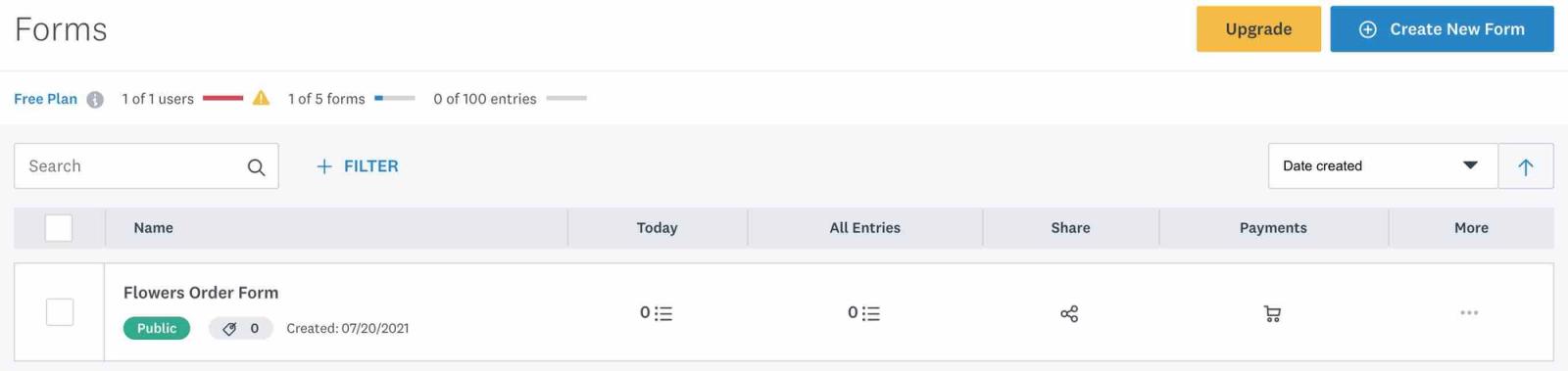
- Navigate to the Forms tab in Wufoo.
- Click the 3-dot menu on the right-hand side of the form you’d like to connect to Klaviyo.
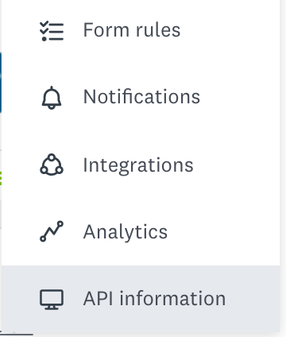
- Select API information from the dropdown.
- Copy the API key from the API Information page.
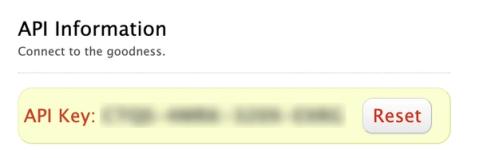
This API key is a private API key. Treat private API keys like passwords; keep them in a safe place and never expose them to the public.
- Log in to Klaviyo, select the Integrations tab.
- Click Explore apps, search for Wufoo, and click the card.
- Then, click Install.
- Enter your full store URL, including “.wufoo.com”, “.wufoo.co.uk”, “.wufoo.eu”, etc.
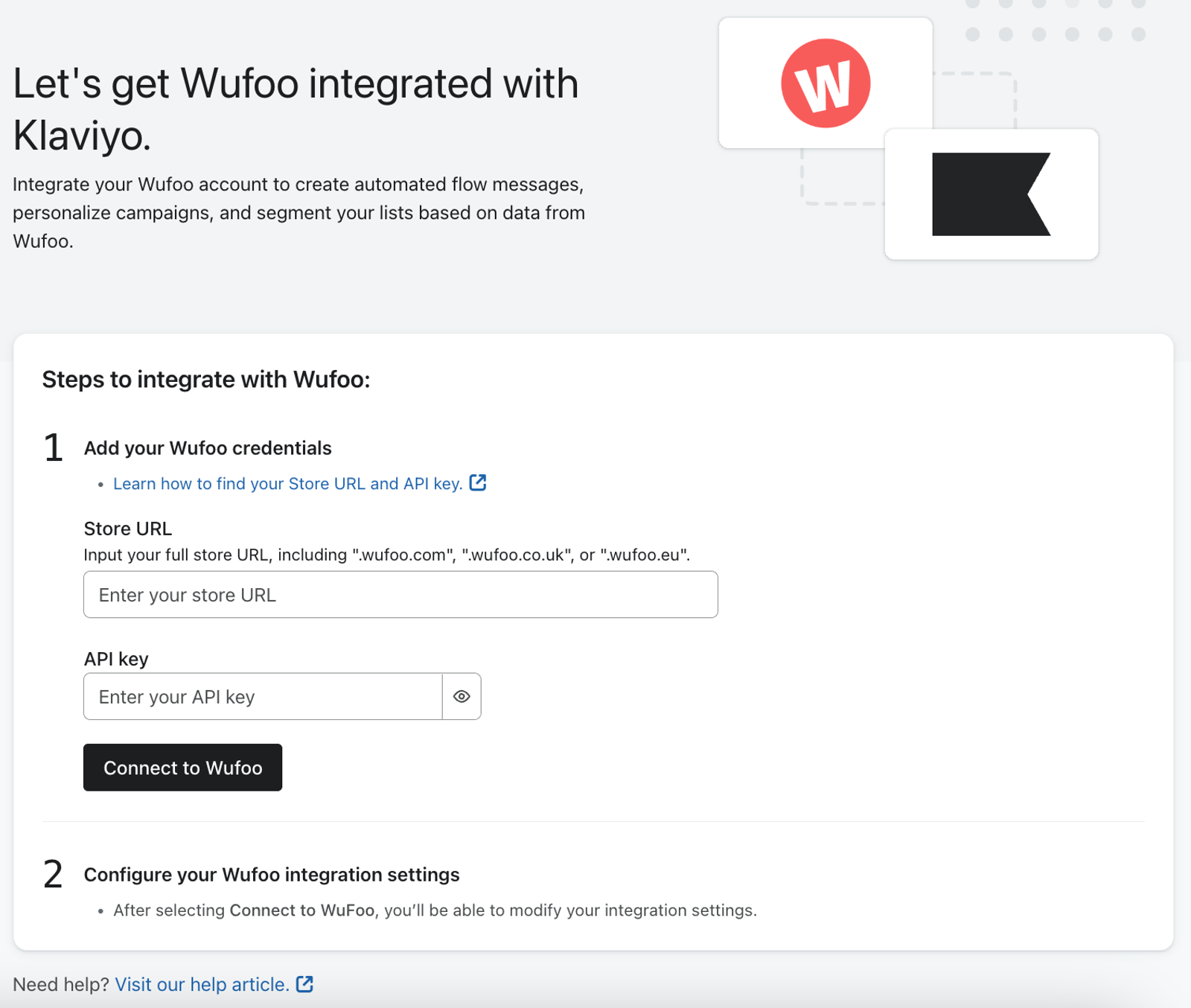
- Enter the API key you copied earlier.
- Click Connect to Wufoo.
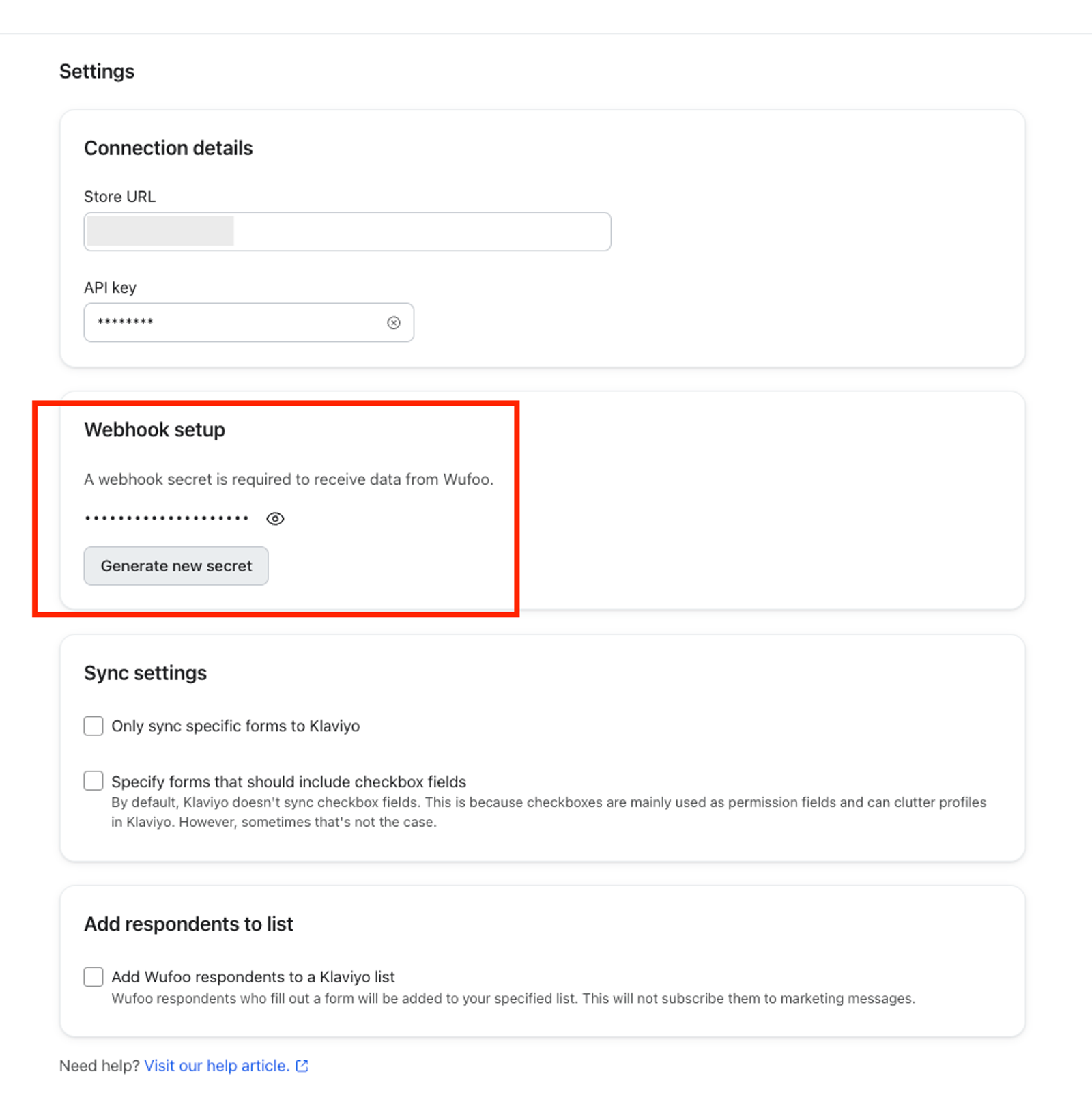
- On the next page, under Webhook setup, click Generate secret. Klaviyo will generate a secret for your webhooks and update your Wufoo forms automatically. No further action is required.
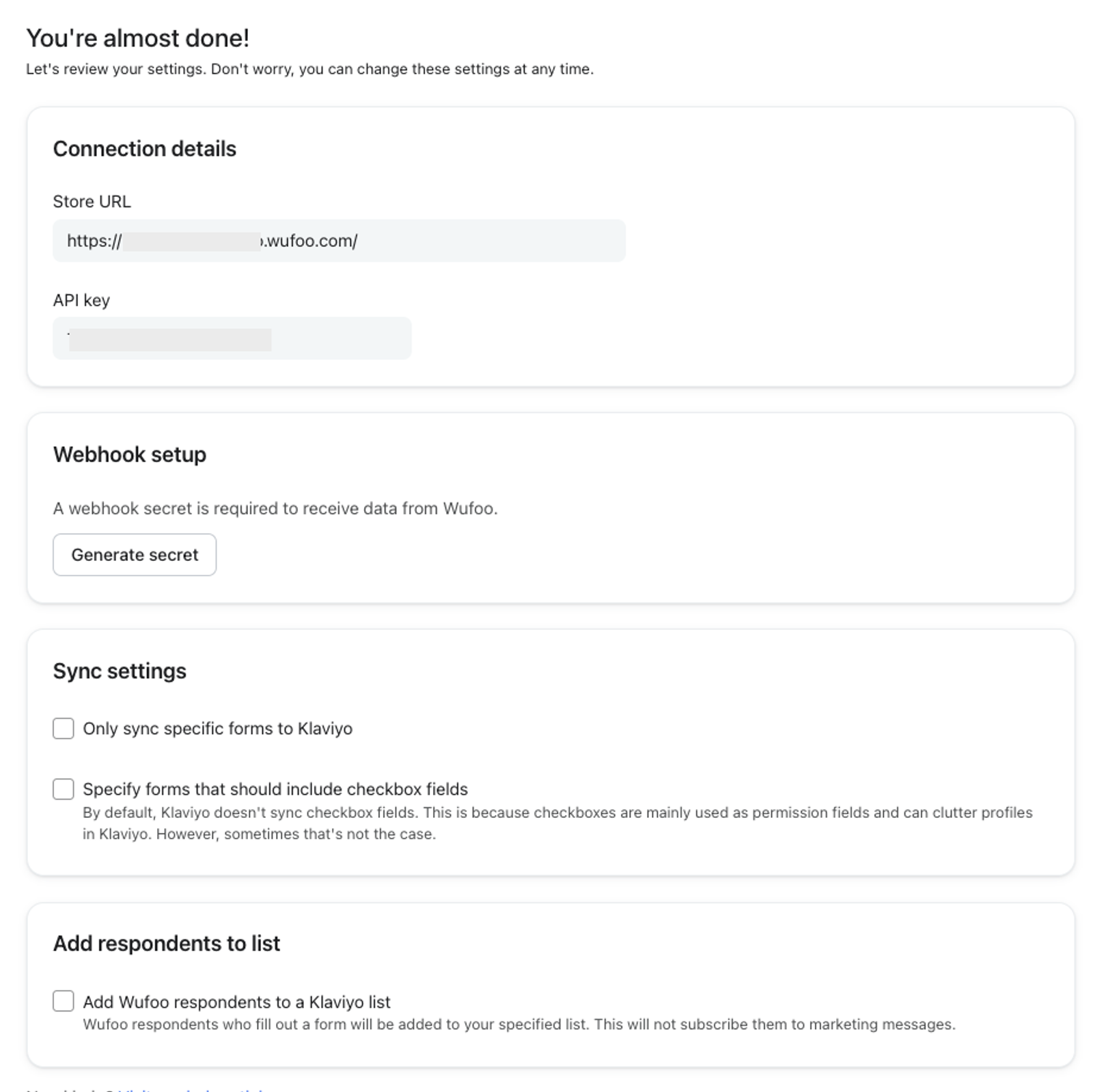
- Copy the secret and store it in a safe place, then click Done. You won’t be able to view the full secret again after closing the window.
- Optionally, you can specify advanced criteria:
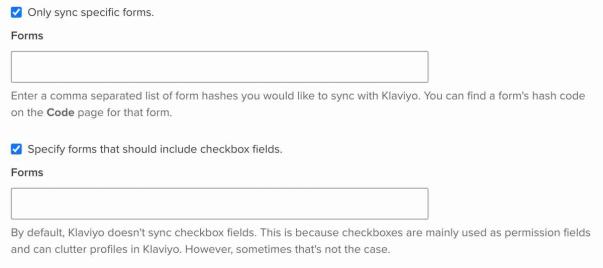
- Only sync specific forms to Klaviyo: choose this if you only want to sync some of your Wufoo forms.
- Specify forms that should include checkbox fields: select this to sync checkbox answers for specific forms. Checkbox fields are excluded unless you select this option and enter the form hashes.
- If you checked the corresponding boxes, you’ll need to provide a comma separated list of form hashes you would like to sync with Klaviyo; you can find a form's hash code on the Code page for that form.
- You can also check Add Wufoo respondents to a Klaviyo list and then specify which Klaviyo list your Wufoo form data will sync to by providing the Form Code and 6-character Klaviyo list ID. Adding respondents to a list does not subscribe them to marketing messages.
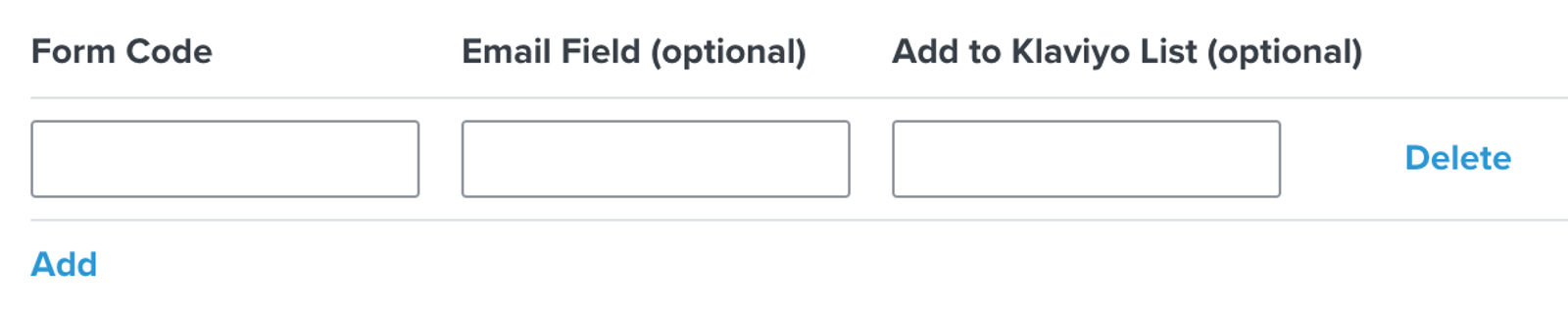
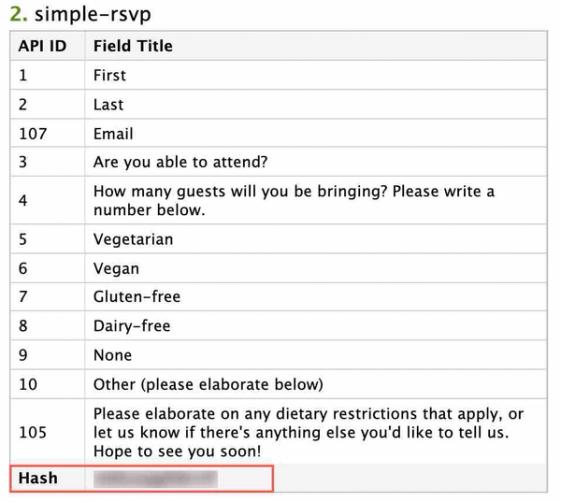
- To find the form code, go back into the form’s API Information and copy the form Hash.
- To find the Klaviyo list ID, navigate to Audience > Lists & segments, select your list, and open Settings > Details. Copy the List ID from List name and ID.
- Once you’ve added any specific integration settings you need, click Complete setup. Klaviyo saves your settings, starts the historical sync, and automatically configures your Wufoo forms to use the secret.
Monitor the Wufoo sync
After you complete setup, Klaviyo imports historical submissions from the past 10 years for the forms included in your sync settings. To check progress, open your Wufoo integration and select Data, then review Historical data. To view imported submissions:
- Navigate to Analytics > Metrics.
- Filter by Wufoo.
- Select the Filled Out Form metric and click on the Activity feed to view the data as it syncs.
- If your integration has begun syncing data, you will start to see Filled Out Form events, with the Wufoo icon, added to this activity feed.
After setup, new submissions sync through webhooks. Klaviyo also checks your Wufoo forms and refreshes their webhook connections once an hour.
Currently, Klaviyo only syncs 1 metric from Wufoo: Filled Out Form.
This metric records all of the following information:
- Who filled out the form
- When this person filled it out
- The name of the form filled out
All data collected through the form'Synced form answers are saved on each respondent’s profile. Recognized contact fields, such as email, first name, last name, and phone number, update standard profile fields. Other non-empty answers appear under Custom properties. Checkbox answers sync only for the forms you selected above.
Outcome
You’ve finished integrating Wufoo with Klaviyo and verified your synced data. Now, you can create automated flow messages, personalize campaigns, and segment your lists based on data synced from Wufoo. If you add respondents to a Klaviyo list, you can use that same list to trigger a series of welcome messages when someone is added to the list. Remember that adding respondents to the list does not subscribe them to marketing.
Regenerate your webhook secret
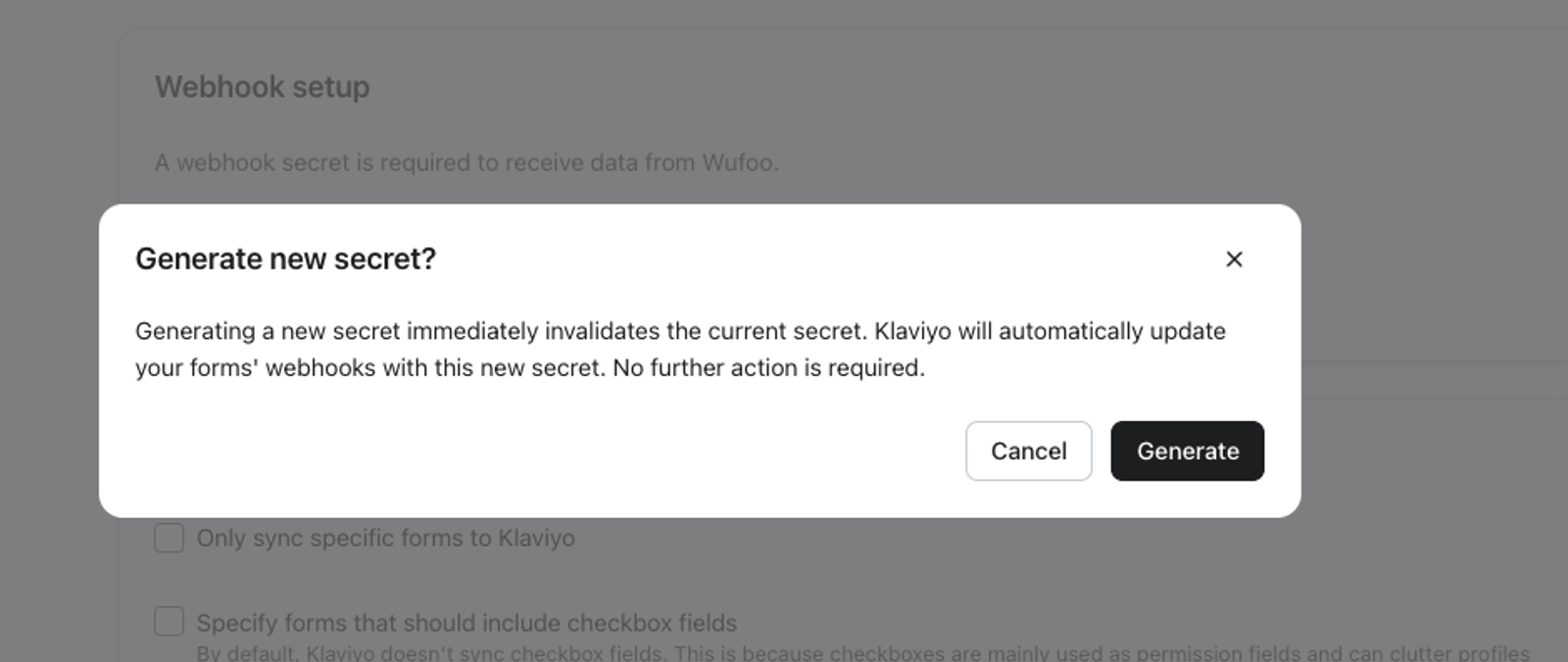
At any time, you can generate a new webhook secret. Generating a new secret immediately invalidates the previous secret.
- Go to your Wufoo integration settings page.
- Under Webhook setup, click Generate new secret.
- In the confirmation window, click Generate.
- Copy the new secret and store it in a safe place, then click Done. Klaviyo automatically updates your Wufoo forms to use the new secret. You do not need to enter it in Wufoo.
Additional resources
- Getting started with flows
Learn how to use flows, also known as automations or drip campaigns, in Klaviyo for personalized and automated communications to your customers, and learn how to set your first flow live.
- How to strengthen your sender reputation for a specific inbox provider or email domain
Learn best practices to strengthen your sender reputation if you are seeing deliverability issues with specific inbox providers or email domains. If your deliverability issues are not limited to specific inbox providers or domains, see our guide on repairing your sender reputation.
- Understanding the types of information exchanged between Klaviyo and apps
Learn about what types of data are exchanged between Klaviyo and external apps, and where that data is found in your Klaviyo account. When you integrate a third-party application with Klaviyo, the two platforms exchange information. Most data exchange with Klaviyo is one-way; data is pulled into your Klaviyo account so you can leverage a broad scope of your customers' data within Klaviyo.