How to add a link that applies a coupon code to a Shopify cart
You will learn
Learn how to add a link in your email or SMS that applies a coupon code directly to a shopper's Shopify cart. Having the coupon already applied to the cart makes it easier for them to take advantage of the discount and buy quickly. To set this up:
- Create a static coupon code in Shopify or set up unique coupon codes in Klaviyo.
- Add the link to a button in your email or paste the link into an SMS.
When a shopper clicks the link, it opens the destination you chose and passes the coupon code to Shopify. The cart must meet the coupon's rules for the discount to apply. See the note under Link formats for coupon codes about links to non-checkout pages.
Create a coupon and add its link to a message
- Choose a static code or unique codes.
- To create a static code, head to Shopify and create a percentage discount code or a monetary discount code according to the type of promotion you want to offer.
- To create a static code, head to Shopify and create a percentage discount code or a monetary discount code according to the type of promotion you want to offer.
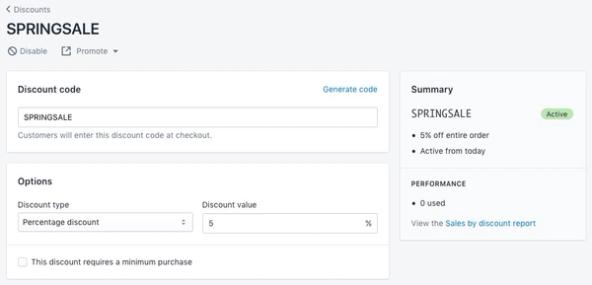
- To create unique (also called "dynamic") codes, navigate to Content > Coupons in Klaviyo, then follow the instructions in how to create unique coupon codes for Shopify.
Unique coupons must be imported or created in Klaviyo, while static coupons must be created in Shopify. If you import unique codes, make sure those codes are valid discounts in Shopify; uploading codes to Klaviyo does not create the discounts in your store.
For a campaign with unique coupons, generate or upload enough codes for your expected recipients before scheduling or sending. Follow the code generation or upload instructions in the linked coupon guide.
- For a static coupon, copy the discount code from Shopify. For a unique coupon, note its exact name in Klaviyo; you will use that name inside a coupon tag in the link.
- Choose whether you want to send the coupon within a flow or campaign email or SMS, found via the Flows or Campaigns tab in Klaviyo, respectively.
- Open the message editor.
- For email:
- Drag and drop a button block into your email template for your link, if there is not one already. Select the button to open its settings.
- Paste your formatted link in the button's Link address field. For help formatting your link, read the next section.
- Example of a button with a link:
- Example of a button with a link:
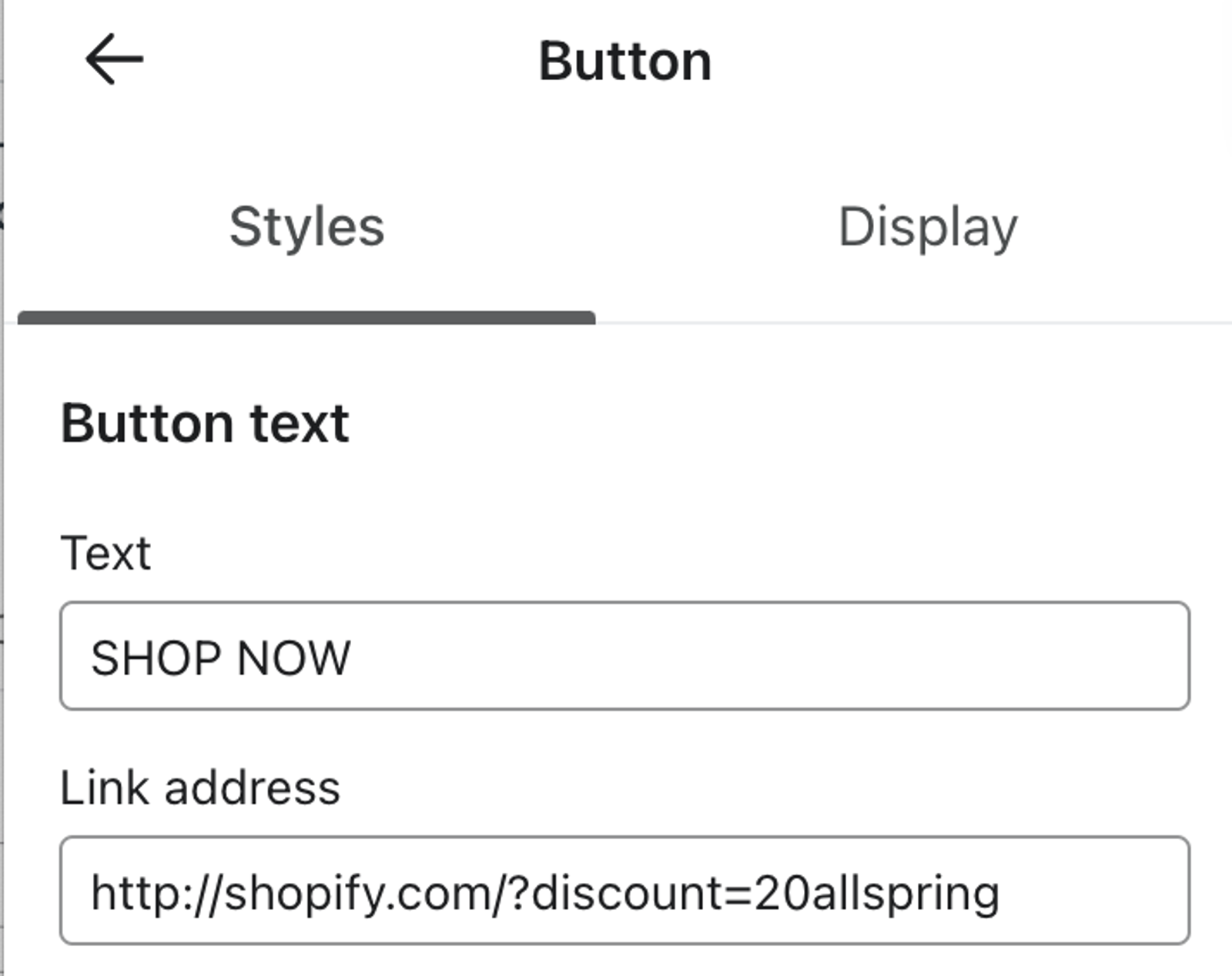
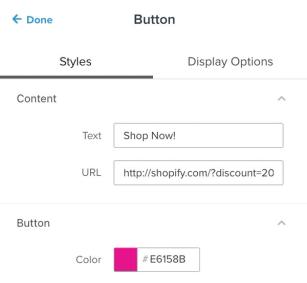
- Customize your button text to alert shoppers about your coupon.
- When you finish editing, click Exit for a flow email. For a campaign email, click Next in the campaign wizard or Save and return in the campaign canvas.
- For SMS, simply paste in the link, then click Next.
Link formats for coupon codes
Klaviyo cannot ensure that a coupon will be auto-applied at checkout if you initially link customers to a non-checkout page; your Shopify site may end up stripping the coupon from the site URL. If you link to a non-checkout page and experience this issue, you should contact your theme developer.
In the examples below, replace CouponName with the actual Shopify discount code for a static coupon. Inside {% coupon_code 'CouponName' %}, replace it with the exact coupon name in Klaviyo, keeping the tag and quotation marks.
Apply a discount code and link to checkout
Shopify syncs the Checkout Started event to Klaviyo with a Checkout URL property, which links back to each customer's unique cart. If you are sending abandoned cart messages (triggered by the Checkout Started event) and would like to link a customer to their abandoned cart with a discount code added, add the following snippet:
These checkout links are for a Shopify Checkout Started flow. Preview the message with a triggering event and check its checkout URL. The examples use &discount= to append to an existing query string. If the checkout URL contains no ?, use ?discount= instead.
Static Shopify coupon link structure:
{{ event.extra.checkout_url }}&discount=CouponName
Unique coupon link structure:
{{ event.extra.checkout_url }}&discount={% coupon_code 'CouponName' %}
Apply a discount code to an event URL
For browse abandonment or added to cart flows, using {{ event.extra.checkout_url }} will not work. This represents the URL associated with a checkout, but browse abandonment and added to cart events are captured before a checkout is started. Instead, you can redirect recipients to a product page with the coupon applied using the following, based on {{ event.URL }}:
Static Shopify coupon link structure:
{{ organization.url|trim_slash }}/discount/CouponName?redirect={{ event.URL|cut:"https://YourSite.com" }}
Unique coupon link structure:
{{ organization.url|trim_slash }}/discount/{% coupon_code 'CouponName' %}?redirect={{ event.URL|cut:"https://YourSite.com" }}
Replace CouponName as described above. Replace the entire https://YourSite.com value with the website address at the start of event.URL, including the protocol and any www. prefix. For example, use https://mysite.com if the event URL is https://mysite.com/products/example. Confirm that organization.url points to your Shopify store.
Apply a discount code and link to your homepage
You can add a link that points back to your homepage and automatically applies the discount to your customer's cart. There are multiple formats you can use:
https://mysite.com/discount/CouponNamehttps://mysite.com/?discount=CouponName
For unique coupon codes, use:
https://mysite.com/discount/{% coupon_code 'CouponName' %}
Replace mysite.com with your Shopify store domain. For a static code, replace CouponName with the discount code created in Shopify. For a unique code, replace the name inside the coupon tag with the exact coupon name in Klaviyo.
For example, if your brand's website is klaviyo.com and you are using a coupon called WELCOME, the full URL would be https://klaviyo.com/discount/WELCOME or https://klaviyo.com/discount/{% coupon_code 'WELCOME' %}.
Apply a discount code and link to another page on your site
You may want to apply a discount code to a shopping session, such as a collection page or another page on your site, rather than link the customer directly back to your homepage or rebuild the customer's abandoned cart.
In this case, you can use one of the following URL structures based on whether you are using a static or unique coupon:
https://mysite.com/discount/CouponName?redirect=/new-pathhttps://mysite.com/discount/{% coupon_code 'CouponName' %}?redirect=/new-path
With either structure, replace:
- mysite.com with your website
CouponNamewith the Shopify discount code for a static coupon, or the exact Klaviyo coupon name inside the tag for a unique coupon- new-path with the desired URL extension. For example, if you would like to link someone to a specific collection page, you would use
?redirect=/collections/mycollection
For example, if your brand's website is klaviyo.com and you are using a coupon called WELCOME, the full URL would be https://klaviyo.com/discount/WELCOME?redirect=/pricing or https://klaviyo.com/discount/{% coupon_code 'WELCOME' %}?redirect=/pricing
Troubleshooting
Here are some quick troubleshooting tips:
- When you preview a unique coupon in Klaviyo, the coupon tag shows the coupon name followed by -PREVIEW, rather than a usable discount code. A preview sent to an email address or phone number can use a real code if codes are available. Static codes appear exactly as you entered them.
- If you trigger a live send and your coupon code isn't auto-applying to your cart, ask yourself the following questions:
- Is another discount already applied? Check whether the coupon’s combination settings allow it to be used with that discount. Shopify supports discount combinations, so an existing discount does not by itself explain a failure.
- In the coupon definition, are there specific products or collections that the coupon applies to, and does the product in the cart match the configuration? If the product doesn't match the coupon rules, this could be the issue.
- Check that the discount is active, has not expired, and that the cart meets any minimum purchase requirement.
- If a link does not apply the discount, check where its query string begins before changing the separator.
- Use ? before the first query parameter and & between additional parameters. A /discount/ link with no existing query string needs ?redirect=, as in this example:
https://mysite.com/discount/{% coupon_code 'CouponName' %}?redirect=/new-path
Additional resources
- How to edit coupons in Klaviyo
Learn how to edit coupons that Klaviyo generates so that you can use them in your messaging and encourage subscribers to make a purchase on your website.
- How to create unique coupon codes for Shopify
Learn how to create single-use coupon codes for your Shopify store so that each customer receives their own unique coupon code for a given promotion on your site. This feature provides an alternative to creating a generic, also known as a static, coupon code, so you don't have to worry about codes being shared.
- How to add coupon codes to sign-up forms
Learn how to add static and unique coupon codes to your sign-up forms to drive higher submission and conversion rates, and encourage customers to spend more on your site.