How to integrate with Olark
You will learn
Learn how to integrate Olark, a live chat provider, with Klaviyo in order to automatically sync chat activity to your Klaviyo account after a chat conversation ends. Klaviyo receives data from Olark via a webhook configured from within your Olark account. To enable the integration, you'll first get a webhook endpoint URL from Klaviyo, which you will add to your Olark account to complete the integration.
Get webhook endpoint from Klaviyo
- In your Klaviyo account, select the Integrations tab.
- Select Explore apps, search for Olark, then click the card. Then, click Install.
- Click Connect to Olark.
- Copy the provided webhook endpoint URL, and keep it secure, for use in the next section of this guide.
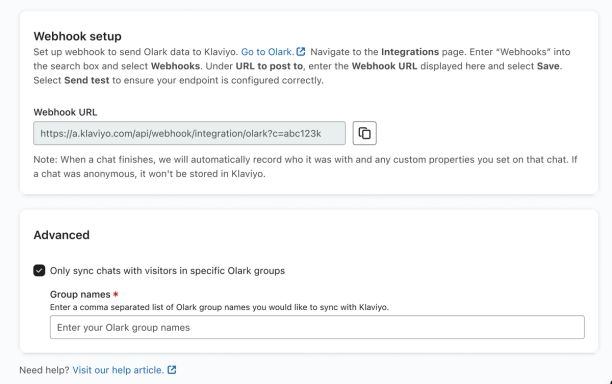
- If you would prefer to sync specific chats to Klaviyo, check the option Only sync chats with visitors in specific Olark groups. Then, add the names of the groups you'd like to sync into Klaviyo separated by commas. You can take advantage of this feature when first getting started, or you can come back and adjust your integration settings later on. Chats with no Olark group are still synced.
- When you are done, click Complete setup.
Set up webhook in Olark
- Log in to Olark and navigate to the Integrations page.
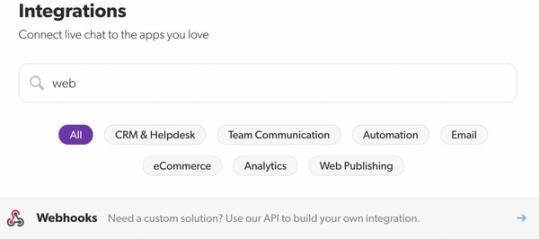
- Enter "Webhooks" into the search box at the top of the page and click on Webhooks when it appears.
- In the box under URL to post to, paste the webhook endpoint URL you previously copied from Klaviyo.
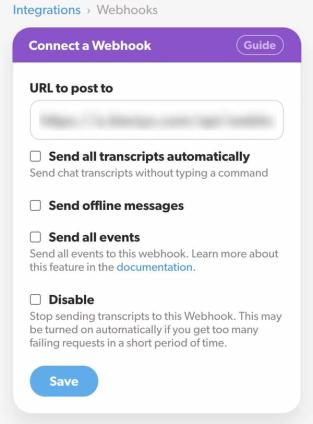
- You can choose to add any of the options under the webhook URL box if needed.
- Click Save.
- If the webhook settings were saved successfully, you'll see a green box with the text Settings saved successfully! and the option to test your new connection.
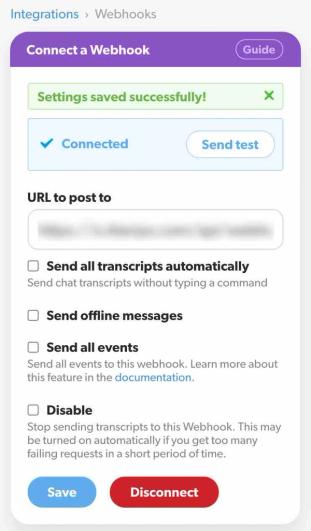
- If the webhook connection was not successful, check the Olark Webhooks Integration Guide for more assistance.
- Click Send test to make sure your endpoint is configured correctly. If the test is successful, you will see a green box with a smiley face and the text Test sent.
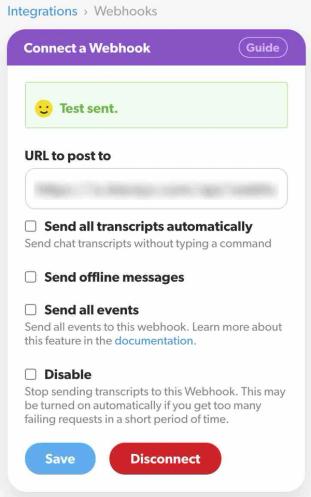
To confirm that chats are reaching Klaviyo, finish a chat with a visitor whose valid email address is available in Olark. If you selected specific Olark groups, use a chat in one of those groups. Then check for the chat in Klaviyo using the steps below.
Olark data in Klaviyo
When an Olark chat finishes, Klaviyo will automatically record who the chat was with and any custom fields Olark sends for the visitor. Chats without a valid visitor email address are not stored in Klaviyo.
There is 1 Olark metric tracked in Klaviyo: Chatted on Website. To view its recorded events:
- Navigate to Analytics > Metrics in Klaviyo.
- Select Olark in the Integration filter, then click Chatted on Website.
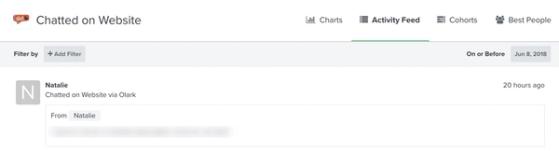
- Select the Activity feed tab to view individual chat events.

Klaviyo receives the following customer information with each Chatted on Website event. Email is required; the other fields are included when available:
- First Name
- Last Name
- Organization
- Phone Number
- City
- Region
- Country
You can expand an event to see the “From” field, as well as the chat message. If there’s no location information available, Klaviyo can use the visitor’s IP address to look up their location, provided Olark includes a valid IP address. Klaviyo also records any custom properties you may have set for a customer.
Outcome
You have integrated Olark with Klaviyo, and now new Olark chats will be tracked in Klaviyo in real-time.