How to create a cross sell segment
You will learn
Learn how to identify a group of people who have purchased a particular item but have not purchased a specific related item, in order to target them with a cross sell message. For example, if someone purchases a video game console, you might consider targeting them with content about the most popular video games for that console that they haven't yet purchased.
Create a cross sell segment
Before you begin, make sure your ecommerce integration has synced Ordered Product events with the product property you want to filter by, such as SKU. The available properties depend on your integration.
You can substitute SKU with Name, Variant Name, or any other event data available that can classify specific products.
- Click Audience > Lists & segments in the Klaviyo sidebar
- Click Create
- Choose Segment
- Enter a name for your segment. If the Create segment panel opens, enter the name there and click Create segment to open the builder. Otherwise, edit the name at the top of the builder.
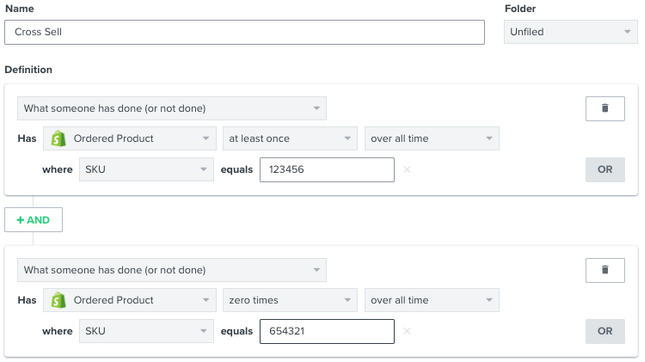
- Add the following segment definition:
What someone has done (or not done) > Ordered Product > at least once over all time > where SKU equals [product 1 SKU]
AND
What someone has done (or not done) > Ordered Product > zero times over all time > where SKU equals [product 2 SKU] - If you plan to send email or SMS to this segment, add an AND condition: If someone can or cannot receive marketing > can receive. Choose email marketing or text message marketing for the channel you will use, then add a filter for Subscribed. The purchase conditions alone do not limit the segment to subscribers.
- Click Create segment to save your segment. Wait for it to finish populating before scheduling a campaign.
Once you've created one cross sell segment, it's easy to segment several variations by cloning that segment and building upon that foundation.