Using location details in your campaigns
Learn how to insert a customer's store details into your message content, so one campaign can show each customer their own store's name, address, hours, and contact details.
Before you begin
- Owner, Admin, and Manager have write access.
- Your locations are set up with linked segments, so your profiles carry a location profile property. See Getting started with Locations.
How it works
Personalization reads the location profile property on each customer's profile. That property gets there through your location setup, in this order:
- Your location has a profile property linked to it, either one Klaviyo created during setup or one you linked yourself.
- Your location has at least 1 segment linked to it.
- Everyone in that segment is tagged with the property, and its value is the location's name.
- When you insert a store detail into a message, Klaviyo reads that value and pulls the matching location's details.
So a customer in the segment linked to your Los Angeles location is tagged Los Angeles, and sees the Los Angeles address. A customer tagged Boston sees Boston's.
If any of those links is missing, there is nothing for personalization to read and the customer sees your default instead. A location with no linked segment tags nobody, and a profile that is in no location segment has no value to match.
That means one campaign renders differently for every customer, with no conditional logic and no separate send for each store.
Insert a store detail
- In any message editor, open the personalization menu.
- Scroll to the Location Hub group.
- Select the detail you want: Store name, Store address, Store phone, Store hours, Store email, or Store link.
- Set a default value for customers who do not have a location yet.
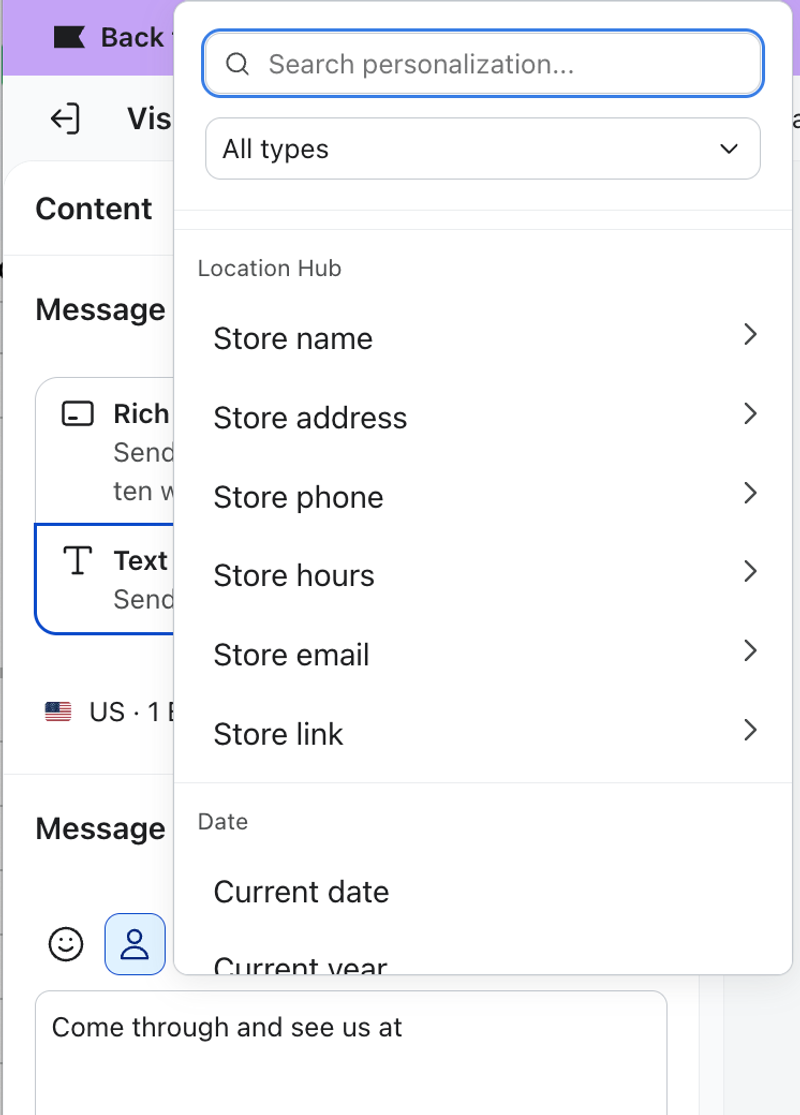
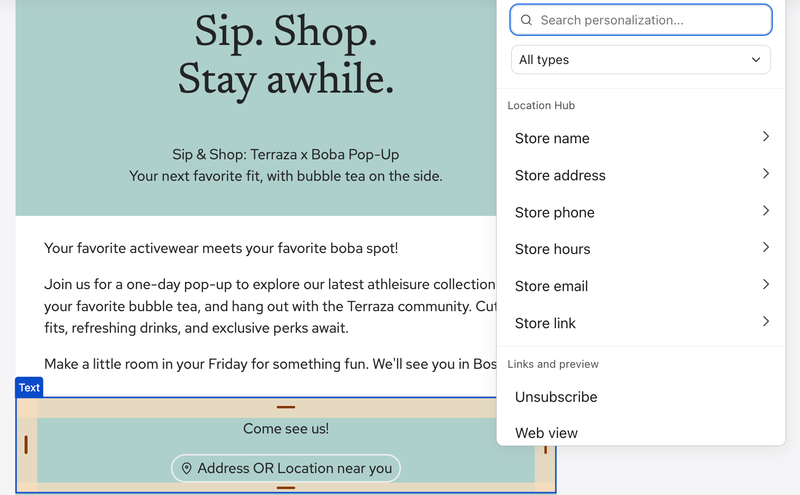
This works in campaigns and flows, across email, text message, WhatsApp, and RCS plain text.
Write your sentence so the inserted value fits grammatically. "We're open [store hours] at [store address]" reads naturally once the values are filled in. "Come visit our [store address] at these [store hours]" does not.
Set a default value
Defaults work the same way as any other personalization in Klaviyo. Every customer without a location sees the default, so choose something that still reads as a complete sentence, such as "our stores" for an address or "our usual hours" for hours. Leaving a default blank sends a gap in the message.
Edit the details that get inserted
The values come from each location's own details. To change them, open the location from Audience > Locations, click the settings icon, and edit the Details page. Anything you change there appears in the next message that uses it.
This is also where you fill in details you skipped when you first created the location. A store with no phone number or hours on file has nothing to insert, so those tags fall back to your default.
Check before you send
Preview your message with a profile that has a location and one that does not, so you can see both the inserted values and your defaults.
In text messages, inserted values change the character count. A message that fits in 1 segment while the tags are unresolved may need 2 once a real store address or set of hours is inserted, so check the count against your longest store details rather than your shortest.
A profile's location property updates when it enters a segment linked to a different location. If a customer moves from Boston to Seattle and joins your Seattle segment, their value changes to Seattle and they start seeing the Seattle store's details. Two things do not update profiles that are already tagged: relinking a segment to a different location, and changing the property value on a location. In both cases, profiles keep the value they already had. If you reorganize your locations, check your profile data before sending.
Best practices
- Set a default for every tag. Not every customer has a location, and a blank value is more noticeable than a generic one.
- Fill in your location details first. Hours, phone, and website are optional when you create a location, but they are what makes this useful.
- Keep text messages short. Addresses and hours are long, and they count toward your segment.
Outcome
You can send one campaign that shows each customer the details of the store nearest them, with a sensible default for everyone else.