How to manage DNS records for a dynamic branded sending domain
You will learn
Learn how to view, add, and delete the DNS records for a branded sending domain that uses Dynamic routing, directly in Klaviyo.
When you set up a branded sending domain with Dynamic routing, you add NS records at your DNS provider that delegate your sending subdomain (for example, send.helloworld.com) to Klaviyo. From then on, Klaviyo hosts the DNS zone for that subdomain, meaning the full set of DNS records for the subdomain and any names under it. Apart from the NS records that delegate it, records you add at your DNS provider for that subdomain won't take effect, because DNS lookups for it are answered by Klaviyo.
With Manage DNS zone, you can see every record in that zone and add your own, such as a TXT record that a third-party service asks for to verify your sending subdomain. Klaviyo keeps the records it needs to send your email locked, so they can't be changed or removed.
Before you begin
- Manage DNS zone is only available for branded sending domains that use Dynamic routing. You can check a domain's routing type in the Routing Type column in Settings > Domains. If your domain uses Static routing, you manage its DNS records at your DNS provider. To learn about the two routing types, see How to set up a branded sending domain.
- The option isn't available while a domain's status is Incomplete. Finish setting up the domain first.
- Anyone who can view your domain settings can browse the records in the zone. Only users with Owner, Admin, Manager, or Campaign Coordinator roles can add or delete records, so the Add record button and the delete option only appear for those roles.
Open the Manage DNS zone panel
- Click your company name in the bottom left corner of your account.
- Select Settings.
- Choose Domains from the main tab.
- Find the branded sending domain that uses Dynamic routing, then click the three-dot menu on its row.
- Select Manage DNS zone.
A side panel opens and loads the records in your domain's zone. This can take a few seconds.
Understand the records table
Each row in the table is a single record value. If a record has more than one value, such as a TXT record with three values, it appears as three rows with the same name, type, and TTL.
Column | What it shows |
|---|---|
Name | The record's host, meaning where the record lives. |
Type | The record type, such as TXT, MX, A, AAAA, CNAME, CAA, NS, or SOA. |
TTL | Time to live: how many seconds other servers can cache the record before checking it again. |
Value | The record's data. |
At the end of each row:
- A lock icon (Managed by Klaviyo) means the record is managed by Klaviyo. You can't change or delete it.
- A trash icon means the value isn't managed by Klaviyo, and you can delete it. This includes records that Klaviyo support added at your request before this option was available. If you're not sure what a record is for, check with your team before you delete it.
Records Klaviyo manages
Klaviyo locks the records it needs to send your email and keep it authenticated. These include:
- DKIM records, which let inbox providers confirm that your emails came from you and weren't changed in transit.
- The hosts Klaviyo sends from (
k1,k2, andk3) and any records under them. - Records for dedicated sending IPs, if your account has them.
- The NS and SOA records that define the zone itself.
- The CAA record for your sending subdomain, which controls which certificate authorities can issue SSL/TLS certificates for it.
- An MX record that points to Klaviyo. A service sending domain uses it to receive customer replies to Klaviyo Helpdesk messages.
- Your click-tracking CNAME, if you set up dedicated click tracking under this domain.
- The TXT record Klaviyo uses to verify your domain.
If you try to add a record to a host that Klaviyo reserves for sending, such as k1, you'll see This subdomain is managed by Klaviyo and cannot be edited. Add your record to a different host instead.
Add a record
Only add records here that belong on your sending subdomain. If a service asks for a record on your root domain (for example, helloworld.com), even one with @ as its host, add it at your DNS provider instead. The same goes for MX records for your regular mailboxes, which belong on your root domain.
- In the Manage DNS zone panel, click Add record.
- Fill in the record details:
- Host: this starts as
@, which adds the record to your sending subdomain itself. To add it to a name under your sending subdomain, enter only the part before it. For example, enterwwwto create a record for www.send.helloworld.com. - Type: choose TXT, MX, A, AAAA, or CNAME. A CNAME record can't use
@as its host, and it can't share a host with records of another type. - TTL: the default is
3600(one hour). You can enter any number greater than 0. - Value: enter the value exactly as the service that needs the record gave it to you. For a TXT record, Klaviyo adds quotation marks around the value if you don't include them. For an MX record, enter the priority followed by the mail server (for example,
10 mail.example.com).
- Host: this starts as
- Click Save record.
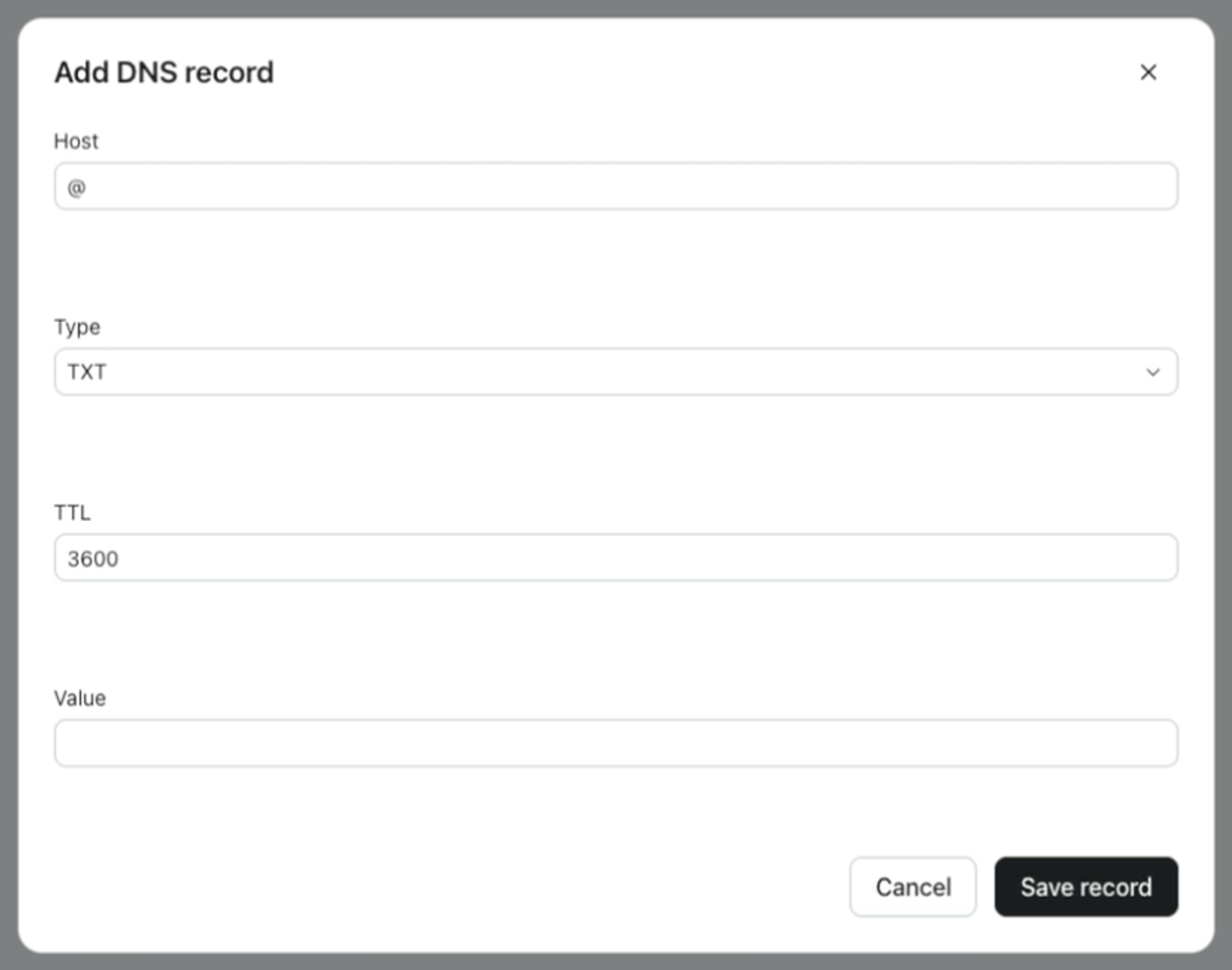
If a record with the same host and type already exists, your value is added to it as another value, and the existing values stay in place. To replace a value, such as an SPF record, delete the old one first. A host should have only one SPF record.
When Klaviyo confirms the change, you'll see DNS record saved. Saving can take a few seconds, and sometimes longer. Other services might take longer to see the new record, depending on DNS caching.
Delete a record
- In the Manage DNS zone panel, find the value you want to remove and click its trash icon.
- Review the confirmation, which shows the type, host, and value you're about to delete.
- Click Delete record.
You'll see DNS record deleted. once the change is saved. If a record has more than one value, only the value you selected is removed. The other values stay in place.
To change a record you added, delete it and add it again with the new details.
Before you delete a record, make sure nothing still depends on it. For example, removing a verification TXT record can cause the service that asked for it to lose verification.
Records you add stay with this subdomain
Records you add here apply only to this sending subdomain, and only while it's delegated to Klaviyo. Before you move to a new sending subdomain or switch this domain to Static routing, make a note of the records you added. Then add any you still need for the new domain: in its Manage DNS zone panel if it uses Dynamic routing, or at your DNS provider if it uses Static routing.
Troubleshooting
I don't see Manage DNS zone
Check that:
- The domain uses Dynamic routing. Domains that use Static routing don't have this option.
- The domain's status isn't Incomplete.
Error messages
Message | What to do |
|---|---|
Unable to load DNS records for this domain. | Refresh the page and open the panel again. If the message keeps appearing, contact Klaviyo support. |
Enter a valid host, TTL, and record value. | Fill in every field, and make sure the TTL is a number greater than 0. |
This subdomain is managed by Klaviyo and cannot be edited. | Klaviyo uses this host to send your email. Add your record to a different host. |
This DNS record is managed by Klaviyo and cannot be changed. | Klaviyo manages this record, so your change wasn't saved. Add your record to a different host, or leave this one as it is. |
Saving DNS record changes is taking longer than expected. Refresh the page to check the latest records. | Refresh the page and reopen the panel to check whether your change was saved before you try again. |
This DNS record change is not valid. Check the record details and try again. | Check the record against what the service that needs it provided. Common causes are a CNAME record with |
Unable to save DNS record changes. Try again in a moment. | Wait a moment and try again. If the message keeps appearing, contact Klaviyo support. |