Klaviyo MCP Server Guide For Agencies
What the MCP server is
The Klaviyo MCP (Model Context Protocol) server is a secure bridge that lets AI assistants like Claude and ChatGPT connect directly to Klaviyo. Once connected, you can talk to your Klaviyo account in plain language: ask questions, pull reports, analyze performance, and draft or create campaigns and templates, without logging into the dashboard and exporting data by hand.
Under the hood it is a wrapper on top of Klaviyo's APIs. You authenticate once, and the AI assistant can then read your account data and take supported actions on your behalf.
Why it matters for agencies
The single biggest advantage for agencies is managing multiple client accounts in one place. You can connect clients and then ask one question across all of them, for example which account is performing well and which one needs attention. Beyond that, agencies use it to:
- Cut reporting time. Generate cross-client and per-account performance summaries in minutes instead of hours.
- Run faster audits. Surface underperforming flows, anomalies, and broken logic on demand.
- Create content faster. Draft campaigns, subject lines, and localized variants informed by what is actually working in the account.
- Take on more clients. The time saved on reporting and analysis frees up capacity per person.
Before you start
To connect an account you will need:
- An Owner, Admin, or Manager role on each Klaviyo account you want to connect.
- A Claude or ChatGPT account. Connecting several accounts (custom connector) requires a paid Claude plan (Pro, Max, Team, or Enterprise) or ChatGPT developer mode. This guide is focusing on Claude set up.
- The remote MCP server URL: https://mcp.klaviyo.com/mcp
Step 1: Connect multiple client accounts
For agencies, this is the important one. Use a custom connector for each client account you manage. This outlines setup for Claude. Repeat these steps for every account:
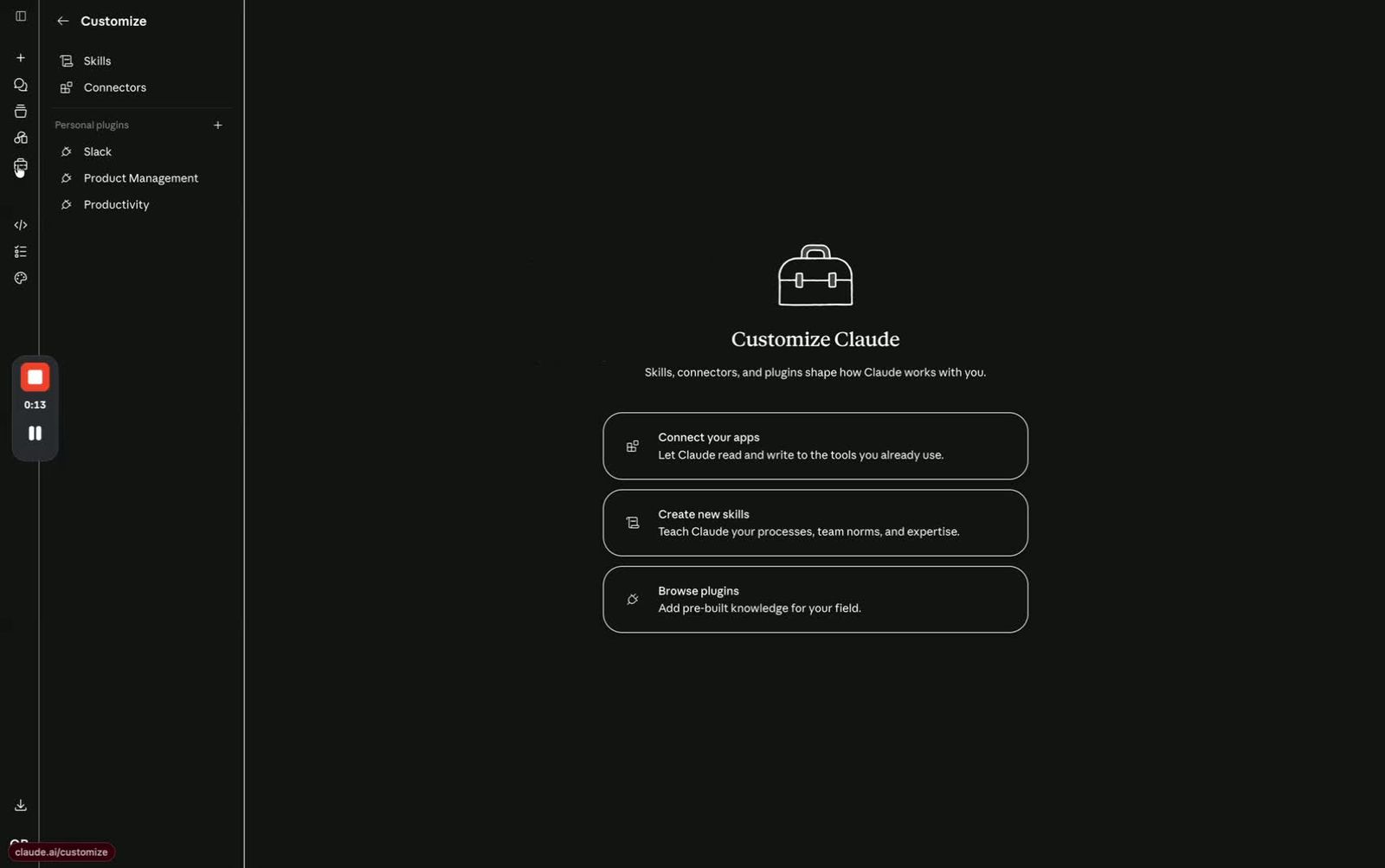
1. In Claude, open the Connectors area
- In the web browser or desktop app, go to Customize.
- Select Connectors.
- This is where you manage and add integrations.
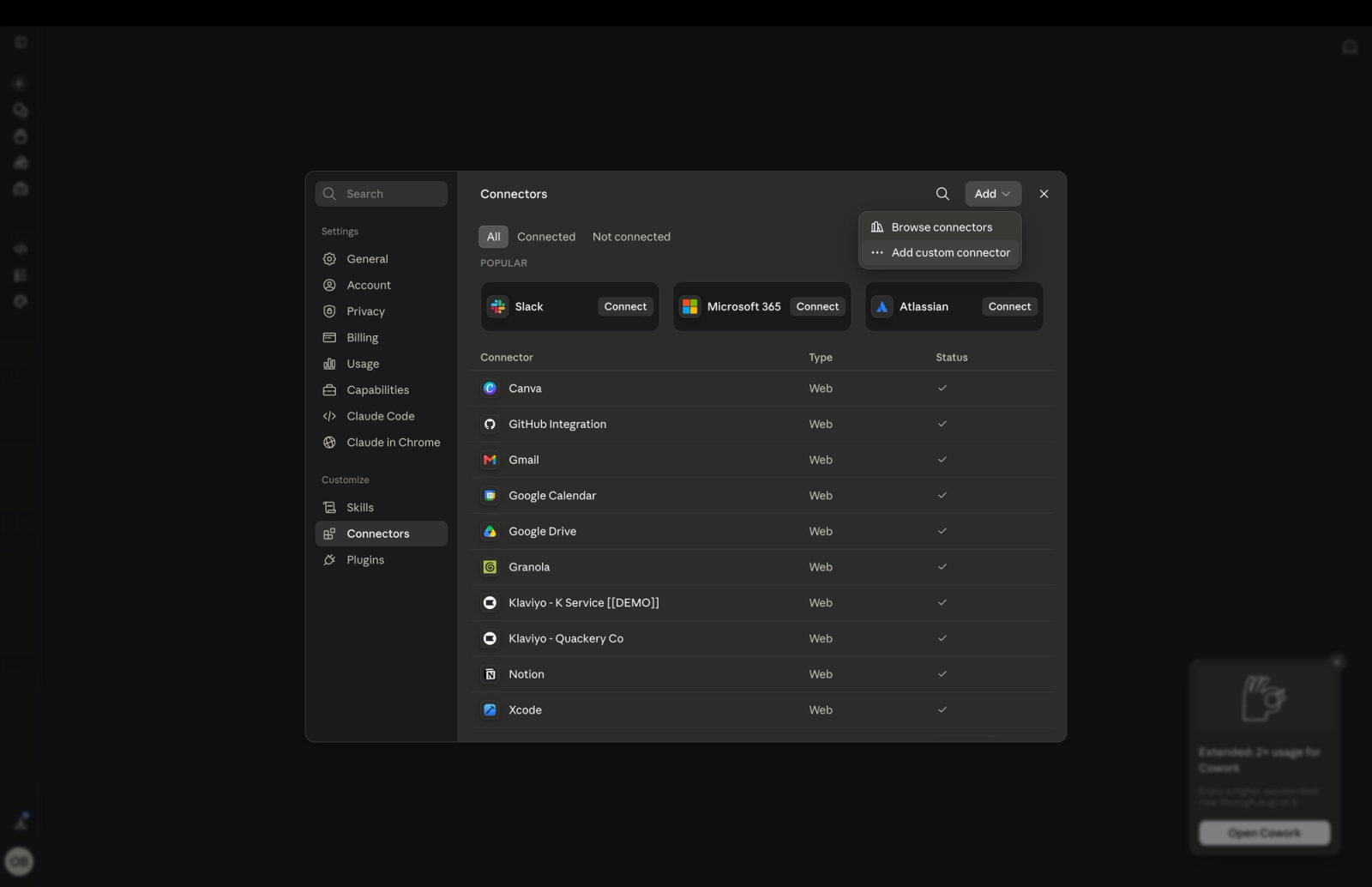
2. Add a new custom connector
- Click the Add button (or a +sign) in the Connectors section.
- Choose the option to add a custom connector.
- This starts the setup for a new Klaviyo connection.
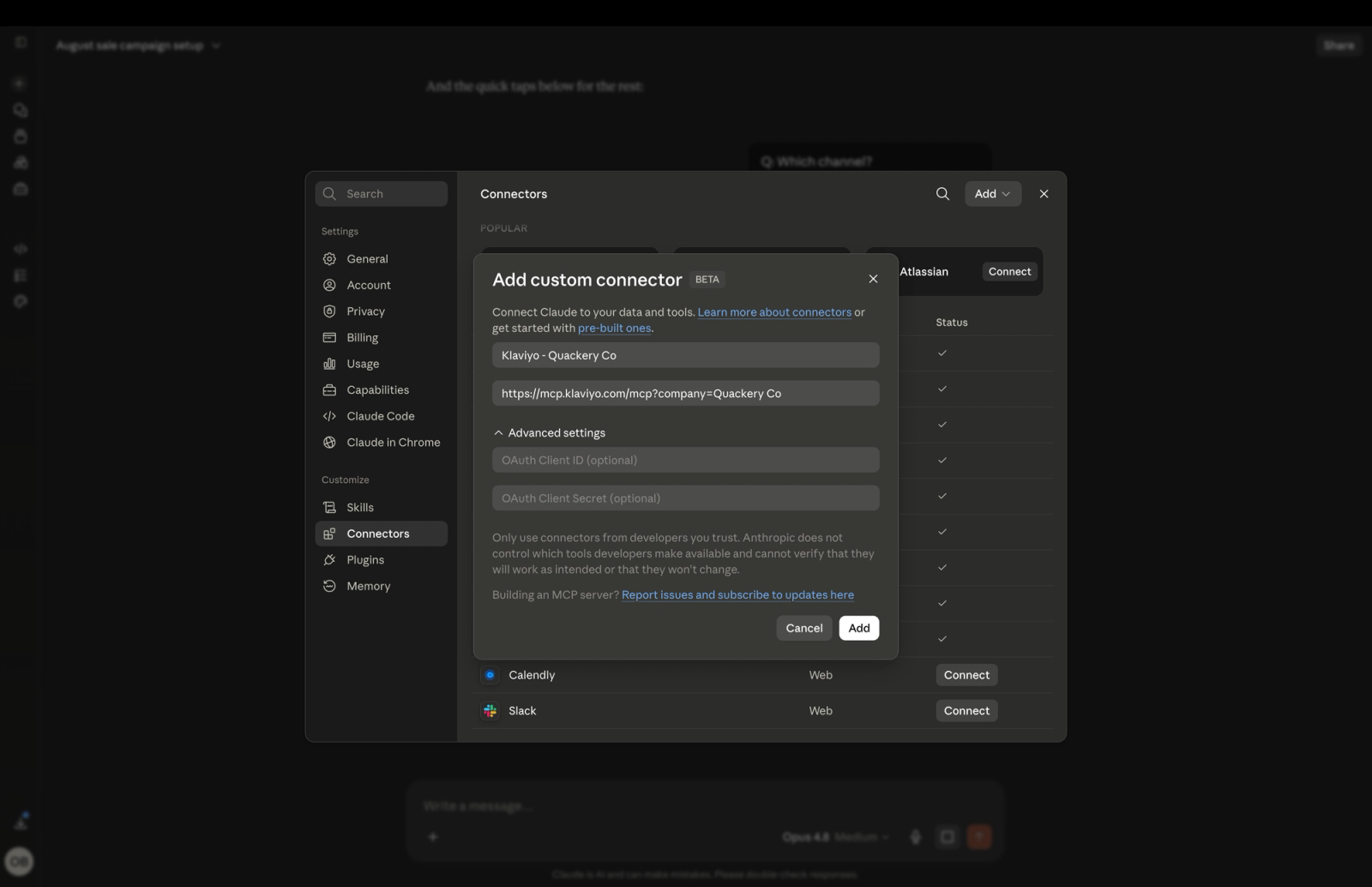
3. Name the connector clearly
- Enter a name like Klaviyo - [Account Name].
- Use the Klaviyo account name so each connector is easy to identify later.
- Repeat this naming pattern for every account you connect.
- Add connector URL https://mcp.klaviyo.com/mcp?company=example-company. Spaces in the name are ok
- This ensures the connector points to the correct Klaviyo account.
5. Confirm you are logged into the correct Klaviyo account
- Before continuing, verify that you are logged into Klaviyo under the account you want to connect.
- This is important so the authorization request is tied to the correct account.
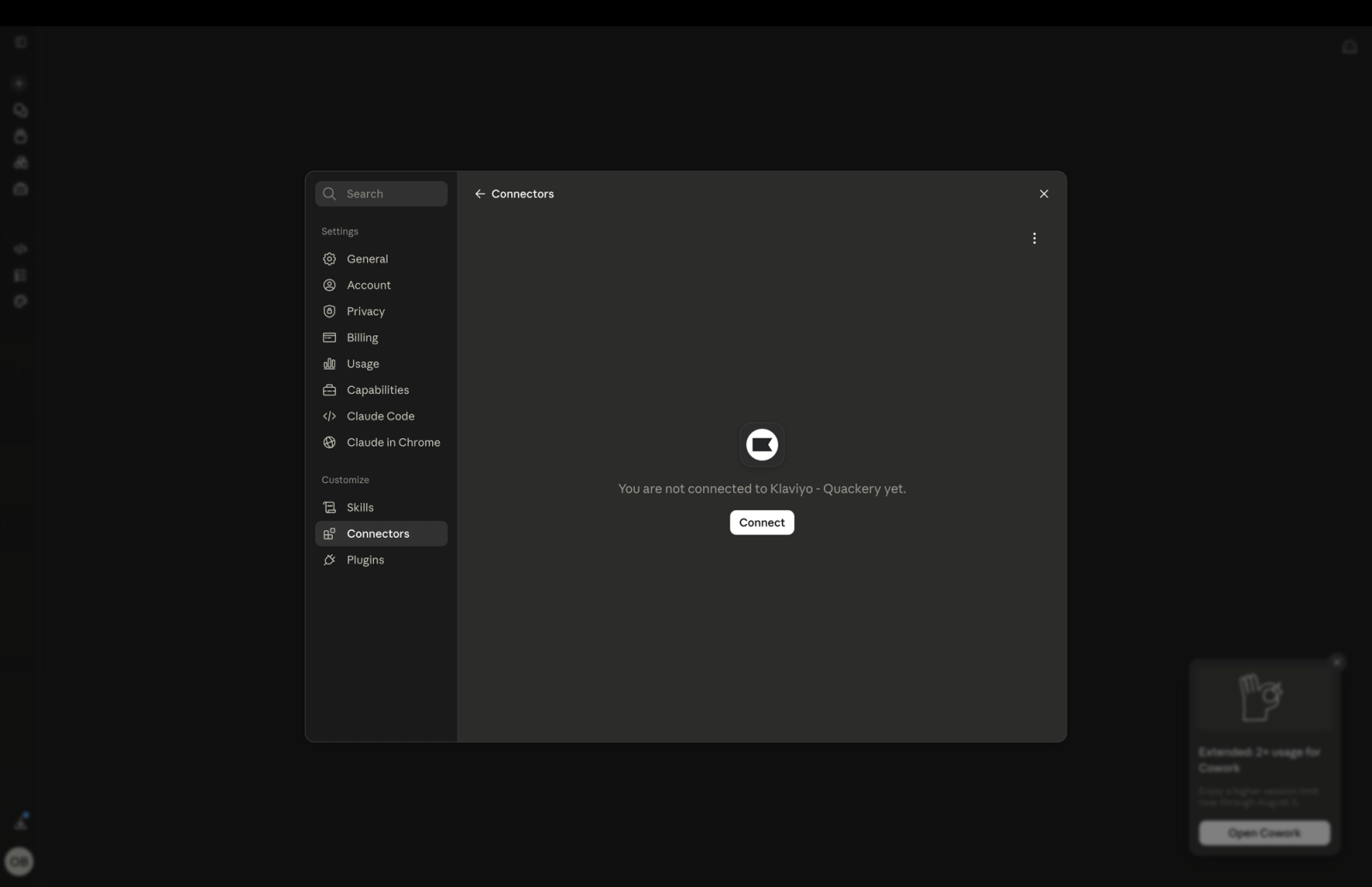
6. Add and approve the connection
- Click Add.
- Then click Connect to approve the request.
- Review the requested scopes/permissions.
- Click Allow to complete authorization.
7. Verify the connector and repeat for other accounts
- After approval, the connector will appear in your connectors list.
- Repeat the same process for each additional Klaviyo account you want to connect.
Step 2: Set up a project per client (recommended)
A best practice we see from advanced agency users is to create a Claude project for each client/Klaviyo account. Name the project after the client account, and in the project instructions add a standing line such as "Use the Klaviyo connector for [Client Name]." This reinforces the right account on every prompt and keeps each client's context, history, and skills separate.
The five high-value use cases
Sample prompts to share
1. Multi-account reporting and cross-client comparison
The agency-specific superpower.
- Which of my client accounts have declining campaign performance this week, and what are the top 2 things I should investigate for each? Check all Klaviyo MCP connectors.
- Compare welcome flow performance across Account A, Account B, and Account C over the last 30 days. Show revenue, click rate, and placed order rate, and flag the biggest outlier.
2. Analytics and custom reporting
The most common pattern overall.
- Summarize the last 90 days of campaign and flow performance for [Account Name] account. Include top performers, bottom performers, and the 3 metrics I should watch next.
- How is click rate trending week over week, and which campaigns or flows are driving the biggest changes?
3. Audience and segment strategy
Shows strategy value, not just dashboards.
- For our VIP and at-risk segments, identify the likely emotional state and recommend the best messaging and CTA for each.
- What are 5 new segments I should create based on my best-converting audiences, and how would I validate each?
4. Flow audits and anomaly detection
Compresses a manual account review into one prompt.
- Audit this account's core flows and identify broken logic, overlapping flows, underperforming branches, or unusual anomalies.
- Run a 90-day audit and give me a prioritized list of the top 5 fixes most likely to improve conversion.
5. Performance-informed content creation
Where it starts to feel like a strategist.
- Based on this account's best-performing recent campaigns, draft a promotional email for a weekend sale.
- Create localized versions of this SMS for France and Italy, adjusting tone for each market.
Pro tips for power users
Turn repeat work into a skill
If you run the same task often, do not keep re-typing a long prompt. Ask Claude to turn it into a skill, then run that skill each time. One agency does this for campaign creation: their creative team delivers subject lines, taglines, body copy, and images in a deck, and the skill builds campaigns from that copy on demand. Embedding the client account name inside the skill is a good way to reinforce the right connector.
If you are on a token budget, build with a strong model, run with a lighter one
Tokens are limited, so a smart pattern is to create the skill using a more capable model (for example Opus) so it knows exactly how to prompt the model, then run the actual task on a lighter model (for example Sonnet). That lets you process more campaigns and flows without burning through your token budget.
Read-only mode for safe exploration
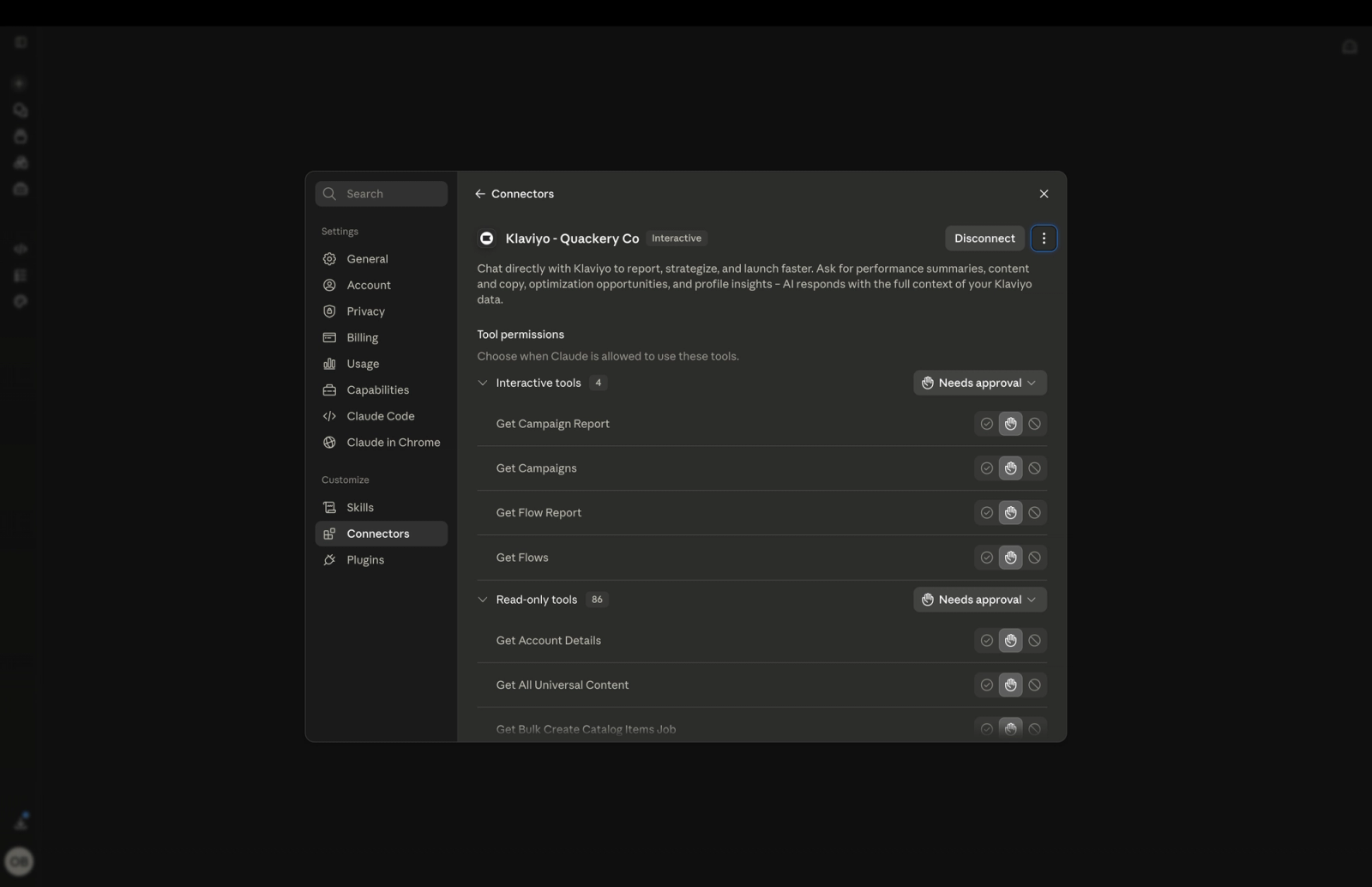
In each connector, you can control what tools agent can use, either on tool level or by group. Ex: you can block or always require approval for all tools that can write and delete data.
What you can do today vs. soon
Today, the assistant can pull reports, run audits, analyze segments, and create campaigns and templates as drafts that a human QAs. Campaign creation is supported now; the ability to schedule and send campaigns end to end is expected to roll out in Q3 2026, so trusted users will eventually be able to go from draft to scheduled send without leaving the assistant. Treat AI output as a strong first draft and keep a human in the loop, especially for anything customer-facing.
Troubleshooting
Can't connect to the server
Confirm the URL is exactly https://mcp.klaviyo.com/mcp?company=example-company (with the right company name and % for spaces), and that you have an Owner, Admin, or Manager role.
No Klaviyo tools showing up
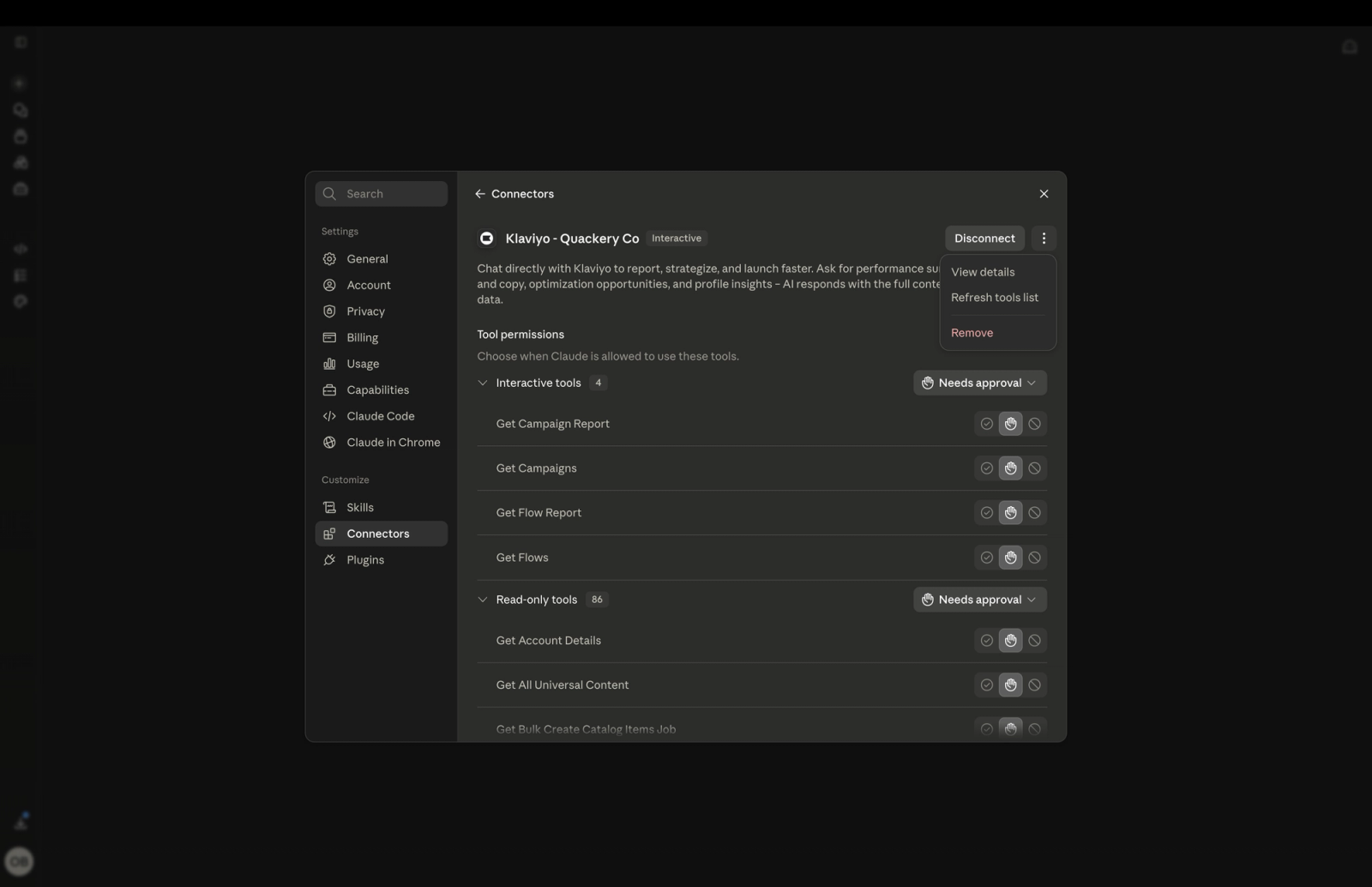
Recheck the connector setup, then fully quit and relaunch the app to refresh.
Refresh tool list.
Wrong account / mixed-up clients
Enable only that client's connector for the chat, and restate the account name in your prompt.
Inaccurate or inconsistent answers
Start a new chat to reset context, and be specific with relevant keywords and timeframes.