How to use product feeds in mobile messages
Estimated 3 minute read
|
Updated Jun 11, 2026, 12:00 AM EST
Before you begin
Before adding a product feed to a mobile message, make sure you have completed the steps below:
- Sync your product catalog to Klaviyo by configuring your ecommerce integration.
- Create the product feed first in Content > Products.
Product feeds are supported in RCS and SMS mobile channels. These feeds do not support OAuth authentication and are not supported in Whatsapp today.
Use product feeds in SMS
- Open a text message campaign or flow in Klaviyo to edit the content
- Select Add attachment > Product > Add product to open the product picker.
- In the Add product modal, select the product feed you want to use. Dynamic items have a Dynamic icon next to their name, and you can use the Dynamic filter at the top of the modal to narrow the list.
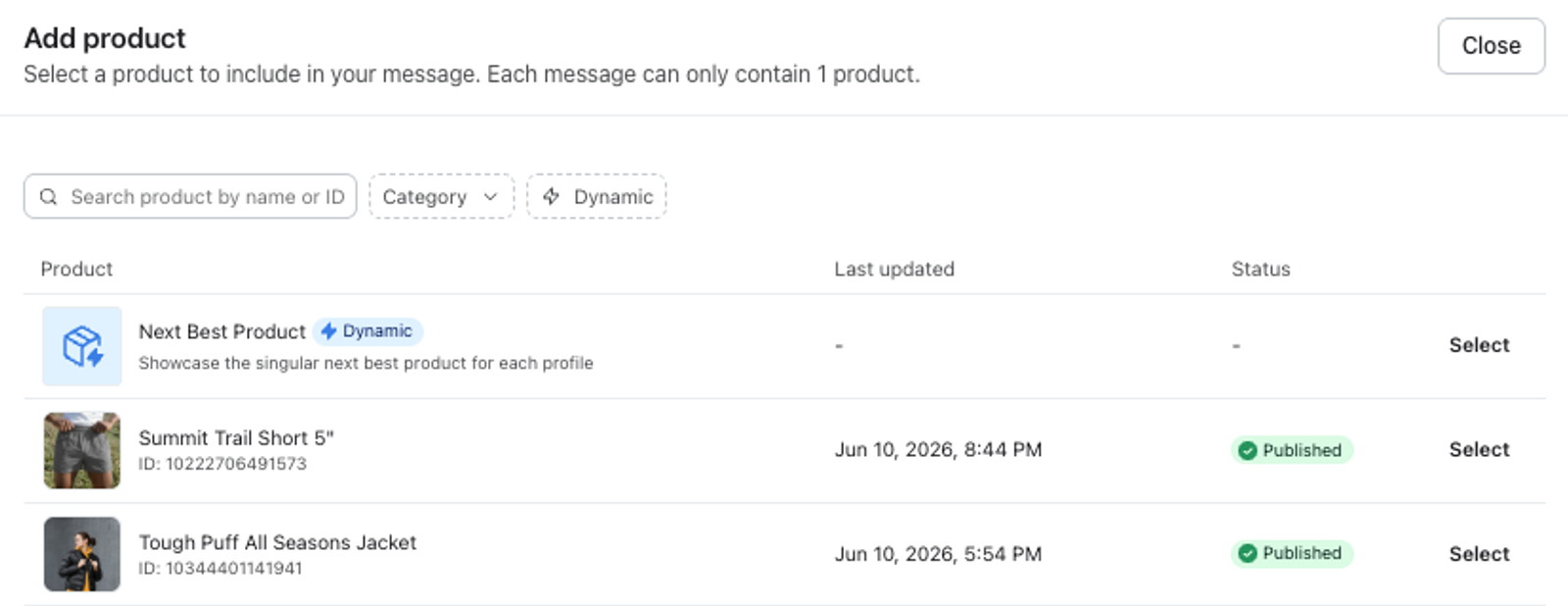
- After selecting a product feed, choose which product details to display. You can toggle the product name and product link on or off for the feed cards. Note: while you have selected a product feed, SMS messages only support sending 1 product at a time. Therefore, profiles will see the top 1 item in that feed when they receive the message. To show multiple items from the feed, you need to enable RCS messages (see below).
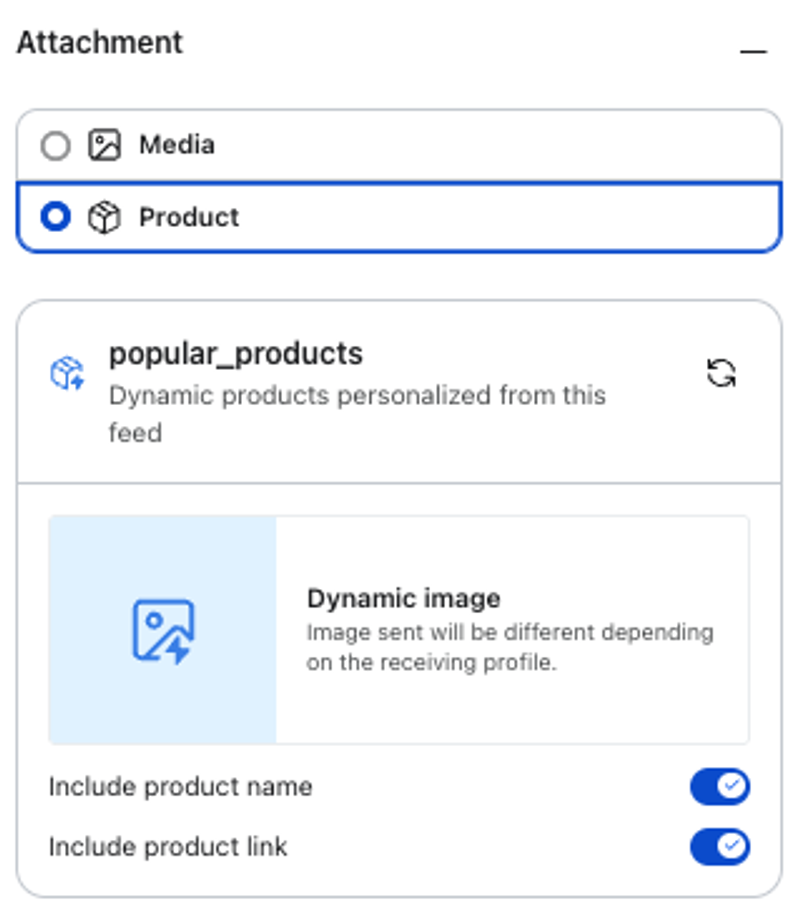
- When you toggle the product name and product link on or off, you will see the Message content automatically updated. You may add additional content to the block as needed.
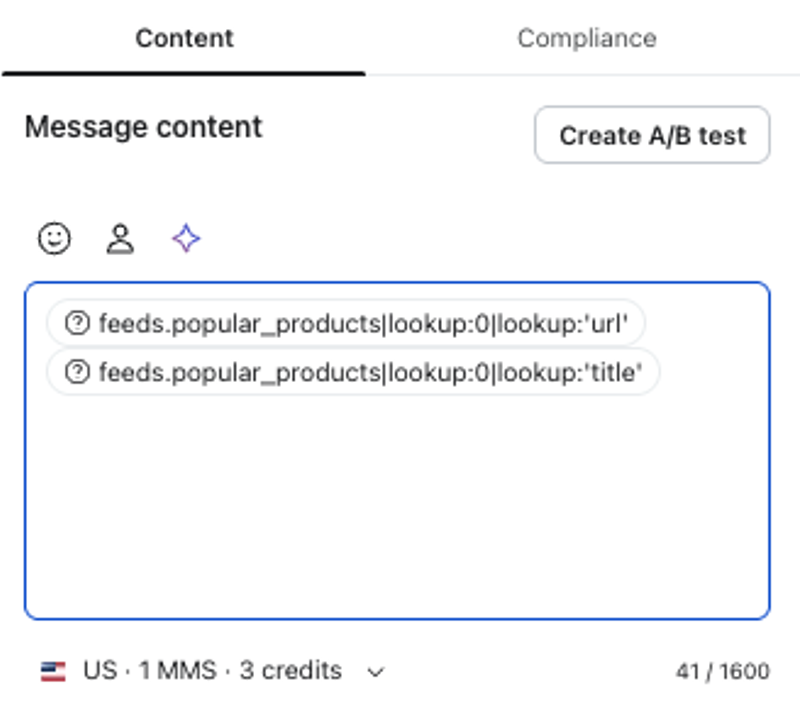
- Select Preview & test before sending to confirm how the feed will render for recipients.
Use product feeds in RCS
- Open a text message campaign or flow in Klaviyo to edit the content
- Select Rich cards, then select Edit card on the card you want to update.
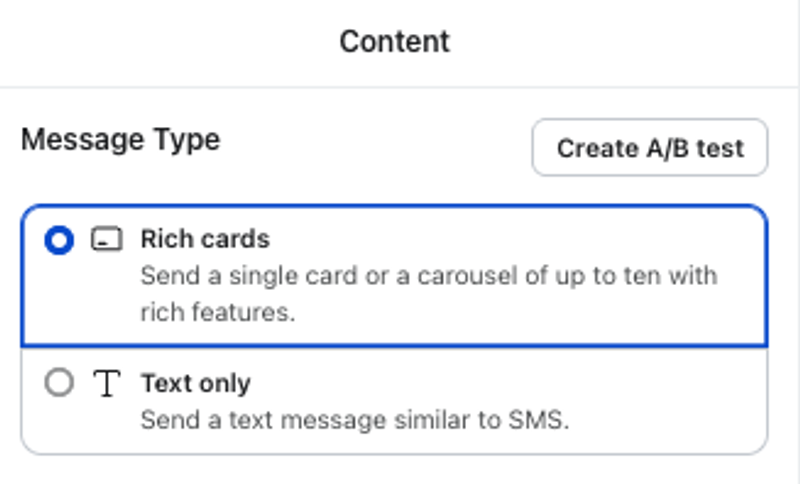
- In the card editor, select Add attachment.
- Choose Product, then select Add product to open the product picker.
- In the Add product modal, select the product feed you want to use. Dynamic items have a Dynamic icon next to their name, and you can use the Dynamic filter at the top of the modal to narrow the list.
- After selecting a product feed, choose how many items to include in the Number of cards dropdown. Note: RCS supports up to 10 total cards in a message, so the number of feed cards you can show depends on how many other cards or static assets are already in the message.
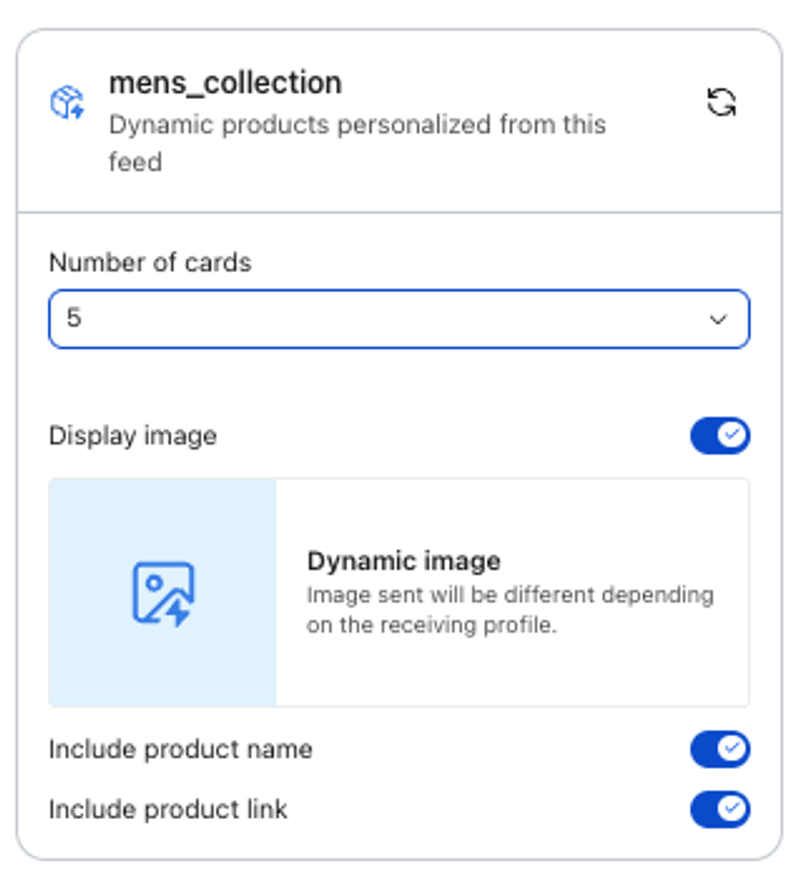
- Choose which product details to display. You can toggle the image, product name (title), and product link on or off for the feed cards.
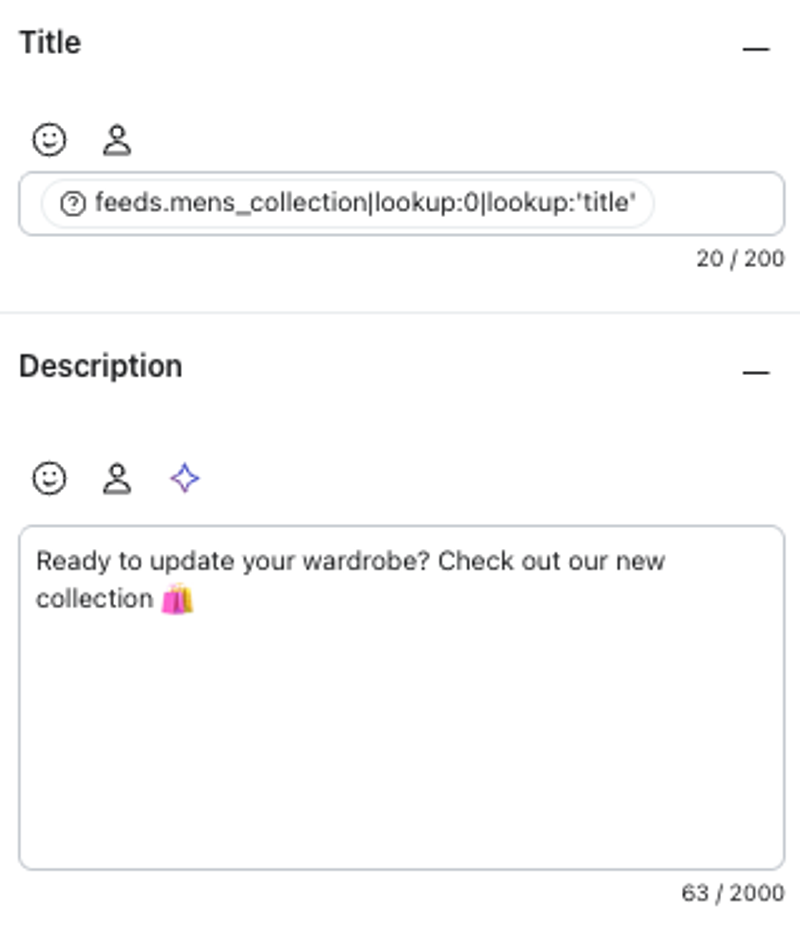
- Update the card text as needed. Klaviyo will automatically populate the dynamic product name in the title field, however, you can change this content. You can also add supporting text in the description field.
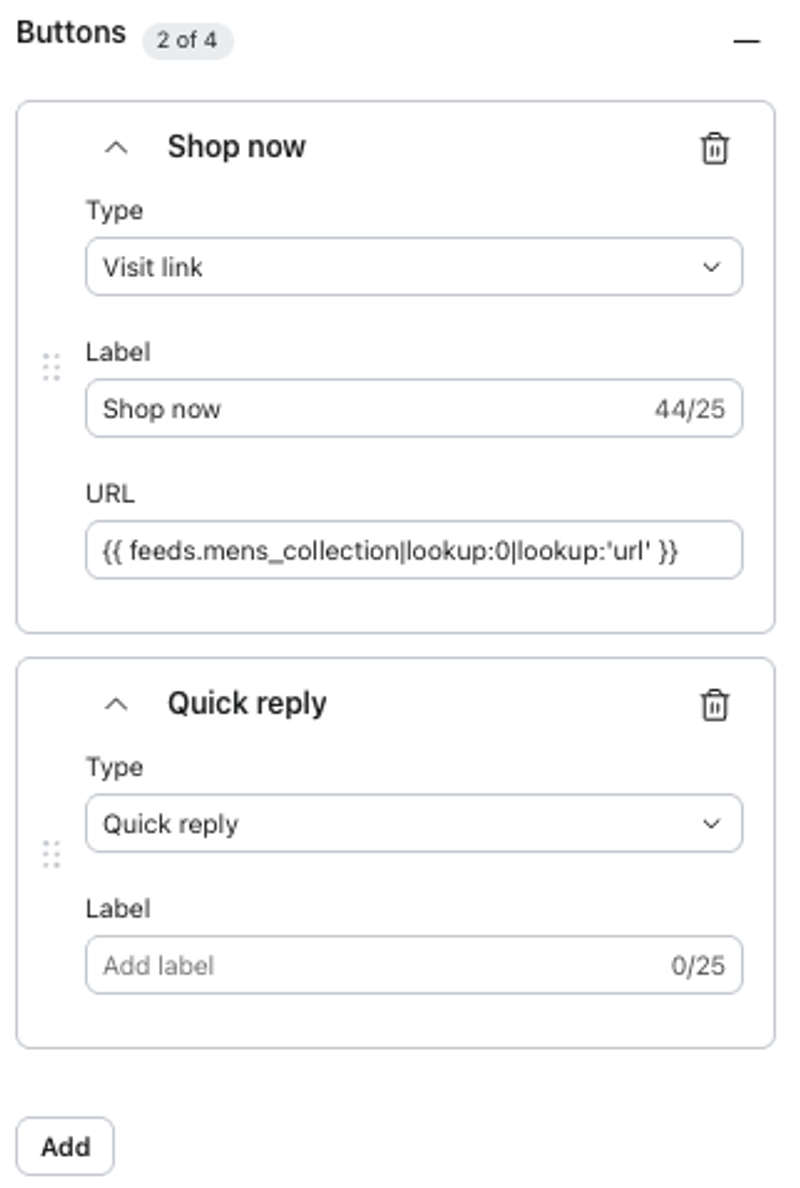
- Add buttons if desired. RCS supports up to 4 buttons per card, and each button can be either a visit link or a quick reply action.
- Select Preview & test before sending to confirm how the feed will render for recipients.
Klaviyo automatically generates an SMS fallback for profiles that cannot receive RCS messages (learn more here). SMS messages do not support multi-item feeds. Given this, the first card (highest ranked product) in your product feed will be used. If you wish to edit the content for the SMS fallback, toggle off “Use the same content from RCS message” and follow the steps above for using a product feed in SMS.
Additional resources
Was this article helpful?
Use this form only for article feedback. Learn how to contact support.