Use mobile optimization in Klaviyo Sign-up Forms
Overview
Learn how to customize a website sign-up form for desktop and mobile without creating separate forms.
Mobile optimization lets you design per-device experiences by editing mobile and desktop views side by side, and by choosing whether changes to blocks sync across devices or stay device-specific.
Before you begin
The Both preview is available when your form is set to display on All devices. Changing this setting also changes which devices can see your form.
- Some block types do not support unlinking, including email and phone number inputs, disclosure text, coupon blocks, spin-to-win blocks, and opt-in code inputs. Image blocks support unlinking. Side images have separate device settings.
How it works
Dual device preview toggle
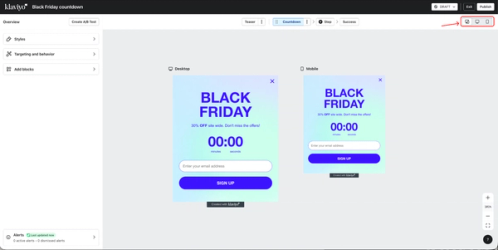
Select Both in the device preview toggle to see desktop and mobile side by side while you edit. Select Desktop or Mobile to focus on 1 device.
Linked vs. unlinked blocks
By default, equivalent blocks in desktop and mobile are linked: changes in one view carry over to the other. You can choose to unlink blocks to make mobile- or desktop-only edits without duplicating your form.
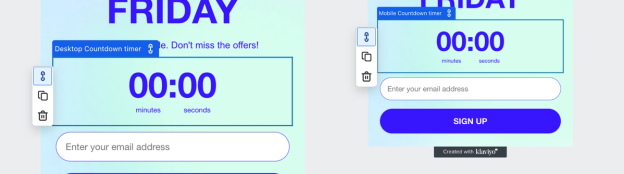
Select a supported block, then click Unlink or Link in the canvas controls or at the top of the block’s settings panel.
When a block is unlinked:
- Edits apply only to the current device view; the other device’s block isn’t changed.
- Cloning an unlinked block creates the clone only in the current device view (cloning a linked block duplicates it to both devices).
Linking blocks again:
- Linking makes the selected block visible on both devices. It does not merge or remove the other device-specific version. If that version still exists, both blocks appear on that device until you delete the unwanted version.
Teasers per device
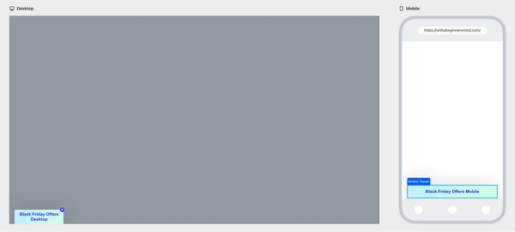
Unlink a teaser in its settings panel to create separate desktop and mobile versions that you can style independently. Linking keeps the selected teaser, shows it on both devices, and deletes the other teaser. While teasers are unlinked, their device visibility is fixed.
Step-by-step
Open dual preview
- On the Sign-up forms page, select Edit for the form you want to customize.
- Open Targeting & display behavior, then select Display. Under Devices, select All devices if you want the form to appear on both desktop and mobile.
- Select Both in the device preview toggle above the form to assess layout and spacing side by side.
Unlink a block for device-specific edits
- Select the block you want to customize on mobile.
- Click Unlink in the canvas controls or at the top of the block’s settings panel.
- Select the block in the mobile preview, then adjust its content, position, font size, or spacing for smaller screens.
- Repeat for other blocks as needed.
To customize desktop instead, select the block in the desktop preview after unlinking.
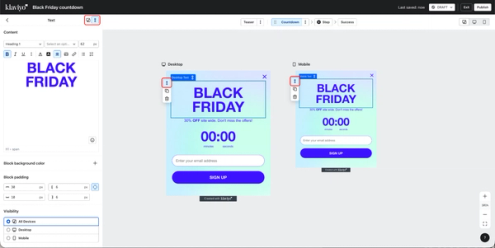
Link a block to share edits again
- Select the device-specific block whose content and styling you want to use on both devices.
- Click Link in the canvas controls or at the top of the block’s settings panel. The selected block now appears on both devices.
- Review both previews. If the other device-specific version still appears, select that unwanted block, click Delete, then confirm with Delete Block.
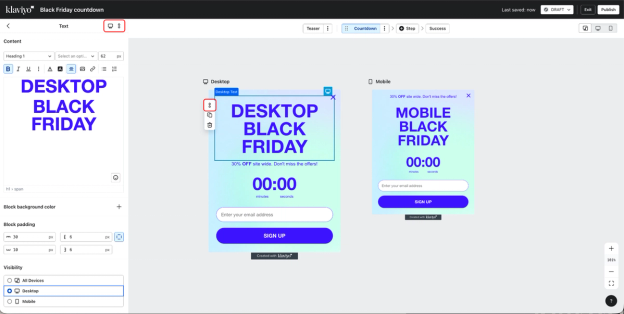
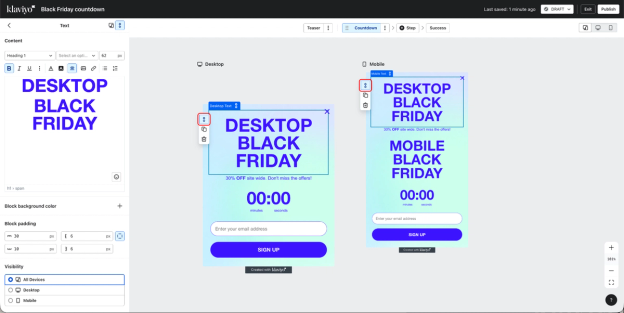
Set teasers by device (optional)
Teasers are available for popup, flyout, and full page forms.
- Select Teaser above the form to open its settings. If your form has no teaser, this creates one. Click Unlink at the top of the settings panel.
- Select Mobile in the device preview toggle and customize the mobile teaser’s content and styling.
- Select Desktop in the device preview toggle and customize the desktop teaser’s content and styling.
Linking keeps the selected teaser and deletes the other device’s teaser. To use 1 teaser on both devices again, select the device view with the teaser you want to keep, then click Link in its settings panel.
Best practices for mobile forms
- Prioritize smaller screens: use bigger fonts and concise copy.
- Increase tap targets and vertical spacing so buttons and inputs are easy to use.
- Consider a Full page form for focus and clarity, especially on smaller devices. Changing the form type applies to both device views.
- Keep imagery purposeful. If a side image competes with content on small screens, hide it or simplify the layout.
Limitations and behaviors to know
- A linked block is a single block with device visibility set to both desktop and mobile. Any edits you make in either view update that one shared block.
- When you unlink a block, the editor creates separate desktop-only and mobile-only versions. Edits to 1 version do not change the other.
- Unlinking separates block settings. Form-wide settings, such as form type and input field styles, still apply to both devices.
- Some block types, including email and phone number inputs, disclosure text, coupon blocks, spin-to-win blocks, and opt-in code inputs, cannot be unlinked. Image blocks can be unlinked; side images use separate device settings.
- Cloning behaves differently based on link state: clones of linked blocks appear on both devices; clones of unlinked blocks appear only on the current device view.
- When you link a block, the selected version appears on both devices and future edits are shared. Any other device-specific version stays in place until you delete it.
Review and publish your changes
Your edits save automatically. Publish your changes when you are ready for visitors to see the updated form.
- Review each form step and teaser in Desktop and Mobile. For buttons you unlinked or cloned, select each version and check its click action, submission list, and destination as applicable.
- Select Publish or schedule to open the publishing panel and resolve any blocking form alerts.
- To make the changes live immediately, select Publish now, then click the Publish now button.
Troubleshooting
- I don’t see Unlink or Link on a block:
Check whether the block type supports unlinking (see Before you begin). - My mobile change affected desktop (or vice versa):
Select the unlinked block in the device preview you want to edit. Changes to form-wide settings, such as form type and input field styles, still affect both devices. - I see duplicate blocks after linking:
Linking shows the selected block on both devices without removing the other version. Delete the unwanted device-specific version.