How to upload existing Magento 1 subscribers to a Klaviyo list
Klaviyo's Magento 1 integration is no longer accepting new installations and will reach full end-of-support in late 2027. Klaviyo Support is no longer able to assist with Magento 1–related requests.
Overview
Learn how to export your existing Magento 1 newsletter subscribers and import them into a Klaviyo list. This is a one-time upload and does not set up syncing for future sign-ups. For details about the data synced by your existing integration, see the Magento 1 data reference.
Export your Magento 1 subscribers
- From your Magento store admin, click on Newsletter > Newsletter Subscribers.
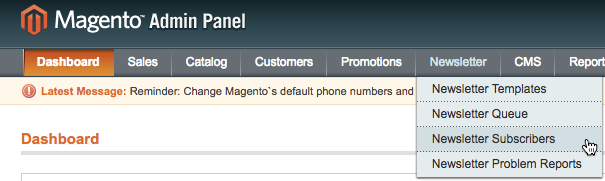
- Select all your subscribers, set Export to CSV, and click Export. A CSV file containing your existing Magento subscribers will download to your local machine.
Prepare your CSV file
Open your exported CSV file and use the first row for column headings. Include a column labeled Email or Email Address. You can also include First Name, Last Name, and other profile properties. See the CSV import guidance for file preparation details.
Include only contacts who have explicitly consented to receive email marketing from you. Remove contacts who have unsubscribed or have not given you that consent from this subscriber file.
Import your subscribers into Klaviyo
- In Klaviyo, open Lists & segments and select the list you want to add your subscribers to, such as Email List. If you already use a list for your Magento sign-up form, select that list. Click Manage list > Import contacts.
- Drag and drop your CSV into Klaviyo, or click Upload and select the file. To paste your data instead, select Switch to copy and paste CSV, paste your CSV contents including the column headings, and click Next.
- Review the sample data and map each column you want to import to the appropriate Klaviyo profile properties. Map your email address column to Email, and deselect columns you do not want to import. If the button is Next, click it to confirm consent. If Import appears instead of Next, review the mapped consent values and click Import. Then continue to Check the import results below.
- On the consent confirmation screen, select Yes only for channels everyone in your file has explicitly subscribed to. If Klaviyo asks which channels these contacts subscribed to, select Email for newsletter subscribers. Only select other channels if the contacts have separately consented to them. If your mapped columns already supply email consent and you do not have consent for another offered channel, select No to leave those channels’ subscription statuses unchanged. Confirming email consent updates subscription status for new and existing profiles.
- On the consent confirmation screen, click Import to start processing your file.
Check the import results
Klaviyo opens the import history page, where you can follow the import’s progress. When processing finishes, review the number of imported contacts and any errors. Correct skipped rows before importing them again.