How to use a subscribe page on your website
You will learn
Learn how to create and customize a subscribe page so that your customers can easily sign up to hear more from your brand.
This guide will go over how to find and customize your subscribe pages, such as with questions to gauge personal preferences, and how to use a subscribe page to grow your lists, such as by sharing the unique URL on social media or embedding it on your site.
Find your subscribe page
By default, any time you create a new list it will automatically use your account's default consent pages (manage preferences page, subscribe page, and unsubscribe page). The account's default consent pages standardize a consistent experience for subscribers; however, you can also choose to create a new set of consent pages specifically for 1 list. Changes to the account's default consent pages apply to every list that uses them.
To find your default subscribe page:
- Click on your organization name in the bottom left corner of the main menu.
- Click Settings.
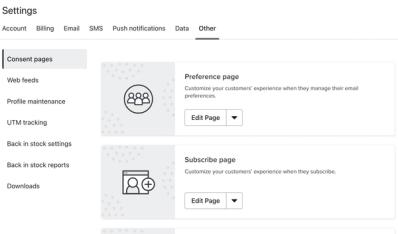
- Select Other > Consent pages.
- Under Subscribe page, click Edit Page to enter the editor.
If you customized a set of consent pages for a specific list, or you would like to, navigate to that list's unique subscribe page:
- Select Audience > Lists & segments.
- Choose your list.
- Select Consent pages from the top.
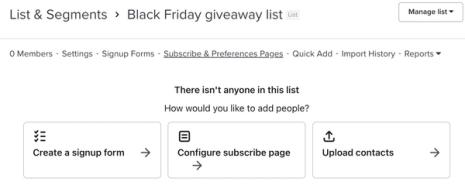
- Click Customize for this List (if you haven't yet customized any of this list's consent pages).
- Under Subscribe page, click Edit Page to enter the editor.
Style and add fields to a subscribe page
In the editor you have various options for customizing your subscribe page's style and content. You can edit the page's style settings, change any default text to match your tone or preferred language, and also add blocks or input fields to collect more information from your customers. If your list is set to double opt-in, then you can also customize the email confirmation page. Head to our guide on how to edit consent pages for more detail on the editor.
Note that it's Klaviyo best practice to only collect 1 of the 2, email or SMS consent, on a subscribe page. This guide will cover collecting email, but head to how to create an SMS subscribe link if you want to grow your SMS audience with a subscribe page.
If you add an input field to your subscribe page (e.g., a date field), select a corresponding profile property from the dropdown menu to save the customer's response on their Klaviyo profile.
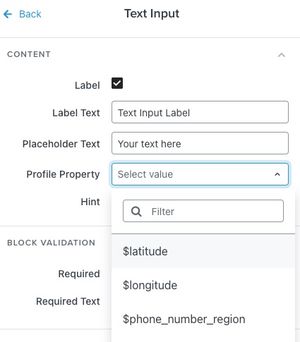
If you do not see the property you would like to use, type your own custom property into the Search or add new... box and click Create [property name].
Click Publish when you're finished editing. If prompted, review any warnings and confirm with Publish or Publish anyway. When the status changes to Live, click Exit.
Share your subscribe page URL
After publishing your changes, you can copy the URL for a list's subscribe page to share in your various marketing campaigns. To find the subscribe page URL:
- Navigate to Audience > Lists & segments.
- Choose your list.
- From the top menu bar, select Sign-up forms.
- Find the Subscribe page section.
- If you customized new consent pages for this list, you'll find a Subscribe page card. Click the 3 dots menu, then select Copy URL.
- If you customized new consent pages for this list, you'll find a Subscribe page card. Click the 3 dots menu, then select Copy URL.
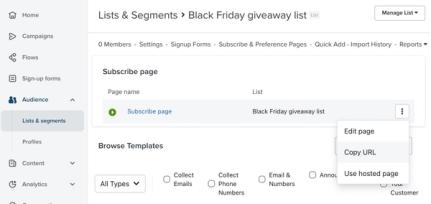
- If your list uses the default consent pages, you'll see a menu reminder that you can customize consent pages for this specific list. Beneath this reminder, click Copy Subscribe Page URL.
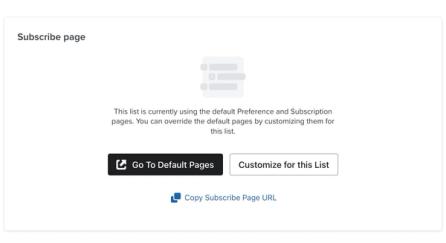
You can share this link in your social channels, such as in an Instagram story. Recipients who click on this link will be brought to a subscribe page serving as a landing page where they can sign up to hear more from your brand.
Embed the subscribe page
Using the subscribe page URL, you can also embed the subscribe page to appear as a landing page that is part of your website. Embedded forms are helpful for customers who come to your site with the intention of subscribing.
To embed this page on your website:
- Copy the snippet of code below.
- Replace SUBSCRIBE_URL with your list's subscribe page URL copied in the previous section.
- Open your website editor.
- On the page where you want the subscribe page to appear, paste the code into the page's HTML, then save and publish the page.
<iframe id="klaviyo_subscribe_page" src="SUBSCRIBE_URL&embed=1" seamless="seamless" width="100%" scrolling="no" ></iframe>
<script type="text/javascript" src="//a.klaviyo.com/media/js/lib/iframeresizer.js"></script>
<script type="text/javascript">iFrameResize({}, '#klaviyo_subscribe_page');</script>
Because pasting code requires access to your site's HTML and platform, our support team is unable to offer hands-on assistance. If you're not comfortable with code or do not have a developer on your team, consider reaching out to a Klaviyo partner.