How to add a Favorites link (icon, text, or button) to your Shopify header
Learn how to add a Favorites link to your Shopify navigation bar (header) so shoppers can open their saved products directly in Customer Hub.
You can implement this as an icon (e.g., a heart), a simple text link (e.g., "Favorites"), or a button. This guide covers how to insert the necessary code into your site's header using Shopify's Liquid code.
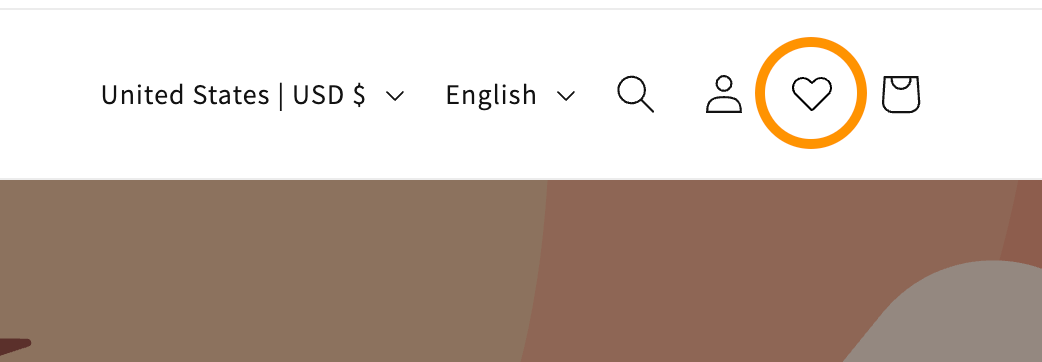
This header link opens saved favorites. To let shoppers save products from product detail or collections pages, follow How to show favorite buttons on your site and in Customer Hub.
Notice This process involves editing your Shopify theme code. If you are not comfortable writing code or do not have a developer on your team, we recommend reaching out to a Klaviyo Partner for assistance. Klaviyo support is unable to troubleshoot custom code implementations.
Before you begin
Before adding this link, set up Customer Hub on your Shopify store and enable Favorites in Klaviyo. Make sure the Klaviyo app embed is enabled in the Shopify theme you will edit.
We strongly recommend duplicating your live theme before making changes. This allows you to test the new link without affecting your live store.
- In Shopify, go to Online Store > Themes.
- Click the three dots menu (...) next to your live theme.
- Select Duplicate.
Step 1: Prepare your assets (if you want to use an icon)
For the icon option below, use an SVG file smaller than 15 KB. SVGs scale to any screen size without losing quality and can inherit your theme's colors. If you prefer a text link or button, skip to Step 2.
- You need to find an icon you want to use. This can be any icon, but we recommend using an SVG to avoid pixelation. You can download a standard (MIT-licensed) version here: Heroicons heart.svg. Save the file as icon-heart.svg to match the icon code below.
- In your Shopify Admin, navigate to Online Store > Themes.
- Find the duplicate theme and click the three dots menu (...) > Edit code.
- In the left sidebar, right-click the assets folder and select Upload... to open the file picker.
- Select your SVG file and click Open.

Step 2: Insert the header (top navigation bar) link
Next, add the code snippet for your icon, text link, or button. Each option opens Favorites in Customer Hub.
- If you skipped Step 1, open the code editor in Shopify: go to Online Store > Themes. Next to the duplicate theme, click the three dots menu (...) > Edit code. In the duplicate theme’s code editor, locate the file that controls your header.
- Online Store 2.0 themes (e.g., Dawn): Search for
sections/header.liquid. - Vintage themes: Search for
snippets/header-icons.liquidorheader-bar.liquid.
- Online Store 2.0 themes (e.g., Dawn): Search for
- Find the insertion point: Press
Ctrl+F(orCmd+Fon Mac) and search for the wordcartoraccount. You want to paste your new code inside the same container (usually a<div>or<ul>) that holds these existing icons. - Paste 1 of the code options below where you want the link to appear (e.g., right before the Cart icon).
Option A: Icon link
Use this code if you completed Step 1 and want to display a heart icon, assuming it's named icon-heart.svg in our example:
<a href="#k-hub/favorites"
   id="favorites-icon-bubble"
   aria-label="Open Favorites"
   title="Favorites"
   style="display:flex;align-items:center;justify-content:center;height:4.4rem;width:4.4rem;">
  <span style="height:20px;width:20px">
    {{ 'icon-heart.svg' | inline_asset_content }}
  </span>
</a>
Option B: Text link or button
Use this code if you prefer a text link or a button. You do not need to upload any assets for this.
For a simple text link:
<a href="#k-hub/favorites" class="header__menu-item header__menu-item--list" style="text-decoration: none;">
  Favorites
</a>
For a button:
<a href="#k-hub/favorites" class="button button--primary">
  Favorites
</a>- Click Save.
Tip: Matching your theme's style If your theme uses a specific CSS class for header icons (e.g.,header__iconoricon-link), you can replace the inlinestyle=attribute in the code above with that class (e.g.,class="header__icon"). Preview the result to check that the spacing and hover effects match your other header links.
Step 3: Test and publish your changes
After saving your code, preview the edited theme and test the link before publishing it.
- In Shopify, go to Online Store > Themes. Next to the duplicate theme you edited, click the three dots menu (...) > Preview.
- Check the header on desktop and mobile. You should see the icon, text link, or button you added. Click it and confirm that it opens your saved favorites in Customer Hub.
- When you are ready to make all changes in the duplicate theme visible to customers, return to Online Store > Themes. In Draft themes, find the edited duplicate and click Publish.
- Open your live store and test the Favorites link again.
Troubleshooting
If the link does not appear, looks incorrect, or does not open Customer Hub:
- Icon does not display: Check that the file is in the assets folder, is an SVG smaller than 15 KB, and is named exactly
icon-heart.svgto match the code snippet. The filename is case-sensitive. - Icon is misaligned: You may need to adjust the
heightandwidthvalues in the code snippet'sstyleattribute to match your theme's navigation bar height. - Changes not showing: Confirm that you are previewing the theme you edited. Reopen its Preview from Shopify. Saving a duplicate theme does not update your live store; publish it after testing.
- Link does not open Customer Hub: Confirm that Customer Hub is set up and the Klaviyo app embed is enabled in the theme you are viewing. Check that the link still uses
#k-hub/favorites.