Accessibility in emails and forms best practice reference
You will learn
Learn how to make your emails and sign-up forms more accessible. When designing your emails and sign-up forms, you’ll want to make sure your designs are accessible to all of your recipients.
Accessibility in emails
Optimize subject lines and preview text
Make your subject lines and preview text descriptive, enticing, and short.
Follow general email design best practices
Following general email design best practices will make your emails more accessible:
- Add descriptive alt text to images that convey information, including images used as links. Leave alt text empty for purely decorative images that are not links.
- Avoid image-only emails.
- Avoid using images to convey key details.
- Use text and background colors with sufficient contrast. White and black provide strong contrast; combinations such as grey and dark blue or pink and dark red depend on the shades. Check your exact colors with WebAIM’s contrast checker.
- Use headings to separate ideas.
- Use descriptive links (e.g., "Shop the collection" rather than "Click here to go to the collection").
- Structure your emails logically.
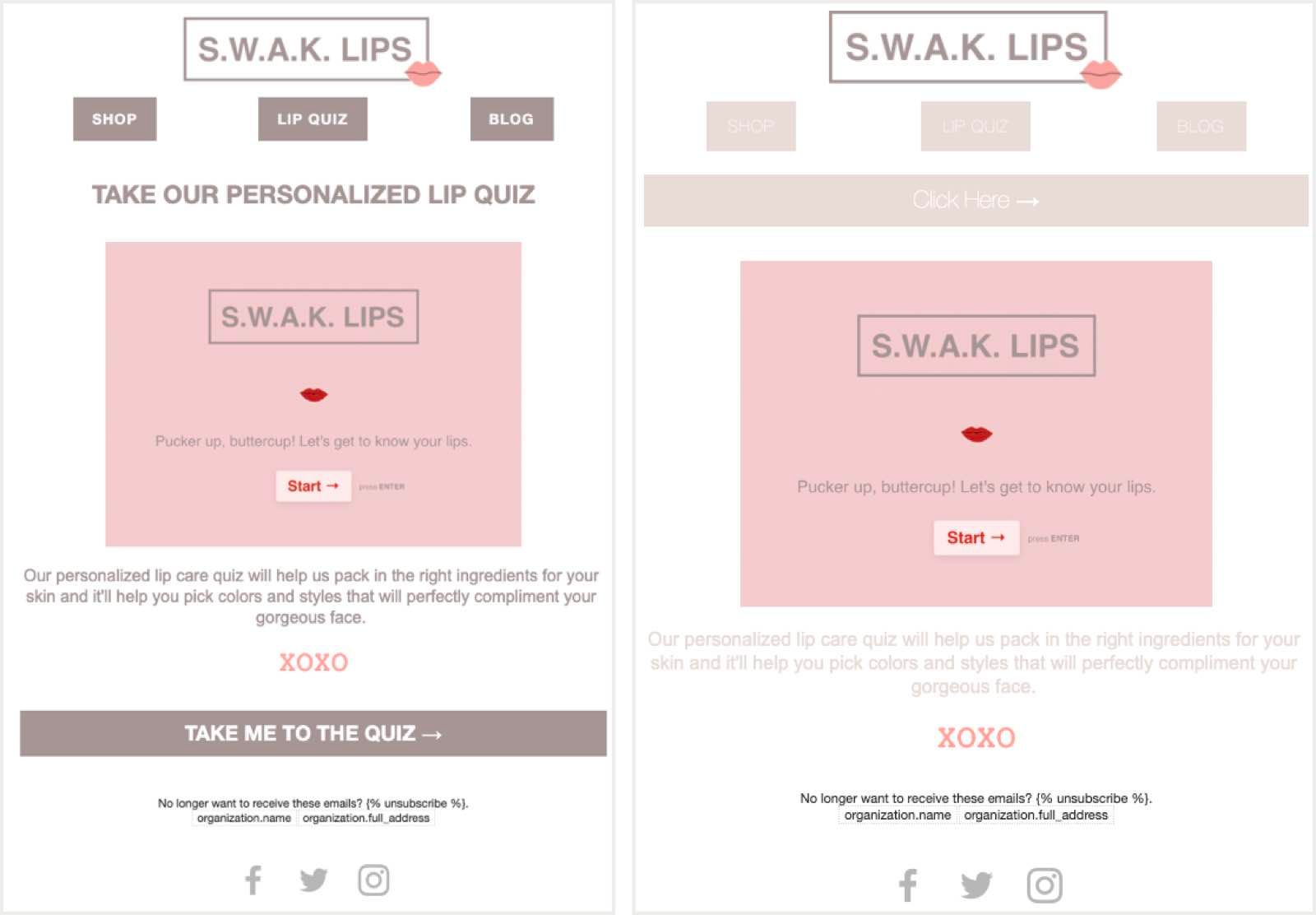
Below is an example of an email that is optimized for all recipients (left) and one that is not (right).
Accessibility in sign-up forms
Klaviyo sign-up forms include keyboard and screen reader support, but you still need to check your form’s content and design for accessibility. Visitors can use Tab to move between fields and buttons and press Enter on a focused submit button. They can press Escape to close popup and flyout forms.
To make keyboard focus easier to see, select Edit styles in the form editor and choose a contrasting color under Focus outline.
Sign-up form design
Just like email design, you'll want to follow some basic guidelines to ensure that all of your recipients will get the information you want to share with them through your forms. When designing forms:
- Use contrasting text and background colors, and check your exact shades with WebAIM’s contrast checker.
- Avoid putting pertinent information in images.
- Use descriptive language in links.
- Build your forms in a logical structure.
As you build your sign-up form, Klaviyo checks for common accessibility issues. Select Alerts in the form editor, then review Active alerts and follow each card’s instructions to fix the identified issues.
Automated checks do not catch every accessibility issue. Test your form with a keyboard and screen reader before publishing. To make your updates live on your site, select Publish or schedule, choose the Publish now option, and click Publish now.
Head to how to create an ADA-friendly sign-up form to learn more about creating accessible sign-up forms in the Klaviyo form editor.
Below is an example of a well-designed form (right) and a form that will not be accessible to all (left).