How to create ADA-friendly sign-up forms
You will learn
Learn how to use the accessibility assistant feature in the Alerts panel of the sign-up forms editor to avoid some of the most common web content accessibility guidelines (WCAG) compliance issues. Companies striving to make their websites ADA-friendly should reference and follow WCAG standards. The accessibility assistant guides you in creating sign-up forms that are accessible for all of your site visitors.
The WCAG standards aim to make web content more accessible to everyone, including people with disabilities. Website accessibility is a legal requirement in many countries, and implementing WCAG standards can help satisfy many of these accessibility needs. Please note that while the accessibility assistant is intended to help identify accessibility issues under the WCAG 2.0 AA standards as they apply to sign-up forms, it may not be able to identify every accessibility requirement due to known limitations of existing technology or other factors independent of technology. Use of the accessibility assistant can help with web accessibility requirements, but does not guarantee compliance with applicable laws. To confirm legal implications and requirements of web accessibility, it is recommended to seek the advice of a qualified lawyer.
Before you begin
Below is a list of issues that the accessibility assistant will check for. Please note that the error types listed below are how Klaviyo's accessibility assistant identifies them, not specific input field names in the form builder. If an error is detected, an alert with a description and fix prompt will appear in the Alerts panel.
Error type | Description |
Button-name | Ensures buttons have discernible text. |
Image-alt | Ensures image elements have alternate text (alt text) or an HTML role of “none” or presentation. |
Color-contrast | Ensures the contrast between foreground and background colors meets WCAG 2 AA contrast ratio thresholds. |
Link-in-text-block | Ensures links are distinguishable from surrounding text in a way that does not rely on color. |
Link-name | Ensures links have discernible text. |
Label | Ensures every form element has a label. |
Create an ADA-friendly sign-up form
Whether you’re building your first sign-up form or updating a form, the accessibility assistant helps you identify and fix accessibility issues.
To create a form in line with the WCAG standards listed above:
- Create a new sign-up form or open up the form editor for one of your existing sign-up forms.
- Use the editor to add content blocks and style the form to fit your brand.
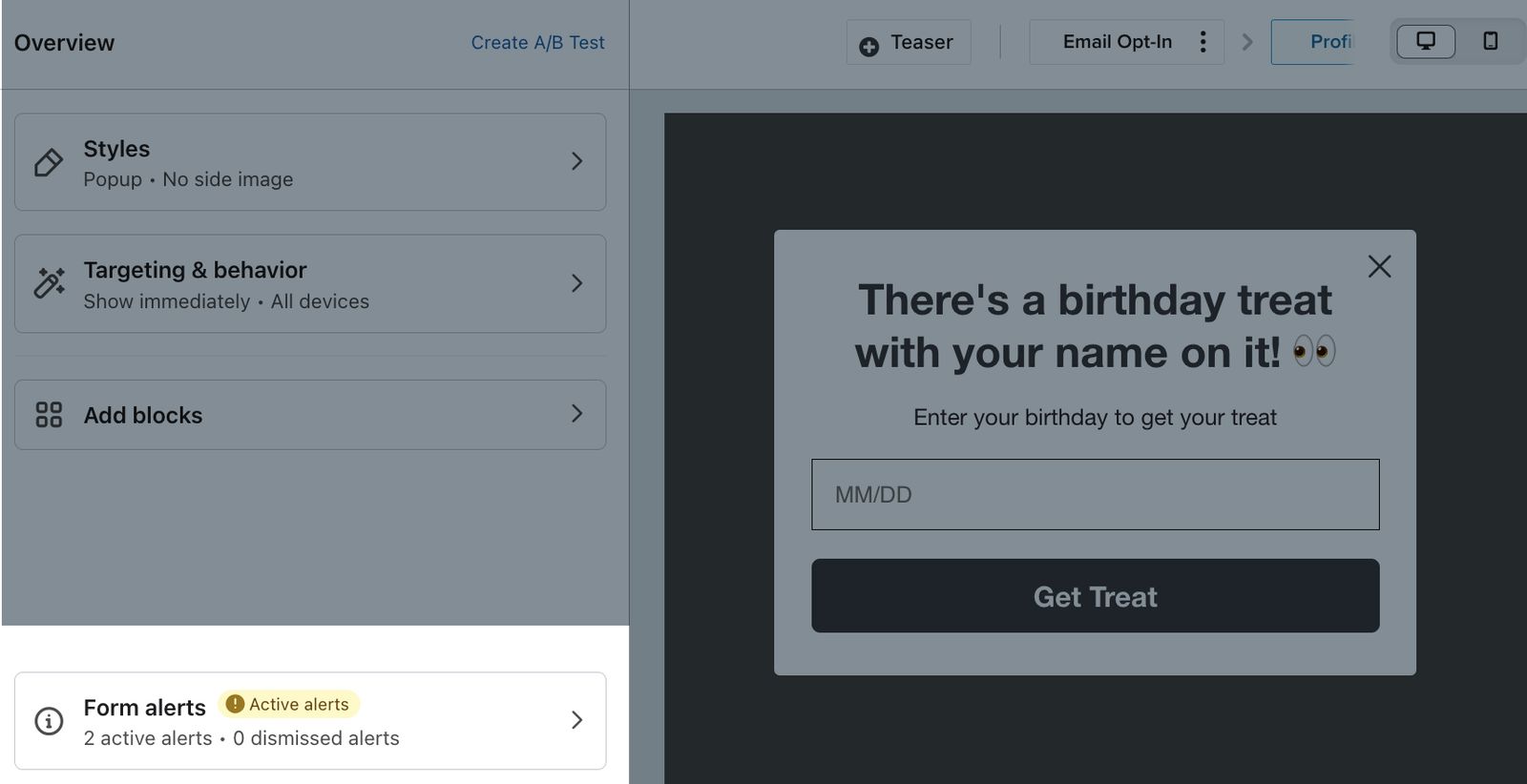
The accessibility assistant monitors for accessibility issues as you build your form and logs the issues it identifies under Active alerts. When updating an existing form, check Active alerts for unresolved issues and Dismissed alerts for issues you previously ignored.
- Click Alerts in the top right of the editor to see the identified accessibility issues.
Under Active alerts, you’ll see various cards describing the elements that don't meet WCAG standards that the accessibility assistant identified in your form, in addition to other content or design issues identified. Each card will include a description of the issue and a prompt to either fix or dismiss it. For example, if an image in your sign-up form is missing alt text, the accessibility assistant will alert you to add alt text to the image. Alt text provides a description of the image so that shoppers browsing your site with a screen reader can access the digital content.
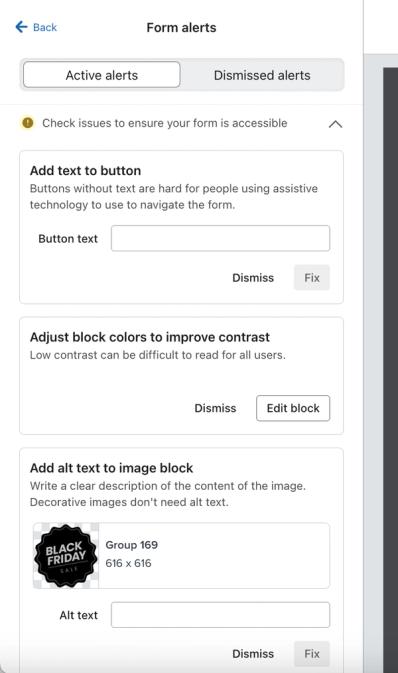
- For an alert with an input field, enter the missing or corrected information in the card, then click Fix.
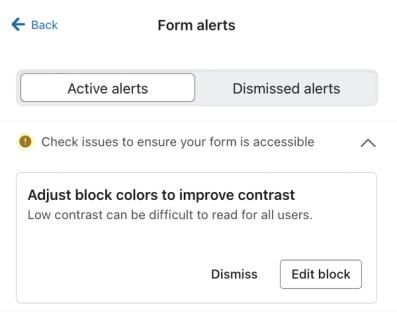
For issues that need changes in a block, styles, or teaser settings, read the alert description and click the action shown on the card: Edit block, Go to block, Go to styles, or Go to teaser. Make the suggested changes, then return to Alerts to check for remaining issues.
- If you wish to ignore one or more of the accessibility suggestions, click Dismiss. In the confirmation modal, click Dismiss to confirm or Cancel to keep the alert active.
Once you successfully fix or dismiss all identified issues, you will see a “No active alerts” message shown in the Alerts panel.
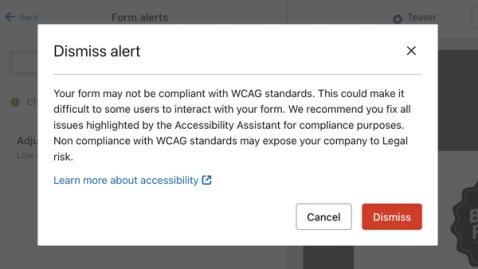
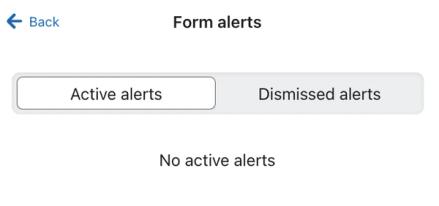
You can return to ignored issues at a later time by opening Alerts and selecting Dismissed alerts. It is recommended you fix all issues highlighted in the accessibility assistant. Non-compliance with WCAG standards may expose your company to legal risk.
Accessibility alerts do not block publishing, but it is recommended that you resolve them. Other form alerts can block publishing and must be fixed before you continue. Select Review alerts in the publish panel to return to Alerts and address them.
- Click Publish or schedule, select the Publish now option, then click Publish now to make your accessibility updates live.
Test your form with JAWS
JAWS is a screen reader for Microsoft Windows. Test your published sign-up form with JAWS to check that visitors can read and use it.
Check that JAWS reads the form’s text, image descriptions, and field labels. Use the keyboard to move through the fields, submit the form with test contact information, and close it if it has a close button.
Next steps
It is important to maintain WCAG standards across all of your Klaviyo sign-up forms. Previously published sign-up forms may still contain accessibility issues for you to fix, but note that Klaviyo will not automatically fix any WCAG non-compliant issues.
Navigate to the Alerts panel within the editor for each of your existing forms to resolve any accessibility issues to help with WCAG-compliance on your website.
Additional resources
- Accessibility in emails and forms best practice reference
Learn how to make your emails and sign-up forms more accessible. When designing your emails and signup forms, you’ll want to make sure your designs are accessible to all of your recipients.
- Getting started with sign-up forms
Learn how to create and customize sign-up forms in Klaviyo to publish on your website so you can engage shoppers, collect emails and phone numbers, and build long-lasting customer relationships.
- List of Axe HTML 4.5 rules